Configuration settings
On the Configuration page of the Collibra settings, you can view and edit core system configuration options, such as security, authentication, email notifications, and search indexes. The same settings are also available in Collibra Console.
Accessing the configuration settings
To access the Configuration page, you need a global role with the Configuration > View global permission. To edit settings, you also need the Configuration > Edit global permission. Both permissions are included in the Sysadmin role by default.
General settings
The general settings of the Collibra Platform:
| Setting | Description |
|---|---|
| Default locale |
The default language and locale for users of the environment. It has to contain a language code and may contain a country code.
Examples: en-US, fr-FR. |
|
Show target asset type above relation table |
|
|
Homepage |
|
| New Main Navigation Menu |
|
 Disabled: Hide the asset type of the target asset.
Email configuration
The configuration of email notifications.
Note In a Collibra Platform environment, you cannot update the email server settings, such as host and port. For more information, see Collibra Platform infrastructure.
| Setting | Description |
|---|---|
| Default schedule |
The cron schedule for sending automated workflow notification emails at specific times. This allows you to send emails in batches and prevent an overload of messages. This setting applies only to automated workflow notification emails that inform users about task assignments or workflow status updates. It does not affect emails sent as part of an email task. If you create an invalid cron pattern, Collibra stops responding. |
| Template map | The location of template emails. |
| From address* | The email address used as the sender of all outgoing emails. |
| Email address change notification |
|
Notifications
The configuration of notification emails to users.
Note Users can override the notification settings set here on their profile.
| Setting | Description |
|---|---|
| Notification days |
The days of the week on which Collibra sends notifications. The days are represented by numbers from 1 to 7, where 1 represents Sunday. You can only add one day per row. |
| Daily roles | The roles that receive notifications on the days defined in Notification days. The default role that will receive notifications on a daily or weekly basis is Business Steward. |
| Enable monthly notifications |
|
| Roles for monthly notifications | The roles that receive monthly notification emails. This is only relevant if Enable monthly notifications is  Enabled. The default roles that will receive notifications on a monthly basis are Business Steward and Stakeholder. Enabled. The default roles that will receive notifications on a monthly basis are Business Steward and Stakeholder. |
Hyperlinking configuration
The configuration of automatic hyperlinks. When you change a setting, you have to rebuild the hyperlinks.
| Setting | Description |
|---|---|
| Enable hyperlinking |
For more information about automatic hyperlinks, go to Automatic hyperlinking. Warning Enabling this setting affects the platform performance.
|
| Enable case sensitivity |
Note If you edit this setting, you must reindexCollibra. |
|
Excluded asset type IDs |
List of asset types that are ignored by automatic hyperlinking. You can use this setting to exclude particular asset types so that not all the assets become potential targets for automatic hyperlinking. Tip
Note If you edit this setting, you must reindexCollibra. |
Recommender configuration
The configuration of the recommender.
We recommend not to change the default values of this configuration.
| Setting | Impacts | Description |
|---|---|---|
| Catalog recommender enabled | All recommendations |
|
| Data set recommender execution time | Recommendations of data sets to users |
The cron schedule by which the data set recommender looks for recommended data sets for a user. By default the data set recommender does this every night. |
| Asset recommender execution time | Recommendations of business assets to data assets | The cron schedule by which the asset recommender looks for suggested relations between business assets and data sets. |
| Data set matcher execution time | Data set matcher | The cron schedule by which the data set matcher looks for similar data sets. |
| Data set similarity threshold | Data set matcher |
The amount of business assets that have to be related to two data sets before the data sets are considered to be similar. This percentage is expressed by a decimal where 1 equals 100%. Example If this value is 0.3 and at least 30% of the related business assets are related to both data sets, they are considered to be similar. |
| Duplicate schema threshold | Schema matcher |
The amount of assets that have to be related to both schemas before the schemas are considered to be similar. This percentage is expressed by a decimal where 1 equals 100%. |
| Fuzzy vs exact matching strategy for business assets | Recommendations of business assets to data sets and of business assets to column assets |
The percentage that determines to what extent assets with a similar name become more important. The ranking in the search engine results always has an impact on the suggestion score. However, similarity between the asset names can also be taken into account. If you decrease this percentage, the ranking of the search results becomes more important for the suggestion score, while the similarity between the asset names becomes less important. If you increase the percentage, assets with similar names will receive a higher suggestion score. This percentage is expressed by a decimal where 1 equals 100%. You can enter a value greater than 1. |
| Recommendation weights for data sets | Recommendations of data sets to users |
An ordered comma-separated list of values that define the importance of properties for recommendations. The order of the values reflects the importance of the value. This setting is only used for data set recommendations if your Collibra does not yet have enough data for relevant results from the active recommendations algorithms. Possible values:
|
| Active recommendation algorithms | Recommendations of data sets to users and of business assets to data sets |
A comma-separated list of algorithms that calculate recommendations. By default, all available algorithms are listed. Possible values:
|
| Data set elements threshold | Recommendations of data sets to users |
The maximum number of elements per data set that the recommender will use to train the model. The data set elements are taken randomly. |
Warning If you create an invalid cron pattern, Collibra stops responding.
Search index configuration
The configuration of the search index.
| Setting | Description |
|---|---|
| UI search appends wildcard * |
An asterisk isn't added if:
Note This setting applies only to search texts via the user interface. A wildcard isn't automatically added to search texts via REST API.
|
| Maximum batch size * |
The maximum batch size for resource reindex.
|
|
Maximum batch size for relations * |
The maximum batch size for relation reindex.
|
|
Maximum batch size for relation path preview * |
The maximum batch size for the relation path preview of relation index.
|
| Relation-based search |
Example A column named Order is included in a data set named Customer. If the relation-based search is enabled and you search for Order in Data Marketplace or Search, then the data set Customer appears in the search results because the data set contains this column. Tip For more information about this feature and the default relation types, go to Filtering and searching based on relations in Data Marketplace.
After you enable this setting, you must reindex Data Marketplace relations or reindex Collibra completely. Note In new Collibra environments, this setting is enabled by default. In upgraded Collibra environments, the previous status of this setting is retained. |
Slow logs configuration
The configuration of the slow logs function.
| Setting | Description |
|---|---|
| Indexing threshold |
The time limit, in milliseconds, after which an index query is logged in Elasticsearch. If the value is set to 0 (zero), all index queries are logged. Changes to this setting require a full reindex of your Collibra Platform environment. |
| Fetching threshold |
The time limit, in milliseconds, after which a fetch query is logged in Elasticsearch. If the value is set to 0 (zero), all fetch queries are logged. Changes to this setting require a full reindex of your Collibra Platform environment. |
Search Event Log configuration
The configuration of indexing.
| Setting | Description |
|---|---|
| Automatic relation indexing |
This setting keeps Data Marketplace up to date if relations between assets are created, updated, or removed. Example If the relation between asset A and asset B changes and this relation is used in relation-based filters or relation-based search, then the Data Marketplace search considers this change.
Tip For more information about this feature and the default relation types, go to Filtering and searching based on relations in Data Marketplace.
Note Collibra does not automatically reindex relations between assets for relation paths that end with an attribute. You need to manually reindex the relations.
Suppose that you created a path that ends with an attribute: Table A contains Column B with attribute Privacy. If you have a column with attribute Privacy and value "sensitive data," a user searching for "sensitive data" can find Table A based on the relation path. However, changes to the attribute value will not be picked up automatically during automatic reindexing.
|
Upload configuration
The configuration of the file upload service.
The file upload restrictions apply to the following actions in Collibra:
- Importing and exporting assets and complex relations.
- Uploading attachments.
- Importing and exporting CMA files in the Migration feature.
| Setting | Description |
|---|---|
| Accepted content types |
The MIME type names of the files you want to allow for uploads. For example, type application/pdf for PDF files. |
| Restricted content types |
Content types in MIME type format that cannot be uploaded. Restricted content types take precedence over an accepted content types:
|
Statistics configuration
The configuration of statistics.
| Setting | Description | ||||||||||||||
|---|---|---|---|---|---|---|---|---|---|---|---|---|---|---|---|
| Buffer size |
The maximum amount of statistics entries that the buffer can contain before saving them in the database. The default value is 10. |
||||||||||||||
| Buffer flush time |
The maximum amount of time in milliseconds to keep statistic entries in memory before saving them in the database. The default values is 10,000. |
||||||||||||||
| Cron map |
List of statistics, listed by their cron name, and a cron interval. These are the default values:
If you create an invalid cron pattern, Collibra stops responding. |
Import configuration
The configuration for imports.
| Setting | Description |
|---|---|
| Enable workflows during import |
Note This setting does not affect API import calls, which never start workflows. |
| Asset responsibilities support |
Warning Setting specific responsibilities on a large number of resources will affect the performance and stability of the system. |
| Number of failed commands before stopping import job |
An import job with the option to continue on error enabled will stop after the specified number of commands have failed. Any valid command is still committed to the database until the moment the job stops, which can lead to some resources being imported. The default and maximum value is 100. |
| Temporary data location |
The location of the temporary files used by the import job. The default value is FILE. |
|
Max number of concurrent import jobs |
The maximum number of import jobs that can be executed at the same time via the API. This is to avoid memory issues. The default value is 4. The maximum is 8. |
Excel import configuration
The configuration of Excel import.
| Setting | Description |
|---|---|
| The default CSV separator character | The default separator character of the CSV fields for complex relations. |
| The default CSV quote character | The default quote character of the CSV fields for complex relations. |
|
Number of rows per chunk of data |
When importing views, the database is called repeatedly, each time importing a chunk of data from the import file. This option defines how many rows each chunk of data can contain. Lower values reduce the burden on memory. Higher values require more memory, but may slightly increase the speed of the export. The default value is 5,000. |
Excel export configuration
The configuration of Excel export.
CSV export configuration
The configuration of CSV export.
| Setting | Description |
|---|---|
| Always use quotes |
|
|
Number of rows per chunk of data |
When exporting views, the database is called repeatedly, each time fetching a chunk of data to build the export file. This option defines how many rows each chunk of data can contain. Lower values reduce the burden on memory. Higher values require more memory, but may slightly increase the speed of the export. The default value is 5,000. |
Security configuration
The configuration of security.
| Setting | Description |
|---|---|
| X-Frame options |
Content of the HTTP-header |
| Limit user sessions |
|
|
Office research guest access |
Note Currently, the Office research integration is available only when Collibra Platform is publicly available, which is why this override setting is necessary. |
| Prevent advanced html features in text dashboard |
Text widgets in dashboards can contain full HTML, which introduces the risk of cross-site scripting (XSS) attacks if malicious HTML is injected. You can use this setting to control the behavior of Text widgets.
Note
|
| Enable custom validation functions |
|
LDAP
The configuration of an LDAP server to handle the authentication.
| Setting | Description |
|---|---|
| Enable LDAP integration |
|
| Sync after restore |
|
| User page size |
The page size that is used when retrieving users during synchronization. The default value is 500. You can set it to 0 to disable paging. Note This is a global setting. If you are working with multiple LDAP servers, only the value for the main server is considered. |
| Group page size |
The page size that is used when retrieving groups. You can set it to 0 to disable paging. Note This is a global setting. If you are working with multiple LDAP servers, only the value for the main server is considered. |
| Time limit |
The time limit in milliseconds for all LDAP searches. The default value is 120,000. You can set it to 0 to disable the time limit. Tip
|
| Sync job enabled |
|
| Sync job cron |
The schedule to perform an LDAP synchronization (CRON). The default value for this setting is daily at midnight. If you create an invalid cron pattern, Collibra stops responding. |
| User field mapping | The configuration mapping of all the user fields. This determines which LDAP field is mapped to which user field. Empty fields are ignored during the synchronization. |
|
Username *
|
The unique user ID in the LDAP, typically UID. This is required. |
|
Email *
|
The corresponding email field in the LDAP directory. This is required. |
|
First name
|
The first name field in the LDAP directory. |
|
Last name
|
The last name field in the LDAP directory. |
|
Middle name
|
The middle name field of the LDAP directory, this is usually givenName. |
|
Enabled
|
An indication of whether a user is active or inactive in LDAP. |
|
Language
|
The language and locale of the user. It must contain a language code and may contain a country code.
Example pl, en_US, nl_BE. |
|
Title
|
The mapping for the user's job title. |
|
Department
|
The mapping for the user's department. |
|
Group
|
The LDAP property that defines to which Collibra groups the user should be added. Use group names, this field does not support group IDs. If there is a group entry in the LDAP directory, use the Group field mapping settings. |
|
Additional email list
|
An additional email list. |
|
Instant messaging fields
|
The mapping for the user's IM locations. |
|
Website map
|
Enter the field value and field key to map a social media website. |
|
Phone
|
The mapping for the user's phone. |
|
Fax
|
The mapping for the user's fax number. |
|
Mobile
|
The mapping for the user's mobile number. |
|
Pager
|
The mapping for the user's pager number. |
|
Private
|
The mapping for the user's private number. |
|
Work
|
The mapping for the user's work number. |
|
Other
|
The mapping for any other phone number for this user. |
|
Home address
|
The mapping for the user's home address. |
|
Street
|
The mapping for the user's street. |
|
Number
|
The mapping for the user's number. |
|
City
|
The mapping for the user's city. |
|
Post code
|
The mapping for the user's postal code. |
|
State
|
The mapping for the user's state. |
|
Country
|
The mapping for the user's country. |
|
Work address
|
The mapping for the user's work address. |
|
Street
|
The mapping for the user's street. |
|
Number
|
The mapping for the user's number. |
|
City
|
The mapping for the user's city. |
|
Post code
|
The mapping for the user's postal code. |
|
State
|
The mapping for the user's state. |
|
Country
|
The mapping for the user's country. |
|
Gender
|
The mapping information for the user's gender. |
|
Mapping
|
The attribute key for the gender value. If the content equals one of the male or female mappings, the user will be saved as male or female. Otherwise a default of UNKNOWN will be used. |
|
Male value
|
The value for male users. |
|
Female value
|
The value for female users. |
| Group field mapping | Groups can be defined as a separate structure or as a userField. The following section allows you to sync with a group structure that is unrelated to the user structure. |
|
Group name field
|
The name of the group to use in the application. |
|
Users field
|
The user DNs that are member of the group. |
|
Servers
|
The Collibra parameters to map with your LDAP server parameters. |
|
LDAP server URL
|
The URL or IP address to the LDAP server, for example, ldap://ldap.yourcompany.com:389 or ldaps://ldap.yourcompany.com:636. |
|
Bind DN
|
The DN of the administrator user that is used for authentication, for example, admin. |
|
Bind password
|
The password of the administrator user. |
|
Base DN
|
The base DN for when you are working with relative DNs. This base DN is used for all LDAP look-ups. |
|
User base
|
The base DN of where the LDAP users for Collibra are located. If a base has been specified, it is used as a prefix for this user base. Subtree search is used, so all DNs located below are searched for matching users. |
|
Authentication user LDAP filter
|
The filter that specifies which users can authenticate in the application. By default, all the objects found in the user base are selected, including the root. |
|
Synchronization user LDAP filter
|
The filter that specifies which users are imported by the synchronization job. The users have to be the same as, or a subset of, the Authentication user LDAP filter. If you provide no value for this setting, the same filter as specified for the Authentication user LDAP filter setting is used. That allows you to synchronize only the users that need to have access to the application, even if they have not signed in yet. Users in the Authentication user LDAP filter are synchronized each time they authenticate and are only available after the first sign-in to the application. This is the default setting. |
|
Authentication type
|
The authentication mechanism for authenticating users on the LDAP servers. |
|
Shutdown gracefully
|
|
|
Referral Setting
|
Specifies what to do with referrals. The following table contains the possible values. Note If you are experiencing slow searches on Microsoft Active Directory with the follow value for the Referral setting, try using the Global Catalog as Active Directory domain controller. The Global Catalog enables searching for Active Directory objects in any domain in the forest without the need for subordinate referrals. This can dramatically speed up searching. However, the Global Catalog only contains a subset of the attributes of an object. This solution is only viable if the attributes requested for the search results are stored in the global catalog. Note that the Global Catalog is accessible on port 3268/3269, not the standard 389/636 LDAP ports. |
|
Group base DN
|
The base DN of where all the groups are located. If a base has been specified, that base is used as the prefix for this group base. |
|
Group LDAP filter
|
The LDAP filter to which each group has to comply to be synchronized. |
| Batch synchronization | The synchronization of the users with the LDAP server happens in batches. |
|
Batch size
|
The number of users in each batch. If a batch fails, none of the users in that batch is updated and the user names are listed in the DGC service log. Other batches are processed as normal. After processing all batches, Collibra disables users that are no longer in LDAP, unless one ore more batches failed. Set the value to 0 to disable batch processing. |
Password
The configuration of passwords.
| Setting | Description |
|---|---|
| Minimum length |
The minimum length of passwords. The default minimum length is 12. |
| Maximum length |
The maximum length of passwords. The default maximum length is 1,024. |
| Digits required |
|
| Non alphanumeric required |
|
| Uppercase required |
|
| Lowercase required |
|
| Username disallowed |
|
|
Expiration interval (months) |
The number of months before users have to change their passwords. Set it to 0 if users never have to change their passwords. The default interval is 3 months. |
|
Allowed login failures |
The number of consecutive failed login attempts that are allowed before the user account is disabled. Set it to 0 for unlimited attempts. The default is 3 login failures. |
|
No reuse count |
The number of previous passwords users cannot reuse. The default is 1: the user cannot change his password to what it currently is. Set this to 0 to allow using the same password. |
| Password reset link validity period |
The number of minutes that a link to reset a password remains valid. Beyond this time, the user has to request a new password reset link. The default value is 60 minutes. The minimum value is 15 minutes, the maximum value is 1,440 minutes (24 hours). |
| Account lock-out duration |
The number of minutes that a user cannot sign in after too many failed sign-in attempts. If the number of minutes is set to 0, a Collibra administrator must reset the password to unlock the account. This setting is only applicable if the "Allowed sign-in failures" setting is defined. A locked-out account does not mean that your account is disabled. |
REST
The security configuration of the REST interface.
| Setting | Description |
|---|---|
| Limited CSRF |
This option offers limited security, so we recommend upgrading to the Enhanced CSRF.
|
| Referrer enabled |
|
| Referrer checking allow empty |
|
SSL
The configuration of SSL.
SSO
The configuration of Single Sign-On (SSO) authentication.
| Setting | Description |
|---|---|
| Mode |
The SSO mode of Collibra. The possible values are:
|
| Header |
The name of the header to be checked. The contents of this header is used for the search query, which is SSO_HEADER = username. The value of the actual query depends on DN and possibly Attribute. |
| DN |
If the SSO mode is SSO_HEADER_LDAP or SAML_LDAP, this field determines whether the distinguished name (DN) or attribute is used:
If the SSO mode is DISABLED, SSO_HEADER or SAML_ATTRIBUTES, this field is ignored. |
| Attribute |
This field is only used if the SSO mode is SSO_HEADER_LDAP or SAML_LDAP, and if DN is False. If the above criteria are met, the LDAP has to contain this value. Example
If Attribute is FirstName, then the header should contain the FirstName of the user that was signed in. |
|
Disable automatic user creation when signing in via SSO |
If users try to sign in via SSO, they still need a user account in Collibra. You can either create the user accounts automatically when they sign in, or create the user accounts manually or via LDAP synchronization
|
|
Disable the Collibra signin page |
When SSO is enabled, a user can still navigate to the /signin page and try to log in via that page. However, you can disable that page.
|
| SAML | The configuration of SAML. |
|
Metadata HTTP
|
The URL of the SAML metadata file to be used. The URL always has to be reachable by the Collibra environment. |
|
Identity Provider Entity ID
|
The entity ID inside the metadata to be referenced. Note A metadata file can describe multiple entity IDs, make sure to use in the entity ID from the correct metadata file. |
|
Attribute fields
|
The mappings of attributes in the SAML response. The values are used as keys to look for in the SAML response. Examples of attribute fields are first name, last name, address information, phone numbers and so on. |
|
First name
|
The mapping for the user's first name. This attribute is optional. The value can be empty. |
|
Last name
|
The mapping for the user's last name. This attribute is optional. The value can be empty. |
|
Email
|
The mapping for the user's email address. This attribute is optional for existing users, but mandatory for new users. Warning If the email address is invalid when you synchronize, the user is deactivated and the user information is not updated. |
|
Enabled
|
The mapping that indicates whether the account of the incoming user is enabled. |
|
Title
|
The mapping for the user's job title. |
|
Department
|
The mapping for the user's department. |
|
Group
|
The mapping (attribute) which indicates to which Collibra groups the user should be added. If the groups don't exist yet, they will be created. This attribute can have multiple values (groups) or the groups can be sent as a comma-separated list of groups. Use group names, this field does not support group IDs. If passing groups in this attribute, you must set Groups DGC Managed to False. |
|
Phone
|
The mapping for the user's phone. |
|
Fax
|
The mapping for the user's fax number. |
|
Mobile
|
The mapping for the user's mobile number. |
|
Pager
|
The mapping for the user's pager number. |
|
Private
|
The mapping for the user's private number. |
|
Work
|
The mapping for the user's work number. |
|
Other
|
The mapping for any other phone number for this user. |
|
Home address
|
The mapping for the user's home address. |
|
Street
|
The mapping for the user's street. |
|
Number
|
The mapping for the user's number. |
|
City
|
The mapping for the user's city. |
|
Post code
|
The mapping for the user's postal code. |
|
State
|
The mapping for the user's state. |
|
Country
|
The mapping for the user's country. |
|
Work address
|
The mapping for the user's work address. |
|
Street
|
The mapping for the user's street. |
|
Number
|
The mapping for the user's number. |
|
City
|
The mapping for the user's city. |
|
Post code
|
The mapping for the user's postal code. |
|
State
|
The mapping for the user's state. |
|
Country
|
The mapping for the user's country. |
|
Instant messaging
|
The mapping for the user's IM locations. |
|
AIM
|
The mapping for the user's AOL IM account. |
|
Google Talk
|
The mapping for the user's Google Talk IM account. |
|
Icq
|
The mapping for the user's ICQ IM account. |
|
Jabber
|
The mapping for the user's Jabber IM account. |
|
Messenger
|
The mapping for the user's Live Messenger IM account. |
|
Skype
|
The mapping for the user's Skype IM account. |
|
Yahoo Messenger
|
The mapping for the user's Yahoo Messenger IM account. |
|
Gender
|
The mapping information for the user's gender. |
|
Mapping
|
The attribute key for the gender value. If the content equals one of the male or female mappings, the user will be saved as male or female. Otherwise a default of UNKNOWN will be used. |
|
Male value
|
The value for male users. |
|
Female value
|
The value for female users. |
|
Groups DGC managed
|
Option to configure that groups should be managed by Collibra, or that groups should be set by the SAML assertion (SAML+Attributes mode). This option is only relevant if Mode is SAML_ATTRIBUTES.
|
|
Service Provider Entity ID
|
Field that determines the value of the Enter a custom value if the base URL does not match the Warning The value of the Note SSO does not work if the |
|
Sign authentication requests
|
|
|
Force authn
|
|
|
Force passive
|
This is only relevant if Force authn is True. |
|
Name ID
|
Name ID that is used in the SP authentication. The default value is urn:oasis:names:tc:SAML:2.0:nameid-format:persistent. The Name ID value is mandatory. |
|
Name ID allow create
|
|
|
Disable client address
|
|
|
SAML Requested authentication context
|
Settings for the SAML requested authentication context. The IDP uses the authentication context to authenticate the user. By default, the authentication context mandates user/password authentication over HTTPS. |
|
Disable
|
|
|
Comparison type
|
The comparison type that is transmitted in the requested authentication context. Possible values:
For more information about the comparison type values, refer to the SAML specifications. |
|
Reference list
|
The list of class references in the requested authentication context. You can separate list items with the pipe character (|). For more information about this list, refer to the SAML specifications. |
|
Declaration list
|
The list of class declarations in the requested authentication context. You can separate list items with the pipe character (|). For more information about this list, refer to the SAML specifications. |
|
Response decryption mode
|
Enable the support for encrypted SAML responses.
Once OPTIONAL or FORCED is selected, the encryption key pair is generated and added to the Collibra SAML keystore. A self-signed certificate is generated and works in most situations. If your IdP rejects self-signed certificates, you will have to add a certificate that is signed by a trusted 3rd party. |
|
Validity period of the SAML certificate
|
The SAML certificate expiry date in years. By default, the SAML certificate expires after 20 years. |
Signout
The configuration of redirecting after signing out of Collibra.
| Setting | Description |
|---|---|
| Override signout URL |
|
| Signout redirect URL | The URL to be redirected to when signing out. |
Import/Export
The configuration to avoid the Formula Injection vulnerability in Excel.
| Setting | Description |
|---|---|
|
Escape Excel formulas |
The option to disable Formula Injection into Excel. When enabling this option, an escape character is added at the beginning of Excel formulas during the export and is removed when importing formulas. The escape character will be added to fields that start with one of the following characters:
This option is enabled by default. |
|
Excel formulas escape character |
The escape character for Excel formulas when exporting or importing data. |
JWT
The JSON Web Token configuration.
| Setting | Description |
|---|---|
| JSON Web Key Set URL |
The URL to retrieve public key information needed to verify the authenticity of JSON Web Tokens (JWTs), issued by an authorization server. This setting is required to enable JWT authentication. |
| JWT Token Types |
A case-insensitive comma-separated list of accepted JWT media types coming in the typ header parameter. Leave blank if the authorization server does not provide a media type parameter. The default values is at+jwt,jwt. |
| JWT Algorithms |
A comma-separated list of accepted JWT algorithms coming in the alg header parameter. See https://tools.ietf.org/html/rfc7518#section-3.1 for details. Leave blank to accept all digital signature algorithms. |
| JWT Issuer |
The accepted issuer coming in the iss JWT claim. Leave blank if the authorization server does not provide an issuer claim. |
| JWT Audience |
A comma-separated list of accepted audience values for the aud claim. The value for this field is a configuration setting in your authorization server, which identifies your Collibra environment as the intended recipient of the JWT. Leave blank if the authorization server does not provide an audience claim. |
| JWT Principal ID Claim Name. * |
The name of the JWT claim containing the principal's identity. See https://tools.ietf.org/html/rfc7519#section-4.1.2 for details. Defaults to the standard subject claim, sub. Change this setting only if your authorization server has other means of identifying the principal, for example, a client_id claim. This setting is required if JWT authentication is enabled. |
| JWT Maximum Clock Skew |
The maximum acceptable difference in seconds between the clocks of the machines running the authorization server and Collibra. Differences smaller than the given amount are ignored when performing time comparisons for token validation. The default value is 60 seconds if left blank. |
| Setting | Description |
|---|---|
| Force default header list |
Force default values for headers in this list. Values specified in the configuration of security headers have no impact for headers in this list. |
Whitelists
The configuration for whitelist placeholders that can be used in security headers.
| Option | Description |
|---|---|
| connect-src whitelist | The 'connect-src' whitelist. To use this whitelist in a security header, use the '{connectSrcWl}' placeholder. |
| font-src whitelist | The 'font-src' whitelist. To use this whitelist in a security header, use the '{fontSrcWl}' placeholder. |
| frame-src whitelist | The 'frame-src' whitelist. To use this whitelist in a security header, use the '{frameSrcWl}' placeholder. |
| img-src whitelist | The 'img-src' whitelist. To use this whitelist in a security header, use the '{imgSrcWl}' placeholder. |
| script-src whitelist | The 'script-src' whitelist. To use this whitelist in a security header, use the '{scriptSrcWl}' placeholder. |
| style-src whitelist | The 'style-src' whitelist. To use this whitelist in a security header, use the '{styleSrcWl}' placeholder. |
| frame-ancestors whitelist | The 'frame-ancestors' whitelist. To use this whitelist in a security header, use the '{frameAncestorsWl}' placeholder. |
| Tableau frame-ancestors whitelist | The tableau 'frame-ancestors' whitelist. To use this whitelist in a security header, use the '{tableauFrameAncestorsWl}' placeholder. |
Disclaimer
The configuration of a disclaimer upon signing in to Collibra.
| Setting | Description |
|---|---|
| Disclaimer |
|
| Disclaimer message |
The disclaimer message that is shown after signing in. If you leave this field empty, there is a default message. You can use basic HTML tags, such as headers, paragraphs, images and hyperlinks. |
Collibra Connect
The configuration to communicate with Collibra Connect.
| Setting | Description |
|---|---|
| Base URL | The URL to Collibra Connect. |
| Username | The username to connect to Collibra Connect. |
| Password | The password to connect to Collibra Connect. |
Register data source
Global parameters that apply to Data Source Registration.
| Setting | Description |
|---|---|
| Table types to ignore | A comma separated list of table types that are not ingested. For example, INDEX and SEQUENCE. |
|
AWS regions restriction |
A list of AWS regions that Data Catalog is allowed to connect to. For example, eu-west-3 and us-east-2. For a list of all AWS locations, see the AWS documentation.
|
| AWS API call rate |
Allowed number of AWS API calls per second. Use this option to limit the number of API calls per second to prevent throttling errors from the AWS API. |
| AWS fetch batch size |
Number of assets in a single batch that are fetched from a Glue database and ingested into Collibra. |
| Integration configuration data refresh schedule |
CRON schedule that specifies when to refresh configuration options from the external system for integrations that support this functionality. |
| Database registration via Edge |
An option to enable database registration via Edge.
Warning Jobserver and all related Jobserver integrations reached their End of Life in commercial environments in October 2024. Jobserver will be removed from all commercial environments in September 2026 as part of scheduled maintenance. In Collibra Platform for Government and Collibra Platform Self-Hosted environments, Jobserver and all related Jobserver integrations will reach their End of Life on May 30, 2027. |
| Maximum number of concurrent Edge jobs |
This setting specifies the maximum number of Edge jobs that can run simultaneously to connect to a data source, update a schema list, or synchronize a schema. If the maximum number is reached, subsequent jobs are queued. |
|
Maximum number of ingestion rules |
The setting specifies the maximum number of synchronization rules that can be defined per schema. |
Jobserver
The configuration of the Jobserver service.
| Setting | Description |
|---|---|
|
Jobserver list |
The list of registered Jobserver instances. |
|
Name *
|
The name of the Jobserver as it will appear when you register a data source in Data Catalog. The name is a freely chosen name but it is recommended to only use alphanumerical characters and dashes, for example Jobserver-1. You will have to use this name as the ID of the gateway and in the address of this configuration. |
|
Protocol *
|
The protocol that is used for the communication between the Data Governance Center service and the It is recommended to use HTTPS, especially if the services are hosted in different network segments. |
|
Address *
|
The address (IP address, URL, hostname) of the |
|
Trusted server CA certificate
|
The certificate of the trusted CA needed to validate the server certificate. If blank, the default truststore will be used. The default truststore is defined in the SSL configuration section of the DGC service. The CA certificate of the server party ( |
|
Client certificate
|
The client certificate offered by the DGC service to the server. If blank, you cannot select mutual authentication as the Jobserver service authentication level. |
|
Client private key
|
The private key of the DGC service's certificate. |
|
Table profiling data size *
|
The approximate maximum disk size of the data in MB that will be used to profile a table. The value cannot exceed 10,000. |
|
Test connection timeout
|
This timeout is a time limit (in seconds) after which the connection test is stopped and a timeout error is shown. The default value is 60 seconds. |
Data profiling
Profiling must be executed again after a change in this section.
| Setting | Description |
|---|---|
| Database profiling via Edge |
Set to |
Beta features
The configuration of features in preview state.
| Setting | Description |
|---|---|
| Settings landing enabled |
|
| Domain type default view |
Enable this setting to allow admins to set a default domain view for a domain type in the operating model.
For more information, go to Set or remove a default domain type view (in preview). |
| Derived relation support |
|
|
Enable Relation Table Default View Migration |
Enables the relation table default view migration feature. In the migration tool, the default relation table views are exported along with the asset type assignments when this setting is enabled. |
| New Diagram Canvas |
|
| Enable smart checks |
Enable smart checks for assets. |
| Lifecycle management |
Enables lifecycle management for status-based control, introducing granular control over asset lifecycle activities, allowing administrators to define mandatory steps, including smart checks, assessments, and required sign-offs based on the asset's current status. This applies to all asset types except BI Folder, BI Report, Data Element, and Data structure and its children. |
| Text attribute AI-powered writing agent assistant |
Enables the AI-powered writing assistant agent, a feature designed to significantly boost productivity and content quality for asset pages. Once enabled, administrators can define and configure context-aware AI prompts for generating, transforming, summarizing, and explaining content across various textual attributes and asset types. This provides precise control for enforcing governance standards and guaranteeing consistent, high-quality metadata output. Note Starting with the 2026.10 release, the AI-powered writing assistant agent is enabled directly in Settings, not through this Console setting. For more information, go to Maestro/AI Agents settings page.
|
| Update external mappings last sync date |
Updates the last sync date of external mappings after each import and synchronization cycle. Starting with version 2026.10, this option is disabled by default, so the |
Frontend features
| Setting | Description |
|---|---|
|
History start date filter visibility enabled |
Enable this option to show the Start Date filter for history on all pages. This may help with performance when there are many history entries. |
|
Date format |
Select the date format to use in the new Collibra Frontend experience. The default value is LOCALE. |
|
Allow user locale override |
Allow a user's profile settings to override the environment language and locale. |
External link notice
This section contains settings for showing a warning to users when they click a link that redirects them to an external website. These settings are applicable only to the latest user interface (UI).
| Setting | Description |
|---|---|
| External link notice enabled |
|
| External link notice dontAskAgain enabled |
|
Graph query
The configuration of the Graph query engine which is used to retrieve data from the repository.
The Graph query settings are not available in on-premises environments.
|
Setting |
Description |
|---|---|
| Optimize Output Module JOIN statements for statements referenced in filters |
|
Graph query limits
|
Setting |
Description |
|---|---|
| Enables limiting of the number of root nodes in result |
|
| Maximum number of root nodes that can be requested with graph query API |
The maximum number of root nodes that you can request in the view configuration of an API call (REST or workflow). If you exceed this value in the view configuration, an exception is shown. If no value is defined in the view configuration, then the default value is taken. The default value is 100,000. Note If the number of asset types or domain types exceeds the set number, the hierarchy will be incomplete. Make sure that the limit is always higher than the actual number of asset and domain types. |
| Maximum number of nodes that can be requested with the graph query API in a single page | The maximum number of both root and children nodes that can be requested through Output API in a single data page. If the value is outside of the allowed range an exception is thrown. The default value is 1 million. |
Graph query timeouts
|
Setting |
Description |
|---|---|
| Maximum number of minutes a graph query can run |
The maximum number of minutes that the graph query runs before it will time out. The maximum is 1,440 minutes (1 day). The default value is 480. |
Table
The configuration of tables and tiles.
| Setting | Description |
|---|---|
| Time limit for loading data in tables in seconds |
Time limit after which a table stops loading on a page. Example A value of 600 means that if a table hasn’t loaded within 600 seconds, the task is canceled and a timeout error is shown. The default value is 60, the maximum value is 720 seconds. |
Multi-column sort
The configuration of multi-column sorting.
| Setting | Description |
|---|---|
| Multi-column sorting on tables |
|
| Number of columns available for multi-sort |
Type the maximum number of columns that can be used to simultaneously sort tables. The default value is 3, the minimum is 1, the maximum is 9. This setting is only relevant is Multi-column sorting on tables is |
Inherited responsibilities
| Setting | Description |
|---|---|
| Enable Inherited Responsibilities |
Note
|
Purge configuration
The configuration of the automatic purging of data from the repository database. Purging means to delete data of a specified age. This helps to keep your data relevant and keep the database from growing infinitely.
| Setting | Description |
|---|---|
|
Purge schedule |
Cron expression specifying the timing and frequency of purge cycles. The default value is 02:00 AM every day, which equates to Note
|
| Maximum time for each purge cycle |
Maximum time, in seconds, allowed for each purge cycle. The default value is 7200 seconds, which is 2 hours. Note Any qualifying data that couldn't be purged within the allowed time is processed in the next purge cycle. The next purge cycle resumes from where the previous cycle stopped.
|
| List of data elements and age at which each will be purged |
Data elements and the age, in months, at which they will be purged (deleted). If you add a data element and specify its age, all data specific to the data element older than the specified age is deleted from your environment without any possibility of recovery. The following data elements are available for purging:
How to add a data element for purging
Note To purge audit history, after adding the AUDIT_HISTORY data element, you will need to also enable Audit history purge acknowledgment.
|
|
List of data elements and age at which each will be purged |
Click Add to specify the age, in months, at which each individual data element will be purged. This setting is available only to users who have the SUPER role. Note Removing this configuration reverts it to the default when Collibra restarts.
|
| Enable removal of orphaned tags |
Option to enable or disable the automatic deletion of tags that aren't assigned to any assets.
|
| Orphaned tags removal schedule |
Cron expression specifying the timing and frequency for deleting orphan tags. The default value is 01:00 AM every day, which equates to Note
|
| Audit history purge acknowledgment |
Option to enable or disable the purging of audit history.
|
Data Classification configuration
With data classification you can automatically assign data classes to ingested data.
|
Setting |
Description |
|---|---|
|
Enable Data Classification |
This setting is no longer in use. For information, go to About Data Classification. |
|
Unified Classification enabled |
Enables the Unified Data Classification method on Edge.
|
|
Unified Classification migration tool enabled |
Enables the Unified Data Classification migration process.
|
Classification thresholds
|
Setting |
Description |
|---|---|
|
Enable automatic classification acceptance and rejection |
Tip Start by manually accepting and rejecting a suggested data class. Only switch to automatic acceptance and rejection if you are comfortable with the data classification results. |
| Automatic acceptance threshold |
The percentage that determines when data classification suggestions are automatically accepted. Example
You set the automatic acceptance threshold to 85% and classify a table with 2 columns.
The results of the automatic acceptance will be:
The default acceptance threshold is 90. |
| Automatic rejection threshold |
The percentage that determines when data classification suggestions are automatically rejected. For example, if you set this value to 49%, data classification suggestions with a confidence level of 49% or lower are automatically rejected. The default rejection threshold is 10. |
Note If the acceptance threshold and rejection threshold are set to the same value, and a data classification suggestion has this confidence level percentage, the classification suggestion will be rejected.
Sampling configuration
|
Setting |
Description |
|---|---|
| Sampling optimization enabled |
By enabling this setting, the process of checking the Edge cache for samples is much faster.
|
Reporting
For more information about these settings, go to Insights Data Access.
|
Setting |
Description |
|---|---|
| Tableau report URL pattern |
The Tableau URL pattern, which should contain {reportName}.
Tip You can paste the URL from the Link field in Tableau, as described in Generate the dashboard reports you configured in Collibra Platform Settings.
|
| Reports definitions |
|
Catalog experience
Data Catalog Experience improves the layout of Data Catalog asset pages.
|
Setting |
Description |
|---|---|
|
Enable Catalog experience |
|
|
Catalog Experience Titlebar theme |
The theme for the Catalog experience. You can choose between the LIGHT and DARK. This option is only applicable if the Enable Catalog experience option is enabled. |
Data Notebook configuration
This setting determines if Data Notebook is available for users.
Diagrams
These settings allow you to configure diagram behavior, including loading time, size limits, flow depth, and filtering options.
|
Setting |
Description |
|---|---|
|
Maximum loading time for the back end |
Time limit, in seconds, after which a diagram stops fetching data. The value must be a positive integer and cannot be greater than 3,600 (one hour). The default value is 300. Example A value of 300 means that if a diagram hasn’t fetched all data within 300 seconds, the diagram stops fetching data and an empty diagram with a notification is shown. |
| Size limit for the backend |
Maximum number of nodes plus edges that will be fetched by the backend, to build a diagram. The value must be a positive integer and cannot be greater than 100,000. The default value is 10,000. Example A value of 10,000 means that if the total number of nodes plus edges is greater than 10,000, the diagram does not load and a notification is shown. |
|
Size limit for the frontend |
Maximum number of visible nodes plus edges that can be shown on the page. The value must be a positive integer and cannot be greater than 10,000. The default value is 2,000. Example A value of 2,000 means that if the total number of visible nodes and edges is greater than 2,000, the diagram does not load and a notification is shown. |
|
System-wide maximum number of flow relations between the start node and any other diagram node. The value must be an integer between 1 and 100. The default value is 50. Note
|
|
|
Diagrams Business Qualifier Filter |
|
|
AI Diagram Description |
Note This setting isn't applicable to the classic UI.
|
|
New Diagram UI |
Note This setting isn't applicable to the classic UI.
|
Collibra Browser Extension configuration
The settings determine how and where you can use the Everywhere Chrome Extension.
| Setting | Description |
|---|---|
| Domains |
Add a web domain, for example of a web application such as Power BI or Tableau, on which the Browser Extension automatically appears as overlay. |
Tableau metadata API
You need the Tableau metadata API to ingest Tableau 2020.2 and newer.
Warning If you upgrade to Tableau version 2020.2 or newer, but previously synchronized an older Tableau version via the REST API and XML mapping, you have to prepare the migration procedure to prevent losing manually added relations, attributes, tags, comments and stitching results.
|
Setting |
Description |
|---|---|
|
Tableau Metadata API enabled |
|
| Tableau on-premise instances |
Note This setting is only applicable if you are using the latest Collibra UI. A comma-separated list of your on-premises Tableau URLs. This list represents the values that appear in the Tableau URL or endpoint drop-down list on Tableau Server asset pages. You select a URL when setting up a connection to the on-premises Tableau instance. |
| Tableau Online URL regular expression |
A regular expression that is used to validate the format of URL of the on-premises Tableau instance. The default expression is |
| Tableau API timeout (seconds) |
Specify how long (in seconds) an HTTP connection between Collibra and a remote Tableau server will stay open when there is no response from the Tableau server. The default value is 600 seconds. Note This setting applies only to Tableau integrations via Jobserver. The end of life of Jobserver and all related Jobserver integrations has been announced for September 30, 2024. This means that the Tableau via Jobserver integration method is deprecated and will also reach its end of life on September 30, 2024. |
Workflows configuration
The configuration of the workflows.
| Setting | Description |
|---|---|
| Allow access to the Workflow Designer |
Warning Do not enable this option |
|
Task sidebar |
Important This feature is available only in the classic UI. |
Identity
|
Setting |
Description |
|---|---|
| Limit user information access |
Note Users that have a role with the System or User administration permission have full access regardless of this setting. |
Lineage on Edge
| Setting | Description |
|---|---|
| DGC user name | The DGC user that is used to ingest technical lineage data into the environment via the technical lineage servers. |
| DGC user password | Password of the DGC user that is used to ingest technical lineage data into the environment via the technical lineage servers. |
| Collibra system name | Enable this option if Lineage uses a Collibra system name. |
Collibra Protect
| Setting | Description |
|---|---|
| Lazy sync enabled |
Enables lazy sync. If you enable lazy sync, the synchronization of all data protection standards and data access rules occurs only when any standards, rules, or target data elements in Collibra have changed since the last synchronization Lazy sync follows the schedule you set in the Lazy sync delay field. |
| Lazy sync delay (in minutes) |
Lazy sync delay represents the time, in minutes, between two lazy synchronizations. The minimum value is 10, and the maximum value is 4320 (3 days). The default and recommended value is 60. |
| Full sync enabled |
Enables full sync. If you enable full sync, the synchronization of all data protection standards and data access rules occurs regardless of whether any standards, rules, or target data elements have changed since the last synchronization. Full sync follows the schedule you set in the Full sync delay field. |
| Full sync delay (in minutes) |
Full sync delay represents the time, in minutes, between two full synchronizations. The minimum value is 10, and the maximum value is 4320 (3 days). The default and recommended value is 1440 (1 day). |
| Masking Conflict Resolution |
Determines if masking conflicts in Protect are manually or automatically resolved.
|
Data Privacy
The configuration of the Data Privacy landing page.
| Setting | Description |
|---|---|
| Privacy landing page |
|
Generative AI
|
Setting |
Description |
|---|---|
| Generate descriptions with Collibra AI |
Important
This is a cloud-only feature and is not certified for Collibra Platform for Government. Allows users to ask Collibra AI for description suggestions for the following asset types:
The possible values are:
|
Asset external link
|
Setting |
Description |
|---|---|
| URL patterns to external asset pages |
A list of URL patterns to external asset pages:
|
Assessment Configuration
|
Setting |
Description |
|---|---|
| Show out of the box templates |
|
Knowledge Graph Configuration
|
Setting |
Description |
|---|---|
| New Commenting Experience |
|
Knowledge Graph Validation
These settings determine whether changes made to assets are validated against the operating model. The validation applies to changes made through the user interface, such as by using the Apply to all visible rows option in a table view, as well as through REST API or import API.
- Enabling these settings may reduce performance during bulk operations and imports.
- Enabling these settings can cause integrations to fail if they set statuses, attributes, or relations that are not assigned to the relevant asset types in the operating model. Before enabling these settings, ensure that all characteristics used by your integrations are assigned to the relevant asset types. Known affected integrations include Databricks Unity Catalog, Google Knowledge Catalog, and AI model integrations.
|
Setting |
Description |
|---|---|
| Status validation |
Example
Suppose the Report asset type has only the following statuses assigned: Consider the following Report assets: With the status validation enabled: |
| Attribute validation |
Example
Suppose the Report asset type has only the following attribute types assigned: Consider the following Report assets: With the attribute validation enabled: |
| Relation validation |
Example
With the relation validation enabled: Sometimes, further restrictions can apply to a relation type, limiting which specific asset types are allowed in a relation. Such restrictions may prevent you from creating a relation between two assets. Example
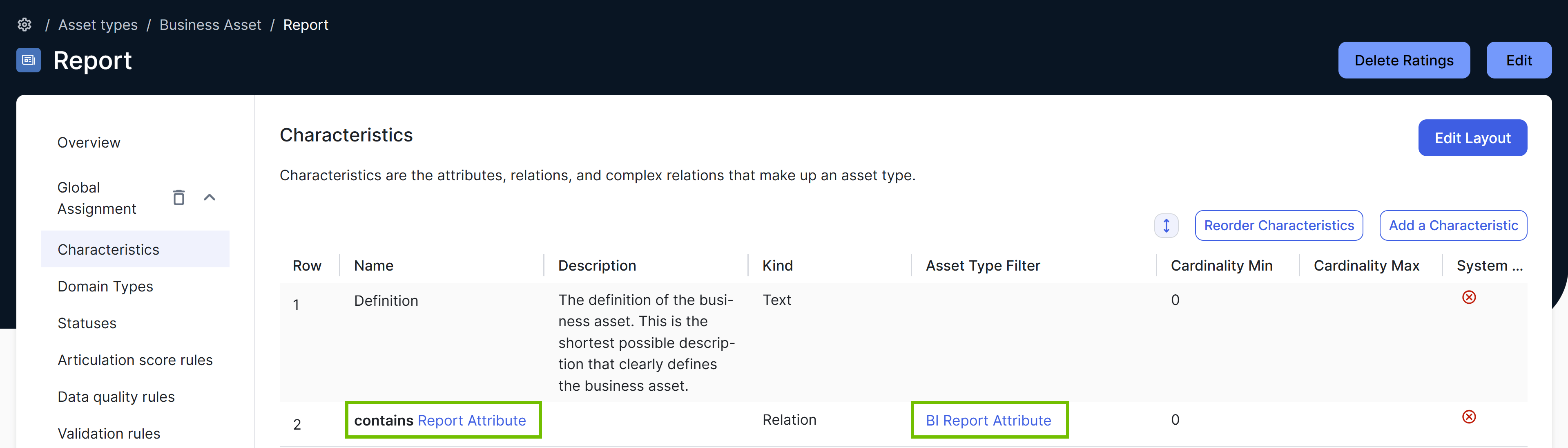
Suppose the Report asset type has the relation type Report contains Report Attribute. However, instead of allowing the Report Attribute asset type, the relation type is restricted to allow only the BI Report Attribute asset type and its descendant asset types, as defined in the Asset Type Filter column.
With the relation validation enabled: |
| Complex relation validation |
|
Dashboard Configuration
| Setting | Description |
|---|---|
| Dashboard Ordering |
Enable this setting to activate dashboard ordering and the dashboard navigation panel.
For more information, go to Order dashboards and Manage a dashboard. |
| Improved Search Widget on Dashboard |
Enable or disable Search widget improvements such as the ability to add filters and configure the search result display.
|
Stewardship
| Setting | Description |
|---|---|
| Semantic Model Editor |
An option to enable a new navigation (in preview) for Stewardship. For more information, go to About Stewardship. |
AI Features
| Setting | Description |
|---|---|
| Semantic Model Generation |
An option to enable or disable Collibra AI features in the Guided Stewardship application. If you already enabled Collibra AI Copilot, you can also activate the semantic layer agents using the AI Agents settings page. Important The use of Collibra AI isn't available in Collibra Platform for Government and Collibra Platform Self-Hosted environments.
|