The overarching aim of Data Catalog is to create and maintain an inventory of an organization’s data assets across its entire digital landscape, so that data assets are easier to find and trust to drive insightful business decisions by data consumers.
The Catalog application in Collibra allows you to integrate and view metadata from multiple data sources: databases, data lakes, warehouses, enterprise applications, ETL tools, and BI solutions. Metadata provides information such as the format of the data, the structure of the data, and when assets were created. For example, Metadata synchronization results for JDBC data sources. Once the metadata is integrated, you can enrich it by adding profiling information, showing sample data, linking the metadata to the business context, showing the lineage, data quality, defining the data class, and more.
About metadata, samples, profiling data, lineage, and more in Data Catalog asset pages
Data Catalog asset pages can include detailed information about the data they represent. These details include:
-
Metadata: Metadata is the data about data that is ingested in Collibra by registering or integrating a data source. The way to integrate metadata depends on your data source, infrastructure, and required outcome.
- Azure Data Lake Storage
- Amazon S3
- Databricks Unity Catalog
- Google Knowledge Catalog
- Google Cloud Storage
- JDBC data sources
For dedicated documentation on Snowflake JDBC integration, go to Steps overview: Integrate Snowflake via Edge
- Microsoft Fabric
- SAP Datasphere Catalog
- Sigma
- AI models:
-
Profiling: Profiling data provides a statistical summary of the data and includes the data type in the data source.
-
Sample data: Sample data is a set of randomly collected data from the data source.
-
Diagrams: Diagrams are also called business lineages, traceability diagrams, or summary lineages. They provide a summary view that traces data views from data source to points of use, for example, a business report. Diagrams are useful for tracking the flow of data in Collibra showing links and dependencies.
-
Technical lineage: Technical lineages provide a detailed view showing the aggregation, manipulation, and transformation of data through ETL tools, files, and ad-hoc SQL.
-
Classification: Classification shows the data class to which an asset has been assigned via the classification process. Knowing the data classification helps give context to your data.
Required permissions
To access Data Catalog, you need a global role with the Catalog global permission, for example Catalog Author.
To open Data Catalog, click Catalog in the application menu.
Catalog submenu pages
The following pages are available in the Catalog application.
| Page | Description |
|---|---|
| Overview | The default home page for Catalog. This page is designed to help you quickly and easily find Data Catalog-related assets. |
|
All report assets in Collibra. |
|
| Data Sets | All Data Set assets in Collibra. They are shown as a set of tiles or as a table, with their name, description and, if there are any, connections to existing assets in Collibra. |
| Data Sources | Data sources that are used for data source registrations. |
| Data Dictionary | All data assets in Collibra. |
| Technology Assets | All technology assets in Collibra. |
| Access requests | The history of your access requests and their status. |
| Integrations |
Allows you to register a data source. This page contains two tabs.
|
For information on how to sort the data shown in the Catalog submenu pages, go to Sort the Catalog submenu pages.
Navigation in the Catalog application (in preview)
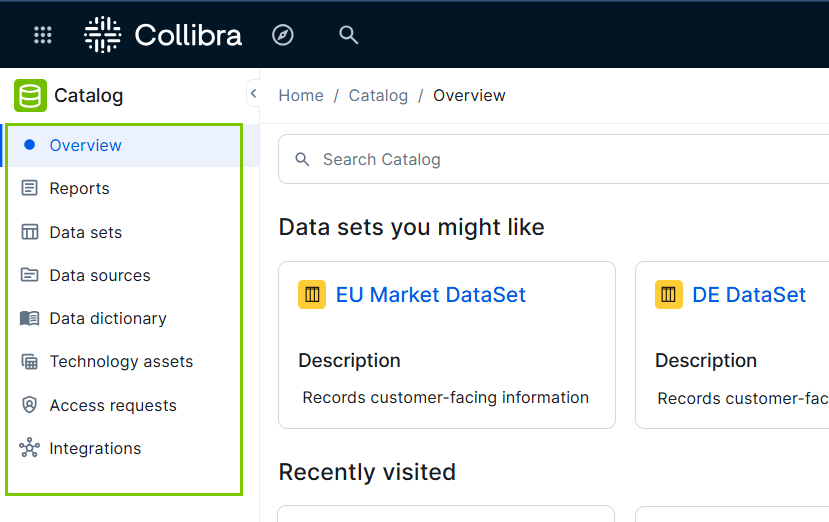
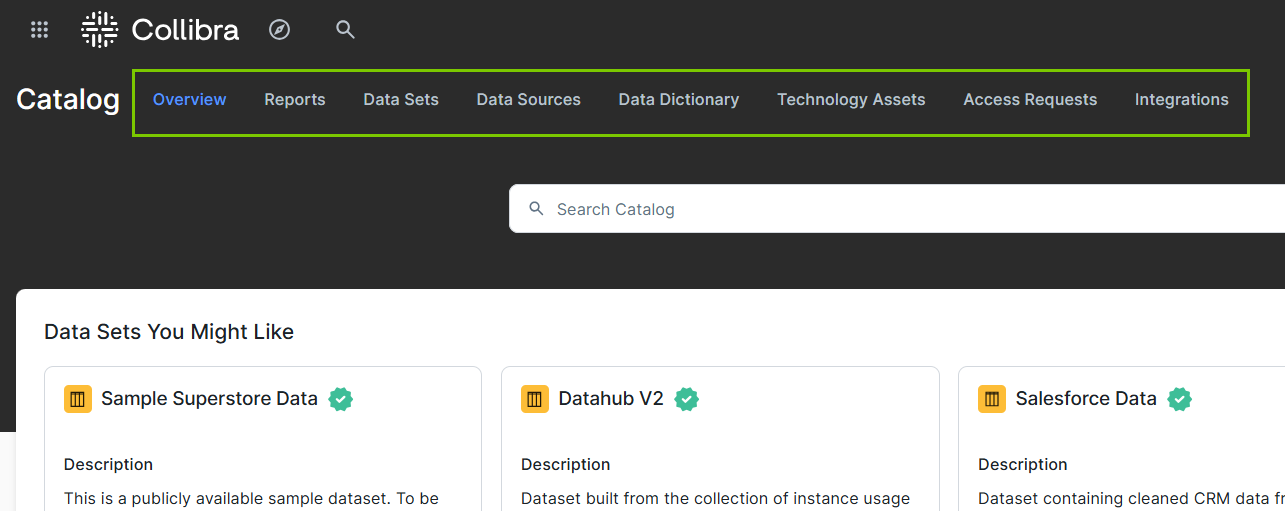
By default, the New app experience setting in Customizations Settings is enabled, impacting the navigation in the Catalog application.
- If the setting is enabled, the Catalog pages are shown in a left navigation panel.
- If the setting is disabled, the Catalog pages are shown as tabs.
Helpful resources
Learn about supported integrations through University courses.