The Maestro or AI Agents page is available in Settings, and is a place where you can activate AI agents and configure your AI settings. The page looks different depending on which AI products are enabled in your environment.
- Maestro: You see the Maestro page in Settings if you have Maestro enabled in your Collibra Platform.
- AI agents: You see the AI agents page in Settings if you have Collibra AI Copilot enabled in your Collibra Platform.
Note Collibra AI Copilot will be upgraded to Collibra Maestro with the 2026.10 release. If you are using Collibra AI Copilot, we recommend enabling Collibra Maestro before October 11. For more information, go to Enabling Maestro Studio (in preview).
When Maestro Studio and Maestro Assistant is enabled, go to Settings > Maestro. This page has the following tabs:
- Actions: configure AI features in your environment.
- Assistant: activate and configure the Collibra-managed agents available in Maestro Assistant, and set a welcome message for users.
- Models (in preview): bring your own models to Collibra and choose which AI model powers each of Collibra's AI features.
You need a global role with the Manage All Agents global permission to access these settings. For more information, go to About Maestro Studio and Maestro agents (in preview).
Actions tab
From the Actions tab, you can enable and configure AI features in your environment. The following option is available:
- Semantic Model agents
- Activate Collibra Maestro to automate your semantic layer in the Stewardship application. Semantic Model Generation and Semantic Mapping will generate a business-friendly model and automatically map it to your physical data assets, connecting physical assets with a business context.
- AI-powered writing assistant agent
- Enable the AI-powered writing assistant agent to significantly boost productivity and content quality for asset pages. Once enabled, administrators can define and configure context-aware AI prompts for generating, transforming, summarizing, and explaining content across various textual attributes and asset types. This provides precise control for enforcing governance standards and guaranteeing consistent, high-quality metadata output.
- Maestro Studio and Maestro Assistant
- Enable Maestro Studio to start building and deploying custom AI agents that are accessible through Maestro Studio and gives your users access to Maestro Assistant.
Assistant tab
From the Assistant tab, you can activate and configure the Collibra-managed agents available in Maestro Assistant.
At the top of the tab, you see a list of the available Collibra-managed agents that can be activated for Maestro Assistant.
- The status of an agent can be Preview or Generally available.
- By default, agents are not active when Collibra Maestro is enabled. To activate an agent, set the Active column to Yes.
- To open a dedicated configuration page for an agent, click the agent name.
The Business Definitions agent is fine-tuned to reply to questions such as "Give me the meaning of…", "What does … mean?", and "How is … defined?". For the Business Definitions agent, you can add example questions and customize the content scope.
Content scope
The content scope of the Business Definitions agent is based on asset type, status, and organization. The agent considers all 3 content scope configurations.
The default, out-of-the-box content scope includes the following:
- Asset types: The following asset types are included in the content scope. Child asset types are not automatically included.
- Business Term
- Business Process
- Acronym
- KPI
- Measure
- Statuses: All statuses are included.
On the page, this is indicated with no default selection. - Organization: All communities and domains in your organization are included.
On the page, this is indicated with no default selection.
Custom description or definition attributes are not taken into account. However, renamed Description and Definition the out-of-the-box attributes are.
As an administrator, you can customize the out-of-the-box content scope to match your organization's needs. To change the content scope:
- Manually change the scope by selecting or clearing items.
The Business Definitions agent allows you to select from all asset types in the Business Glossary product.
- Click Save.
If the scope includes the same asset types as another agent, a confirmation dialog box appears. While overlapping asset types can sometimes affect the accuracy of the results, the impact is generally limited because agents are fine-tuned to handle specific tasks independently.
The daily update of the knowledge base will include the following information for the content scope: Definition, Description, Description from source, Name, Type, Domain, and all other attributes, except for scripts.
Tip You can revert to the out-of-the-box content scope by clicking Reset to default. When you do so, the default content scope is applied and automatically saved.
The Data and Analytics Discovery agent is fine-tuned to answer questions such as "I am looking for …" and "Are there any ….?". For the Data and Analytics Discovery agent, you can add example questions and customize the content scope.
Content scope
The content scope of the Data and Analytics Discovery agent is based on asset type, status, and organization. The agent considers all 3 content scope configurations.
The default, out-of-the-box content scope includes the following:
- Asset types: The following asset types are included in the content scope.
- Report
- Data Notebook
- BI Report and all its child asset types
- Data Product and all its child asset types
- AI Model and all its child asset types
- Data Set and all its child asset types
- Statuses: All statuses are included.
On the page, this is indicated with no default selection. - Organization: All communities and domains in your organization are included.
On the page, this is indicated with no default selection.
Custom description or definition attributes are not taken into account. However, renamed Description and Definition the out-of-the-box attributes are.
As an administrator, you can customize the out-of-the-box content scope to match your organization's needs. To change the content scope:
- Manually change the scope by selecting or clearing items.
The Data and Analytics Discovery agent allows you to select from all asset types, except Columns.
Child asset types are not automatically included.
- Click Save.
If the scope includes the same asset types as another agent, a confirmation dialog box appears. While overlapping asset types can sometimes affect the accuracy of the results, the impact is generally limited because agents are fine-tuned to handle specific tasks independently.
The daily update of the knowledge base will include the following information for the content scope: Definition, Description, Description from source, Name, Type, Domain, the first 100 relations, and all other attributes, except for scripts.
- You can also set the content scope to the same scope as Data Marketplace by clicking Load Data Marketplace scope.
When you do this, part of the Data Marketplace scope is copied and automatically saved in the agent content scope. It includes statuses, organization, and asset types, but excludes the Column asset type and asset types associated with the Business Glossary product. - You can revert to the out-of-the-box content scope by clicking Reset to default. When you do so, the default content scope is applied and automatically saved.
Models (in preview)
From the Models tab, you can review the models in your Collibra Platform, connect your own model providers and models, and choose which AI model powers each of Collibra's AI features.
For more information, go to the Bring your own model documentation.
Change the Collibra Maestro settings
Prerequisites
- Maestro Studio and Maestro Assistant is enabled in your environment.
- You have a global role with the Manage All Agents global permission.
Steps
-
On the main toolbar, click
 →
→
 Settings.
The Settings page opens. - Click Maestro.
The Maestro settings page opens on the Actions tab. - To configure AI features or enable Semantic Model agents:
- On the Actions tab, click the toggle of the setting you wan to enable or disable.
- Click Save.
- To activate or configure a Collibra-managed agent:
- Click the Assistant tab.
- To activate an agent:
- Double-click the Active column for the AI agent.
- Select Yes.
- Click outside the column.
The update is saved.
- To configure an agent:
- Click the Agent name hyperlink.
A dedicated page AI agent opens. - Make the desired changes.
For more information on the available options per AI agent, go to Assistant tab.
- Click the Agent name hyperlink.
- To add a welcome message for Maestro Assistant users:
- In Welcome message, type the text you want to show.
- Click Save.
Tip If you are already in Maestro Studio, you can click the Settings icon at the bottom of the sidebar to go directly to the Maestro settings page. This option is only visible to sysadmins.
If you have enabled and configured an agent, Collibra starts the process of building the knowledge base based on your data. This process is called embedding. Depending on your environment size, this can take up to 2 days. After that, Maestro Assistant is ready to search through the defined content scope or product documentation.
When Collibra AI Copilot is enabled, go to Settings > AI Agents. The page has an AI Agents tab and an AI Copilot tab.
Note Collibra AI Copilot must be enabled and you need a global role with the Manage all agents global permission to access the AI Agents settings. For more information, go to Collibra AI Copilot configuration.
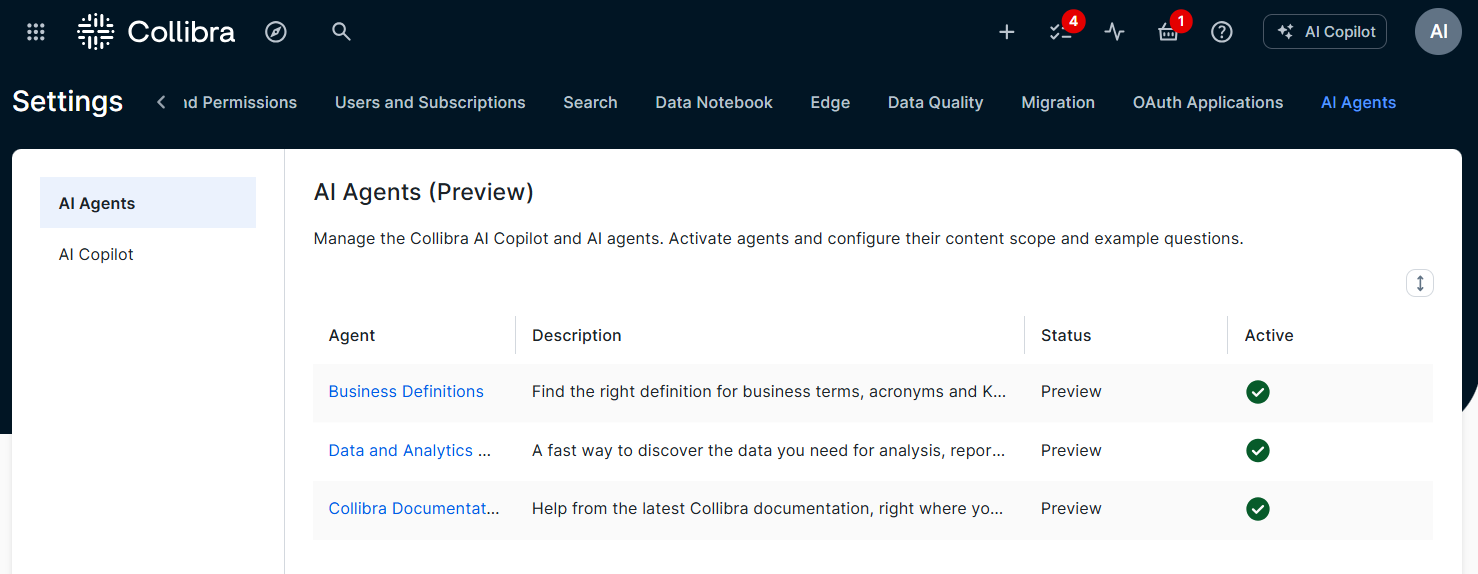
AI Agents tab page
From the AI Agents tab page in the AI Agents settings, you can verify the status of the Collibra AI agents and activate them.
You first get a list of the available Collibra AI Agents that can be activated for Collibra AI Copilot.
- The status of a Collibra AI Copilot agent can be Preview or Generally available.
- By default, Collibra AI Copilot agents aren't active when Collibra AI Copilot is enabled. To activate an agent, set the Active column to Yes.
- To open a dedicated page and configure a Collibra AI Copilot agent, click the name of the agent.
For basic information on the AI agents, go to About Collibra AI Copilot.
The Business Definitions agent is fine-tuned to reply to questions such as "Give me the meaning of…", "What does … mean?", and "How is … defined?". For the Business Definitions agent, you can add example questions and customize the content scope.
Example questions
Collibra AI Copilot can show up to 3 clickable example questions. These questions help users understand the types of queries they can ask and allow them to click to see how the AI responds.
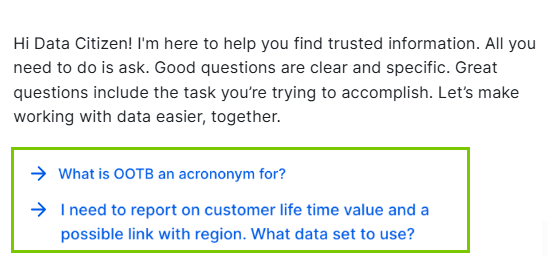
By default, no example questions are available for any AI agent. You can add up to 3 example questions per AI agent, with each question limited to 100 characters.
Note If more than 3 example questions exist for the active AI agents, Collibra AI Copilot selects up to 3 to show when a chat starts.
Content scope
The content scope of the Business Definitions agent is based on asset type, status, and organization. The AI agent considers all 3 content scope configurations.
The default, out-of-the-box content scope includes the following:
- Asset types: The following asset types are included in the content scope. Child asset types aren't automatically included.
- Business Term
- Business Process
- Acronym
- KPI
- Measure
- Statuses: All statuses are included.
On the page, this is indicated with no default selection. - Organization: All communities and domains in your organization are included.
On the page, this is indicated with no default selection.
Custom description or definition attributes are not taken into account. However, renamed Description and Definition the out-of-the-box attributes are.
As an administrator, you can customize the out-of-the-box content scope to match your organization's needs. To change the content scope:
- Manually change the scope by selecting or clearing items.
The Business Definitions agent allows you to select from all asset types in the Business Glossary product.
- Click Save.
If the scope includes the same asset types as the scope of another AI Agent, a confirmation dialog box appears. While overlapping asset types can sometimes affect the accuracy of the results, the impact is generally limited because AI Agents are fine-tuned to handle specific tasks independently.
The daily update of the AI Copilot knowledge base will include the following information for the content scope: Definition, Description, Description from source, Name, Type, Domain and all other attributes, except for scripts.
Tip You can revert to the out-of-the-box content scope by clicking Reset to default. When you do so, the default content scope is applied and automatically saved.
The Data and Analytics Discovery agent is fine-tuned to answer questions such as "I am looking for …", "Are there any ….?". For the Data and Analytics Discovery agent, you can add example questions and customize the content scope.
Example questions
Collibra AI Copilot can show up to 3 clickable example questions. These questions help users understand the types of queries they can ask and allow them to click to see how the AI responds.
By default, no example questions are available for any AI agent. You can add up to 3 example questions per AI agent, with each question limited to 100 characters.
Note If more than 3 example questions exist for the active AI agents, Collibra AI Copilot selects up to 3 to show when a chat starts.
Content scope
The content scope of the Data and Analytics Discovery agent is based on asset type, status, and organization. The AI agent considers all 3 content scope configurations.
The default, out-of-the-box content scope includes the following:
- Asset types: The following asset types are included in the content scope.
- Report
- Data Notebook
- BI Report and all its child asset types
- Data Product and all its child asset types
- AI Model and all its child asset types
- Data Set and all its child asset types
- Statuses: All statuses are included.
On the page, this is indicated with no default selection. - Organization: All communities and domains in your organization are included.
On the page, this is indicated with no default selection.
Custom description or definition attributes are not taken into account. However, renamed Description and Definition the out-of-the-box attributes are.
As an administrator, you can customize the out-of-the-box content scope to match your organization's needs. To change the content scope:
- Manually change the scope by selecting or clearing items.
The Data and Analytics Discovery agent allows you to select from all asset types, except Columns.
Child asset types aren't automatically included.
- Click Save.
If the scope includes the same asset types as the scope of another AI Agent, a confirmation dialog box appears. While overlapping asset types can sometimes affect the accuracy of the results, the impact is generally limited because AI Agents are fine-tuned to handle specific tasks independently.
The daily update of the AI Copilot knowledge base will include the following information for the content scope: Definition, Description, Description from source, Name, Type, Domain, the first 100 relations, and all other attributes, except for scripts.
- You can also set the content scope to the same scope as Data Marketplace by clicking Load Data Marketplace scope.
When you do this, part of the Data Marketplace scope is copied and automatically saved in the AI agent content scope. It includes statuses, organization, and asset types, but excludes the Column asset type and asset types associated with the Business Glossary product. - You can revert to the out-of-the-box content scope by clicking Reset to default. When you do so, the default content scope is applied and automatically saved.
For the Collibra Documentation agent, you can add example questions.
Collibra AI Copilot can show up to 3 clickable example questions. These questions help users understand the types of queries they can ask and allow them to click to see how the AI responds.
By default, no example questions are available for any AI agent. You can add up to 3 example questions per AI agent, with each question limited to 100 characters.
Note If more than 3 example questions exist for the active AI agents, Collibra AI Copilot selects up to 3 to show when a chat starts.
After the AI Copilot agents, a list of other agents is shown. You can enable Semantic Model agents. When enabled, the following Collibra AI agents become available to help in the creation and maintenance of the semantic layer in the Guided Stewardship operating model.
- Semantic Model Generation Agent: Automatically creates system-specific semantic views that map directly to governance assets, enabling quick data value realization without the complexity of implementing a full enterprise conceptual layer.
- Semantic Mapping Agent: Ensure that newly created or ingested physical data is properly mapped to the relevant semantic structure.
AI Copilot tab page
From the AI Copilot tab page in the AI Agents settings, create a welcome message, which can include a maximum of 300 characters. This welcome message is shown when a user starts a conversation with Collibra AI Copilot.
Tip Use the welcome message to set user expectations based on the agents you have activated.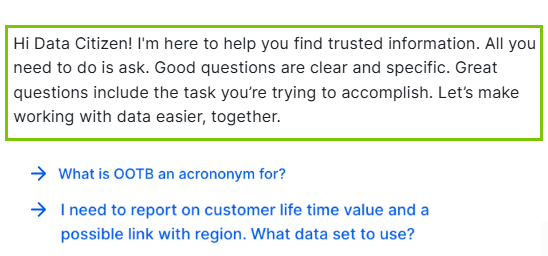
Change the Collibra AI Copilot settings
Prerequisites
You have a global role that has the AI Agents > Manage all agents global permission.
Steps
-
On the main toolbar, click
→
Settings.
The Settings page opens. - Click AI Agents.
The AI Agents tab pane opens. - To activate an AI agent:
- Double-click the Active column for the AI agent.
- Select Yes.
- Click outside the column.
The update is saved.
- To configure an AI agent:
- Click the Agent name hyperlink.
A dedicated page AI agent opens. - Make the desired changes.
For more information on the available options per AI agent, go to AI Agents settings.
- Click the Agent name hyperlink.
- To add an Collibra AI Copilot welcome message for users:
- In the tab pane, click AI Copilot.
The AI Copilot configuration page opens. - In Welcome message, type the text you want to show.
Tip Use the welcome message to set user expectations based on the AI agents you have activated.
- In the tab pane, click AI Copilot.
If you have enabled and configured an AI agent, Collibra starts the process of building your Collibra AI Copilot knowledge base based on your data. This process is called embedding. Depending on your environment size, this can take up to 2 days. After that, Collibra AI Copilot is ready to search through the defined content scope or product documentation.
Related topics
About Collibra Maestro and Maestro agents (in preview)
Enabling Collibra Maestro (in preview)
Enabling and Configuring Collibra AI Copilot (in preview)
FAQ Collibra AI Copilot configuration
About Collibra AI Copilot (in preview)
Using Collibra AI Copilot (in preview)