In Collibra, data products are assets with asset type Data Product, which you can search for. The Data Product asset page includes useful information to understand, access, and use the data it represents. The Data Product assets relate to other assets, such as Data Product Port assets and Data Contract assets to provide this information. You can also find information on the data contract, which documents the structure, format, service level, quality, and terms of use of the data involved
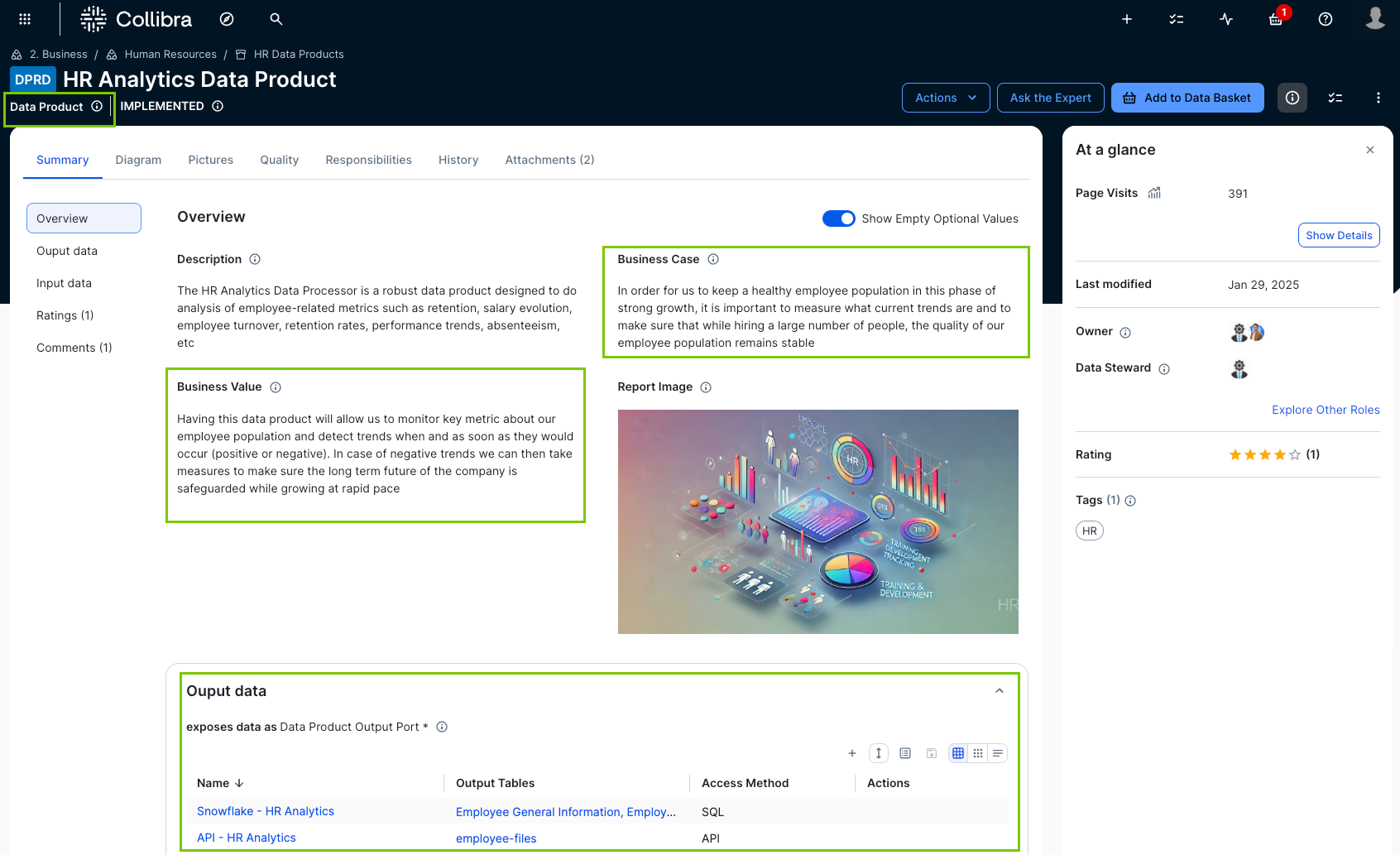
The HR Analytics data product consolidated all relevant HR data, such as turnover rates, employee satisfaction, and hiring efficiency into a single entry point. The data product indicates what data is included, what it can measure, and how the data can be accessed.
Required permissions
To view the Data Product and Data Contract details and perform read actions such as downloading a Data Contract, you need View permission on the asset.
For required permissions to create and manage data contracts, go to Preflight checks and required permissions to create and manage data contracts from Collibra.
Explore a data product
By default, a Data Product asset includes:
- A Summary tab page.
The content and layout of this tab page can be configured. By default, it includes:- Description
- A short explanation about the data product.
- Business case
- An explanation or set of reasons describing why this data product improves a business or product decision, how it affects costs and profits, and so on.
- Business value
- An explanation or set of reasons describing when this data product can bring most value.
- Data Product Category:
- Defines whether a data product is targeting business users or more technical users. The out-of-the-box values are Derived (for business users) and Foundational (for more technical users).
- Diagram
- A section that shows a diagram view of the data product and its related assets. For information on this section, go to Diagram widget.
- Output
- A section including the Output ports viewer widget, which shows Data Product Port assets with the relation "is output port for" the data product as cards.
The card always shows the name and status of the Data Product Port asset. Your administrator defines what other data product port information is shown. The options are: Access instructions, Area, Description, and Pricing. If a data contract is linked to the Data Product Port asset, this is indicated with a check icon.
If you click a card, the card details open in a Preview pane, which shows tabs.
Data product port shows more details about the Data Product Port asset and gives an overview of what is included in the Data Product Port. Your administrator defined which details you see. The available options are: Access Instructions, Access Method, Area, Description, Data Quality Score, Pricing, Status, and Target Delivery Date.
To go to the Data Product Port asset page, click the Open icon .
.Data contract shows the data contract details if a data contract is available for the data product port. If no data contract has been initiated yet, buttons are shown which allow administrators with the required permissions to create a new contract. For more information, go to About creating and managing a data contract.
To go to the Data Contract asset page, click the Open icon.
- Input
- A section showing the assets with relation "consumes data through Data Product Port".
- Sample Data tab page: A tab page that can show sample data for a table related to the data product if:
- Sample data is enabled in your environment.
- Sample data is available for the selected table related to the data product.
- You have the required permissions to view sample data.
For information on sample data, go to Sample data.
Tip Sample data can also be available in Data Product Port assets.
- Diagram tab page.
- Pictures tab page.
- Responsibilities tab page.
- History tab page.
- Attachments tab page.
Depending on the configuration of data products in your environment, you can add a Data Product asset to your data basket and request access.
Explore a data contract and the manifests
A data contract describes the structure, format, service level, quality, and terms of use of the data involved. Multiple versions of a data contract can exist. These are referred to as data contract manifests.
View the Data Contract details
You can view data contract information in several places in Collibra.
-
In the Data Product asset, from the Output section.
Click the card of the linked Data Product Port to view the Preview pane, and click Data contract. -
In the Data Product Port asset, from the Data Contract section.
Click the card of the linked Data Contract to view the Data Contract Preview pane. -
In the Data Contract asset through the Contract Manifest tab page.
The Data Contract asset page includes standard Collibra tabs, such as the Summary tab to provide details such as a Description, and linked asset.
The Data Contract asset page also includes the Contract Manifest tab, which provides a summary view of the contract and, most importantly, allows you to inspect versions. When you open the Contract Manifest tab, it shows the information of the most recent, active contract manifest.
The way the data contract manifest information is shown can differ:
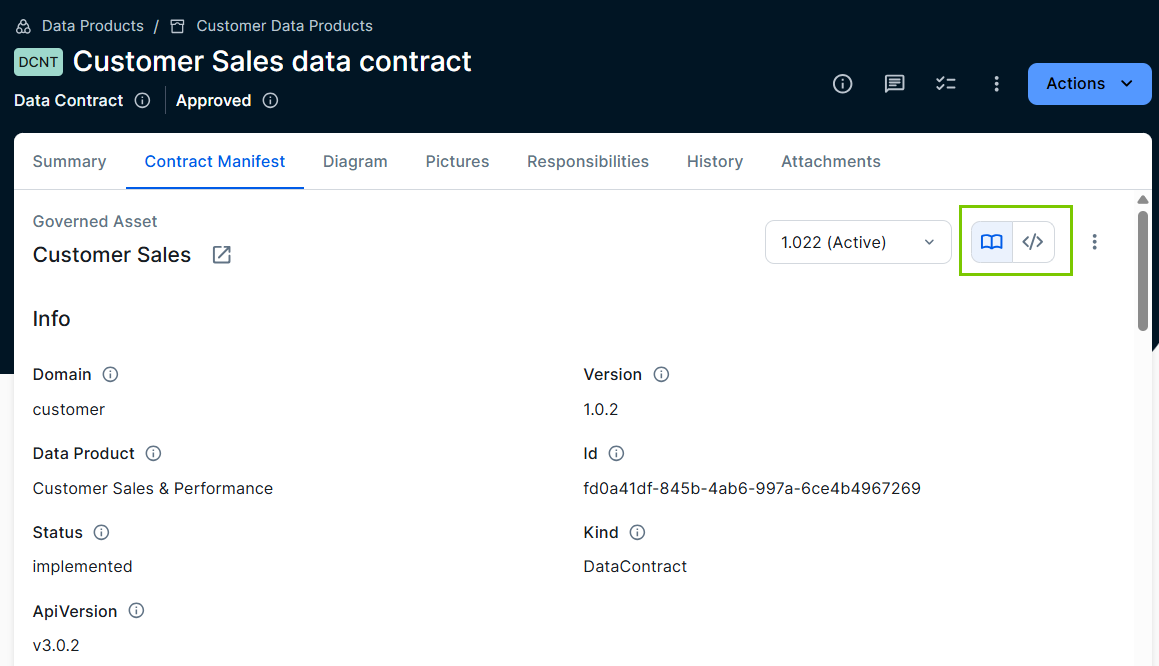
- If you see a structured view (book icon) with easy-to-read details, such as Description, Service Levels, and Servers, it means the manifest adheres to the Open Data Contract standard.
- If you get only the code view ⟨/⟩, meaning the Raw YAML Manifest file details, it means the manifest doesn't adhere to the Open Data Contract standard.
- If both options are available, you can switch between the structured view (book icon) and the raw code view ⟨/⟩ using their respective icons.
Open the Data Contract Manifest details
- Navigate to a Data Contract asset page.
- Click Contract Manifest.
The active data contract manifest is shown. - To get the details of a specific manifest version, open the version drop-down list and select the version for which you want to view the details.
Download a Data Contract Manifest version
- Navigate to a Data Contract asset page and click Contract Manifest.
The active data contract manifest is shown. - Select the version you want to download from the version drop-down list.
- From the More icon, select Download.