For a list of roles and permissions that are relevant for AI Command Center, go to AI Command Center roles and permissions.
Before you begin
- The Assessments Approval workflow must be enabled. This workflow is enabled by default; however, it is not new with AI Command Center, nor is it specific to AI Command Center, so we recommend that you check to see that it is still enabled.
The out-of-the-box AI Governance community comes with two domains:
- The AI Models and Agents domain: A Technology Assets domain that you can use to store your AI Model Version, AI Base Model, AI Project, and AI Agent assets.
- The AI Use Cases domain: A Business Assets domain that you can use as your AI use case register.
These are system-defined domains, meaning they can't be deleted. If needed, you can "hide" the community or the domains by restricting view permissions.
1. Enable AI Command Center
Important This step is only necessary if you previously used AI Governance. If, on the main toolbar, you click
 and
AI Command Center is shown in the list of apps, then it is enabled and you can skip this step.
and
AI Command Center is shown in the list of apps, then it is enabled and you can skip this step.
Prerequisites
- You have a global role with the Product Rights > System administration global permission. The out-of-the-box AI Governance Admin global role has this permission.
Steps
- In
 Settings, click AI Governance.
 - In the Customizations tab, switch on Discover the AI Command Center.
AI Command Center is enabled.
Now when you click , AI Command Center is shown in the list of apps.
2. Assign the relevant global role to users
The following table describes the out-of-the-box AI Command Center-related global roles.
For an overview of the global permissions configured for each of these global roles, go to Global permissions.
| Global role | Description | Resource ID |
|---|---|---|
| AI Business User | A user who creates, updates, and views AI use cases. | 00000000-0000-0000-0000-000000005096 |
| AI Governance Admin |
A user who configures AI Governance settings. |
00000000-0000-0000-0000-000000005107 |
| AI Governance Viewer |
A user who can view necessary AI Governance-related information without needing a Contributor or Creator license. |
00000000-0000-0000-0000-000000005106 |
| AI Producer | A user who contributes to building AI solutions and who creates, updates, and views AI agents and AI models. | 00000000-0000-0000-0000-000000005102 |
Prerequisites
- You have a global role with the Product Rights > System administration global permission. The out-of-the-box AI Governance Admin global role has this permission.
Steps
- In Settings, click Roles and permissions.
- In the relevant row (either AI Business User or AI Producer), double-click
 in the Members column.
 - Click in the field, start typing and select the users and user groups that you want to assign.
- Click Update.
If you want to grant a user the ability to access AI Governance in a read-only way, meaning without the ability to register AI use cases, AI models, or AI agents, and without the ability to participate in assessments, you can assign the user a custom global role that has only the Product Rights > AI Governance global permission.
3. Assign a Business Steward for the New Assessments domain
Prerequisites
- You have a global role that has the Resources > Manage all resources global permission, for example the Sysadmin global role.
- You have a resource role that has the following resource permissions for the New Assessments domain:
- Asset > Add
- Domain > Responsibilities > Add
- Domain > Responsibilities > Update
Steps
- Open the AI Command Center Assessments domain.
- In the tab bar, click
 Responsibilities.
 - In the Responsibilities section, click + Add responsibility.
- Enter the required information:
- Role: Start typing and select Business Steward.
- People: Enter the users or user groups who will act as Business Stewards for the domain.Important At least one of the Business Stewards you specify must have a global role with the Workflow > Participate in Workflow global permission. The out-of-the-box AI Business User and AI Producer global roles come with this permission, so if at least one of the users you specify uses AI Governance, no further configuration is required.
- Click Add.
Note By default, all users can view all assets in all communities and domains. If, for specific communities or domains, you choose to restrict view permissions to specific users and user groups, be mindful of the possible ramifications. Users who are subject to view permission restrictions are unable to view assets in restricted communities and domains. Even those who receive email notifications prompting them to review a specific asset cannot view the asset details.
4. Configure permissions for those who will participate in assessments
The out-of-the-box AI Business User and AI Producer global roles come with the required permissions to start and submit assessments. Therefore, this information is only relevant if there is someone in your organization who will work with the assessments, but will not work with the AI Governance app.
To start or submit an assessment, you need:
- A global role with the Product Rights > Assessments global permission.
- A global role with the Assessments > Conduct Assessments global permission.
Tip The Owner of the AI use case, as specified when registering a new AI use case, can start an assessment manually from the asset's Lifecycle tracker. If the Owner is not an AI Command Center user, ensure they have a global role with the assessments-related global permissions mentioned above, for example Assessments Template Manager.
5. Optionally, enable Lifecycle management for AI-related asset types
The Lifecycle management feature is available for all asset types (in preview), except for BI Folder, BI Report, Data Element, Data Structure, and their child asset types. It's enabled by default for the following asset types. For all other eligible asset types, it is disabled by default.
- AI Agent
- AI Agent Version
- AI Base Model
- AI Model Version
- AI Use Case
- Data Product
Follow this procedure to enable the feature for a specific asset type.
Prerequisites
- You have a global role with the Product Rights > System administration global permission. The out-of-the-box AI Governance Admin global role has this permission.
Steps
-
On the main toolbar, click
→
Settings.
The Settings page opens. - Click the Operating model tab.
Operating Model settings are shown. - In the Asset types table, click the relevant asset type.
The asset type overview page opens. - In the tab pane, expand the Global Assignment tab (or the tab of the relevant assignment), and then click Lifecycle.Note If only the Global Assignment tab is shown, it means no one in your organization has added another assignment. In this case, use the Global Assignment. For more information on assignments and scopes, go to Create scoped assignments for the AI Governance asset types.The Lifecycle page opens.
- Select (to enable) or clear (to disable) the Activate Lifecycle tracker option.
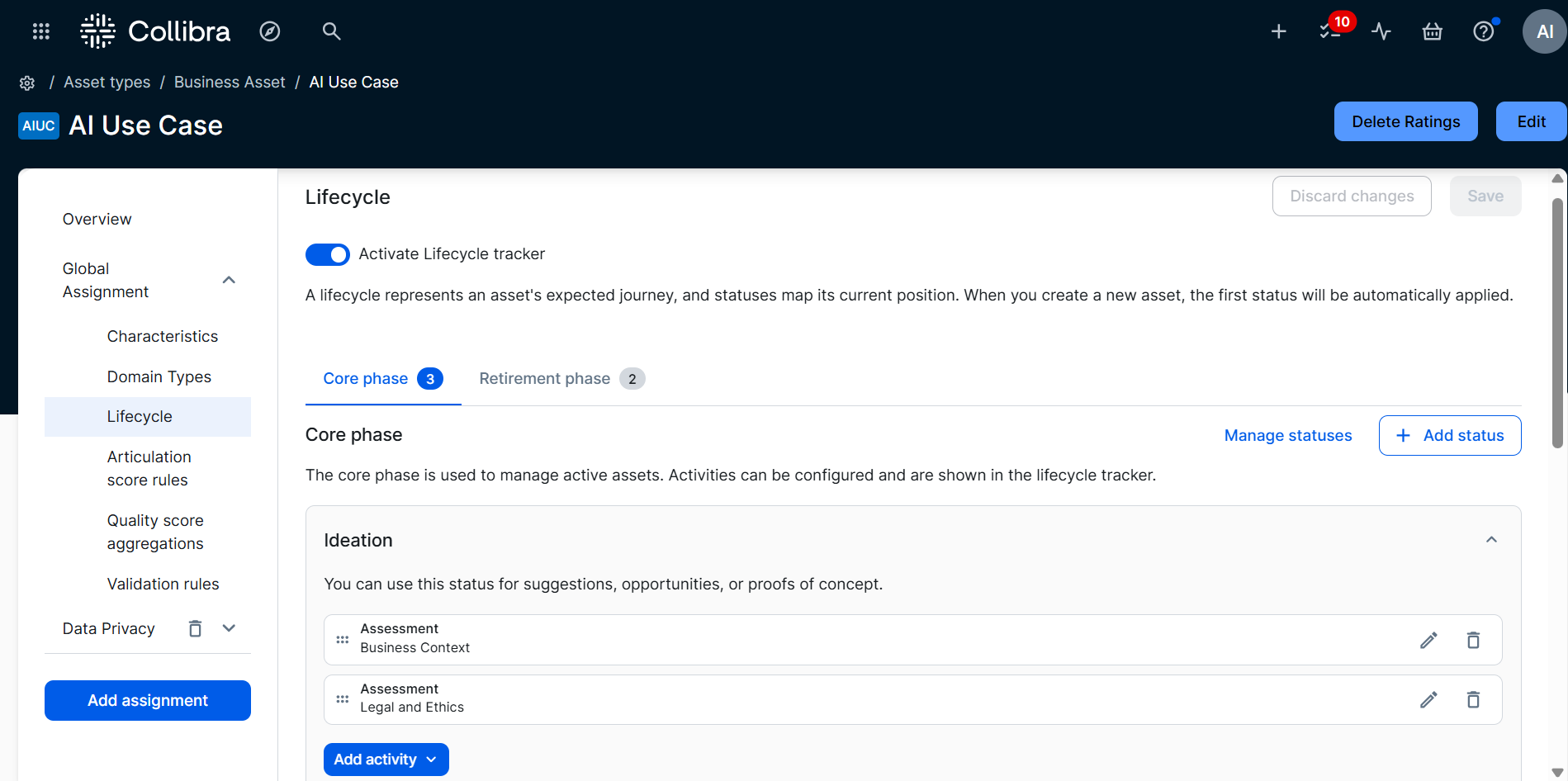
- Click Save.
6. Optionally, configure feature options in Collibra settings
The AI Command Center settings page has three tabs: Customizations (the tab shown by default), AI Trust Score, and Guardian and contract.
Prerequisites
- You have a global role with the Product Rights > System administration global permission. The out-of-the-box AI Governance Admin global role has this permission.
Steps
-
Open the AI Command Center settings for editing:
-
On the main toolbar, click
→
Settings.
The Settings page opens. - Click AI Command Center.
-
On the main toolbar, click
- Configure the settings in each tab - Customizations, AI trust score, and Guardian and contract - to suit your needs.
- When you're done with the settings in each tab, click Save.
Customizations tab
You can configure the following optional customizations:
|
Setting |
Description |
|---|---|
| Operational trust for AI agents |
Collect operational trust signals from LLM judges and token usage. These metrics feed into the AI Trust Score and appear in both individual agent and organization-wide dashboards. For complete information, go to Operational trust for AI agents. |
| Notification preferences |
Specify the resource roles that will receive email notifications when there are changes to certain policy and categorization assets that are related to your AI Use Case and AI Model Version assets. Do one or both of the following:
By default, email notifications are sent to the following resource roles recipients:
For complete information, go to: |
| Primary action button |
Specify the behavior of the Register AI use case button in the registry. Do one of the following:
Important
|
 next to the relevant resource role.
AI Trust Score tab
The AI Trust Score is shown on asset pages by default, controlled by the Show AI trust score visualization setting, which is switched on by default. On this tab, you can also fine-tune the score range and the weight each contributing theme has on the overall score. For complete steps, go to Edit the AI trust score settings.
Guardian and contract tab (in preview)
You can configure the following optional settings:
|
Setting |
Description |
|---|---|
| AI Agent contracts |
Switch on AI Agent contracts to allow Agent Contracts to be created and applied to AI Agent assets. Agent contracts define what agents are allowed to do, expect as input, and guarantee as output, including the limits and failure handling. An agent contract makes agent behavior predictable and testable. For complete information, go to About Agent Contracts. |
| Guardian |
Switch on Guardian to allow Guardian to monitor AI agent actions against their Agent Contract and enforce it at runtime. A Guardian Agent is a runtime system that monitors AI agent actions against an agent contract of allowed and disallowed behaviors, and pauses or blocks any action that violates it before it executes. Guardian lets you investigate and adjust behavior for a single flagged agent without halting all other operations, containing risk while keeping the rest of the system running. Guardian depends on Agent Contracts. When you switch on Guardian, AI Agent contracts is switched on automatically. If you switch off AI Agent contracts, you're asked to confirm, and Guardian is switched off too. Note Switching off Guardian hides the Guardian user interface. It doesn't stop Guardian from running. To stop it, remove the SDK from your agent's code. For complete information, go to About Guardian Agents. |
| Allow collecting payloads to enable showing details of the violations |
Select Allow collecting payloads to enable showing details of the violations to allow Guardian to collect the payloads of the actions it intervenes on, so that details of each violation can be shown. This option is part of the Guardian setting. Payloads are the inputs and outputs of the actions that Guardian evaluates, such as the user's request and the agent's response. Because these are raw exchanges with the agent, they can contain any data that passes through it, including personal data. When the payloads are collected, the details of a violation, such as the user request, the agent response, and the reasoning, are shown in the issue details on the Guardian tab of AI Agent asset pages.
TBC - this checkbox wasn't found in the settings code (Groundwork search, 2026-10-22), and the payload details above come from the Guardian design documents, so confirm with dev that they match the shipped behavior. Also confirm: the retention period (no default was found), the default state of the checkbox, what the issue details show when the option is cleared, and whether the option applies only to new violations. |
Users can now start registering AI use cases, AI models, and AI agents, and conducting assessments.
Be sure to check out the following topics, for advice on: