The Lifecycle tracker is an integral element of the Lifecycle management feature. It allows you to:
- Monitor the evolution of your assets.
- View the assessment history of your assets, including the statuses of all assessments.
- Start an assessment.
- Add new lifecycle activities throughout the lifecycle of the asset.
- Advance your assets to the next lifecycle stage.
You can use the asset layout editor to reposition the Lifecycle tracker on the asset page to suit your content layout needs. For complete information, go to About asset layouts.
You can configure which activities you want added automatically to the Lifecycle tracker when an asset of a certain type is created. For complete information, go to Configure lifecycle activities for an asset type.
Important To show the Lifecycle tracker on asset pages, certain conditions need to be met. For more information, go to Include the Lifecycle tracker on asset pages.
Lifecycle tracker versions
The Lifecycle tracker is available in two versions. The version shown on asset pages depends on the product you are using.
| Product / asset types | Lifecycle tracker version |
|---|---|
| AI Governance |
New Lifecycle tracker, unless the Lifecycle management setting in Collibra Console is switched off. In that case, the legacy tracker is shown, and only for the following asset types:
|
| AI Command Center | New Lifecycle tracker. |
| All other asset types | New Lifecycle tracker (in preview as of the June 2026 release). |
The legacy Lifecycle tracker has been available for AI governance asset types since an earlier release. As of the June 2026 public preview, the new Lifecycle tracker is also being rolled out to all other asset types, so availability for those asset types can vary by environment during this rollout. The rest of this topic describes the new Lifecycle tracker.
How to keep the legacy Lifecycle tracker
To keep the legacy Lifecycle tracker instead of the new Lifecycle tracker, ensure the following:
- The Discover the AI Command Center setting is switched off. This setting is available in Settings > AI Governance > Customizations. For steps, go to Enable AI Command Center.
- The Lifecycle management setting in Collibra Console is switched off. For steps, go to Enable the Lifecycle management feature, and clear the checkbox instead of selecting it.
When both settings are off:
-
The legacy tracker is shown, but only for the following asset types:
- AI Agent
- AI Agent Version
- AI Base Model
- AI Model Version
- AI Use Case
- Data Product
- Lifecycle management is not available for any other asset types.
Lifecycle tracker elements
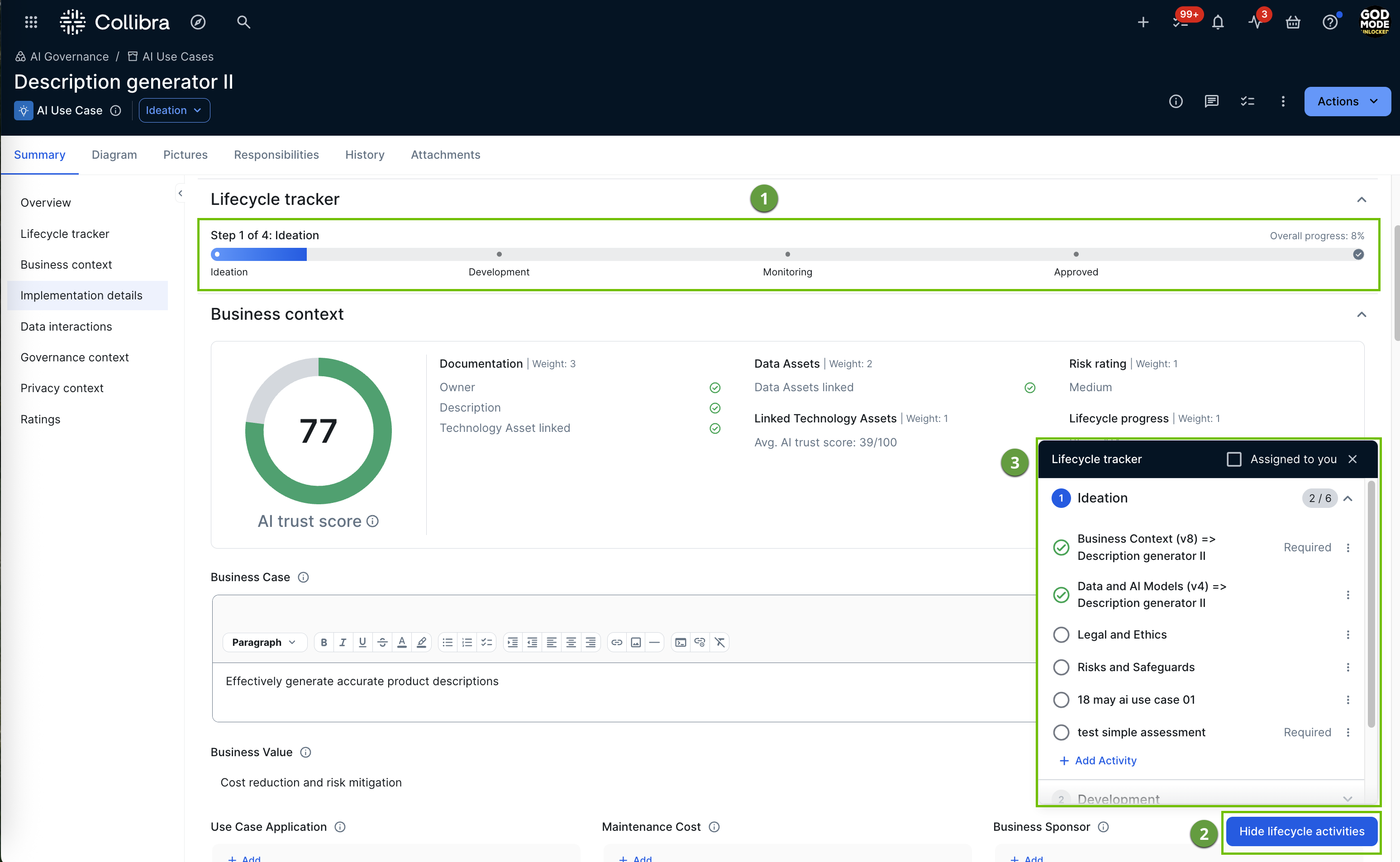
| No. | Element | Description |
|---|---|---|
|
|
Progress bar |
Shows your progress through the asset's lifecycle stages at a glance. The current stage and its position appear above the bar (for example, Step 2 of 4: Development), along with the overall progress percentage. Stage names appear below the bar. The progress percentage isn't just a marker for the asset's current status. It's a completeness calculation that also factors in the lifecycle activities configured for the current stage, such as assessments, sign-offs, and smart checks. Because of this, the bar can sit between two stages rather than landing exactly on one, depending on how many of those activities are complete. The lifecycle stages that are shown in the progress bar are determined by the asset statuses configured in the Core phase section of the Lifecycle tab of the asset's global assignment. For complete information, go to Configure the lifecycle stages for an asset type. |
|
|
Show/Hide Lifecycle activities button |
Opens and hides the Lifecycle activities pop-up. |
|
|
Lifecycle activities pop-up |
Shows the lifecycle activities that are configured for each stage of the asset. Each activity in the pop-up is clickable and serves as the primary call to action for that activity. For example, clicking a new activity shows the option to start it. Note Starting, continuing, viewing, or retaking an assessment from the Lifecycle tracker opens the assessment in a new browser tab, preserving your context on the asset page.
Note You can start, continue, complete, or otherwise act on an assessment or sign-off activity regardless of whether the lifecycle stage shown in the pop-up is the asset's current, past, or future status, subject to your permissions.
The "Required" property next to an activity indicates that the activity must be completed before you can advance the asset to the next lifecycle stage. Click Note To start an assessment via the Lifecycle tracker, you need a global role that has the Assessments > Conduct Assessments global permission. If you don't have this permission, the Start button is not shown. Some assessment templates further restrict who can start an assessment to users with specific resource roles on the linked asset, including roles inherited from a parent domain or community. This Who can start this setting is optional and configured per template; if it applies and you don't have the required resource role, the Start option is unavailable, whether you access it via the quick action link or the context menu. For more information, go to Permission settings in a template.
Note If an assessment's template has its Retake type set to Custom workflow, the Retake option is not available from the context menu. Retake is instead driven by the custom workflow configured for the template. For more information, go to Permission settings in a template. Support for retaking these assessments from the Lifecycle tracker is planned for a future release.
Click + Add Activity at the bottom of a stage to add assessments and sign-off activities to that stage. Smart check activities cannot be added manually. Select the Assigned to you checkbox to show only activities assigned to you. If no activities are assigned to you, an empty state is shown. As shown in the following example image, when all required activities are completed, a Move to <next status> button appears in the pop-up.
Tip If the Move to <next status> button does not appear after all required activities are complete, you might be missing the Asset > Lifecycle Management > Update Status resource permission on the relevant community or domain. For a complete overview of permissions, go to Lifecycle management roles and permissions. |


 next to an activity for context-sensitive information and action options.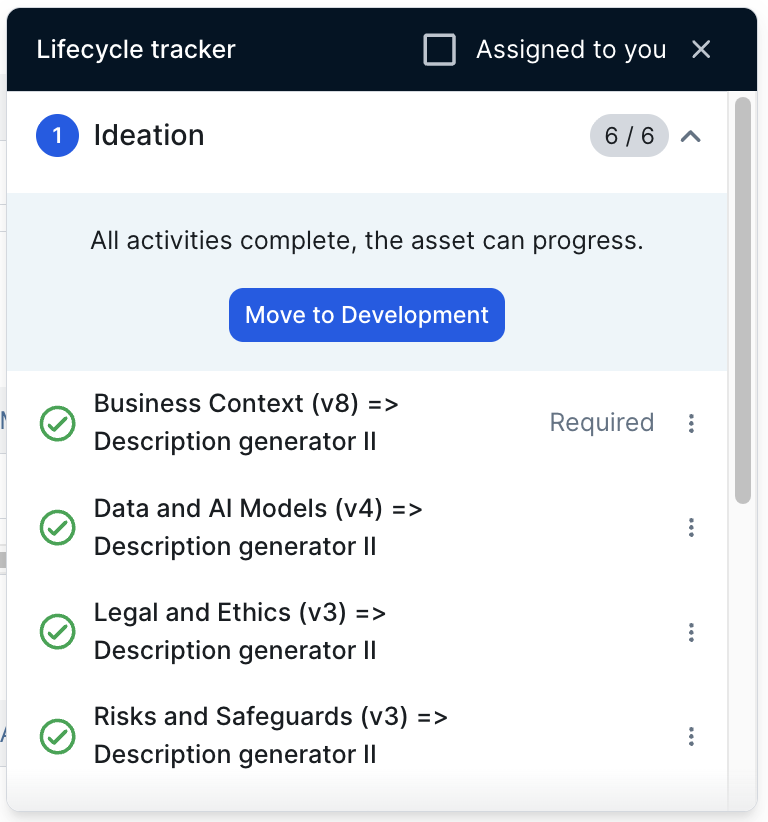
Include the Lifecycle tracker on asset pages
For the Lifecycle tracker to be shown on asset pages, the Activate Lifecycle tracker option must be switched on in the asset type's global assignment or relevant assignment. It's switched on by default for the following asset types. For all other eligible asset types, it is disabled by default.
- AI Agent
- AI Agent Version
- AI Base Model
- AI Model Version
- AI Use Case
- Data Product
For these asset types, the Lifecycle tracker remains available even if Activate Lifecycle tracker is switched off. For the version used in that case, go to Lifecycle tracker versions.
For more information, go to Configure the lifecycle stages for an asset type.
Advancing an asset through its lifecycle
To advance an asset or update its status, click the asset status at the top of the asset page. The following options are available:
- Move to <next status>: Advances the asset to the next lifecycle stage. This option is dimmed if there are required activities that have not been completed.
- Update the status manually: Opens a list of all statuses available in your environment. Select a status from the asset type's configured Core phase or Retirement phase. If you select a status outside these phases, no lifecycle activities are available and you cannot take further action from the Lifecycle tracker. To correct this, select Update the status manually again and choose a valid status. You cannot advance to the next status in the Core phase if there are required activities that have not been completed.
- View the lifecycle for this asset: Opens the Lifecycle activities pop-up on the asset page.
The status of the asset is updated to match.