Important Agent Contracts are available in private preview. Details in this topic are based on pre-release designs and an early build, and are subject to change before general availability.
An agent contract is a written set of rules, in natural language, that defines what an AI agent is allowed to do, what data it can access, and what outcomes it is responsible for. An agent contract turns informal expectations about agent behavior into a reviewable, auditable record that Guardian Agents can enforce at runtime.
Each rule in an agent contract is a plain-language statement, for example:
- "The AI agent should redact any credit/debit card numbers in the customer's message before processing it, replacing them with '[card-redacted]'."
- "If a refund approval is for more than $200, the AI agent must stop and get human sign-off before proceeding."
- "The AI agent should never call any tool that deletes an account (anything starting with 'delete_')."
Enabling the feature
Agent Contracts must be enabled before you can create one. In  Settings, under AI Command Center, click the Guardian and contract tab, and switch on AI Agent contracts. For complete steps, go to Set up AI Command Center.
Permissions
The following permissions apply to Agent Contracts:
- Open the Agent contracts and Guardian agents pages: You have a global role with the Product Rights > AI Governance global permission. The pages are only available if the AI Agent contracts and Guardian settings are switched on.
- View an Agent Contract: There's no dedicated permission. You can view an Agent Contract if you can view its asset. Agent Contracts that you can't view aren't listed, and you can't see their rules.
- Create an Agent Contract: You have a global role with the AI Governance > Register Agent Contract global permission. The AI Business User global role has this permission by default, and you become the Owner of the Agent Contracts you create.
- Update an Agent Contract: You have a resource role with the Asset > Update resource permission on the Agent Contract, such as the Owner resource role.
- Delete an Agent Contract: You have a resource role with the Asset > Remove resource permission on the Agent Contract, such as the Owner resource role. An Agent Contract isn't permanently removed. You can delete one even when AI Agent contracts is switched off, but you can't create or update one.
- Change the settings: You have a global role with the Product Rights > System Administration global permission.
The Guardian pages can show agents, and their issues, only for the AI Agent assets that you can view.
Note TBC - no license tier check was found for these permissions (Groundwork, 2026-10-22), and no default role other than AI Business User was confirmed for Register Agent Contract. Confirm the license tiers, the other default roles, and what hides the Guardian tab on an AI Agent asset page, tracked in DOC-18301.
Rules and limits
When you create or update an Agent Contract, the following limits apply:
- An Agent Contract has a name of 1 to 2,000 characters, which must be unique within its domain.
- An Agent Contract has at least 1 and at most 200 rules.
- A rule is a natural-language statement of up to 2,000 characters. A rule can't be blank.
- Two rules that are identical, after extra spaces are removed, aren't allowed in the same Agent Contract. Capitalization is taken into account.
- Only one global Agent Contract can exist. All other Agent Contracts are specialized.
- An Agent Contract is stored in a Governance Asset domain.
Every change to the rules, including changing their order, creates a new version of the Agent Contract. Pushing the same rules in the same order as the active version doesn't create a new version. A reworded rule is treated as a new rule. The new version is active immediately, without an approval step.
The text of a rule isn't checked for syntax when you save it. Whether Guardian can enforce a rule is determined later, when it compiles the Agent Contract. Rules that Guardian can't enforce are not applied. If a global rule and a specialized rule conflict, the global rule takes precedence.
Note TBC - confirm with dev how a user sees which rules Guardian couldn't enforce, and what a conflict between rules looks like in the interface.
Example scenarios
A customer-support agent is authorized to access customer account information, but not employee HR data. If an agent contract rule establishes that boundary and the agent attempts to access an HR dataset, Guardian identifies the action as a violation and applies the appropriate response, before any sensitive information is exposed.
A procurement agent is authorized to search approved suppliers and prepare purchasing recommendations, but not to execute transactions above a defined threshold. An agent contract rule captures that limit, and Guardian intervenes if the agent attempts an action that exceeds it.
Agent contracts page
The Agent contracts page shows an overview of all Agent Contract assets in your environment:
- Guardian pass rate: The percentage of the actions that Guardian evaluated across your agents that received the Allow verdict, over the last 30 days. It's rounded up to a whole percentage, so a pass rate of 100% can still include a small number of issues, for example 1 issue in 1,000 actions. It isn't shown when there were no actions in the period.
- Issues: The number of actions over the last 30 days for which Guardian's most severe verdict wasn't Allow. An action that triggers several rules counts as one issue.
- Agents using Guardian: The number of AI Agent assets that Guardian evaluated at least one action for over the last 30 days, out of the total number of AI Agent assets. An agent with Guardian switched on but without any activity isn't counted. The statistics only include agents that you can view.
- TBC - the Guardian code defines these calculations (Groundwork, 2026-10-22), but in the early build the cards ran on sample data, and the source of the total number of agents isn't defined yet. Confirm the cards against a live build, and what shows when Guardian has never collected data (the code shows a setup state instead of cards).
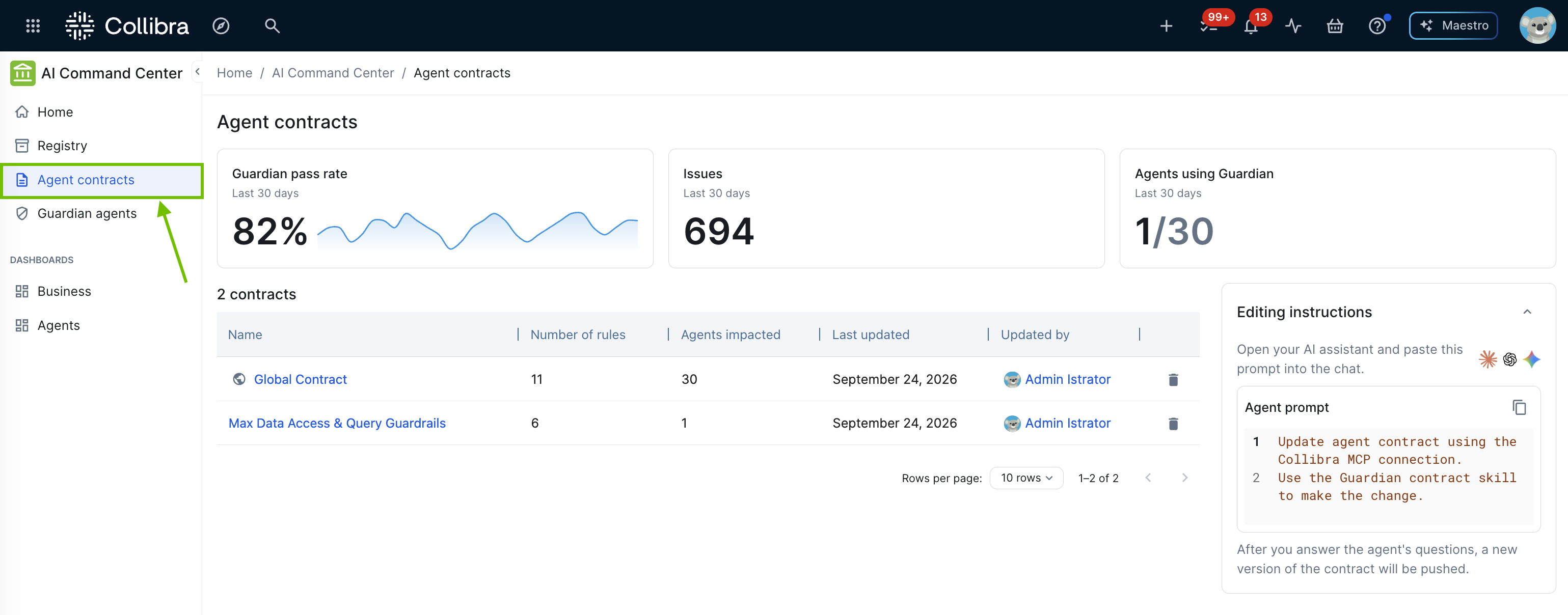
Below these metrics, a table lists each Agent Contract that you can view in your environment. The global Agent Contract is always listed first, and you can sort the table by name, number of rules, or last updated date:
| Column | Description |
|---|---|
| Name | The Agent Contract's name, linking to its asset page. |
| Number of rules | The number of rules in the active (latest) version of the Agent Contract. Each rule is a single plain-language statement describing something the agent is allowed, required, or forbidden to do, as in the examples earlier in this topic. |
| Governed agents | The number of AI Agent assets this Agent Contract currently applies to, counted when you open the page. For the global agent contract, this is every AI Agent asset in your environment that you can view; for specialized agent contracts, it's the AI Agent assets that are directly related to it. |
| Last updated | The date the active version of the Agent Contract was created, when a new version was last pushed. Renaming the Agent Contract, or pushing the same rules in the same order, doesn't change it. For details, go to Create or update an Agent Contract. |
| Updated by |
The user who created the active version of the Agent Contract, which is the identity that was authenticated when the new version was pushed. TBC - the code records whichever identity made the request, with no "on behalf of" concept. Confirm with the MCP and authentication owners whether the MCP connection uses the person's own token (so this shows the person) or a service account (so this shows that account). |
If your environment isn't fully set up, the page shows a message above the table to guide you:
- Guardian is switched on, but no Agent Contracts exist: A banner titled Start your first AI Agent Contract explains what an Agent Contract is and why to start with one. You can dismiss the banner and use the agent prompt to start defining new agent contracts.
- Agent Contracts exist, but Guardian is switched off: A Guardian and contract setup panel shows two steps. Create contract is marked as complete, and Enable Guardian asks you to implement Guardian for at least one of your AI agents.
Global agent contract and specialized agent contracts
A "global agent contract" automatically applies to every AI Agent asset in your environment. More narrowly scoped agent contracts, called "specialized agent contracts" apply only to the AI Agent assets they're related to.
Global and specialized are more than descriptive labels, they're the two agent contract types the platform tracks internally, and that type decides how Guardian resolves a conflict between them. If a global agent contract's rule and a specialized agent contract's rule cover the same agent action and disagree, the global agent contract's rule wins, even when it calls for a less restrictive outcome. For example, a global rule that only flags or escalates an action can override a specialized rule that would otherwise deny it. Within a single agent contract, the stricter outcome still wins.
To apply a specialized agent contract to specific AI agents, open the asset page of the Agent Contract asset or the relevant AI Agent, and create a relation between the two assets. True?
Each AI Agent asset page shows the combined set of rules currently applying to it, and lets you apply the latest rules so that Guardian uses them. For details, go to Contract tab on AI Agent asset pages.
Creating and editing an Agent Contract
Agent Contracts are authored and updated using an AI assistant, rather than through a form in the AI Command Center interface. An Agent Contract's asset page lists its rules, numbered, for reference, but doesn't offer a way to add, edit, or remove a rule directly on that page. To create or update an Agent Contract, you need specific permissions; for details, go to Create or update an Agent Contract.
Both the Agent contracts page and an individual Agent Contract's asset page show an Editing instructions panel. It shows icons for the AI assistants it supports and a ready-made Agent prompt that you copy and paste into your AI assistant's chat:
Update agent contract using the Collibra MCP connection.
Use the Guardian contract skill to make the change.
Pasting this prompt directs your AI assistant to connect over the Collibra MCP connection and invoke the Collibra-hosted Guardian contract skill. The skill then asks you questions, and accepts uploaded policy documents, to work out what the Agent Contract's rules should say. After you answer its questions, a new version of the Agent Contract is pushed to AI Command Center via MCP, which is what updates the Last updated and Updated by values shown for that Agent Contract.
Before you can use the prompt, your AI assistant must be connected to the Collibra MCP server. For setup instructions, go to Collibra MCP-compatible integrations.
- Create or update an agent contract.
- Learn more about guardian agent runtime enforcement.
- Learn about the Contract tab on AI Agent asset pages.