The Text widget enables you to show text on a dashboard. It offers a rich text editor, allowing you to format text with bold formatting, italics, headings, lists, and more. Additionally, it offers an HTML Editor for advanced styling.
You can use the Text widget to share a variety of information, from the latest news and updates in data governance to providing helpful links for users to explore specific views or resources.
Note
- To add code, use the HTML Editor tab in the Text widget.
- In the latest UI, you can't inject CSS files into Collibra to customize multiple dashboards at once, as you did with the classic UI. You need to manually style each dashboard instead.
- For iframes, use the Embedded Webpage widget instead of the Text widget.
Prerequisites
- To manage your own dashboards: You have a global role that has the Manage your own Views, Dashboards, Search filters global permission.
- To manage another user's dashboards: You have a global role that has the Manage shared Views, Dashboard and Search Filter global permission.
Steps
- Open the widget for configuration.
Show more information
- Open the dashboard for which you want to configure the widget.
- Click
 → Edit Dashboard.
 - If needed, drag the widget from the Widgets section to the dashboard.
- On the widget, click → Configure.
- To add code or HTML text, click HTML Editor, and then enter or paste your code in the box.Tip
- The <iframe> HTML tag is not supported in text widgets. To embed a webpage, use the Embedded Webpage widget instead.
- For a list of HTML tags supported by Collibra, go to HTML tags in text editors and text widgets.
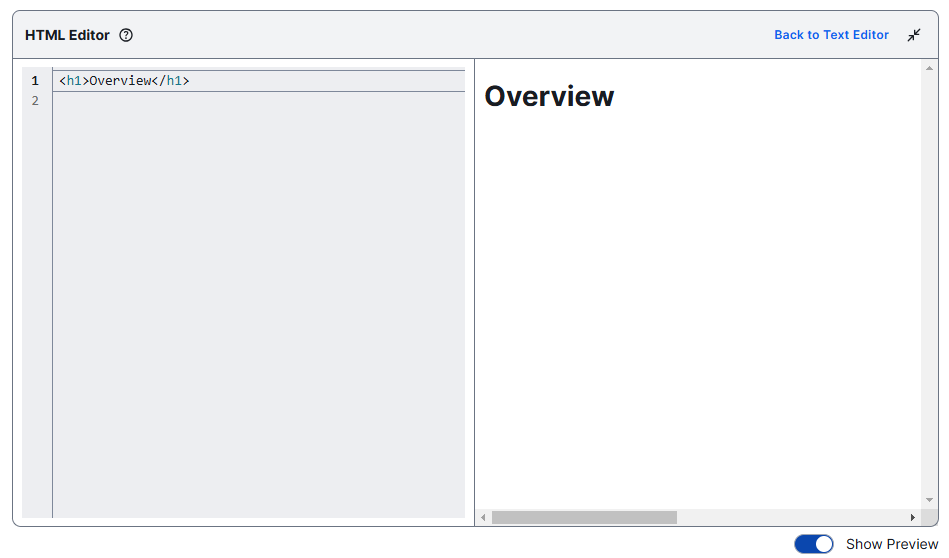
- You can maximize the HTML Editor. In the full screen view, you can see a preview of your code.
- When you switch between the HTML Editor and Rich Text Editor, the content in the HTML Editor is analyzed. If the HTML Editor contains elements not supported in the Rich Text Editor, a warning message appears. If you continue, the message "Your content may not display correctly" is shown above the Text widget configuration.
- To add plain text, click Rich Text Editor, and then enter or paste your text in the box.
- You can format the text in the box using the text formatting options. For more formatting options, click ....
- For more information, go to About text editors.
- If you see the message "Your content may not display correctly" above the Text widget configuration, the code in the HTML Editor may include unsupported tags that affect the final display.
- On the Widget tab, enter the required information.
- On the widget, click Save.
- In the upper-right corner of the page, click Save.
Tip