Data Catalog asset pages
Data Catalog uses specific asset types.
The page layout and contents of an asset page depends on the asset type assignment, and, in the latest UI, on the defined page layout.
Default page layout and contents
Click an icon to see information about a Data Catalog asset page.
This list includes only basic Catalog asset types.
|
Tab page |

| Number | Section | Description |
|---|---|---|

|
Breadcrumbs |
Navigation path of the current |

|
Asset type representation |
Icon of the |

|
Asset name |
The name of the |
|
|
Certification |
Indication whether the data set is certified or not. |

|
Asset type |
The name of the asset type, for example Schema or Data Set. |

|
Status |
The asset status, for example, Approved. |
|
|
At a Glance sidebar |
A collapsible sidebar that shows you the most important attributes of the asset. It offers a quick overview of the asset. The contents depends on the asset type. For example, it may contain the following fields:
|

|
Icon to show or hide the Tasks sidebar |
Option to show the workflow Tasks sidebar. |
|
|
More icon |
Button to show more actions, such as printing an asset page. |
|
|
Actions menu |
Button to start workflows and perform other actions. Note
Actions can also be pinned, making them available next to the Actions menu. |
|
|
tab bar |
A bar with tabs that allows you to navigate to other pages of the |
|
Summary
|
The Summary tab page contains the main details of the asset, such as a description, the related business assets Note
Tip Collibra AI can help you define descriptions. |
|
|
Sample data
|
The Sample data tab page shows the sample data of the related data elements |
|
|
|
Editor |
The currently selected tab page in the tab bar. The contents depends on the asset type. |


| Number | Section | Description |
|---|---|---|
|
|
Breadcrumbs |
Navigation path of the current |
|
|
Asset type representation |
Icon of the |
|
|
Asset name |
The name of the If the asset has been certified, this will be visible after the asset name. |
|
|
Asset type |
The name of the asset type, for example Schema or Data Set. |
|
|
Status |
The asset status, for example, Approved. |
|
|
At a Glance sidebar |
A collapsible sidebar that shows you the most important attributes of the asset. It offers a quick overview of the asset. The contents depends on the asset type. For example, it may contain the following fields:
|
|
|
Icon to show or hide the Tasks sidebar |
Option to show the workflow Tasks sidebar. |
|
|
More icon |
Button to show more actions, such as printing an asset page. |
|
|
Actions menu |
Button to start workflows and perform other actions. Note
Actions can also be pinned, making them available next to the Actions menu. |
|
|
tab bar |
A bar with tabs that allows you to navigate to other pages of the |
|
Summary
|
The Summary tab page contains the main details of the asset, such as a description, the related business assets |
|
|
|
Editor |
The currently selected tab page in the tab bar. The contents depends on the asset type. |

| Number | Section | Description |
|---|---|---|
|
|
Breadcrumbs |
Navigation path of the current |
|
|
Asset type representation |
Icon of the |
|
|
Asset name |
The name of the If the asset has been certified, this will be visible after the asset name. |
|
|
Asset type |
The name of the asset type, for example Schema or Data Set. |
|
|
Status |
The asset status, for example, Approved. |
|
|
At a Glance sidebar |
A collapsible sidebar that shows you the most important attributes of the asset. It offers a quick overview of the asset. The contents depends on the asset type. For example, it may contain the following fields:
|
|
|
Icon to show or hide the Tasks sidebar |
Option to show the workflow Tasks sidebar. |
|
|
More icon |
Button to show more actions, such as:
|
|
|
Actions menu |
Button to start workflows and perform other actions. Note
Actions can also be pinned, making them available next to the Actions menu. |
|
|
tab bar |
A bar with tabs that allows you to navigate to other pages of the |
|
Summary
|
The Summary tab page contains the main details of the asset, such as a description, the related business assets Note
Business Context displays the Business assets connected to the table and all the columns related to this table:
Categorization can help to quickly assess how sensitive the data is. It displays the Data Categories connected to the table:
Tip Collibra AI can help you define descriptions. |
|
|
Sample data
|
The Sample data tab page shows the sample data of the related data elements |
|
|
|
Editor |
The currently selected tab page in the tab bar. The contents depends on the asset type. Tip You can use Collibra AI to generate descriptions for assets. |
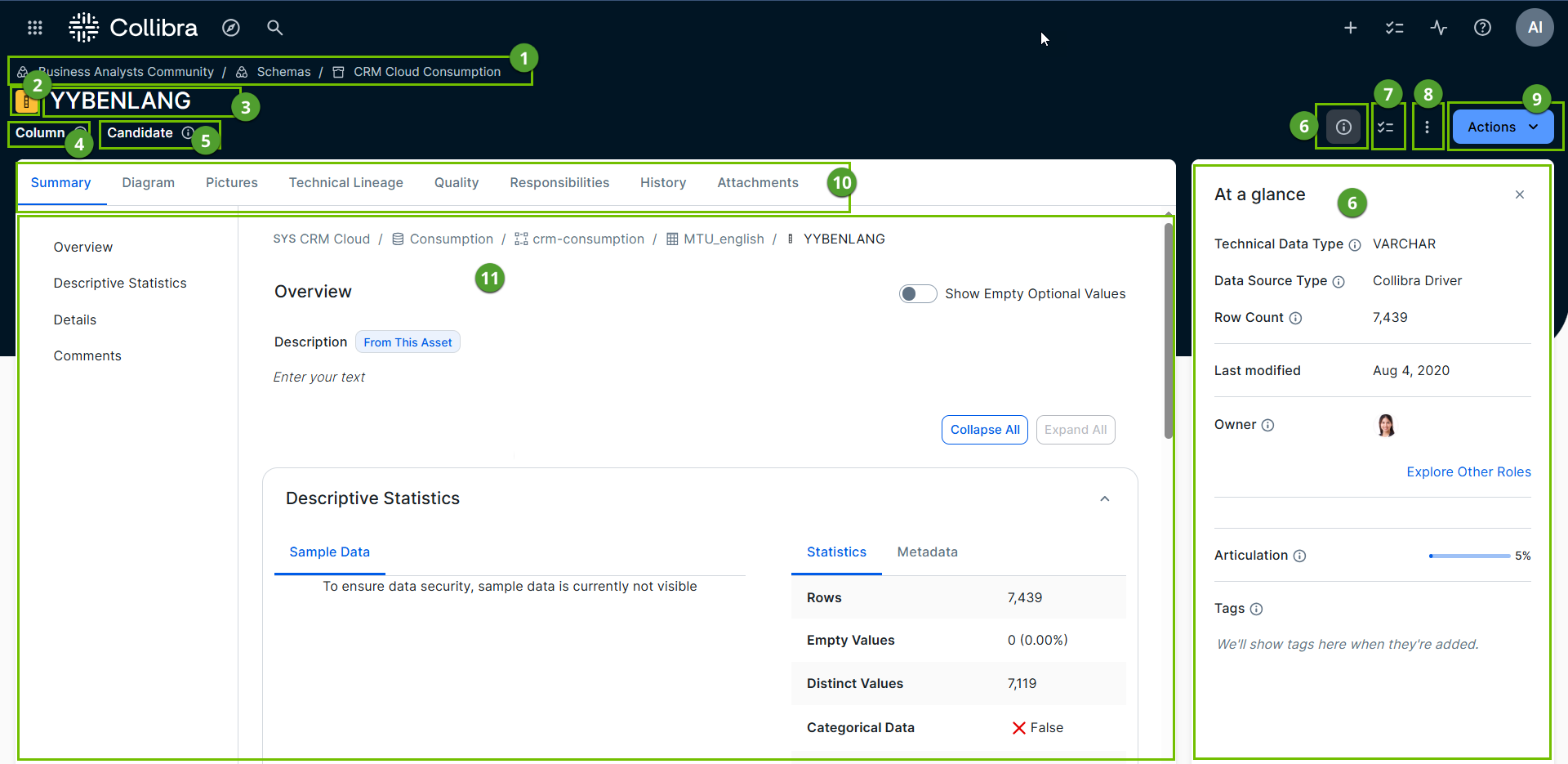
| Number | Section | Description |
|---|---|---|
|
|
Breadcrumbs |
Navigation path of the current asset. |
|
|
Asset type representation |
Icon of the asset type. |
|
|
Asset name |
The name of the asset. If the asset has been certified, this will be visible after the asset name. |
|
|
Asset type |
The name of the asset type, for example Schema or Data Set. |
|
|
Status |
The asset status, for example, Approved. |
|
|
At a Glance sidebar |
A collapsible sidebar that shows you the most important attributes of the asset. It offers a quick overview of the asset. The contents depends on the asset type. For example, it may contain the following fields:
|
|
|
Icon to show or hide the Tasks sidebar |
Option to show the workflow Tasks sidebar. |
|
|
More icon |
Button to show more actions, such as printing an asset page. |
|
|
Actions menu |
Button to start workflows and perform other actions. Note
Actions can also be pinned, making them available next to the Actions menu. |
|
|
tab bar |
A bar with tabs that allows you to navigate to other pages of the |
|
Summary
|
The Summary tab page contains the main details of the asset, such as a description, the related business assets. |
|
|
|
Editor |
The currently selected tab page in the tab bar. The contents depends on the asset type. Tip You can use Collibra AI to generate descriptions for assets. |
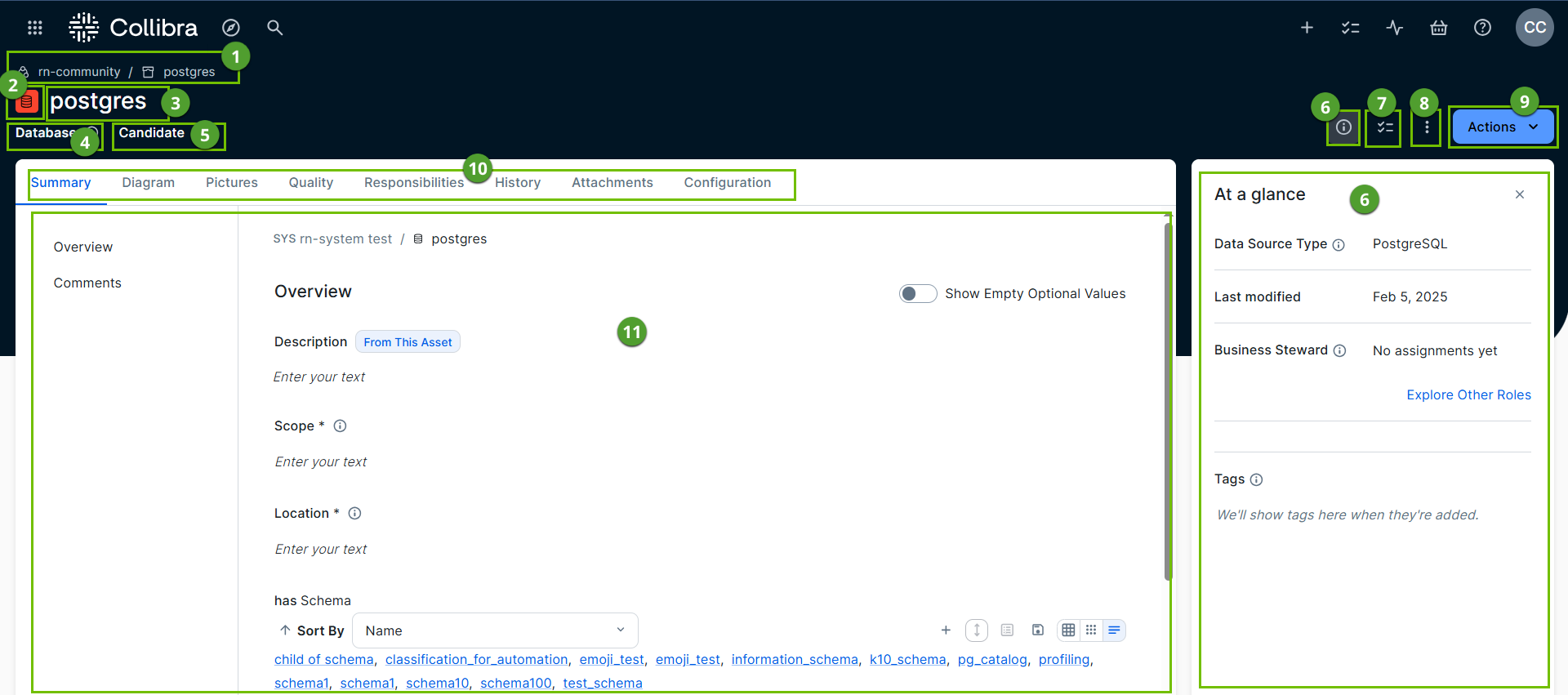
| Number | Section | Description |
|---|---|---|
|
|
Breadcrumbs |
Navigation path of the current |
|
|
Asset type representation |
Icon of the |
|
|
Asset name |
The name of the If the asset has been certified, this will be visible after the asset name. |
|
|
Asset type |
The name of the asset type, for example Schema or Data Set. |
|
|
Status |
The asset status, for example, Approved. |
|
|
At a Glance sidebar |
A collapsible sidebar that shows you the most important attributes of the asset. It offers a quick overview of the asset. The contents depends on the asset type. For example, it may contain the following fields:
|

|
Icon to show or hide the Tasks sidebar |
Option to show the workflow Tasks sidebar. |
|
|
More icon |
Button to show more actions, such as printing an asset page. |
|
|
Actions menu |
Button to start workflows and perform other actions. |
|
|
tab bar |
A bar with tabs that allows you to navigate to other pages of the |
|
|
Summary |
The Summary tab page contains the main details of the asset, such as a description, the related business assets. |
| Configuration (if you use Edge) | The Configuration tab page allows you to configure the synchronization, profiling, lineage extraction, and so on. | |
|
|
Editor |
The currently selected tab page in the tab bar. The contents depends on the asset type. |
The Configuration tab page is available only if you use Edge. The tab page shows the Edge connection and the configured Edge capabilities, such as synchronization and profiling.
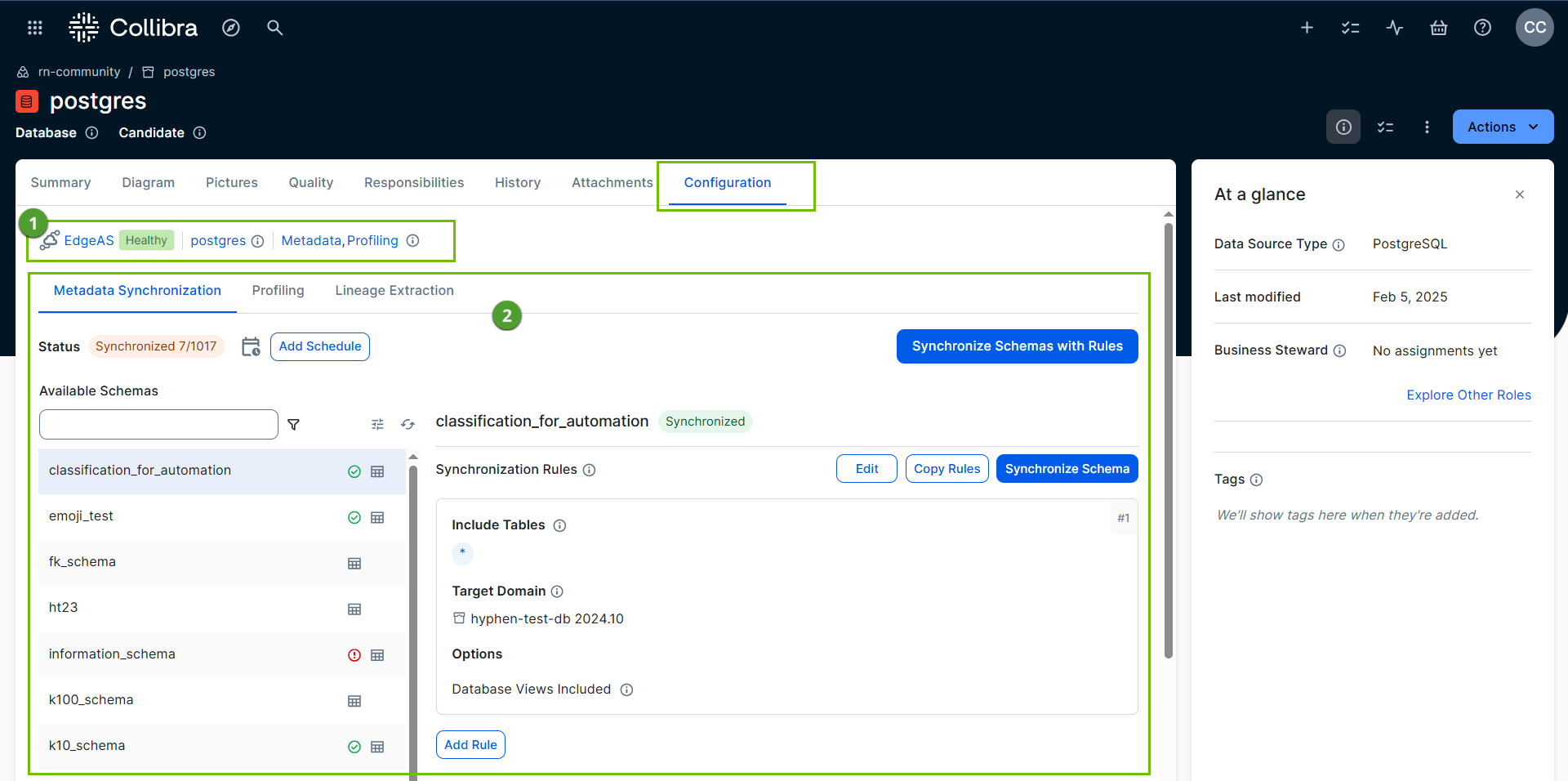
The Editor contains:
|
Number |
Section |
Description |
|---|---|---|
|
|
Connection details |
The full Edge path, including the Edge site, Edge connection, and the Edge capability. |
|
|
tab bar and tab pages |
A tab bar with possible configurations for the Database asset. For example:
|
On a Foreign key asset page, you can find the details of the foreign key and define what has to happen if there are changes to the foreign key.
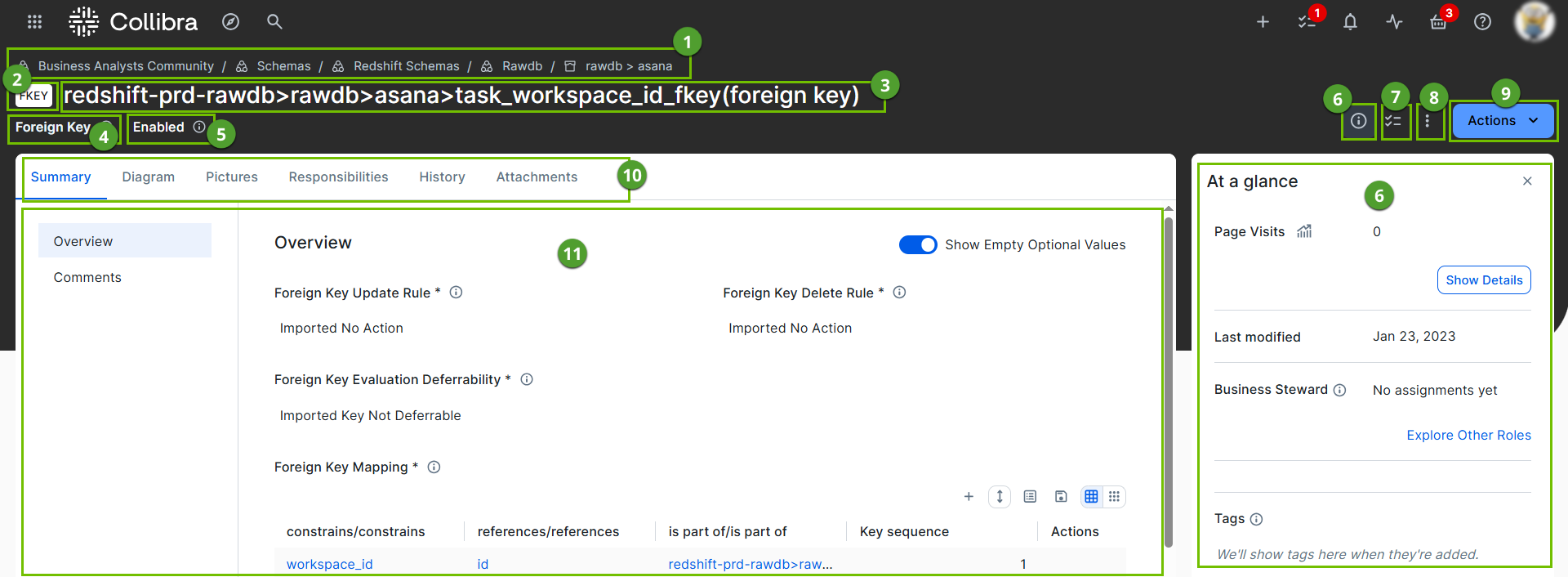
| Number | Section | Description |
|---|---|---|
|
|
Breadcrumbs |
Navigation path of the current |
|
|
Asset type representation |
Icon of the |
|
|
Asset name |
The name of the |
|
|
Asset type |
The name of the asset type, for example Schema or Data Set. |
|
|
Status |
The asset status, for example, Approved. |
|
|
At a Glance sidebar |
A collapsible sidebar that shows you the most important attributes of the asset. It offers a quick overview of the asset. The contents depends on the asset type. For example, it may contain the following fields:
|
|
|
Icon to show or hide the Tasks sidebar |
Option to show the workflow Tasks sidebar. |
|
|
More icon |
Button to show more actions, such as printing an asset page. |
|
|
Actions menu |
Button to start workflows and perform other actions. |
|
|
tab bar |
A bar with tabs that allows you to navigate to other pages of the |
|
|
Editor |
The currently selected tab page in the tab bar. The contents depends on the asset type. Tip Do not change any of the ingested data of a foreign key as this can cause errors when you resynchronize the database. The Overview section in the Summary tab page contains the following sections:
|