About the synchronization process
Synchronizing schemas is the process of ingesting and updating the metadata of a registered JDBC data source.
After you have registered a JDBC data source via Edge, Data Catalog connects to your Edge site and creates a list of schemas from the registered database. The list is available on the Configuration tab page of the Database asset page.
On this Configuration tab page, you configure the synchronization of schemas in the database. You can then synchronize a schema manually or automatically:
- Synchronize manually if you want to test the synchronization of your data source or if you want to synchronize immediately.
- Synchronize automatically at fixed intervals if the content of the data source changes regularly.
Tip Every time you open the Configuration tab, the list of schemas is automatically refreshed to ensure you get the latest information from the data source. The last refreshed date is shown above the list. You can manually refresh the list by clicking the  Refresh List icon.
If the list can't be refreshed, an error message is shown and the previous list remains visible to ensure it isn't empty.
What happens during synchronization
During synchronization, the following happens:
- The Edge site connects to your data source and ingests schemas, tables, columns, and foreign keys according to the defined synchronization rules.
Edge detects whether there are changes since the last synchronization of a schema and resolves possible conflicts. For information on how this works, go to How synchronization handles changes. - Collibra creates assets in the selected target domains.
- The created assets get a unique full name (fully qualifying name) based on naming conventions.
You can view the full name of an asset by editing the asset.Warning Avoid editing the full name of an asset, because the full name is used to synchronize and refresh data sources. Changing the full name may cause unexpected results and break the synchronization or refresh process.
- The status of a created asset depends on its asset type. The first status in the asset type assignment is applied to the new asset.
- If, in the synchronization rule, you have indicated you want to include source tags, the tags defined on the assets in the data source are registered and available from the Schema, Table, Database View, and Column assets in the Source Tags attribute. For more information, go to About source tags.
Note Currently, the JDBC registration process can synchronize source tags only from Snowflake via this method.
For information on synchronizing the source tags from Databricks Unity Catalog, go to Add the Databricks Unity Catalog capability.
- The created assets get a unique full name (fully qualifying name) based on naming conventions.
- The synchronization jobs of all schemas run in parallel. You can see the synchronization status in the Activities list. A report is created:
- during the synchronization, to show the progress of the synchronization job.
- after the synchronization, to show the synchronization logs for each synchronized schema.
You can also follow up on the synchronization jobs via the database synchronization report (in preview).
How synchronization handles changes in the source and in Collibra
The synchronization handles changes to the data in the data source and in Collibra in the following way.
- Only changed data is sent to Collibra.
The scalable ingestion flow tracks changes on the Edge side and sends only the differences (the delta) to Collibra. - Your Collibra changes are preserved.
If you update an asset in Collibra and then resynchronize without changing the data source, your changes aren't overwritten.
Change in data source
| Change in data source |
Result in Collibra for commercial customers |
Result in Collibra for Collibra Platform for Government customers |
Required action |
|---|---|---|---|
| A table, column or foreign key has been added to the schema. |
Collibra creates the assets. Note If a table is empty, Collibra creates only the Table asset, without any Column assets
|
Collibra creates the assets. Note If a table is empty, Collibra creates only the Table asset, without any Column assets
|
No action is required of you. |
| A table, column or foreign key has been removed from the schema. |
The existing asset gets the Missing from source status. This process is called soft delete. Note If all the content has been removed from the schema, go to "a schema is empty”. |
The existing asset gets the Missing from source status. This process is called soft delete. Note If all the content has been removed from the schema, we don't update any existing assets in Collibra. Go to "a schema is empty” for more information. |
If needed, you can manually delete the assets. |
| A schema is empty. |
|
|
If needed, you can manually delete the assets. |
| A schema has been removed. |
The schema gets the Missing from source status. Also the related Table and Column assets get the Missing from source status. This process is called soft delete. |
If you have refreshed the schema list before the synchronization, the schema gets the Missing from source status. Also the related Table and Column assets get the Missing from source status. This process is called soft delete. |
If needed, you can manually delete the Schema asset and all related assets. |
| A column or foreign key has been renamed. |
Note If a column has no name in a schema, synchronization fails with the
java.lang.IllegalArgumentException: tableName was found null error. Provide a name for the column or exclude the column from the ingestion. |
|
If needed, you can apply any manual changes you made to the original asset, to the new asset. And then remove the assets that are no longer applicable. |
| A table has been renamed. |
Note If a table has no name in a schema, synchronization fails with the
java.lang.IllegalArgumentException: tableName was found nul error. Provide a name for the table or exclude the table from the ingestion. |
|
If needed, you can apply any manual changes you made to the original assets, to the new assets. And then remove the assets that are no longer applicable. |
| A database has been renamed. |
|
|
To register the renamed database, create a new Database asset through a new data source registration. To clean up assets for the old database, use one of the following options: Option 1: Run Schema Synchronization on the old Database asset.
Option 2: Use the Data Dictionary for bulk actions.
Do not use bulk deletion unless you have carefully reviewed the selection. Assets in the same domain that are unrelated to the old database may be inadvertently deleted. |
|
A schema has been renamed. |
|
|
If needed, you can apply any manual changes you made to the original assets, to the new assets. And then delete the assets that are no longer applicable. |
You can't use the include table or exclude table rules to synchronize in batches or to synchronize only a selected list of tables. When you register a table and later exclude it using these rules during resynchronization, the related assets get the Missing from Source status. Example: During the first synchronization, you include table A and table B, so assets are created for them. During the next synchronization, you include only table C. As a result, assets for table C are created, and the assets for table A and table B show the Missing from Source status.
- If you rename a database in the data source, the Edge synchronization process treats it as a new database. The Database asset status remains unchanged because the Missing from source status is not part of the Database asset lifecycle. To register the renamed database, create a new Database asset through a new data source registration.
- Schema, Table, Column or Foreign Key assets with the Missing from source status don't block the synchronization process.
- In the asset diagram, assets with the Missing from source status are shown by default. If you don't want to see these assets, apply a filter to the diagram view to only show assets with valid statuses.
Change in Collibra
| Change in Collibra |
Result in Collibra for commercial customers |
Result in Collibra for Collibra Platform for Government customers |
|---|---|---|
| In Collibra, you update asset characteristics that are controlled by the metadata synchronization. | To increase performance, Collibra doesn't update the asset characteristics during a resync unless changes are detected at the data source. | Collibra updates the asset characteristics with the data source values during a resync. |
| In Collibra, you update asset characteristics that are not controlled by the metadata synchronization. |
Collibra doesn't update the asset characteristics that are not controlled by the metadata synchronization during a resync. |
Collibra doesn't update the asset characteristics that are not controlled by the metadata synchronization during a resync. |
| In Collibra, you manually changed the status of an asset from Missing from source to another status. |
Collibra doesn't automatically set the status back to Missing from source during subsequent synchronizations, even if the object is still missing from the data source. When the object is first detected as missing, Edge reports it as removed. Edge doesn't report the object as removed again in subsequent synchronizations. If the object remains missing, manually change its status back to Missing from source. |
Collibra doesn't automatically set the status back to Missing from source during subsequent synchronizations, even if the object is still missing from the data source. When the object is first detected as missing, Edge reports it as removed. Edge doesn't report the object as removed again in subsequent synchronizations. If the object remains missing, manually change its status back to Missing from source. |
| In Collibra, you removed one, more, or all assets for a Schema asset, or you have removed the entire Schema and its assets. | Collibra recreates all assets during a resync. | Collibra recreates all assets during a resync. |
| In Collibra, you changed the scope of tables to be included in the synchronization via include tables or exclude tables rules. | If a table is no longer in the synchronization scope during a resync, its registered assets get the Missing from Source status. | If a table is no longer in the synchronization scope during a resync, its registered assets get the Missing from Source status. |
| In Collibra, you used asset views to move registered assets to a domain other than the domain specified in the synchronization rule. | Assets are moved back to the specified target domain during the next sync only if changes to the assets are detected in the data source. | Assets are moved back to the specified target domain during the next sync. |
What happens after synchronization
- A check symbol (
 ) is available next to the schema name.
If the synchronization of a schema fails or the schema is no longer available in the source, an exclamation mark ( ) is shown instead.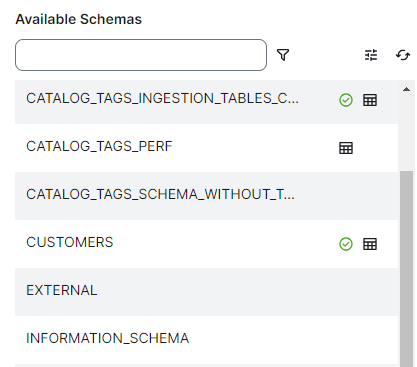
- The synchronized data becomes available. To see which data is added, go to Metadata synchronization results.
Tip If you no longer want to synchronize a schema, and delete the associated assets, go to Remove a synchronized schema.
About synchronization rules
A synchronization rule determines which tables of a schema you synchronize in Data Catalog.
- If you add multiple rules for a schema, the order is important. The number of allowed synchronization rules is limited by the Maximum number of ingestion rules setting.
For all information, go to Configure the synchronization of a data source. - The Schema asset and the Foreign Key assets are always ingested in the domain defined in the first rule.
- Only schemas that have at least one synchronization rule can be synchronized.
If a schema has a synchronization rule, you see a table icon ( ) next to the schema name.
 - Synchronization rules can be added, edited, and copied to other schemas in the same data source.
You can't use the include table or exclude table rules to synchronize in batches or to synchronize only a selected list of tables. When you register a table and later exclude it using these rules during resynchronization, the related assets get the Missing from Source status. Example: During the first synchronization, you include table A and table B, so assets are created for them. During the next synchronization, you include only table C. As a result, assets for table C are created, and the assets for table A and table B show the Missing from Source status.
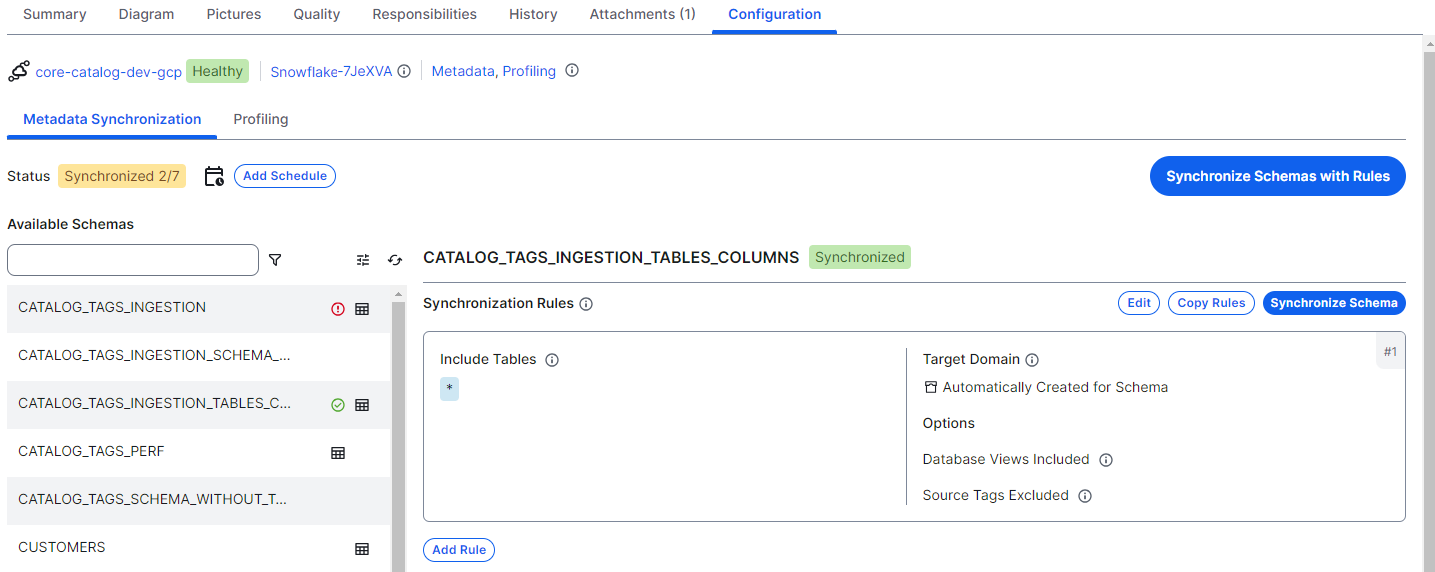
The following table shows fields of synchronization rules:
| Rule field | Description |
|---|---|
| Include Tables |
A comma-separated list of the names of the tables you want to synchronize.
Example
|
| Exclude Tables |
A comma-separated list of the names of the tables you do not want to synchronize.
You can use exclude to do the following:
Example
|
| Target Domain |
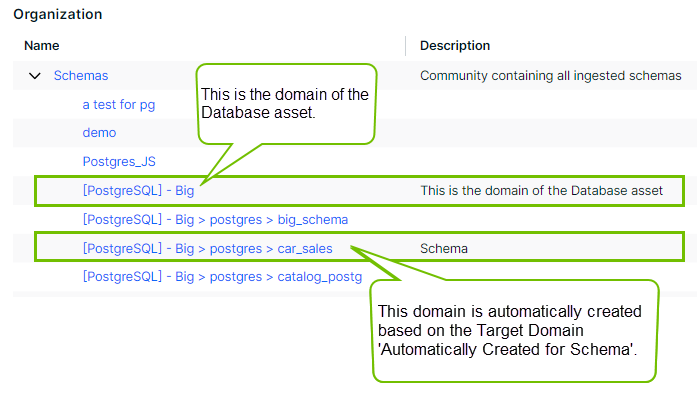
The Physical Data Dictionary domain in which the schema is synchronized. The default value is Automatically Created for Schema. This means the metadata is placed in a domain located in the same community as the domain of your Database asset. If that domain doesn't exist yet, Data Catalog creates the domain using the following naming convention: [edge_connection_name] > [database_name] > [schema_name], for example Snowflake Connection > CERTIFICATION > CUSTOMERS.
You can select any other Physical Data Dictionary domain for which you have a resource role with the Configure External System resource permission. It is advised, however, to have a domain per schema. Note Use this method to move assets from one domain to another. Don't move assets through asset views. |
| Options |
Additional options to specify which type of tables you want to synchronize. |
|
Exclude Database Views
|
A checkbox to exclude database views from the synchronization process. If selected, no assets of the type Database view are created. Tip You can also use Include Tables and Exclude Tables to include or exclude specific database views. |
|
Include Source Tags
|
If you select this option, the tags defined on the assets in the data source are registered and available from the Schema, Table, Database View, and Column assets in the Source Tags attribute. Note Currently, the JDBC registration process can synchronize source tags only from Snowflake via this method. |
|
Include Semantic Views
|
If you select this option, Snowflake Semantic Views are registered as Semantic View assets in Collibra. Note This applies only to Snowflake. |
|
If you select the Include Data Usage Statistics option, the data usage statistics of the assets in the data source are ingested, a popularity score is calculated, and the information is made available for Table, View, and Column assets. The information includes:
For more information, go to About data usage statistics and popularity score. Important
|
About source tags
Tags created and assigned in the data source can be registered and synchronized in Data Catalog. To allow this, select the Include Source Tags checkbox when you define the synchronization rule for a schema. This ensures that the tags defined on the assets in the data source are registered and available from the Schema, Table, Database View, and Column assets in the Source Tags attribute.
Note Currently, the JDBC registration process can synchronize source tags only from Snowflake via this method.
For information on synchronizing the source tags from Databricks Unity Catalog, go to Add the Databricks Unity Catalog capability.
- The naming convention for source tags synchronized from Snowflake is:
<source_tag_name>=<source_tag_value>, for example: cost_center=sales.<source_tag_name>, if no values are assigned to the tag, for example PII.
- We apply the same inheritance for source tags as the data source. Example
- If a tag was assigned to a schema in Snowflake, the tag will be registered for the related Schema, Table, Column and View assets in Data Catalog.
- If a tag was assigned to an account in Snowflake, the tag will be registered for the related Schema, Table, Column and View assets in Data Catalog.
For information on tags in Snowflake, go to the Snowflake documentation.
- Don't change the source tags in Data Catalog, as the changes are not pushed to the data source. If you make changes to the tags in the data source and synchronize the data source again, your updates will be overwritten with the information from the data source.
By default, Collibra reads the Snowflake source tags from the <database_name>.INFORMATION_SCHEMA.tag_ references. This is possible with the minimum required permissions for the metadata scan.
To increase the performance of the Snowflake metadata synchronization, we can also read the Snowflake source tags from the SNOWFLAKE.ACCOUNT_USAGE schema. This can be configured in the Edge JDBC Ingestion capability as an other property with name tags-strategy and value SINGLE_CALL. Note that this method requires the SELECT permission on the SNOWFLAKE.ACCOUNT_USAGE.TAG_REFERENCES table.