Asset types define which attribute types, relation types, and statuses the asset can have. They also determine which articulation rules, data quality rules, and validation rules are applied, and the domain types in which assets can be created. All of these different details are bundled in an assignment.
The benefit of a scoped assignment
Scoped assignments enable you to configure different sets of attribute types, relation types, statuses and more, for a single asset type. This allows the various teams in your organization to customize the way they work with AI Governance assets. For example, one department might want to define a different lifecycle for their AI use cases. In this case, you can create a scoped assignment and specify the status progression that works for your team. Another team could do the same, to define a different lifecycle or include different attribute types and relation types.
Assignments and scopes
An assignment can apply globally, in which case it is called the global assignment, or to a scope, in which case it is called a scoped assignment.
The global assignment applies to all assets that are not in a scope. A scoped assignment only applies to assets that are located in a community or domain that belongs to the scope. An asset type can only have one global assignment, but many scoped assignments.
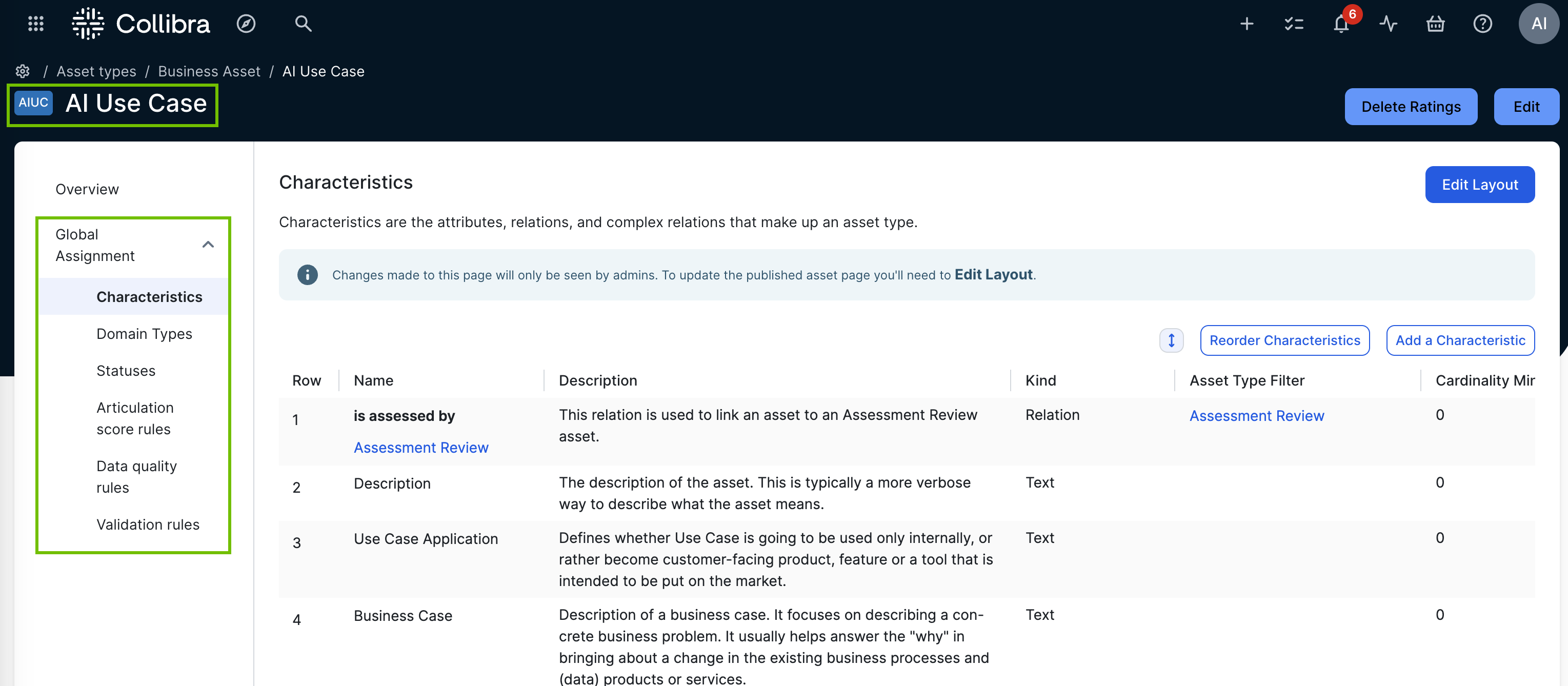
The following image shows the AI Use Case asset type page and the global assignment.
Create a scoped assignment
Prerequisites
- You have a global role with the Product Rights > System administration global permission.
- You have created the scope.
Steps
-
Open the relevant asset type.
-
On the main toolbar, click
 →
→
 Settings.
The Settings page opens. - Click the Operating model tab.
Operating Model settings are shown. - In the Asset types table, click the relevant asset type.
The asset type overview page opens.
-
On the main toolbar, click
- Create a global or scoped assignment:
Assignment type
Steps
Global assignment
-
In the left pane, click
Add global assignment.
The Add Global Assignment dialog box appears. - Click Add global assignment.
The asset type no longer inherits the assignments of its parent asset types.
Note Each asset type can only have one global assignment.
Scoped assignment
-
In the left pane, click
Add assignment.
The Select scope for this assignment dialog box appears. - Select a scope.Note You can only add one scope at a time.
- Click Add assignment.
The settings of the global assignment are copied into the selected scope.
-
In the left pane, click
Add global assignment.
You can now edit the assignment.