Note By default, the Register AI use case button opens a registration form that prompts you to provide information and register a new AI use case. Your Data Governance Manager, however, can configure the button to start a workflow, as described in Set up AI Command Center. The procedure in this topic is only relevant if the Register AI use case button is configured for its default behavior.
To register a new AI use case, you only need to provide a name and a description, and specify an asset type, a domain and an owner. The Owner you specify is assigned the Owner resource role on the newly created asset. From the asset page, the Owner can start an assessment manually using the Lifecycle tracker.
This topic explains how to register a new AI Use Case via the Register AI use case button. You can also create an AI Use Case asset via the global Create button.
Requirements and permissions
You have:
- A global role with the Product Rights > Assessments global permission.
- A global role with the AI Governance > Register AI use case global permission.
The following out-of-the-box global roles have these permissions:
- AI Business User
- AI Governance Viewer
- AI Producer
Steps
-
In the registry, click Register AI use case.Note The button is not shown if you don't have global role with the AI Governance > Register AI use case global permission.
The Register AI use case form opens.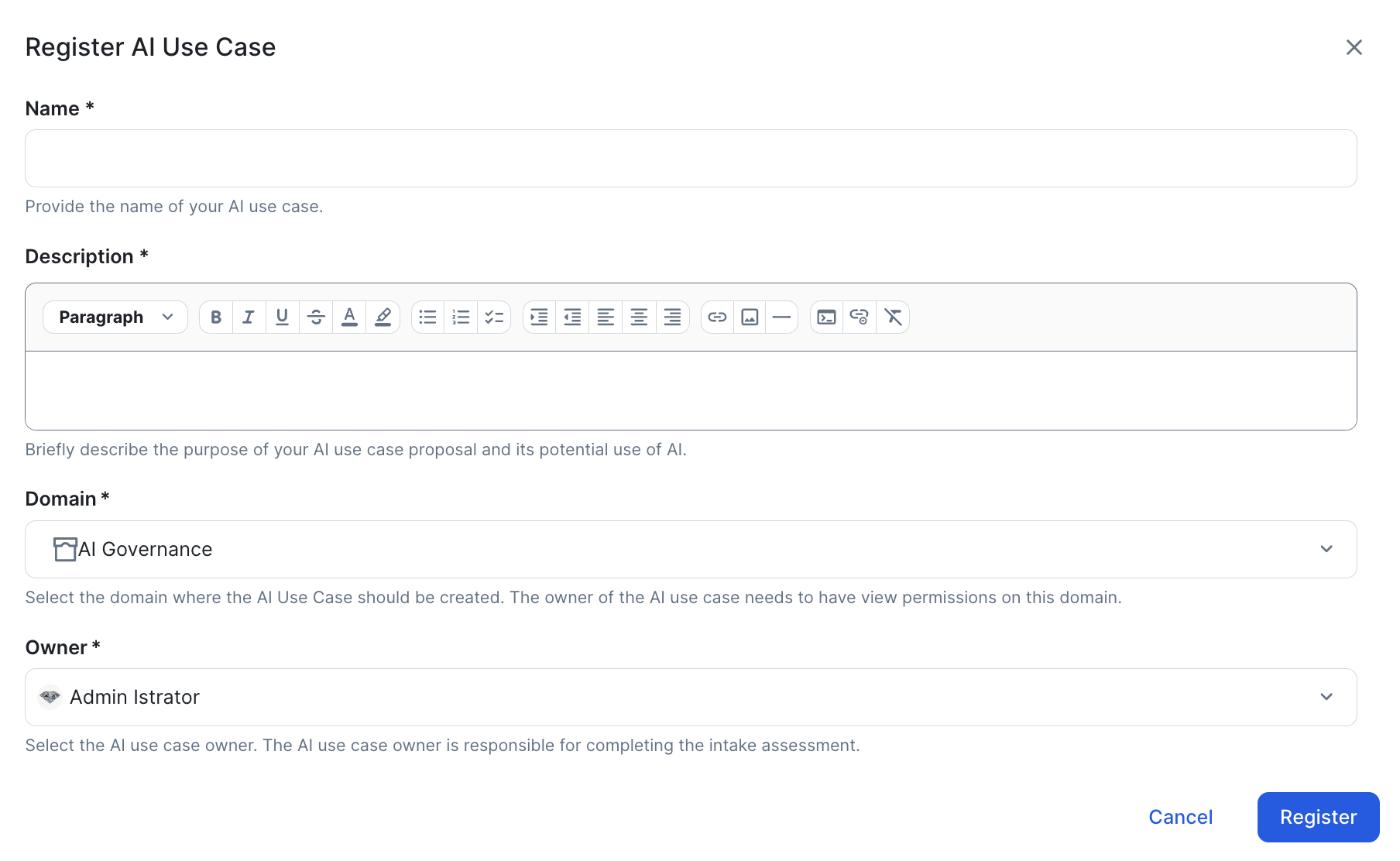
- Enter the required information.
Field Description Name The name of the new asset.
When you type three or more characters in the Name field, duplicate detection uses fuzzy matching to identify similar existing assets, even when names differ in spelling, abbreviations, or formatting.
Type The asset type of the AI use case.
Valid asset types include AI Use Case and any custom subtype of AI Use Case.
Description The purpose of your AI use case proposal and its potential use of AI.
Domain The domain in which you want to create the new AI Use Case asset.
If you know that a certain domain exists, but it doesn't appear in the drop-down list, it could mean that:- The domain is of a type that has not been configured for this asset type. For more information, go to Assign a domain type to an asset type.
- You are subject to view permissions restrictions. By default, all users can view all assets in all communities and domains. If a community or domain is restricted by view permissions to which you are subject, the domain is not shown in the drop-down list.
Owner The Collibra users or user groups that will act as the owner of the AI use case. They are assigned the Owner resource role for the new asset.
Permissions requirement
The user or user group you specify needs the permissions required to carry out all of the assessments-related tasks mentioned in the following table.
Note- If you are an AI Command Center user, meaning you have of the following global roles, then you meet the requirements mentioned here, without further configuration:
- AI Business User
- AI Governance Admin
- AI Governance Viewer
- AI Producer
- If you are not an AI Command Center user, we recommend either the Assessments Admin or Assessments Template Manager global role.
To... You need... Access the Collibra Assessments app
A global role with the Product Rights > Assessments global permission, for example AI Business User or AI Producer. Start an assessment
A global role with the Assessments > Conduct Assessments global permission.
Submit an assessment for approval
The following must be true for the domain (or its community) that is specified when submitting the assessment.- At least one user is assigned the Business Steward resource role.
- The Business Steward has a global role with the Workflow > Participate in Workflow global permission, for example AI Business User or AI Producer.
- Click Register.
A new asset of the specified type is created in the specified domain.
- Configure which assessment templates and sign-off activities are automatically added to the Lifecycle tracker when a new AI Use Case, AI agent, AI model version or AI Base Model is registered. For complete information, go to Configure lifecycle activities for an asset type.
- Configure which asset status is assigned to newly registered AI Use Case assets, and configure the progression of statuses to define the lifecycle stages through which your AI use cases will evolve. Go to Configure AI Use Case asset statuses.
Note An AI Trust Score is automatically derived for the AI Use Case, based on the average trust score of its linked AI Model Version and AI Agent assets. Because no technical assets are linked yet, the score starts at 0 until you link an AI model or AI agent to the use case.
- On the AI Use Case asset page, use the Lifecycle tracker features to start an assessment, add assessments, and more.
- Edit the AI Use Case asset, as necessary.Important
Be mindful of the edits you make on the asset page before the assessments are completed and approved. When an assessment is approved, depending on the assessment template, certain assessment responses are copied to the asset page. If you manually edit the attributes of an asset, some of the values might be overwritten when the assessment is approved. For more information, go to:
If you want to manually fill out the details without conducting the prescribed assessments, you can create the asset via the global Create button. When you create an asset that way, no assessments are started. You can then add details to the various sections of the asset page as you would an asset of any other type, knowing the values won't be overwritten by an assessment. When you're on the asset page, remember to switch on the Show everything switch to see all available fields.