You can configure which lifecycle activities are automatically added to the Lifecycle tracker when a new asset of that type is created. There are three types of lifecycle activities: assessments, sign-off activities, and smart check activities. You can also configure which activities will appear in the Lifecycle tracker in subsequent lifecycle stages.
Prerequisites
- You have a global role with the Product Rights > System Administration global permission.
- The Activate Lifecycle management option is switched on in the asset type's assignment.
Steps
-
On the main toolbar, click
 →
→
 Settings.
The Settings page opens. - Click the Operating model tab.
Operating Model settings are shown. - In the Asset types table, click the relevant asset type.
The asset type overview page opens. - In the tab pane, expand the Global Assignment tab or the tab of the relevant assignment, and then click Lifecycle.Note If only the Global Assignment tab is shown, it means no one in your organization has added another assignment. In this case, use the Global Assignment. For more information on assignments and scopes, go to Create scoped assignments for the AI Governance asset types.The Lifecycle page opens.Tip The lifecycle stages shown on this page (Ideation, Development, and Monitoring in the following example image) reflect the statuses that are configured for the asset type. To configure the lifecycle stages through which you want your assets to evolve, go to Configure the lifecycle stages for an asset type.
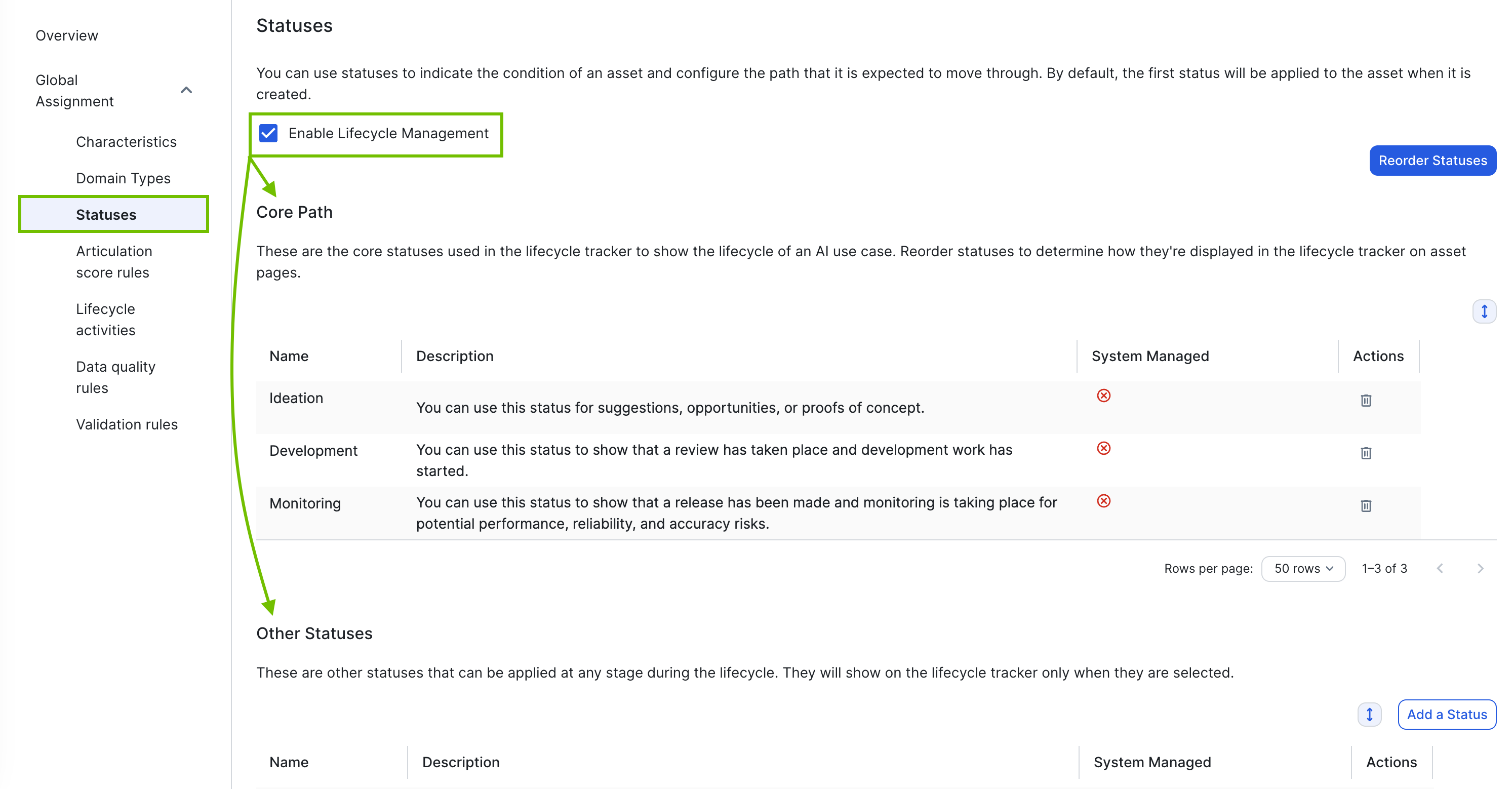
- Do any of the following:
Action Steps Result Add an assessment template
You can add any of the assessment templates in the Template Gallery, as long as the assessment template is associated with the relevant asset type.
- Click Add activity > Add assessment.
The Add an assessment dialog box appears. - Optionally, switch on the Required activity switch to indicate that the assessment is required. If an assessment is required, it must be completed before you can advance the asset to the subsequent lifecycle stage.
- In the Status drop-down list, select the lifecycle stage to which you want to add the assessment template.
- In the Template field, select the assessment template.Note If the assessment template restricts who can start it, the allowed roles appear as read-only information in this dialog box. To change the allowed roles, edit the Who can start this? setting on the assessment template.
- Click Add assessment.
When a new asset is created, the assessment template is automatically added to the specified lifecycle stage.
Add a sign-off activity
- Click Add activity > Add sign-off.
The Add sign-off dialog box appears. - Optionally, switch on the Required activity option to indicate that the sign-off activity is required. If a sign-off activity is required, it must be completed before you can advance the asset to the subsequent lifecycle stage.
- In the Status drop-down list, select the lifecycle stage to which you want to add the sign-off activity.
- Enter the Title as it will appear in the Lifecycle tracker. For example, "Legal Department sign-off".
- Enter the Instructions that describe the intent of the sign-off, or what must be done before signing off.
- Enter the Assignee resource role that is responsible for completing the sign-off activity.
- Click Add sign-off.
When a new asset is created, the sign-off activity is automatically added to the specified lifecycle stage.
Add a smart check activity
- Click Add activity > Add smart check.
The Add smart check dialog box appears. - Optionally, switch on the Required activity switch to indicate that the smart check activity is required.Note Because smart check activities currently run in optional mode, a "Required" smart check will not block lifecycle stage transitions, regardless of the check result. For more information, go to Optional mode behavior.
- In the Status drop-down list, select the lifecycle stage at which you want the smart check to run.
- In the smart check definition field, select the smart check definition. Only smart check definitions assigned to the current assignment are available.
- Click Add smart check.
When a new asset is created, the smart check activity is automatically added to the specified lifecycle stage and runs when the asset enters that stage.
Edit an existing lifecycle activity. Click  for the activity you want to edit. Click Update to save your changes.
The activity is updated. Remove an existing lifecycle activity. Click
 for the activity you no longer want added in the Lifecycle tracker.
The activity is no longer automatically added in the Lifecycle tracker when a new asset of the relevant type is created.
Reorder lifecycle activities. Click  next to the activity and order them to suit your needs.
The activities are shown in the updated order in the Lifecycle tracker. - Click Add activity > Add assessment.
- Click Save at the top of the page to save the changes, or Discard changes to discard all of your changes.