Sign-off activities provide formal confirmation that a specific requirement was met or an instruction was followed. Completed sign-off activities typically indicate that the asset can be advanced to the next lifecycle stage.
You can configure sign-off activities on an asset type assignment, so they are automatically added to the Lifecycle tracker when a new asset is created. For complete information, go to Configure lifecycle activities for an asset type.
Sign-off activities added via an assignment can be marked as Required, meaning they must be completed before the asset can advance to the next lifecycle stage. Sign-off activities added manually are always optional.
Manually add a sign-off activity to the Lifecycle tracker
Requirements and permissions
- You have the Asset > Lifecycle Management > Sign-Off resource permission on the asset or for the community or domain in which the relevant asset is stored.
If you don't have this resource permission, the + Add Activity button is not shown.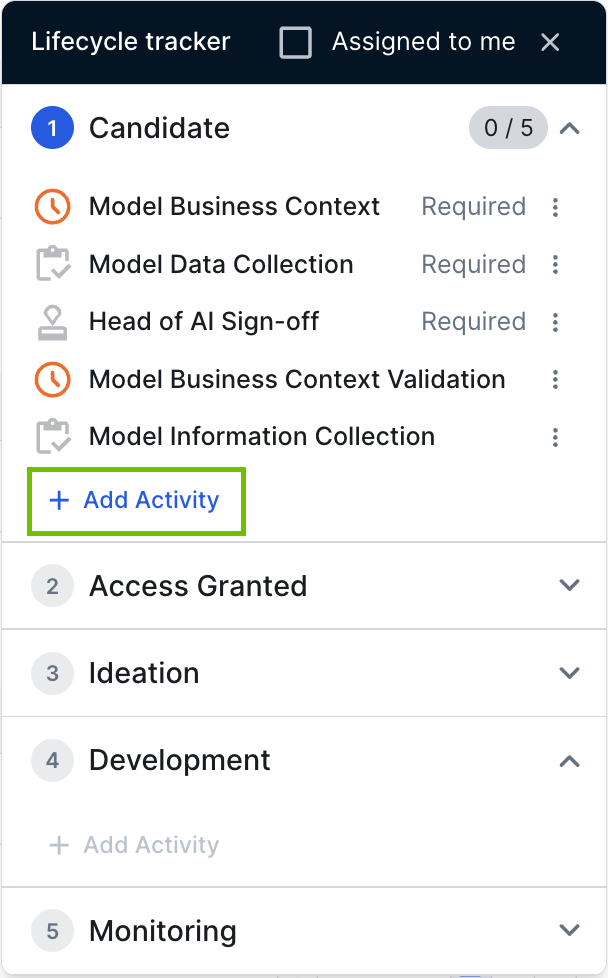
Steps
- Open the relevant asset page.
- In the Lifecycle tracker, click Add Activity, and then select Sign-off.
The Add sign-off dialog box appears. - Enter the required information.
Field Description Mandatory? Sign-off name A short, meaningful name, for example "Legal Department sign-off". Yes Instructions Specific requirements that the Assignee must satisfy before signing off. Yes Assignee The user or user group that is responsible for:
- Ensuring that the requirements specified in the Instructions field are carried out.
- Completing the sign-off activity.
All Assignees are notified when a sign-off activity is added or edited.
No - Click Add sign-off.
The sign-off activity is added to the Lifecycle tracker with the status Not Started.
View, complete, edit, or delete a sign-off activity
Sign-off activities can have the following statuses in the Lifecycle tracker:
- Not Started: The sign-off has been added but not yet opened.
- Draft: Notes or attachments have been saved, but the sign-off has not been completed.
- Completed: The sign-off has been completed.
In the Lifecycle tracker, do one of the following:
-
Click the name of the sign-off activity.
- Click
 in the relevant row, and then select View sign-off, Complete sign-off, Edit sign-off, or Delete sign-off.
The following table shows the available actions and the users that can carry out each action.
| Action | Details | Who can carry out the action? |
|---|---|---|
| View |
View the sign-off activity details. If any files are attached to the sign-off activity, you can click a file name to download the file to your hard drive. |
|
| Edit |
Edit any part of the sign-off activity, including:
Sign-off activities that are configured in the asset type assignment can only be edited by assignees. If any files are attached to the sign-off activity, you can click a file name to download the file to your hard drive. You can't delete attached files via the Edit action. You can, however, delete them during the Complete action. Note If the sign-off activity has not yet been started, clicking Edit sign-off initializes the sign-off activity and opens it for editing. |
|
| Complete |
To complete the sign-off, select the checkbox and enter supporting text in the Completion notes field. If you aren't ready to complete the sign-off, you can enter and save text in the Completion notes field without completing the activity. Saving notes without completing sets the status to Draft. You can also Attach, delete, and download supporting files. Note If the sign-off activity has not yet been started, you can still complete it. Doing so creates and completes the sign-off activity in a single action. |
Any Assignee. |
| Delete |
You are prompted to confirm the deletion. If you delete a sign-off activity, you can't get it back. "Required" sign-off activities can't be deleted. |
The creator of the sign-off, meaning the user who added it. |
Attach, delete, and download supporting files
When completing a sign-off activity, you can attach files that support your decisions. You can also delete any attached files that are no longer relevant.
| Action | Details | Who can carry out the action? |
|---|---|---|
| Attach |
To attach files and complete the sign-off activity:
To attach files without completing the sign-off activity:
|
|
| Delete |
Click |
|
| Download | While viewing or editing the sign-off activity, click a file name to download the file to your hard drive. |
 next to the file you want to delete.
Notifications
The following table provides information on sign-off activity notifications and recipients.
| Triggering event | Details |
|---|---|
| A user adds a sign-off activity. |
Notification is sent to all Assignees. |
| A user edits a sign-off activity. | Notification is sent to all Assignees. |
Notification channels
Notifications are available via the following channels.
| Notification channel | For enablement information... |
|---|---|
| Go to the “Edit the email notification settings” section in Manage a profile. | |
| Notification Center | Go to Notification Center. |
| Slack | Go to Set up Slack integration. |
| Microsoft Teams | Go to Set up Microsoft Teams integration. |
Limitations
Uploading attachments is restricted by the file upload settings. Collibra administrators with access to Collibra Console can manage these settings.
| Setting name | Setting description |
|---|---|
|
Max file size |
The maximum upload size allowed in bytes. |
| Max per day | The maximum number of files any user will be allowed to upload in a day. |
| Accepted content types | Use the MIME type format. For more information, go to the Complete MIME Types List. |
| Restricted content types | Content types in MIME type format that cannot be uploaded. Restricted content types take precedence over accepted content types. |