About the Page Editor
The Collibra Page Editor enables product users to configure certain pages in Collibra Platform to best align with your organization's needs. You can use components, such as sections and widgets, to customize pages by adding your organization's branding, links to internal resources, and your Collibra metrics.
Sections and layouts are full width organizational or preconfigured components. These include components like rows for widgets, page dividers, and preconfigured sets of data.
Widgets are individual blocks that can be added to a row to show data or information, such as text, images, metrics, or links.
You can currently use the Page Editor to configure the:
- AI Command Center landing page
- AI Command Center Business dashboard
- AI Command Center Agents dashboard
- Data Products landing page and dashboard
- Data Quality & Observability (cloud) dashboard
- Stewardship landing page
- Flexible homepage
- Custom pages
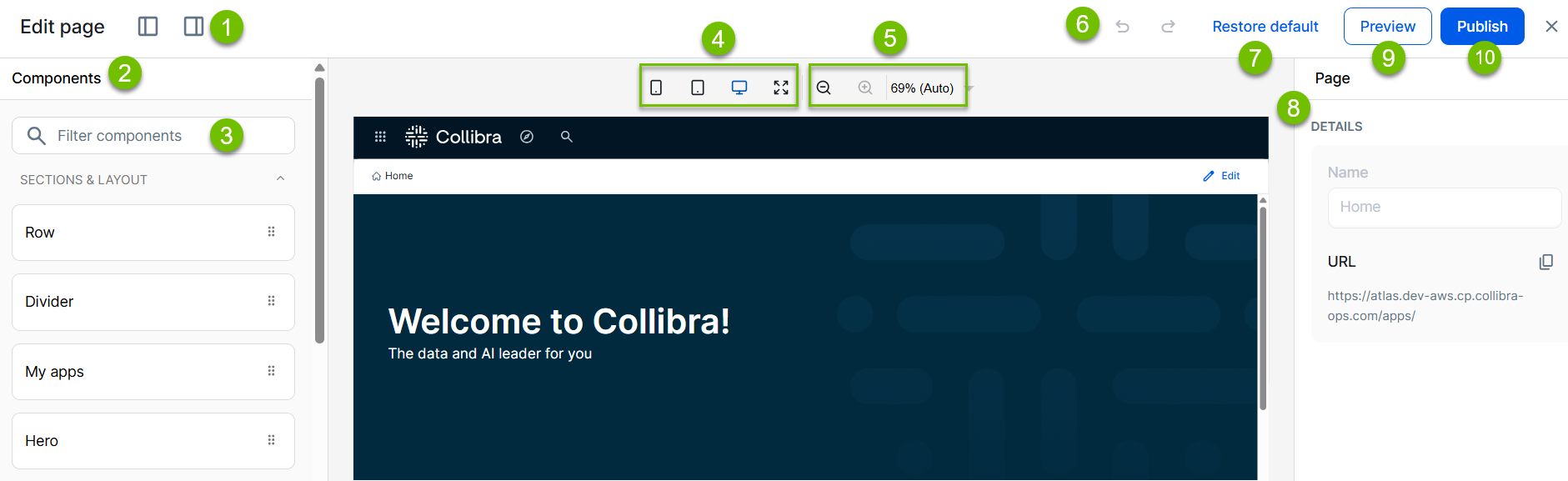
The following example shows the Page Editor, in the editing state:
| No | Description |
|---|---|

|
|

|
The left side panel shows the available components for the page you are editing, as well as the outline of the components on the page. You use these components, such as sections and widgets, to configure your page. |

|
The Components filter allows you to search for components by name, rather than scrolling in the panel. |

|
Preview what your page looks like on small, medium, large, or wide screen. |

|
Zoom in or zoom out on the page. |

|
Use the left arrow to undo a change, and the right arrow to redo a change. |

|
Restore the default configuration of the page you are editing. All prior page configurations and layouts will be lost. |

|
The right side panel shows all relevant configurations for a selected component. For example, Title and Description. |

|
Preview your page configurations. |

|
Publish your page configurations to your organization. Anyone with access to the page you edited will see your changes. |
- Review the Page Editor permissions for each product page.
- Add a section to a page or dashboard.
- Add a widget to a page or dashboard.
- Import and export pages.