The Collibra homepage is the default page that is shown when you sign in to Collibra Platform or when you click the application logo on any page in Collibra.
Collibra offers a few homepage options. Administrators can set which homepage users see by default or assign custom landing pages in Settings.
This topic will explore the default homepages.
The homepage guides you within Collibra by showing information that is relevant to you, such as your dashboards, the most visited assets, and the recommended assets. The homepage also allows you to search for a resource.
You can open all your dashboards via the Dashboards card on the homepage or via the Dashboards tab in the browse pane.
The Fixed homepage is the default homepage experience in Collibra Platform. If you are an administrator, you can customize the homepage by defining the headings and the content shown in each section of the Fixed homepage, and thus create a Fixed homepage that can meet user needs.
The following table describes the sections shown on the Fixed homepage.
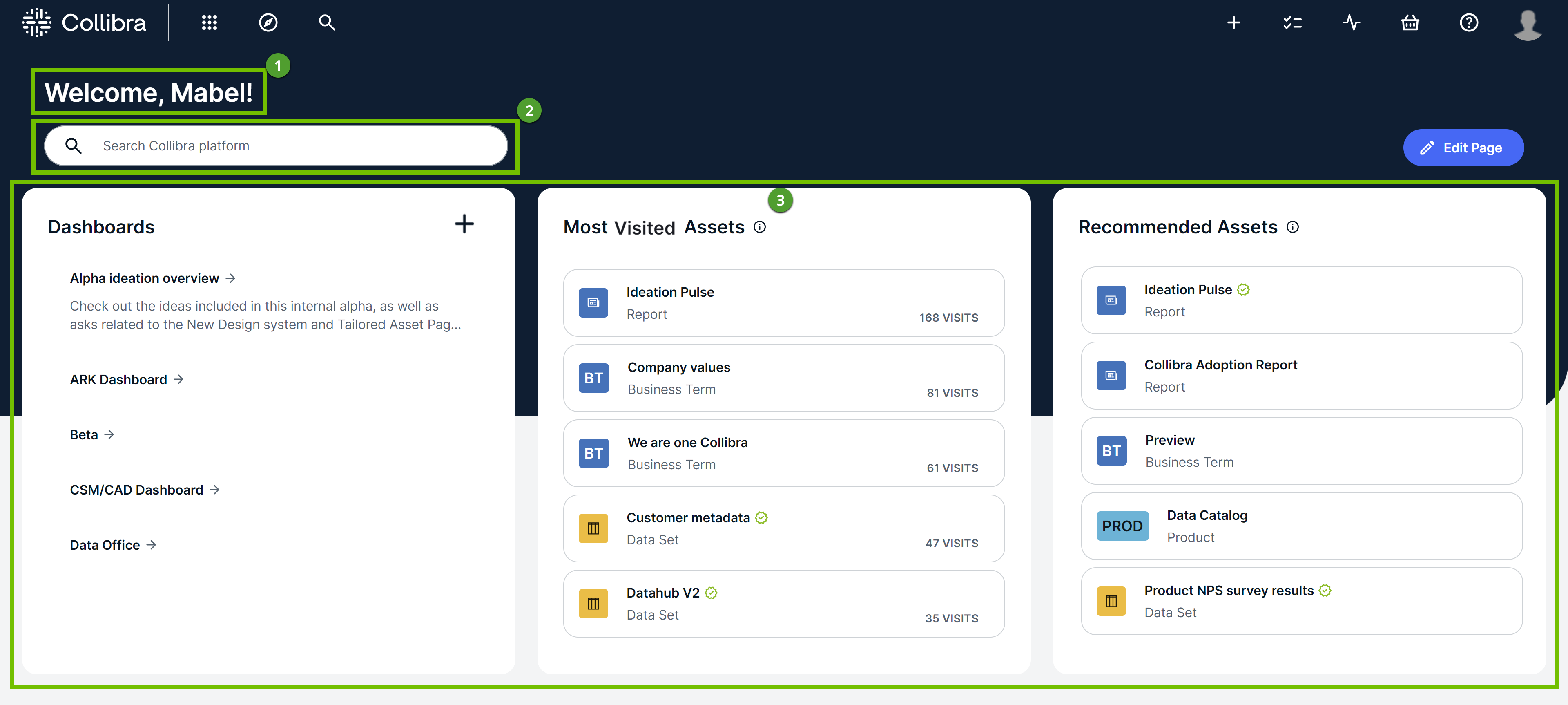
| No. | Description |
|---|---|

|
Shows a greeting. |

|
Enables you to perform a search, directing you to the search page. |

|
Helps you to find content and perform your daily tasks. Depending on how the homepage is edited, this section shows any 3 of the following cards:
Note
|
Flexible homepage
The Flexible homepage is a fully customizable homepage built using the Page Editor. Administrators can use sections and widgets in the Page Editor to configure the page with their organization's branding, links to internal resources, and Collibra metrics.
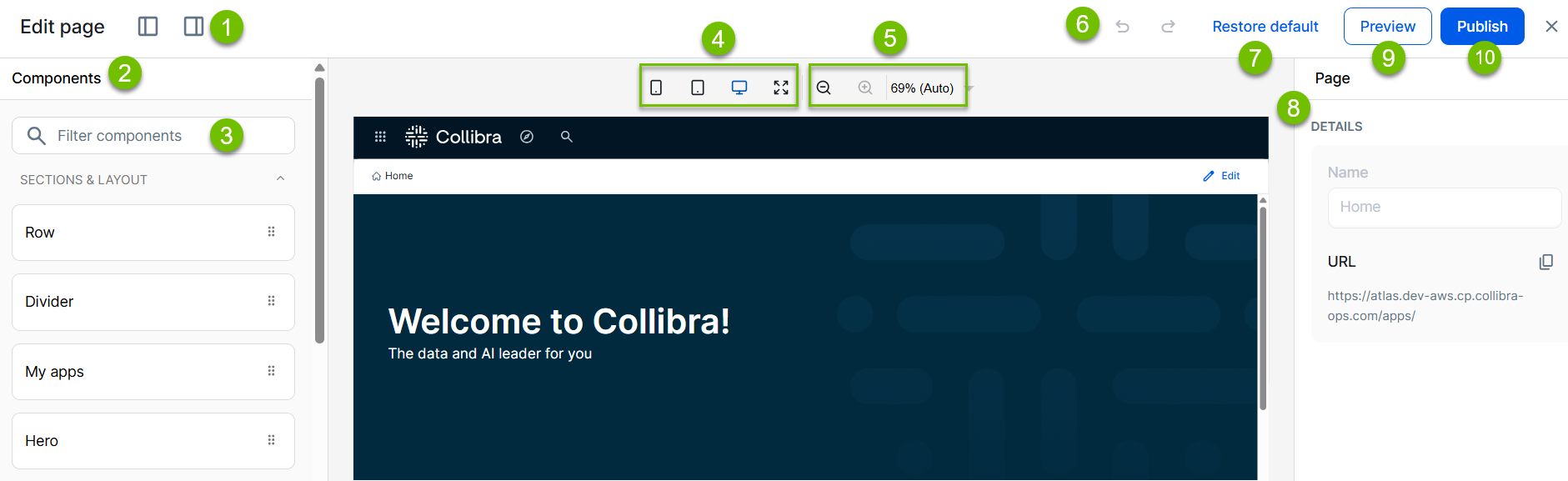
The following table describes the sections shown on the Flexible homepage.
The following image shows the Flexible homepage setup, in the editing state:
| No | Description |
|---|---|
|
|
|
|
|
The left side panel shows the available components for the page you are editing, as well as the outline of the components on the page. You use these components, such as sections and widgets, to configure your page. |
|
|
The Components filter allows you to search for components by name, rather than scrolling in the panel. |

|
Preview what your page looks like on small, medium, large, or wide screen. |

|
Zoom in or zoom out on the page. |

|
Use the left arrow to undo a change, and the right arrow to redo a change. |

|
Restore the default configuration of the page you are editing. All prior page configurations and layouts will be lost. |

|
The right side panel shows all relevant configurations for a selected component. For example, Title and Description. |

|
Preview your page configurations. |

|
Publish your page configurations to your organization. Anyone with access to the page you edited will see your changes. |