This page describes how Data Marketplace administrators can add filters to Data Marketplace through Settings > Data Marketplace > Filters. Filters are based on filter facets. Filter facets define which filters are available to data consumers in Data Marketplace, and are also used when you configure categories. You configure filter facets in Settings > Search > Facets.

About out-of-the-box facets
By default, Data Marketplace offers multiple filter facets, which can be used when defining Data Marketplace categories and are visible in the Filter Facets pane on the Data Marketplace search page.
Note Some of these filter facets rely on relation path indexing.
| Filter facet name | Description | Uses relations |
|---|---|---|
|
Business Asset |
Business Asset refers to the business assets that are related to the data, such as For information on the differences between business terms, data domains, and data concepts, go to Conceptual layer versus the Business Glossary. |
Yes |
|
Certified |
This filter facet limits your search results to data that has been certified, meaning approved, endorsed, or guaranteed. |
No |
|
Data Domain refers to a high-level conceptual category to which the data belongs, such as Assets of this type:
To benefit from this, your data structure must follow the Data Stewardship metamodel. For more information, go to Conceptual layer. |
Yes | |
|
Data Concept refers to the lower-level conceptual category to which the data belongs, such as Assets of this type:
To benefit from this, your data structure must follow the Data Stewardship metamodel. For more information, go to Conceptual layer. |
Yes | |
|
Source System refers to the technology asset that stores the data, like HR Cloud. Via this filter, you can limit the search results to assets that exist in specified systems. |
Yes | |
|
Data source limits the search results to assets that exist in specified data sources. |
Yes | |
| Rating is a colleague's perception of the usefulness and quality of the asset. | No | |
|
Tag is a label that adds extra context to an asset. |
No | |
| Status refers to which governance process stage the asset is in, such as Approved or Candidate. | No | |
|
Asset Type refers to the kind of data you are looking for, such as data set, report, or table. |
No |
For instructions on creating and configuring filter facets, go to Configure filter facets.
About filters in Data Marketplace
The filters you define are available from the assets section in the Data Marketplace landing and category pages.
You can define up to 5 default filters. Default filters are always visible. You can also add other available filters. These become available when a data consumer clicks the Plus icon in the Filter area.

Prerequisites
- You have the SysAdmin global role.
- You have a global role with the Product Rights > System administration global permission.
- The filter facets you want to add are configured. For details, go to Configure filter facets.
Steps
-
On the main toolbar, click
 →
→
 Settings.
The Settings page opens. - In the Data Marketplace section, click Filters.
The Filters page opens. By default, the Asset type and Status filter are enabled as Display by Default.
- Perform one of the following actions:
- To disable the Asset type or Status filter, switch off the enabled option.
The filter disappears from the Display by default section and appears in the Disabled section. - To add another default filter:
- Click Add default filter.
All the defined filter facets are shown in a dialog box. - Click the filter you want to add.
The filter is added to the Display by default section. You can add up to 5 default filters.
- Click Add default filter.
- To add another available filter:
- Click Add filter.
All the defined filter facets are shown in a dialog box. - Click the filter you want to add.
The filter is added to the Available section.
- Click Add filter.
- To delete a filter:
- Click the More icon for a filter.
- Select Delete. You can't delete the Asset type and Status filters.
- To show a default filter only when data consumers click the Plus icon in the Filter area:
- For a filter in the Display by default section, click the More icon.
- Select Demote to available.
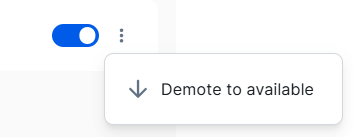
The filter disappears from the Display by default section and appears in the Available section.
- To disable the Asset type or Status filter, switch off the enabled option.
- Click Save.
The filters are defined.
You can choose to enable personal onboarding experience, and then enable the new Data Marketplace experience. For details, go to Enable Data Marketplace.