This page describes how Data Marketplace administrators can create and manage Data Marketplace categories and customize the Category and Categories labels through Settings > Data Marketplace > Categories.

About Data Marketplace categories
Data Marketplace categories are custom groups of assets defined based on specific business needs. They provide a structured way to organize assets so that data consumers can find and access relevant data.
Data consumers can navigate between category pages using the left sidebar and the landing page. On a category page, they can view the assets within the category that they have access to, along with the category name and description. For more information, go to Navigating and searching in Data Marketplace.
You can create up to 20 categories.
About the Categories page in Data Marketplace settings
The Data Marketplace Categories page contains the following sections:
- Categories, where you can create and manage categories.
- Terminology, where you can customize the Category and Categories labels shown to data consumers.
Categories
For each category, you can view:
- A Move icon for changing the position of the category.
- The category icon.
- The category name and description.
- Who can view the category, if the category is enabled.
No icon means that the category is visible to everyone. An icon indicates that the category is restricted to a specific audience. - The number of assets in the category.
- The category status.
An enabled category is available to data consumers. A disabled category is not available on the Data Marketplace landing page or in search.
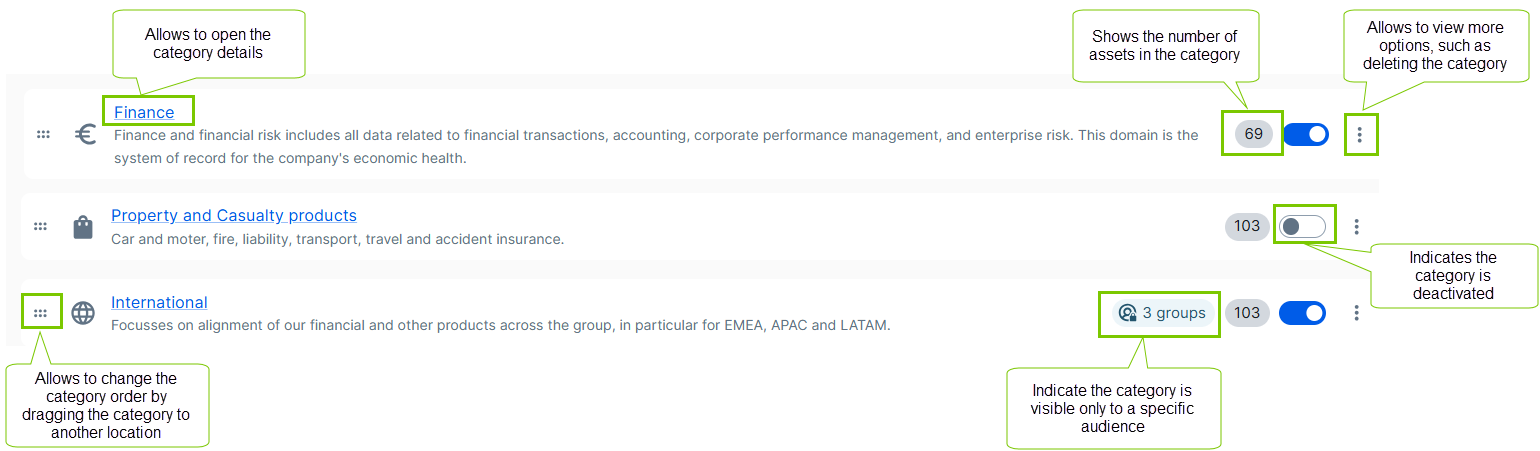
From the Categories page, you can:
- Open and edit a category by clicking its name.
- Enable or disable a category using the switch.
- Delete a category by clicking the More icon and selecting Delete category.
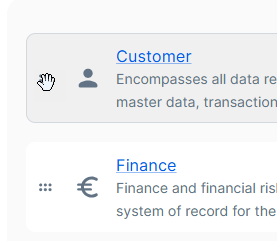
- Change the order in which categories are shown to data consumers. To sort the categories alphabetically, click Sort > A-Z. To manually change the order, drag and drop a category using the Move icon.
Terminology
By default, groups of assets in Data Marketplace are called categories. You can replace this term with terminology that is more familiar to your data consumers.
Custom category terminology applies only to the consumer-facing Data Marketplace UI, including the sidebar navigation, landing page, and search page. The Settings area always uses Categories.
Prerequisites
You have one of the following:
- You have the SysAdmin global role.
- You have a global role with the Product Rights > System administration global permission.
Configure Data Marketplace categories
-
On the main toolbar, click
 →
→
 Settings.
The Settings page opens. - Go to Data Marketplace > Categories.
The Categories page opens. - To create a category, complete the following steps:
- Click Add category at the bottom of the Categories section.
The Create category dialog box appears. - Enter a name and description, and select an icon for the category. The name is also used as the display name.
- To make the category active, in Category status, switch the Enabled option on.
- Define who can view the category.
You can make the category available to everyone or to specific groups or roles. - Click Create.
The category is added to the bottom of the section. - Click Save.
The category name becomes a hyperlink. - Click the category name.
The category details open. - On the General tab, review or update the category information, such as the name, icon, description, status, and visibility options.
- Click the Assets tab.
A list of assets and filter facets opens.- Only assets that are included in the defined Data Marketplace scope are available.
- The available facets are the ones defined in Settings > Search > Facets.
- Apply filter facets to define which assets are included in the category.
A real-time preview of the included assets is shown as you configure the filters.- If you don't define any filter facets, all assets within the Data Marketplace scope are automatically included in the category.
- An asset can belong to multiple categories.
- Click Save.
- Click Add category at the bottom of the Categories section.
- Optional: Customize the category labels only if your organization has a specific need to use different terminology for categories.
- In the Terminology section, enter your preferred terms in the Singular label and Plural label fields.
Each field supports up to 15 characters. - Click Save.
If you leave a field empty, Data Marketplace uses the corresponding default label: Category for the singular label and Categories for the plural label. The fields are independent — if you specify only one label, Data Marketplace uses the default value for the other label.
If you want to use the same term for both singular and plural labels, enter the same value in both the and Plural label fields.
- In the Terminology section, enter your preferred terms in the Singular label and Plural label fields.
Configure the filters in Data Marketplace