Synchronizing via the Google Knowledge Catalog (formerly Dataplex Universal Catalog) integration is the process of integrating metadata from the Knowledge Catalog projects and making the data available in Collibra Platform. You can either synchronize inbound metadata manually or automate the process by adding a synchronization schedule.
The Knowledge Catalog integration configuration page has two tabs for inbound synchronization:
- Metadata inbound: integrates database, schema, table, database view, and column assets from Knowledge Catalog. It supports integrating metadata from the following data sources:
- Google BigQuery
- Cloud SQL
- Data Products (In Preview): optionally integrates GCP Data Product and Data Product Port assets, linking each port to existing BigQuery tables. This feature is in preview. For Data Product Ports to link to BigQuery table assets, the table assets must already exist in Collibra for the links to resolve correctly.
Each tab has its own Synchronize button, but both trigger the same inbound synchronization job. Synchronizing or scheduling from either tab synchronizes both Metadata Inbound and Data Products. They currently cannot be run or scheduled independently.
Important
Prerequisites
In your Collibra environment
- Make sure you are on the latest UI because the Knowledge Catalog integration is only available in the latest UI.
- You have created a GCP connection.
- You have added the Knowledge Catalog capability to the GCP connection.
- You created a System asset in which you want to add the Knowledge Catalog assets, for example BigQuery or Cloud SQL-PostgreSQL.
- The Data Product Port asset type doesn't have the Missing from Source status by default. If a GCP Data Product synchronization tries to assign this status to a port no longer in the source, it reports Completed with error. This error recurs on every synchronization until you resolve it. To avoid this, do one of the following:
- Manually add the Missing from Source status to the Data Product Port asset type.
- In Collibra Console, set Status validation to False (default). This setting is in the Knowledge Graph Validation group of the Data Governance Center service configuration.
- You have a resource role with the Configure external system resource permission, for example, Owner.
- You have a global role with the Catalog global permission, for example, Catalog Author.
- You have a global role with the View Edge connections and capabilities global permission, for example, Edge integration engineer.
In your GCP environment
- You have enabled the Cloud Resource Manager API in GCP. This allows the Knowledge Catalog integration to determine the Project IDs that the service account has access to and integrate metadata from those projects. This is done when the Project IDs are not specified in the integration configuration.
Steps
-
On the main toolbar, click
 →
→
 Catalog.
The Catalog homepage opens. - Click Integrations.
The Integrations page opens. - Click the Integration configuration tab.
- In the Integration column, click the link for your Knowledge Catalog integration.
The integration settings page opens. - Select a tab to configure the relevant integration settings:
- Metadata inbound: Select the Metadata inbound tab and then click Add configuration.
- Data Product (In Preview): Select the Data Products (In Preview) tab and then click Add configuration.
- Click Save.
- Click Synchronize.
A notification indicates that the synchronization has started.
-
On the main toolbar, click
→
Catalog.
The Catalog homepage opens. - Click Integrations.
The Integrations page opens. - Click the Integration configuration tab.
- In the Integration column, click the link for your Knowledge Catalog integration.
The integration settings page opens. - Select a tab to configure the relevant integration settings:
- Metadata inbound: Select the Metadata inbound tab and then click Add configuration.
- Data Product (In Preview): Select the Data Products (In Preview) tab and then click Add configuration.
- Click Save.
- Click the Add synchronization schedule icon.
- Enter the required information and click Save:
Field Description Repeat The interval when you want to synchronize automatically. The possible values are: Daily, Weekly, Monthly, and Cron expression. CronThe Quartz Cron expression that determines when the synchronization takes place.
This field is only visible if you select
Cron expressionin the Repeat field.EveryThe day on which you want to synchronize, for example, Sunday.
This field is only visible if you select
Weeklyin the Repeat field.Every firstThe day of the month on which you want to synchronize, for example, Tuesday.
This field is only visible if you select
Monthlyin the Repeat field.At
The time at which you want to synchronize automatically, for example, 14:00.
- You can only schedule on the hour. For example, you can add a synchronization schedule at 8:00, but not at 8:45.
- This field is only visible if you select
Daily,Weekly, orMonthlyin the Repeat field.
Time zone The time zone for the schedule.
Metadata inbound
| Field | Action | Required |
|---|---|---|
| Data source type | In Data source type, select a data source to configure the relevant integration settings: BigQuery or CloudSQL. |
 Yes Yes |
| Ingestion type | In Ingestion type, select Knowledge Catalog ingestion. This integrates the Knowledge Catalog Entries and Aspects. |
Yes |
| System |
In System, select the System asset in which you want to add the Knowledge Catalog assets. |
Yes |
| Updated: <timestamp> |
Click Updated: <timestamp> next to Metadata Inbound, where A scheduled refresh job is also automatically created when you complete the capability configuration. The scheduled refresh job appears on the Jobs dashboard of your Edge site with the same name as your metadata capability. Unlike the metadata synchronization job, it appears only on the Jobs dashboard and not in the Activities list. If two jobs with the same name appear on the Jobs dashboard, one is the scheduled refresh job and the other is the metadata synchronization job. By default, the scheduled refresh job runs daily at 23:00 server time. |
 No No
|
| Default Community |
This field is only visible if you select CloudSQL as the Data source type. In Default Community, select a Collibra community to ingest the metadata. Subdomains per schema and database will be automatically created in this community. |
Yes |
| Database Type |
This field is only visible if you select CloudSQL as the Data source type. Select a database type from which you want to ingest Cloud SQL metadata:
|
Yes |
| Project IDs |
To add a Project ID where Knowledge Catalog is enabled, click Add Project Id. You can add multiple Project IDs. The capability will search in these projects. The following rules apply when you add Project IDs:
|
No
|
| GCP locations |
Select the GCP locations you want to integrate.
The Knowledge Catalog integration allows for both single-region and multi-region locations. For more information, go to Knowledge Catalog locations in Google Cloud documentation. |
No
|
| Domain include mappings |
In Domain Include Mappings, specify the entries in Knowledge Catalog that you want to integrate and the Collibra domains where they need to be added. This is how it works:
To limit the scope of metadata ingestion to specific domains in Collibra, add a domain include mapping:
|
No
|
| Domain exclude mappings |
Optionally, in Domain Exclude Mappings, specify the path to entries in Knowledge Catalog that you don't want to integrate. Note The exclude mapping has priority over the include mapping. To exclude specific metadata from being ingested into Collibra, add a domain exclude mapping:
|
No
|
| Domain mapping version |
In Domain mapping version, select the version of the domain mapping logic to apply:
|
No
|
| Columns ingestion mode |
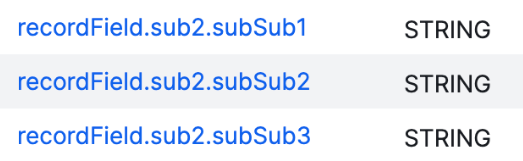
In Columns ingestion mode, define how the ingestion must handle nested fields. The available options are:
|
Yes |
| Aspect mappings |
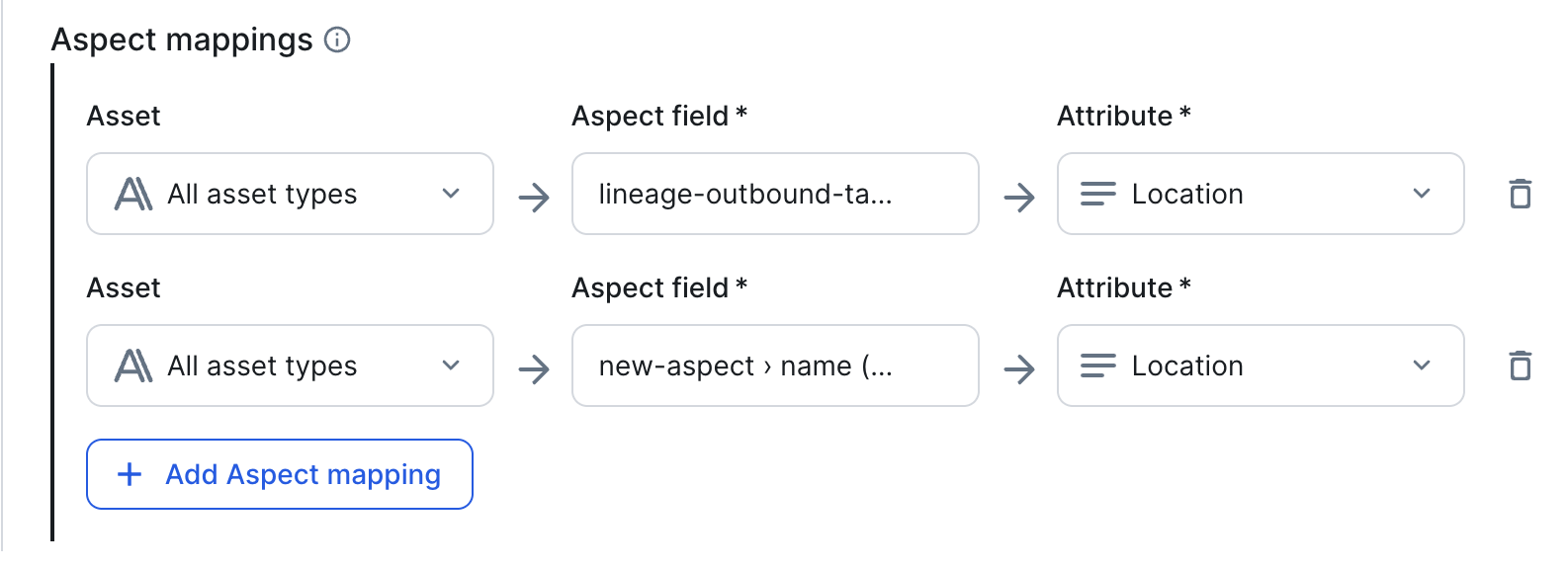
Aspects in Knowledge Catalog that refer to columns are integrated as Column assets in Collibra during a Knowledge Catalog integration. Optionally, in this field, you can specify additional aspects in Knowledge Catalog that you want to integrate. Some aspects contain data derived from the underlying data, such as Aspect mapping is supported for Schema, Table, Database View, and Column assets, including partition columns. To map an aspect, select the Knowledge Catalog aspect in Aspect field and corresponding Collibra attribute in the Attribute field. You can optionally scope an aspect mapping to a specific asset type in the Asset field. Important
If you use this feature, make sure to add all required characteristics to the asset type assignments. Also note that any entries with spaces in the aspect name are skipped. To add an aspect mapping:
Show an example of partition column mapping
If you have a table in Knowledge Catalog that is partitioned by date, you can create a custom attribute named Partition interval and specify Note If an aspect is removed in Knowledge Catalog, the corresponding attribute in Data Catalog is removed after synchronization only when the asset’s max cardinality is set to one. If the maximum cardinality is greater than one, the attribute is not removed.
|
No
|


Data Products (In Preview)
| Field | Action | Required |
|---|---|---|
| Include Data Products |
Optionally, set Include Data Products to Yes to also ingest GCP Data Product and Data Product Port assets. This option is set to No by default. |
No |
| Default Domain | In Default Domain, select the Collibra domain where all GCP Data Product and Data Product Port assets will be created. This field is required when Include Data Products is set to Yes. |
Yes |
The synchronization job synchronizes the Knowledge Catalog data.
After the synchronization:
- You can view a summary of the results from the Activities list.
- For information on the integrated data, go to Integrated Google Knowledge Catalog data.
- You can synchronize outbound metadata from Collibra to Knowledge Catalog.
- You can set up and configure data profiling and configure the profiling options and profile the data,
- You can enable and set up Unified Data Classification and automatically classify the data.
- You can set up and configure the use of sample data and request sample data.