This page explains how to start the automatic data classification process to generate data class suggestions with confidence scores for registered data sources.
You can trigger this process for a single column from the asset page or perform bulk classification from the table, schema, or database level through the Actions menu.
If Guided Stewardship is enabled, you can also trigger the process for a Table or View from the Semantic Assistant page. For more information, go to About the Semantic Layer submenu in Stewardship.
Prerequisites
- You have registered a data source via Edge and synchronized one or more schemas.
- You have the required permissions.
- You have configured data classes with classification rules.
Important considerations
To suggest a data class, automatic data classification requires enough data. Columns with very little data may not receive a data class suggestion.
-
The process needs at least 6 values that can be checked, to classify a column.
Example You define a regular expression for "Data class A" and set it to ignore empty values. If you classify a column containing mostly null values and only five non-null values, the column will not receive a suggestion—even if those five values match the rule.
- The process extracts up to 1,000 values from the data source.
These samples are temporarily added to the Edge site cache. They are not transferred to Collibra.
If the Edge site cache already contains at least 100 samples for this data source, the process uses those samples.
Start the classification process for one column
- Open to the Column asset you want to classify.
- In the At a glance sidebar, click Classify.
If the At a glance sidebar is hidden, click .
.
The data classification process starts. You can see the classification job in the list of activities. For an activity, you can see when the job started and who started it.
If a data class matches the data in the column, a classification suggestion will be assigned to the Column asset with a confidence percentage.
Start the classification process for one or more columns from a Table, Schema, or Database asset
- Open the Table, Schema, or Database asset you want to classify.
- Click Actions → Classify.
The data classification process starts. You can see the classification job in the list of activities. For an activity, you can see when the job started and who started it.
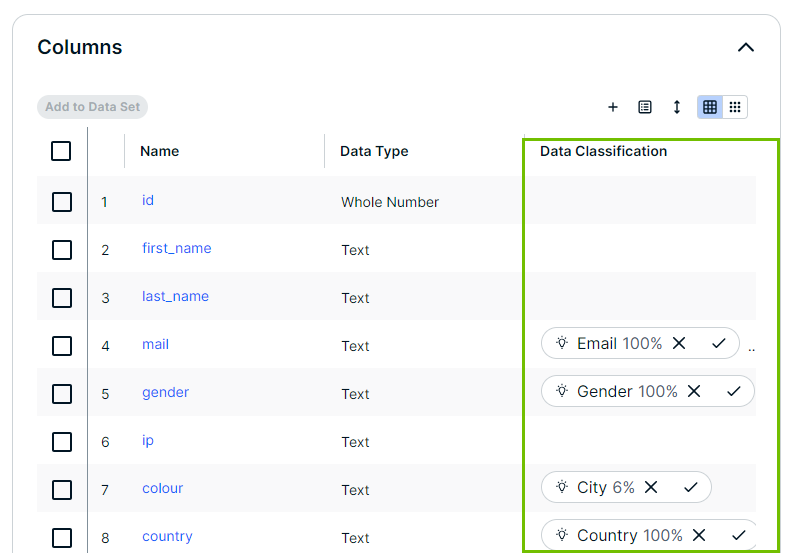
If a data class matches a column, a data classification suggestion will be assigned to the Column asset with a confidence percentage. - Open the Table asset with the classified columns.
- Add the Data Classification column to the table.
The Data Classification column shows the suggested data classes.
- Check the data classification suggestion for an asset
- Accepting or rejecting data classification suggestions