About access controls
In Data Access, an access control is a rule that defines who can see and interact with your data. Conceptually, it represents who gets access to what.
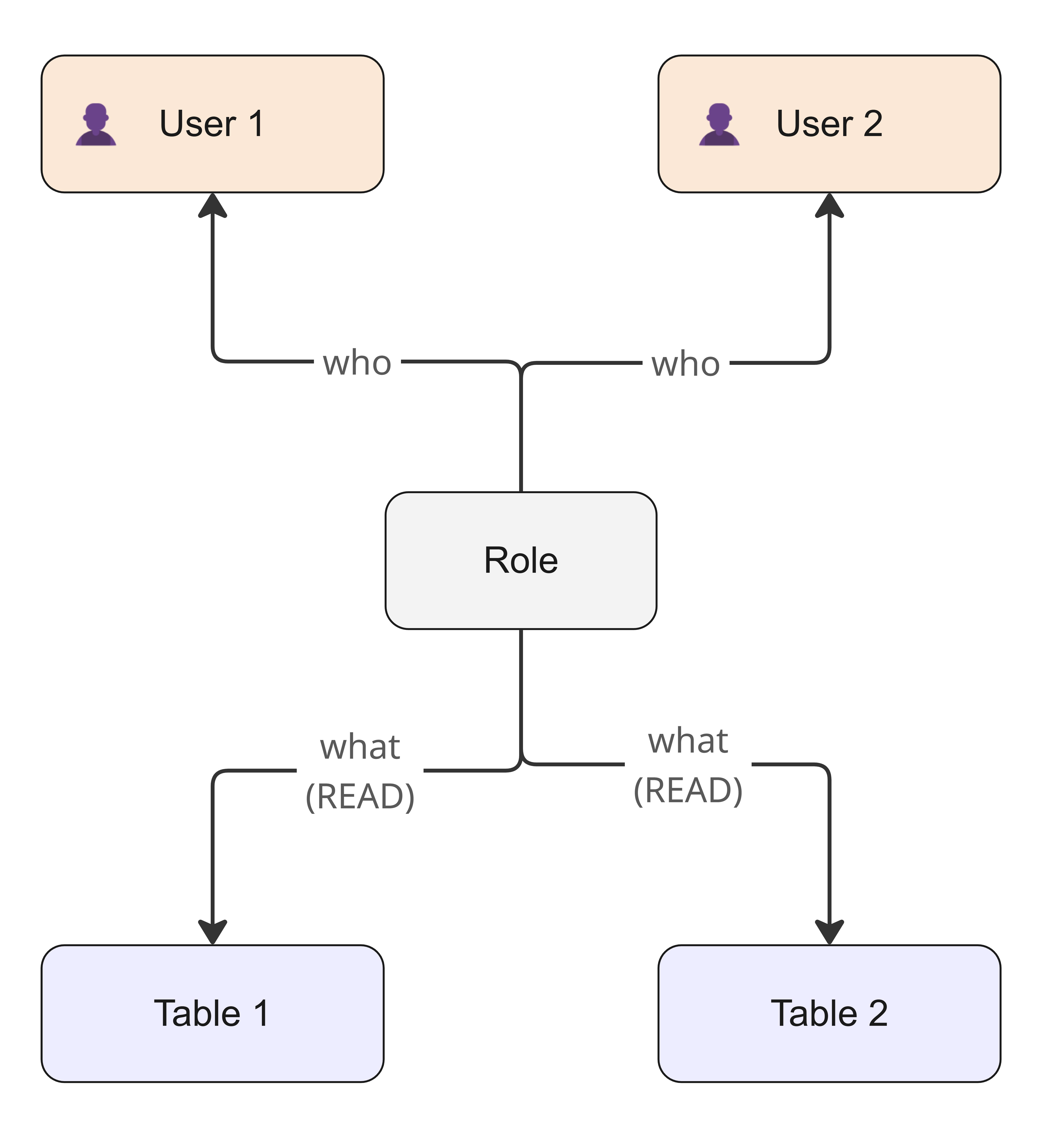
Components
An access control has the following main components.
| Component | Description |
|---|---|
| What | The scope of data and the nature of the rule. |
| Who |
The beneficiaries that are granted additive privileges. Beneficiaries can include identities, groups, or even other roles. In any access control, being included in the Who component always means more access.
The list of beneficiaries is considered sensitive information. As such, you can see the beneficiaries of an access control only if you own the access control, own all the included data objects, or have the Data Access > View All Access And Usage global permission.
|
Types
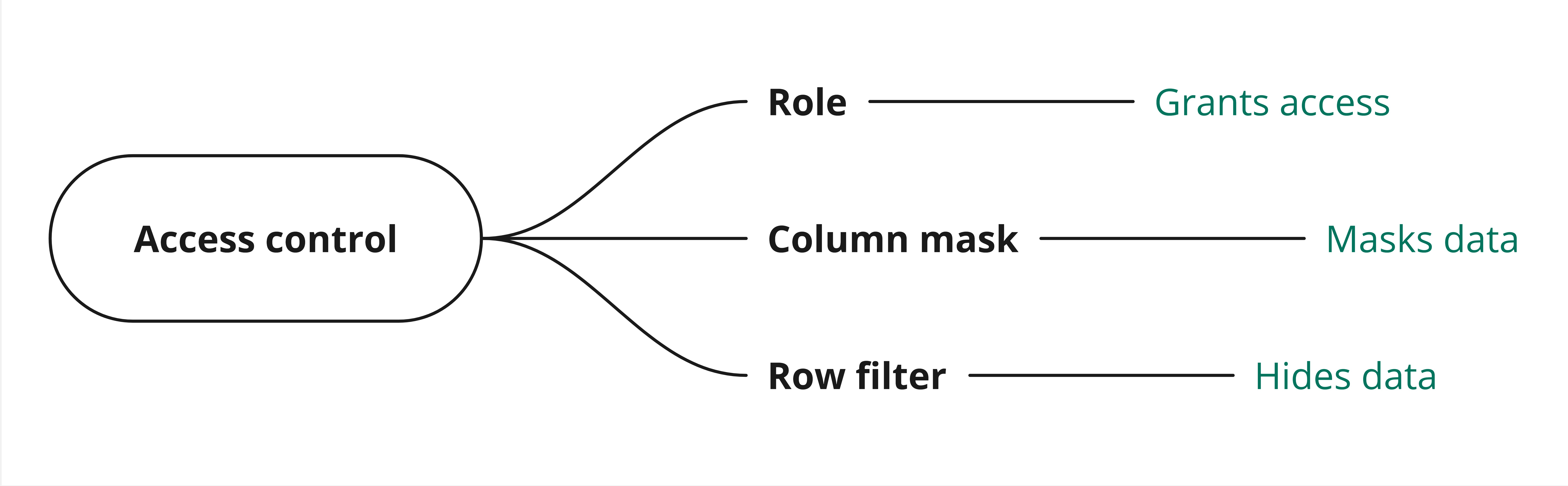
Data Access has the following types of access controls: roles, column masks, and row filters. Roles grant broad access to interact with data objects. They define the specific permissions, such as SELECT or INSERT, that a user is authorized to run on a data object. By contrast, column masks and row filters function as fine-grained controls, letting you selectively mask, hide, or show specific data at the column or row level. Column masks and row filters are available only for the data sources that support them.
Roles
A role grants access on data objects to the beneficiaries. For example, you can have a role that grants the SELECT permission on the Sales table to a Data Analyst.
A role is defined by a What component that specifies the data objects and the permissions that you apply to them, and a Who component that specifies the beneficiaries that can access those data objects.
Column masks
A column mask masks data in columns for everyone except the beneficiaries. For example, you can have a column mask that hides PII data from everyone except Sales Directors.
A column mask is defined by a What component that specifies the columns and the masking method that you apply to them, and a Who component that specifies the beneficiaries that can see unmasked data in those columns.
Row filters
A row filter hides all rows of tables or views from everyone except the beneficiaries. For example, you can have a row filter that shows Belgium region data only to the Belgium Sales team.
A row filter is defined by a What component that specifies the tables or views, and a Who component that specifies the beneficiaries that can see the rows that meet the filter criteria.
Groups
A group is a specialized type of access control. While standard access controls such as roles, column masks, and row filters map specific users (the Who component) to specific data objects (the What component), a group has only a Who component, which consists of identities or other nested groups.
Analogy
To quickly understand how the different types of access controls work together, consider the following analogy.
- Table as a house
- Columns as the furniture in the house
- Rows as the rooms in the house
| Type of access control | Description |
|---|---|
| Role (house key) | A role is like your key to the house. Without it, you cannot enter the house. If the house has no covered furniture (column masks) or interior locks (row filters), this primary key is all that you need to see all the furniture and walk into every room. |
| Column mask (covered furniture) | When specific columns need protection, a column mask is applied, acting as a sheet over specific pieces of furniture. Once a column mask is applied, you can see that those pieces of furniture exist (columns), but you cannot see their details, such as the upholstery or the wood grain (masked data in the columns). Only the beneficiaries of the column mask can remove the sheet and see the details (unmasked data in the columns). However, if those beneficiaries do not have the key (role) to the house itself, the column mask becomes irrelevant. |
| Row filter (locked rooms) | When specific rows need protection, a row filter is applied, acting as a set of locked rooms. Once a row filter is applied, all the rooms inside the house are locked, and you cannot see any rooms (zero rows returned). Only the beneficiaries of the row filter are given the keys to unlock and see only specific rooms (rows meeting the filter criteria). However, if those beneficiaries do not have the key (role) to the house itself, the row filter becomes irrelevant. |
You cannot uncover furniture or unlock a room if you are not already inside the house. Your role needs to grant access before column masks and row filters become relevant. By contrast, if you do not apply a column mask or a row filter, the data remains unmasked and visible to anyone who has the role.
Example
When you manage access, consider the multiple regulations and standards that dictate how access should be granted. You can use roles, column masks, and row filters to manage fine-grained access and ensure compliance.
With a role, you can manage access on data objects, such as schemas and tables. Without a role, an identity cannot access the data at all.
Suppose that you use a role to grant your Sales Agent access on the CUSTOMER table. 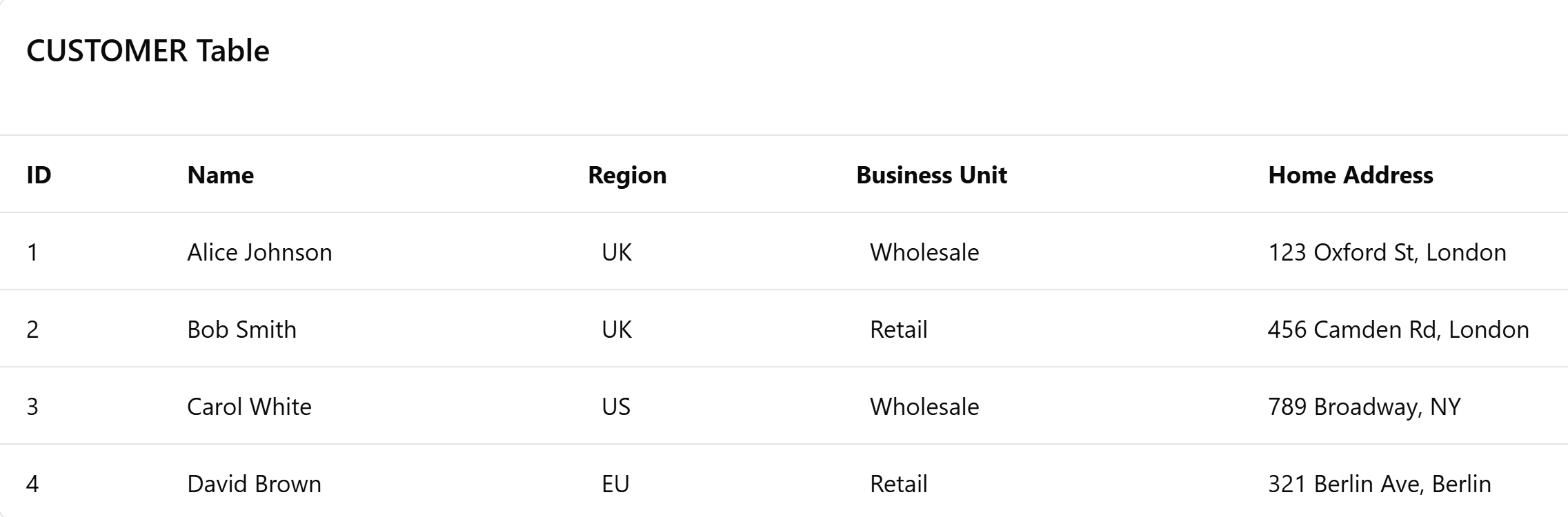
However, privacy regulations or security policies might dictate that the Sales Agent should not see all the data in the CUSTOMER table. This is where column masks and row filters help.
With a column mask, you can manage which columns someone can see unmasked in the CUSTOMER table.
Suppose that the Sales Agent should not be able to see the home addresses of customers. In this case, you can use a column mask for the Home Address column in the CUSTOMER table so that the data in that column is masked for everyone, including for the Sales Agent. However, your Delivery Agent needs to be able to see the home addresses to deliver goods to customers. To solve this, you can add the Delivery Agent as the beneficiary of the column mask. This grants the Delivery Agent a global exception, which means that they can see unmasked data in the Home Address column.
With a row filter, you can manage which rows someone can see in the CUSTOMER table. This is typically used to restrict access per geographic region or business unit.
Suppose that the CUSTOMER table contains records for multiple geographic regions. In this case, you can use a row filter for the CUSTOMER table so that all the rows in that table are hidden from everyone, including from the Sales Agent. However, if the Sales Agent works in the United Kingdom (UK), they need to be able to see the rows for UK customers. To solve this, you can define a filter rule (such as Region = UK) in the row filter, and add the Sales Agent as a beneficiary to the rule. As a result, the Sales Agent can see only the rows of UK customers, while the data for customers based in other regions remains hidden.
Similarly, if the Sales Agent works in the wholesale business unit, you can define another filter rule (such as Business Unit = Wholesale) in the same row filter, and add the Sales Agent as a beneficiary to that rule. This lets the Sales Agent also see the rows of the customers for that business unit.
Immediate versus on-request access
When adding beneficiaries (identities or groups) to a role or a column mask, you can choose whether they are granted immediate access or access only upon request.
Regardless of whether you choose immediate or on-request access, you can set an expiration date for a beneficiary. The expiration date indicates when their access is revoked. The default expiration date is Unlimited.
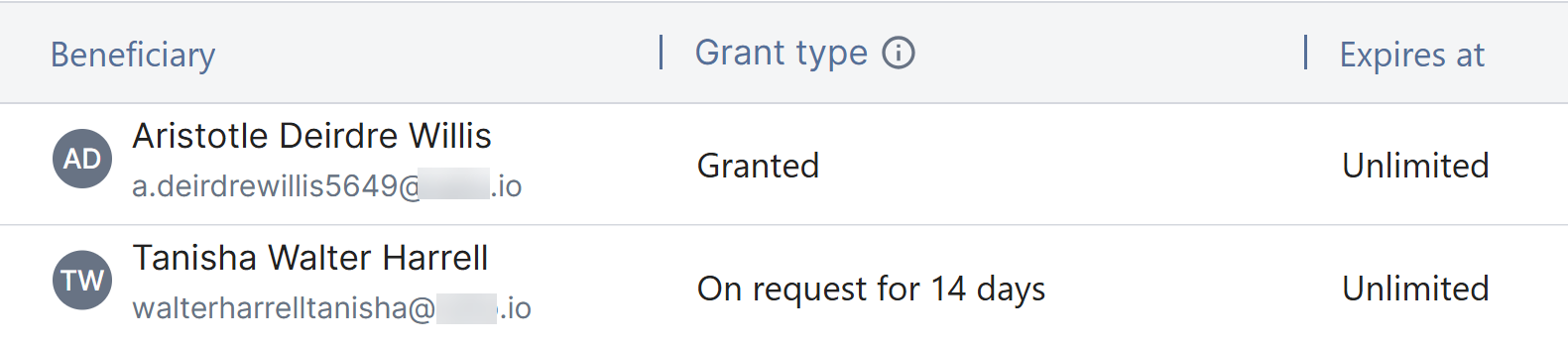
Grant types and expiration date
The following table describes the available grant types and what their expiration dates indicate.
| Grant type | Description | Expiration date |
|---|---|---|
| Granted | The beneficiary gets immediate access. | Indicates when the beneficiary's access is automatically revoked in the data source. |
| On request |
The beneficiary is preapproved to get access upon request. They can request access from an asset that is linked to an access control. Because they are preapproved, their request is automatically approved without manual review, and they get access for a limited period (for example, 14 days). |
Indicates when the preapproval expires. After this date, the beneficiary cannot request automatic, time-bound access. |
Example
Suppose that you grant Nina, a data analyst, immediate access with the expiration date set to December 1, 2026. In this case, she can access the data continuously until December 1.
If, however, you grant Nina on-request access with a period of 14 days and an expiration date of December 1, 2026, she does not get immediate access. Instead, she needs to actively request access whenever needed. Furthermore, each request grants her a strict 14-day window to access the data. If she needs more time later, she needs to submit a new request. She can request these 14-day windows as many times as she needs, but only until December 1. Starting December 1, she can no longer request access.
