About row filters
In Data Access, a row filter is a type of access control that hides all the rows in specific tables or views from everyone except its beneficiaries. The beneficiaries see only the rows that meet the filter criteria that are defined in the row filter.
You can use row filters to restrict data visibility within a table or view. Instead of blocking access on an entire table or view, you can segment its data so that different beneficiaries see different subsets of the same table or view.
All Rows, which hides all rows in the selected tables or views from everyone.
Components
A row filter has the following main components.
| Component | Description |
|---|---|
| What | The tables or views whose rows you need to hide from everyone. |
| Who |
The filter rules that determine which rows of the tables or views are shown to which users. |
Filter rules
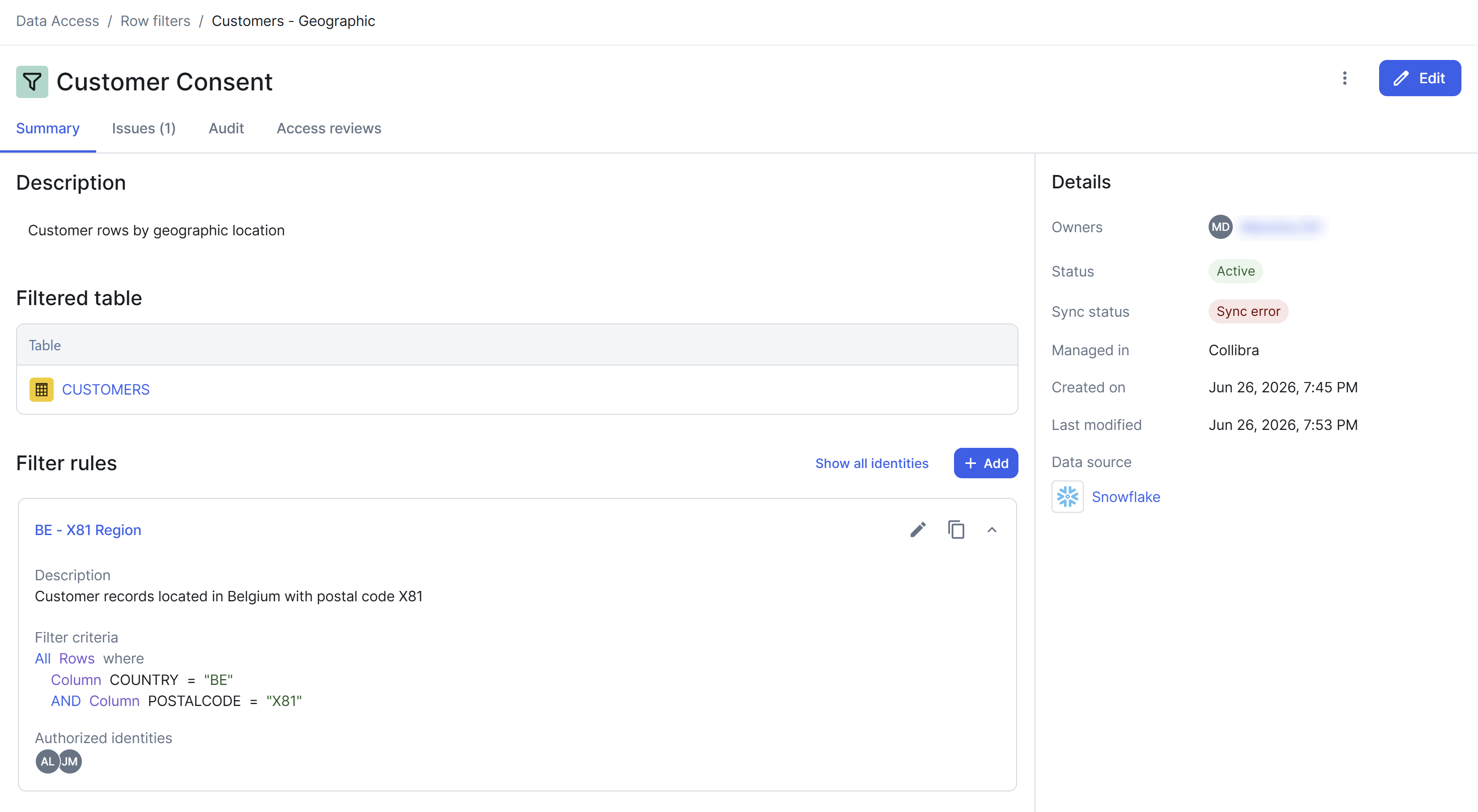
You define the Who component of a row filter by adding one or more filter rules. A filter rule maps a subset of rows, which are defined by the filter criteria, to the beneficiaries that are authorized to see the rows that meet the criteria.
Because you can add multiple filter rules to a single row filter, you can segment data for different groups in one place. For example, within a single row filter, Customer Region, you can create one filter rule that shows rows where Region = BE to the BE Sales group, and a second filter rule that shows rows where Region = UK to the UK Sales group.
For each filter rule, you define the following elements.
| Component | Description |
|---|---|
| Filter criteria |
The specific rows that are included in the filter rule. You can define this in the following ways:
|
| Beneficiaries |
The specific identities, groups, or roles that are authorized to see the rows that meet the filter criteria. Beneficiaries see the rows that match their assigned criteria, provided that they have access on the tables or views. Everyone else sees zero rows in that table, even if they have Read access on the table through a role. |
Example
Suppose that you have a row filter for the Employee table. The following scenarios explain how its filter criteria affect data visibility for a user named Rafi, who has Read access on the same table through a role.
| Scenario | Result |
|---|---|
No one is assigned the All Rows filter criterion. |
Rafi can see the table, but with zero rows. |
Rafi is assigned the All Rows filter criterion. |
Rafi can see all the rows in the table. |
Rafi is assigned the Region = BE filter criterion. |
Rafi can see those rows in the table where the value in the Region column is BE. |
|
Rafi is assigned the |
Rafi can see those rows in the table where the value in the Region column is either BE or UK. |
Rafi is assigned the All Rows filter criterion, but his Read access on the table is revoked. |
Rafi cannot see the table itself. |
Two row filters exist for the same Employee table, and Rafi is assigned the Region = BE filter criterion in the first row filter, but he is not assigned any filter criteria in the second row filter. |
Rafi can still see those rows in the table where the value in the Region column is BE. |