A control is a rule or requirement used to evaluate targeted assets against defined requirements. Within Control Tower, controls are represented exclusively by Managed Control assets. After you create a control, you can start configuring a control query to automate checks within your Collibra environment.
Requirements and permissions
- You have a global role with the Product Rights > Control Tower global permission.
- You have a resource role with the following resource permissions on the community or domain that you specify when creating the control:
- Asset > Add
- Asset > Responsibility > Add
Note Configuring and activating the control query requires additional resource permissions. For details, go to Configure a control query.
Steps
-
On the Control Tower Overview page, click Create control.
The Create a control dialog box appears.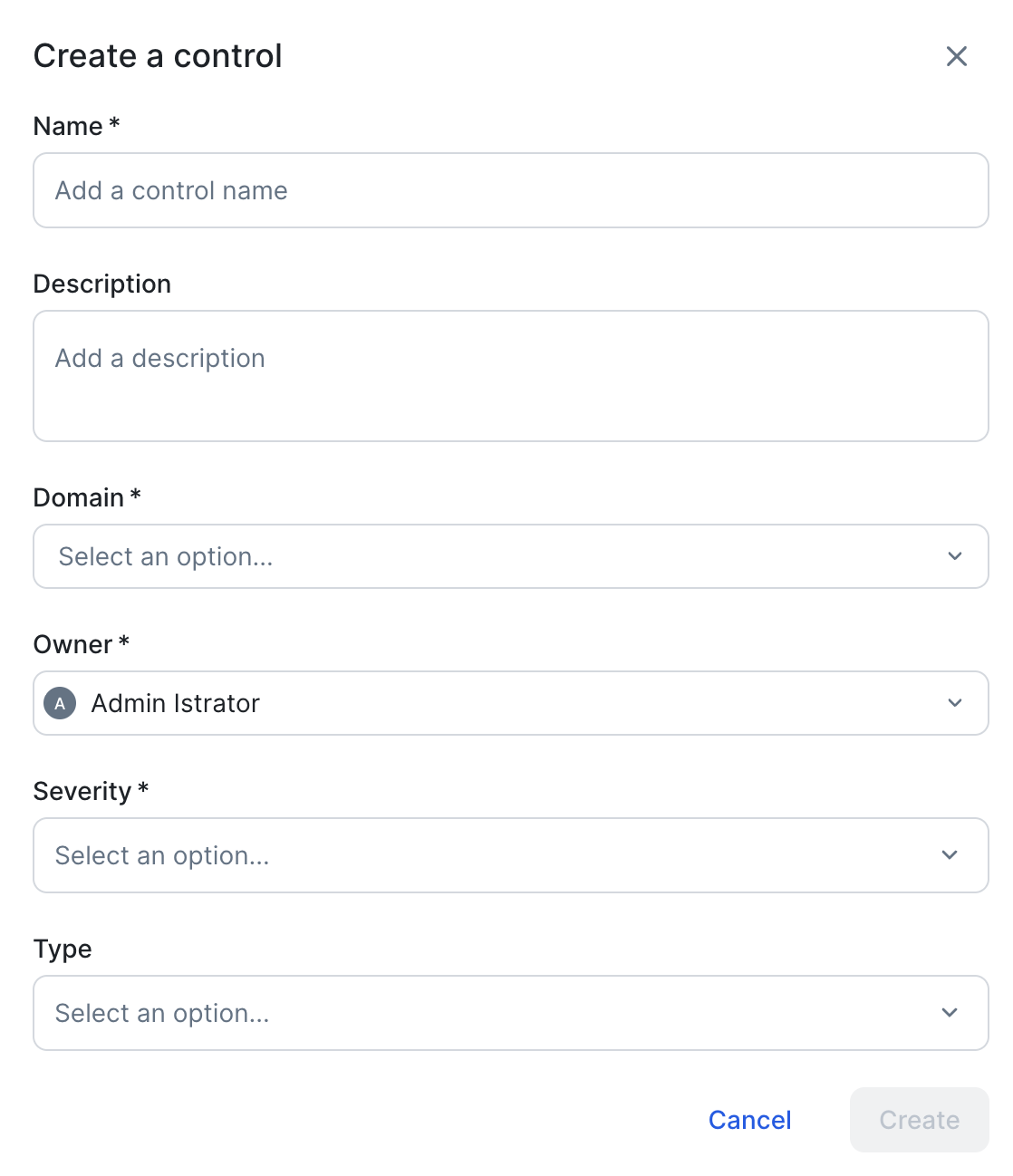
- Enter the required information.
Field Description Name The name of the new Managed Control asset. Description A description of the control, for example the purpose or objective of the control.
Domain The domain in which you want to create the new Managed Control asset.
Control Tower comes with the Managed Control domain, which is intended as a register for your Managed Control assets.
Note If you know that a certain domain exists, but it doesn't appear in the drop-down list, it could mean that:- The domain is of a type that has not been configured for this asset type. For more information, go to Assign a domain type to an asset type.
- You are subject to view permissions restrictions. By default, all users can view all assets in all communities and domains. If a community or domain is restricted by view permissions to which you are subject, the domain is not shown in the drop-down list.
Owner The Collibra user or user group who will act as the owner of the control. They are assigned the Owner resource role for the Managed Control asset.
Severity An attribute type that indicates the criticality or impact level of the control.
The possible values are: Low, Medium, and High.
The value you select is shown in the Severity field on the Managed Control asset page.
Type Describes the nature or purpose of a control based on how it manages risk or enforces policy.
Select one of the following values:
- Preventative
- Detective
- Corrective
- Directive
For detailed descriptions of each control type, go to Control type descriptions.
The value you select is shown in the Control Type field on the Managed Control asset page.
- Click Create.
A new Control asset is created in the specified domain.
Control type descriptions
| Control type | Definition | Goal | Example |
|---|---|---|---|
| Preventative | Designed to stop an error from occurring in the first place. They are proactive and act as the first line of defense. | To prevent the risk from ever materializing. | Role-Based Access Control: preventing unauthorized users from accessing sensitive data. |
| Detective | Designed to identify and alert when an error or unauthorized event has already occurred. They do not stop the event, but ensure it does not go unnoticed. | To discover a risk event as soon as possible after it happens. | Running a weekly scan to find records that are missing mandatory fields. |
| Corrective | Designed to fix or mitigate the impact of a risk event once it has been detected. They aim to restore the system or data to its original state. | To minimize damage and return to normal operations. | Restoring a database from a previous version after a corruption event. |
| Directive | Designed to guide behavior toward a desired outcome. They provide the rules of the road and establish the requirements that all other controls must follow. | To ensure people understand their responsibilities and the organization's expectations. | A formal document (Data Retention Policy) stating that financial data must be kept for 7 years. |
Configure a control query.