Control queries allow you to automate checks within your Collibra environment. You define a set of rules and conditions for assets of a specified type, and notify stakeholders if assets fail to meet the rules and conditions. You build control queries in the Control configuration section on the Managed Control asset pages. You define the requirements, set the schedule for when it will run, and customize the notification messaging and recipients.
Requirements and permissions
- You have a global role with the Product Rights > Control Tower global permission.
- You have a resource role with the following resource permissions:
- Asset > Update
- Asset > Control > Activate and Run
Important The Asset > Control > Activate and Run resource permission is only required to enable a control. Without it, you can still configure the control.
1. Specify the target asset type
In the Find drop-down list, start typing and select the type of assets that you want to target for monitoring. 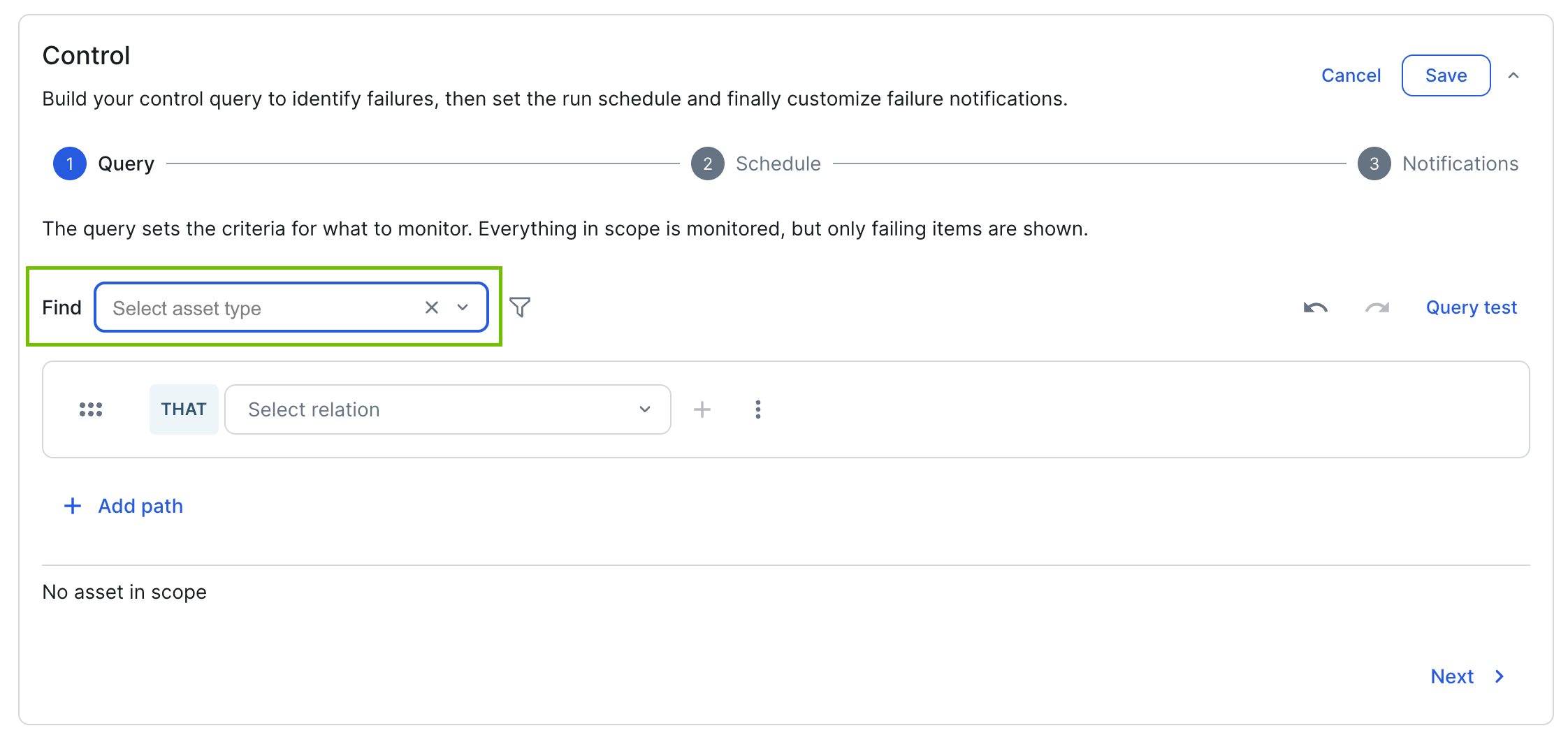
2. Refine the scope of target assets
Add one or more filters to narrow down the scope of assets you want to monitor.
Note A query can have a maximum of 100 filters. Each condition in a filter formula counts as a separate filter. For example, a formula of "A OR B" counts as 2 filters. If you exceed this limit, a warning appears and the Save button is disabled until you reduce the filter count.
Note String-based filter criteria support the following matching operators: Equals, Does not equal, Contains, Does not contain, Starts with, Does not start with, Ends with, and Does not end with. These operators are available for asset names, statuses, community names, domain names, text and selection attributes, asset relations, and roles.
- Click
 .
.
The Add filter dialog box appears.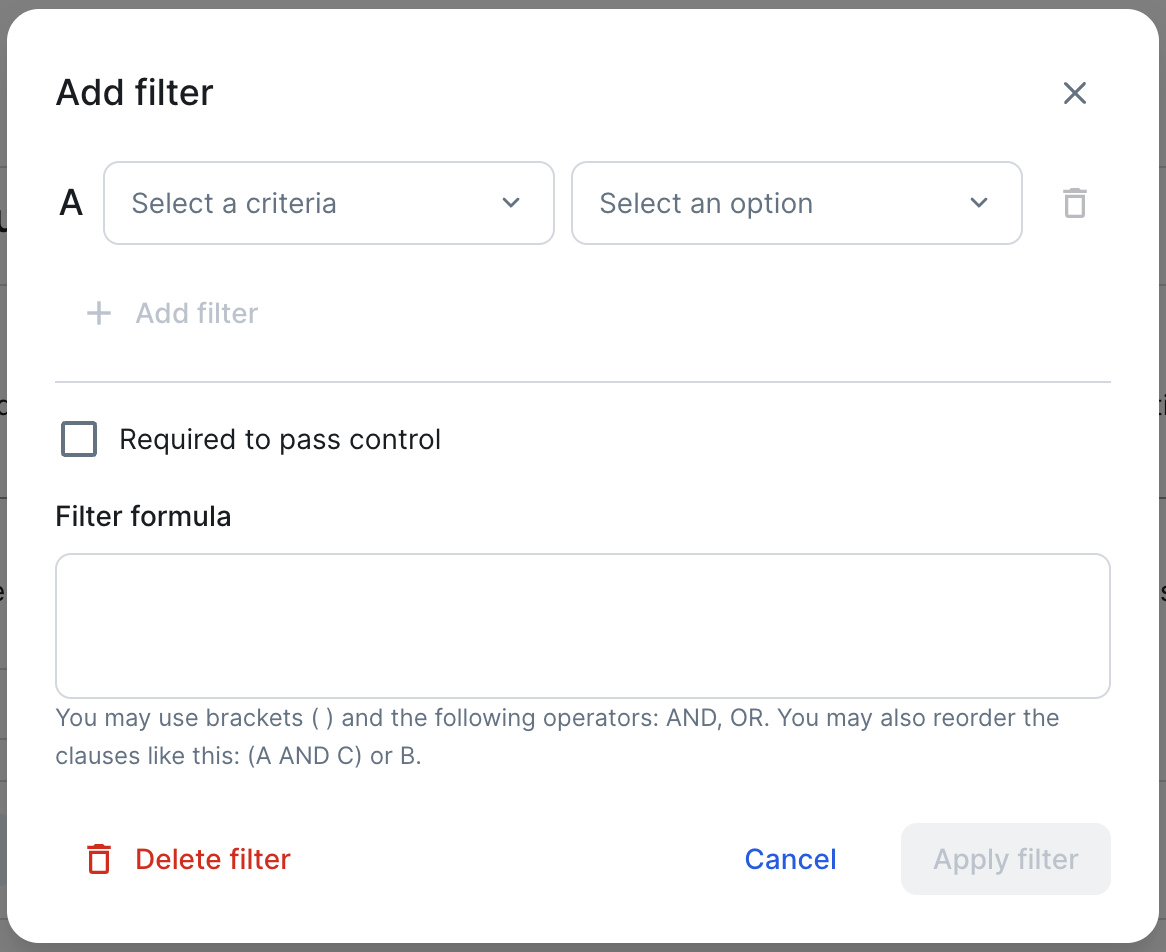
- Optionally, select the Flag as failed if condition is met option.Tip For examples on how to use the Flag as failed if condition is met option, go to Example | Control Tower: Build a control query.
- If you added more than one filter, you can edit the filter formula.
For example, if you have 3 filters, you could consider the following constructions:- "A AND B AND C": This is the default. To be a target asset, an asset must match all 3 filters.
- "A OR B OR C": To be a target asset, an asset only needs to match 1 of the filters.
- "(A AND C) or B": To be a target asset, an asset must either match filters A and C, or match filter B.
- Click Apply filter.
The filters are applied.
The following example image shows that the control is targeting Report assets, that there are 2 filters applied, and that only reports that match both filters are targeted.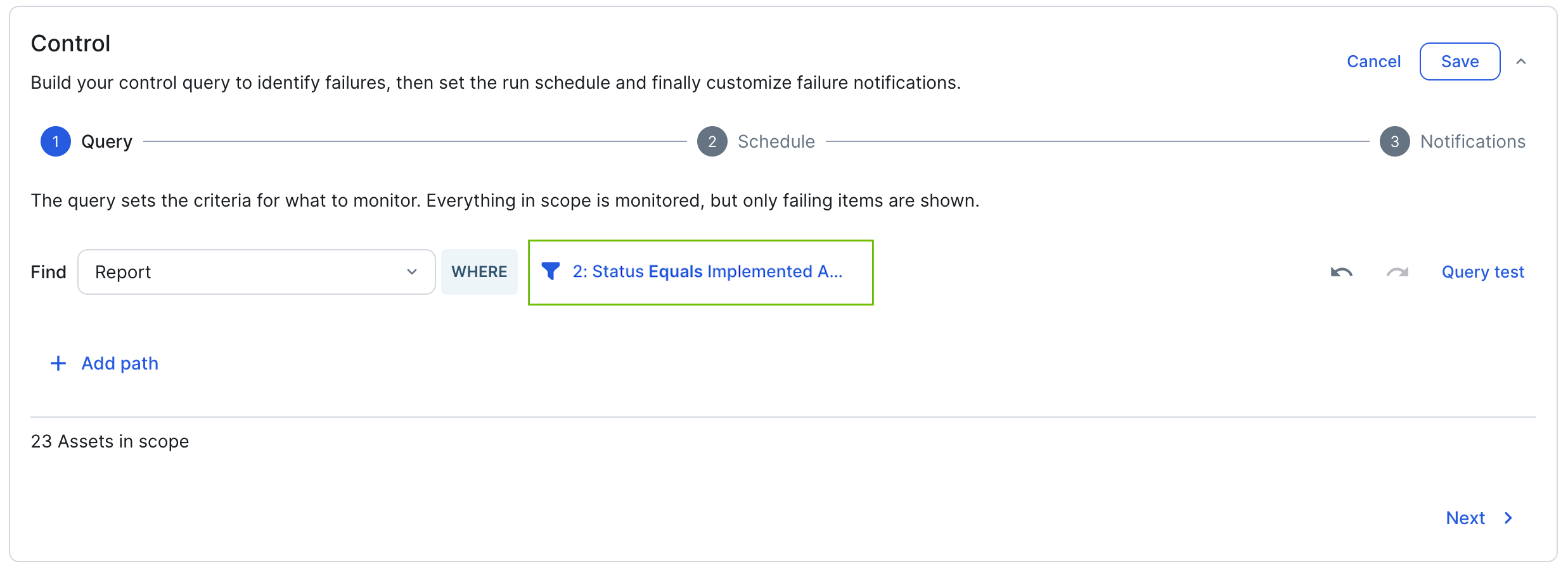
3. Add the relationship path to the monitoring criteria
Define the relationship path between your target asset type and the asset type that represents the monitoring criteria. To define the path, you need to be familiar with your operating model and the relation types that link the relevant asset types.
Note A query can have a maximum of 50 relations in total, across all paths. Any single path can have a maximum of 10 relations. If you exceed either limit, a warning appears and the Save button is disabled until you resolve it.
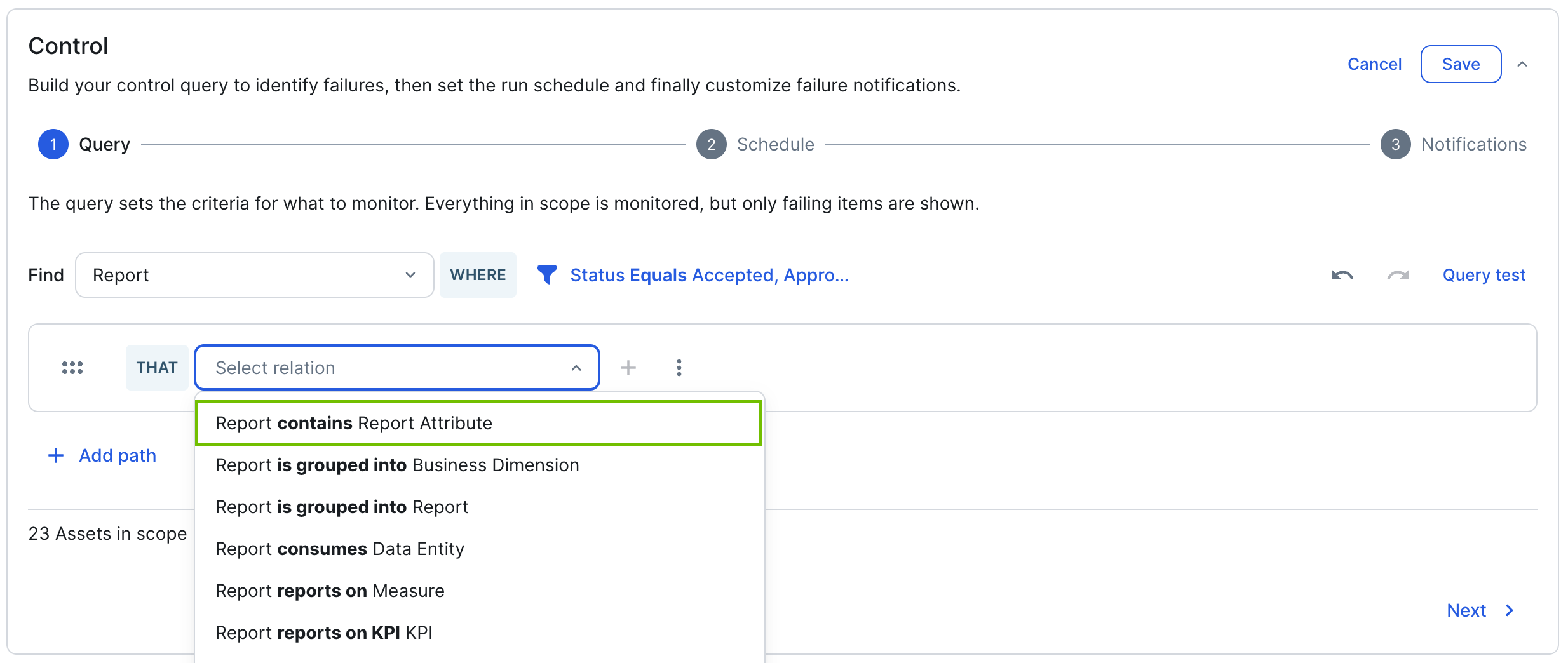
- In the Select relation drop-down list, start typing and select the relevant relation type.
- Click
 .
.
Another relation type path is added. - In the Select relation drop-down list, start typing and select the next relevant relation type.
- Continue this progression to reach the asset type that represents the monitoring criteria.
You can add up to 10 relation types in a path.The path progression should look something like what is depicted in the following example image:
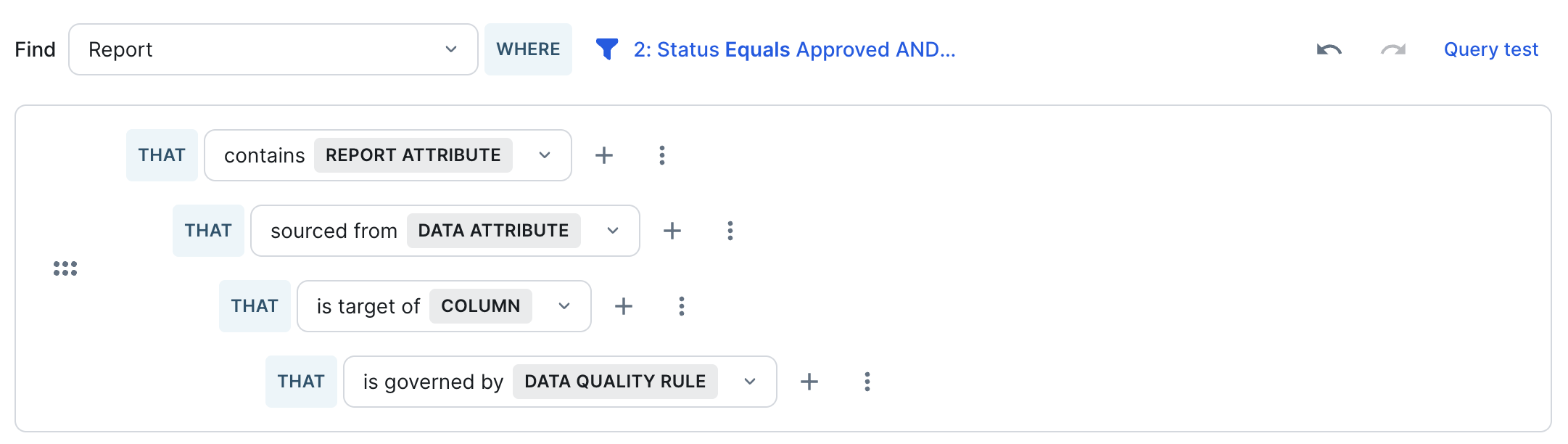
- Optionally, click +Add path to add another path progression to another monitoring asset type.
You might want to do this when not every target asset has the same relationship path to the monitoring criteria. By defining multiple paths with OR logic, the control casts a wider net, evaluating each asset against both paths, rather than missing assets where only one path is present. This ensures more complete coverage and reduces false negatives in your control monitoring.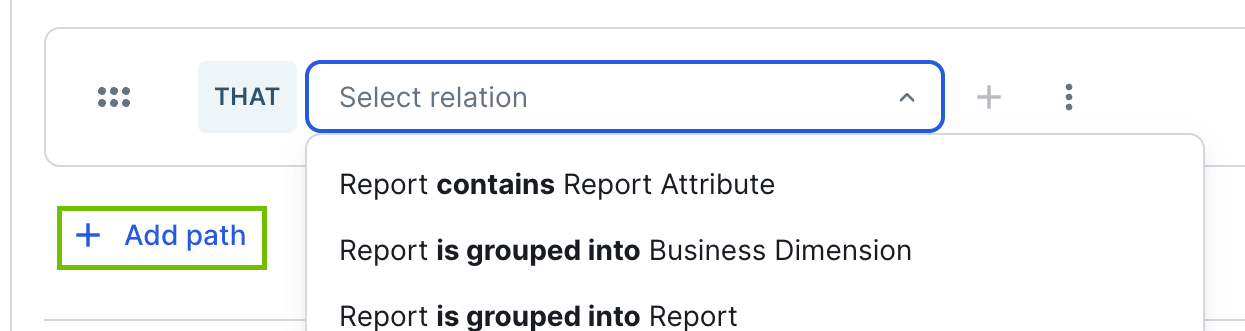
- Run a query test to identify which assets would fail the control query as it is currently configured.
- Click Query test.
The side panel opens. - Click Run test.
Up to 100 failing assets are shown in the side panel.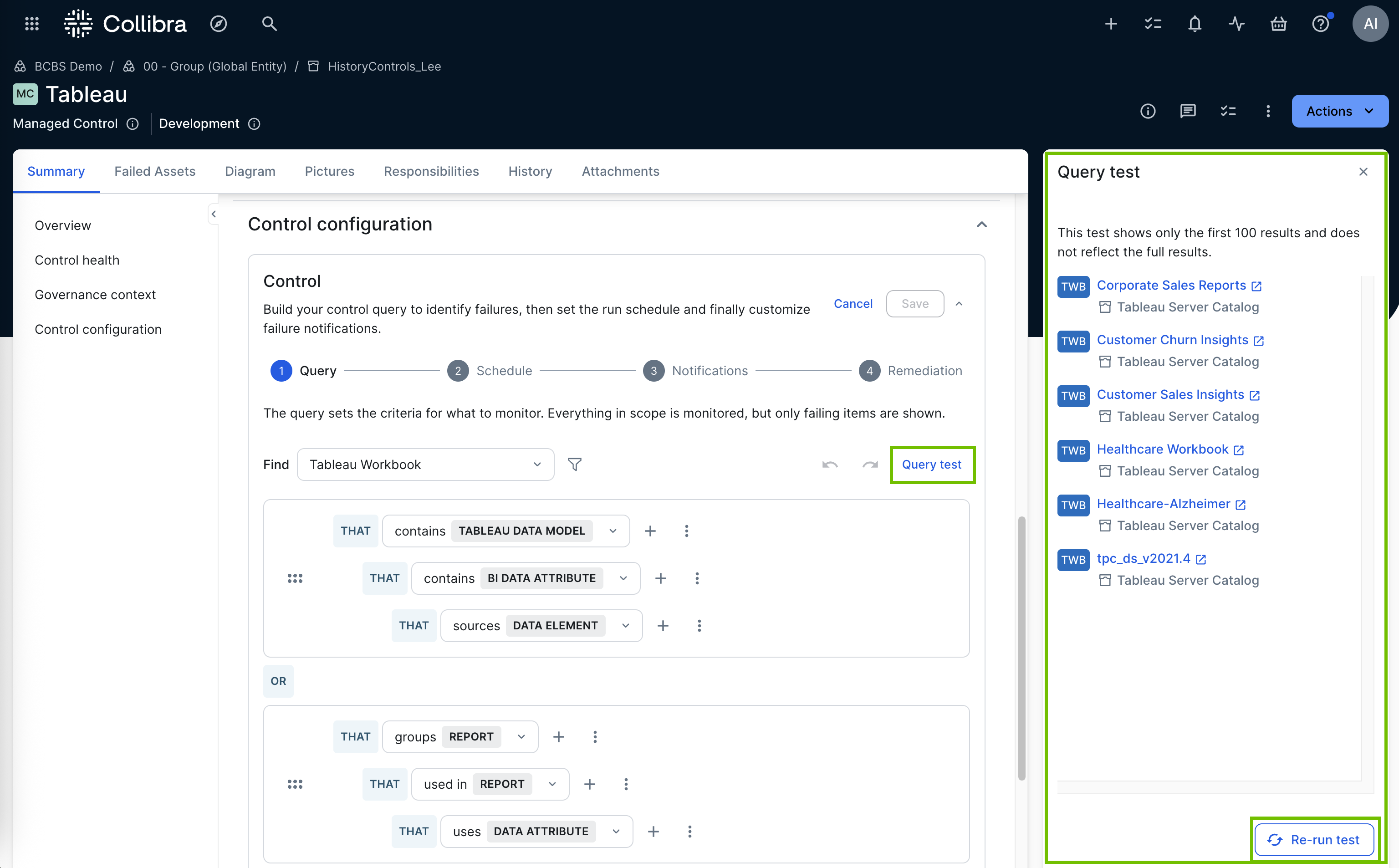
- Click Query test.
- Click Next.
4. Specify the failing criteria
You use the Flag as failed if condition is met option to specify the criteria that determines when an asset fails the control. The Flag as failed if condition is met checkbox is available for every filter configuration. By default it is cleared. If you select it for a particular filter, the filter contributes to the failing criteria.
Tip For examples on how to use the Flag as failed if condition is met option, go to Example | Control Tower: Build a control query.
-
Next to the relevant criteria (in the following example image, "Column is governed by Data Quality Rule") click
 , and then select Add filter.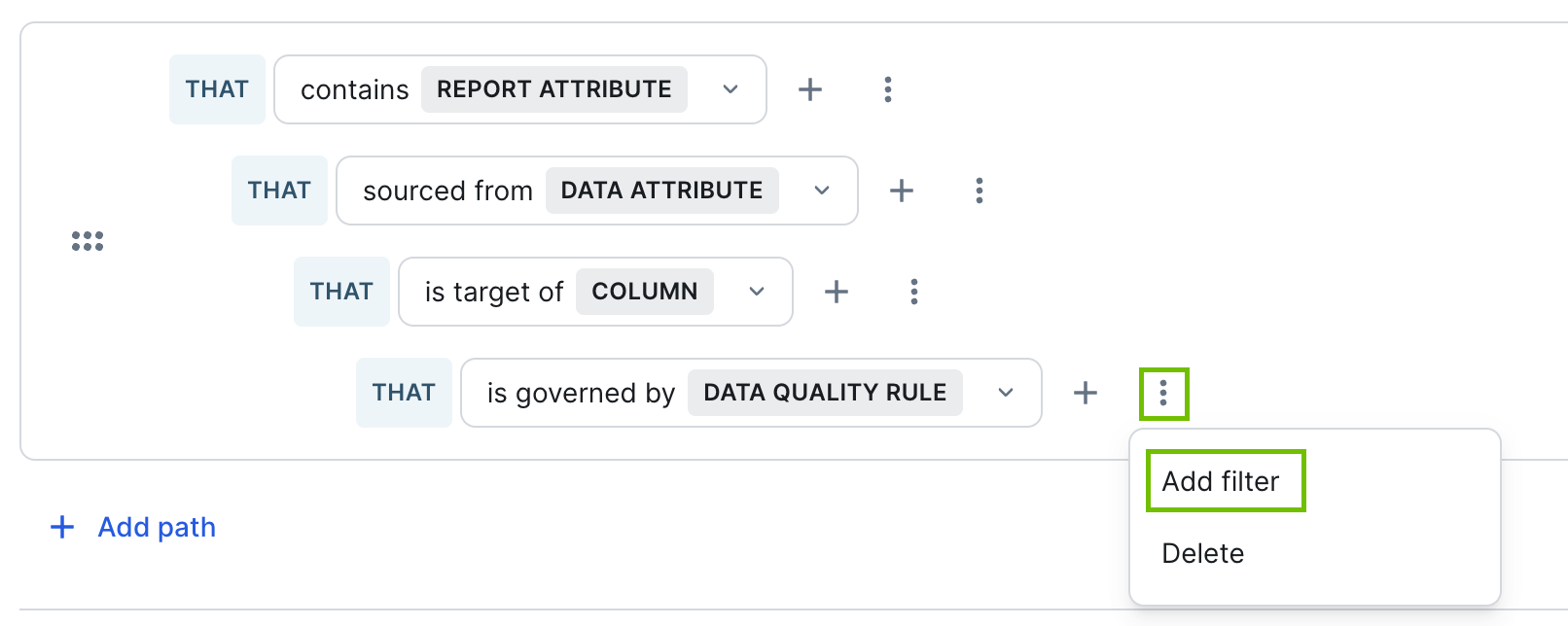
The Add filter dialog box appears. - Select a property, attribute type, or relation type, and then enter the relevant information, according to your selection and your needs.
The filter in following example image expresses the desire to identify assets for which the passing fraction in the related data quality rule is 90 or lower.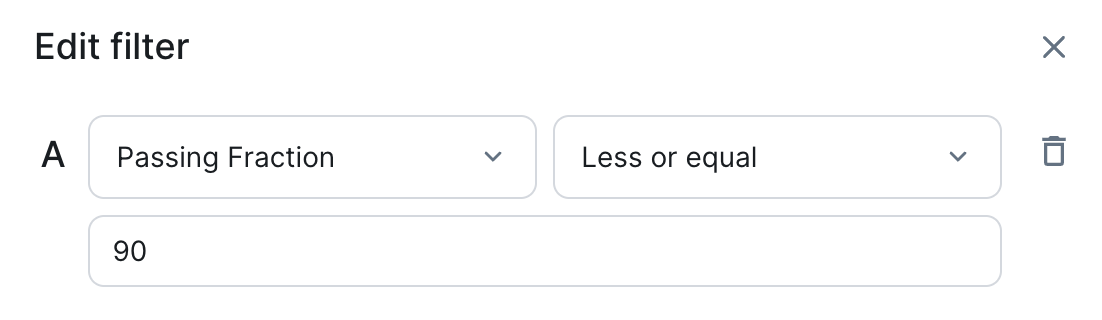
-
Select Flag as failed if condition is met.
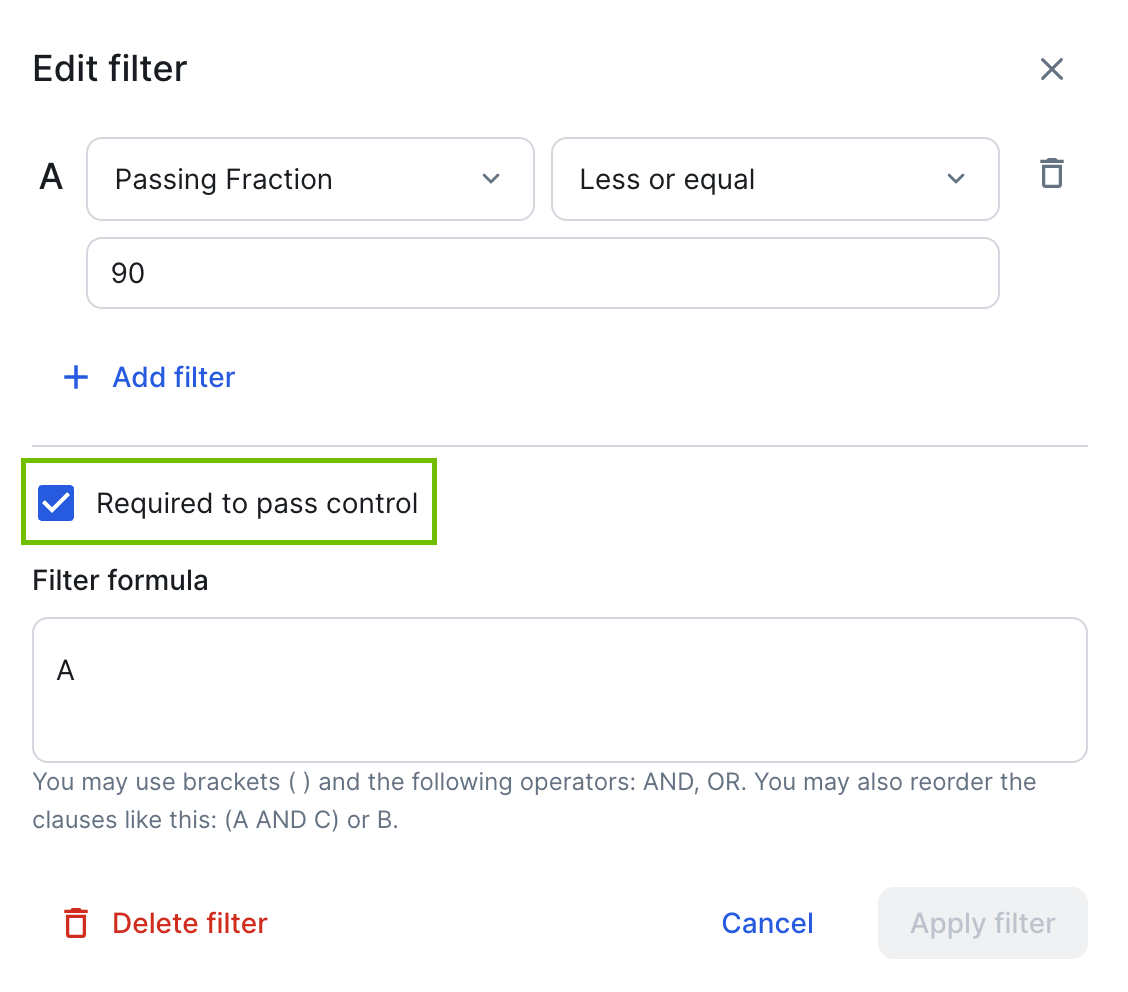
- Click Apply filter.The filter is applied.
The icon highlighted in the following image identifies that the Flag as failed if condition is met checkbox is selected.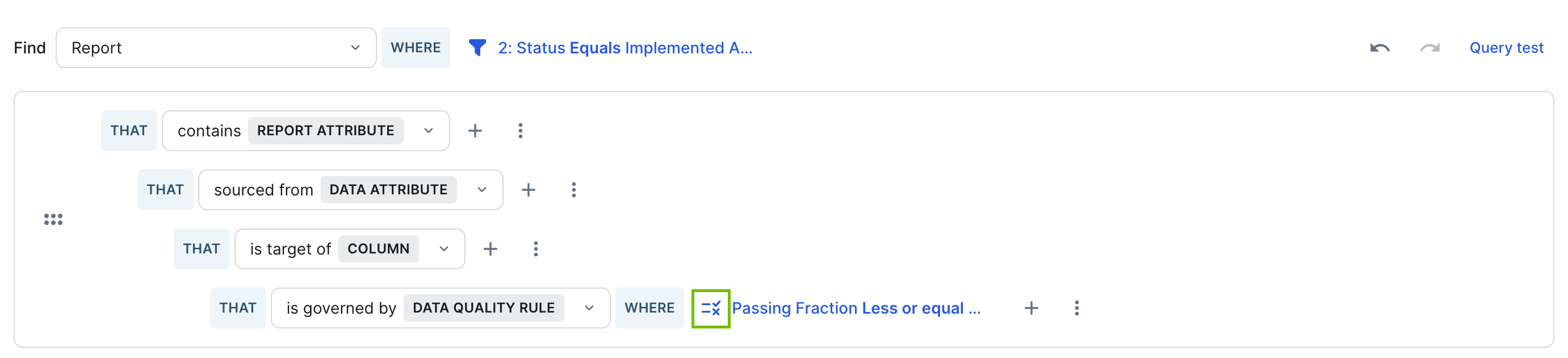
- Click Next.
5. Set the control run schedule
Set how frequently the control will be run and when each run should start.
- In the Repeat drop-down list, set the frequency. Select Hourly, Daily, or Weekly.
If you select Weekly, then select the day or days of the week on which you want the control to run. - In the Run start time drop-down list, select the hour that you want the query run.
If you selected Hourly frequency, the Run start time field does not apply. The control is run at the top of every hour, for example 11:00.
In the following example image, the control is set to run every Saturday, at 12 AM (midnight) GMT.Note All times are GMT, regardless of your geographic location.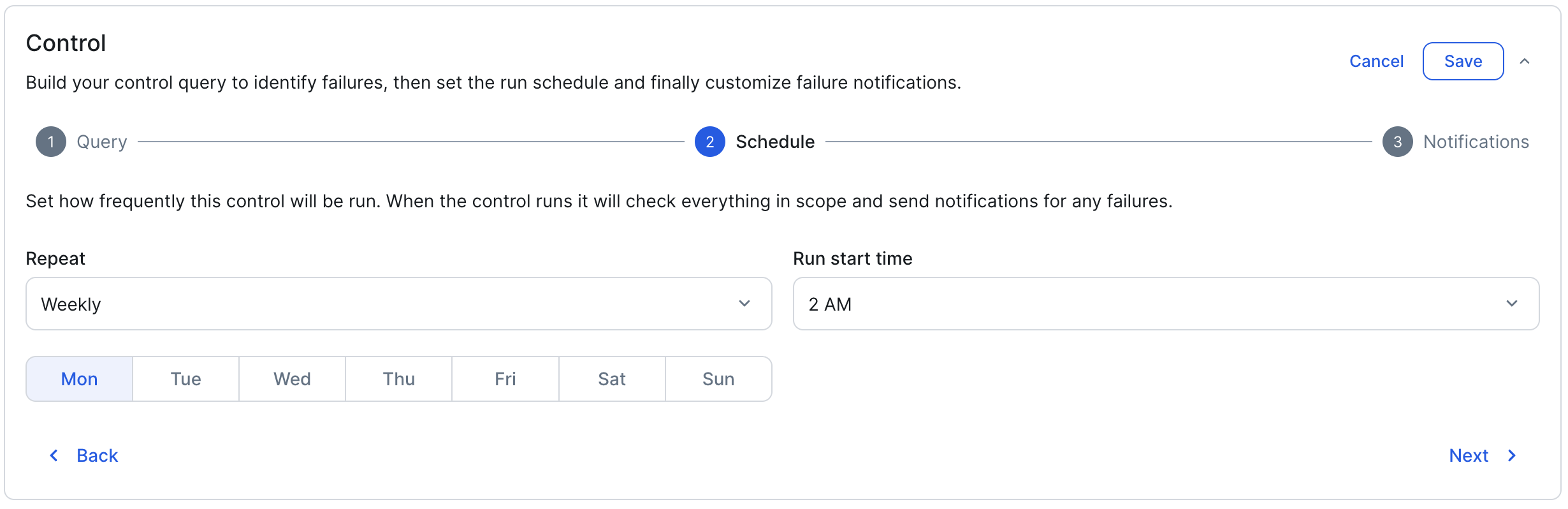
- Click Next.
Note If the control's query later becomes invalid, for example because it references an asset type, attribute type, or relation path that no longer exists, the control stops running on its schedule until the query is fixed. For more information, go to Identifying invalid controls.
6. Configure alert notifications
When an asset fails a control, users receive actionable alerts via email, Slack, or Microsoft Teams, based on their notification preferences. The default alert message contains all of the key details. You can add a custom message to accompany the default message. For example, you can describe any remediation steps that should be taken to address the failed assets.
Note To avoid alert fatigue, an initial alert is sent when an asset first fails a control. No additional alerts are sent for the same failing asset in subsequent control runs. A new alert is only triggered if the asset is fixed and then fails again in a later run.
- In the Custom message field, enter the information you want included in the notification.
- In the Who to notify field, edit the list of resource roles that will receive notifications.
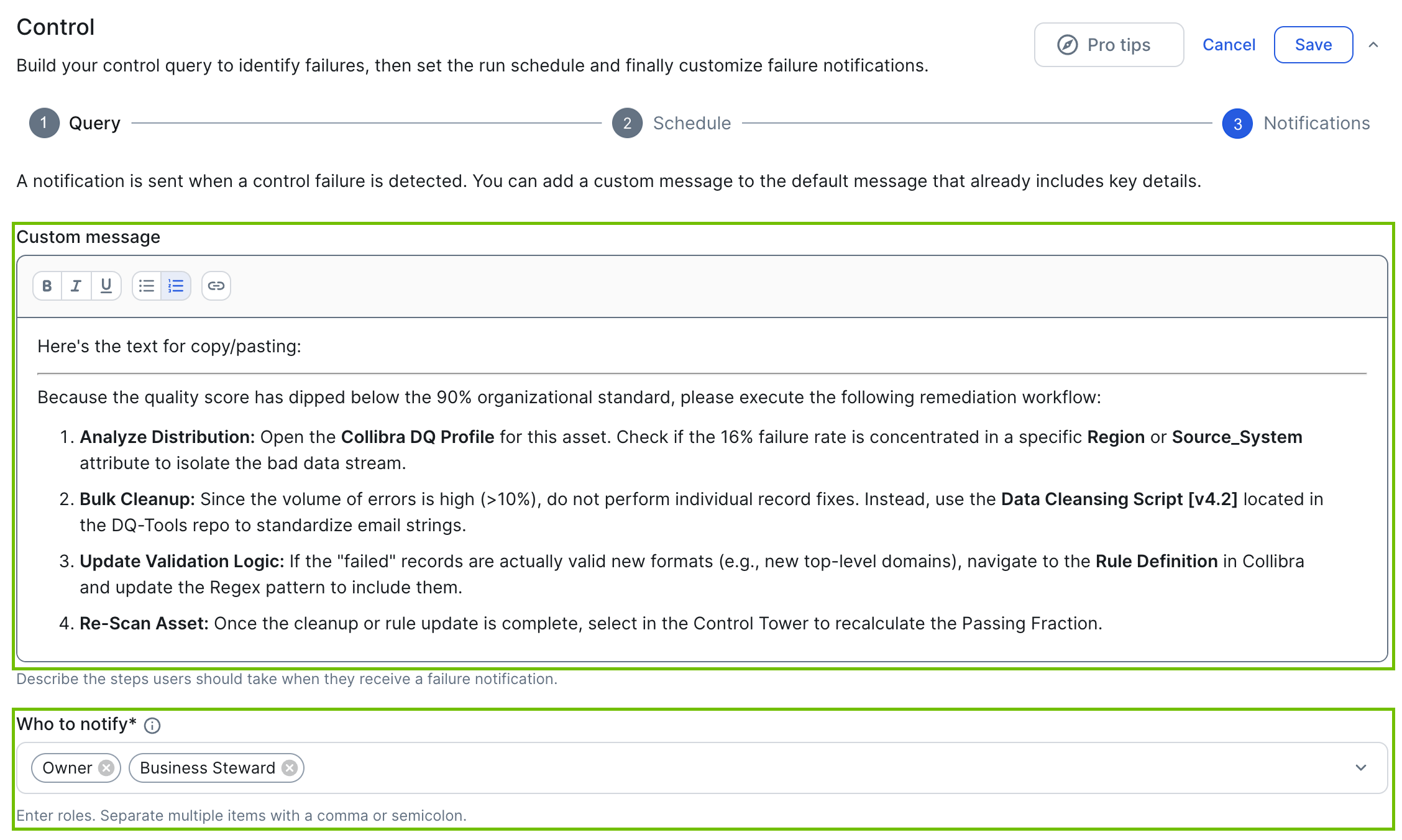
- Click Save.
The Save and enable control dialog box appears. - Click:
- Save only.
If you click this button, you eventually need to enable the control query before it can run. Go to step 7. - Save and enable.
If you click the button, the control query is saved and enabled and will run in accordance with the specified run schedule.
- Save only.
7. Enable the control query
Switch on the Enable switch. The blue state indicates that it's enabled.
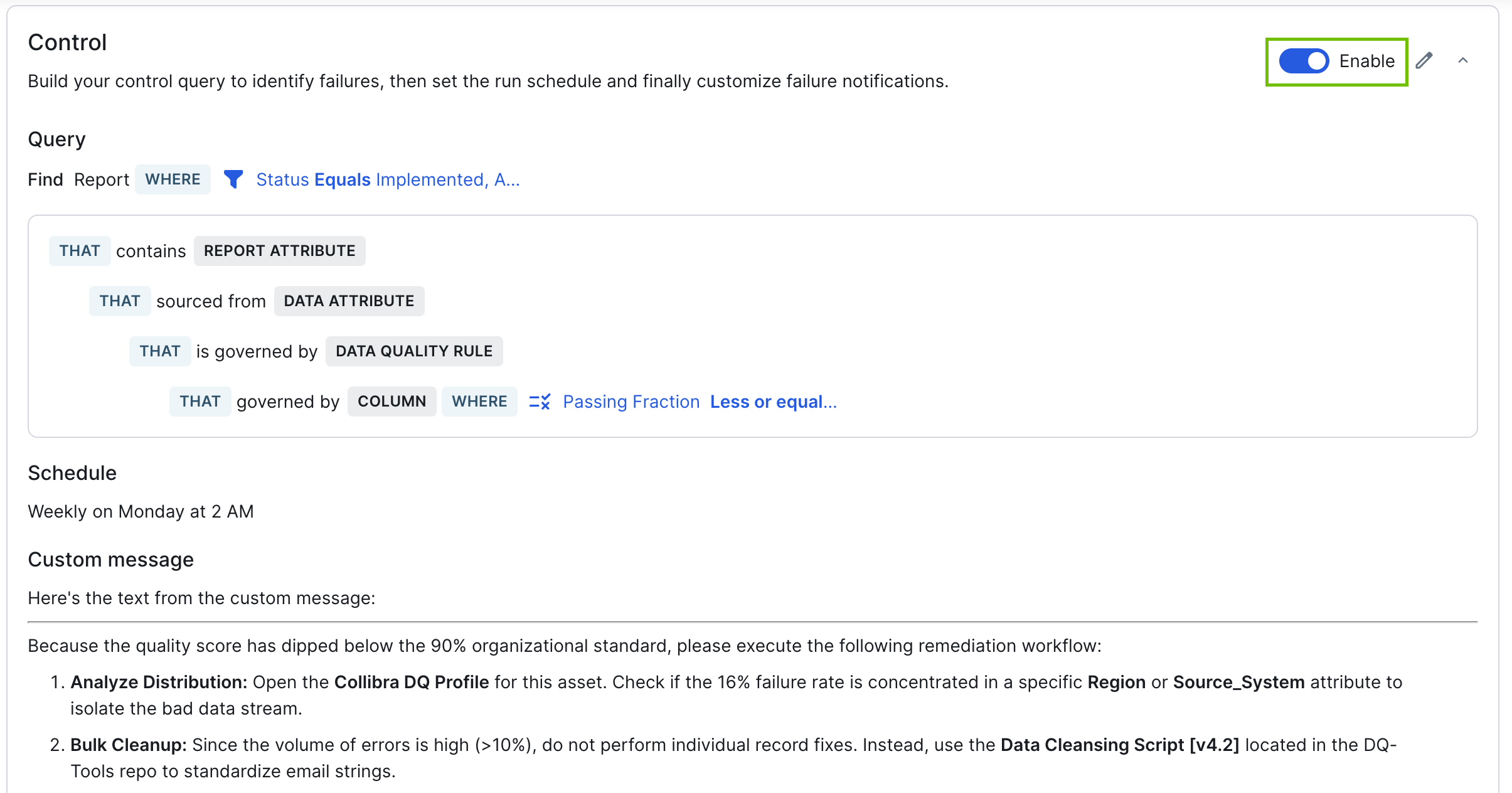
Important When a control identifies a failed asset, the name of the associated Managed Control asset is shown on the asset page. This is enabled by the Failed controls widget, which must be manually added to the asset page of the target asset type. For guidance, go to Edit and publish asset layout.
When the query is run:
- All failed assets are listed on the Failed assets tab of the Managed Control asset.
- The Managed Control asset is shown on the respective asset page of each failed asset.
If you want to edit the control, click  next to the Enable switch.
To run the control immediately instead of waiting for its schedule, go to Run a control on demand.