In this example, you will create a new control, configure a control query, and define remediation actions to take for any failed assets.
Scenario
In this example, you'll create a control to help mandate comprehensive data quality assurance for all data used in the generation of reports subject to the BCBS 239 Policy on Principles for Effective Risk Data Aggregation and Risk Reporting.
The core requirement is that all data elements feeding into the report production process must achieve and maintain an appropriate data quality score, as defined by the organization's internal Data Governance Framework. In this example, we'll set the minimum passing data quality score to 90.
Prerequisites
- You have a global role with the Product Rights > Control Tower global permission.
- You have a resource role with the following resource permissions on the community or domain that you specify when creating the control:
- Asset > Add
- Asset > Update
- Asset > Control > Activate and Run.
- One or more users is assigned the Control Manager resource role for the Managed Controls domain.
- You have a Policy asset named "BCBS239" in your Collibra environment, which represents BCBS 239 principles.
1. Create a control
Create a control to help enforce the objective set out in the example scenario.
Steps
-
From the Control Tower Overview page, click Create control.
The Create a control dialog box appears.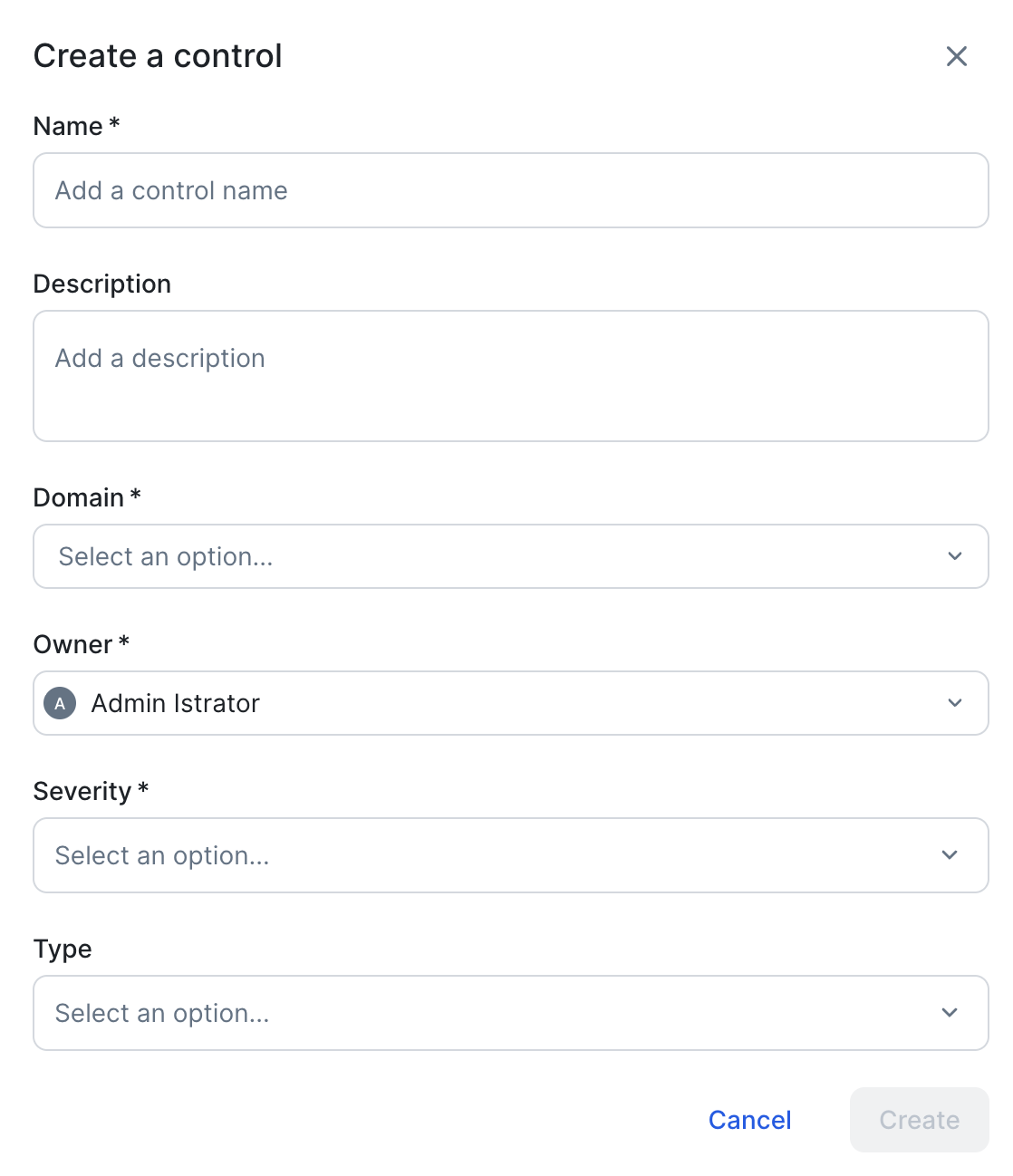
- Enter the required information.
Field Description Name The name of the new Control asset.
Enter Data used for report generation must have adequate data quality.
Description A description of the control.
Enter This control mandates comprehensive data quality assurance for all data utilized in the generation of reports subject to the BCBS 239 Policy on Principles for Effective Risk Data Aggregation and Risk Reporting.
Domain The domain in which you want to create the new Control asset.
Select Managed Controls.
Owner The Collibra user or user group who will act as the owner of the control.
Select any appropriate user.
Severity An attribute type that indicates the criticality or impact level of the control.
Select High.
Type Describes the nature or purpose of a control based on how it manages risk or enforces policy.
Select Detective.
- Click Create.
The new Managed Control asset is created in the Managed Controls domain. The asset page opens automatically.
2. Link the new Managed Control asset to the BCBS239 Policy asset
You created the new control to help enforce BCBS 239 principles, so link the new Managed Control asset to your BCBS239 Policy asset.
- On the Managed Control asset page, scroll down to the Governance context section, and then click
 across from enforces Policy.
The Add to 'enforces' relation dialog box appears.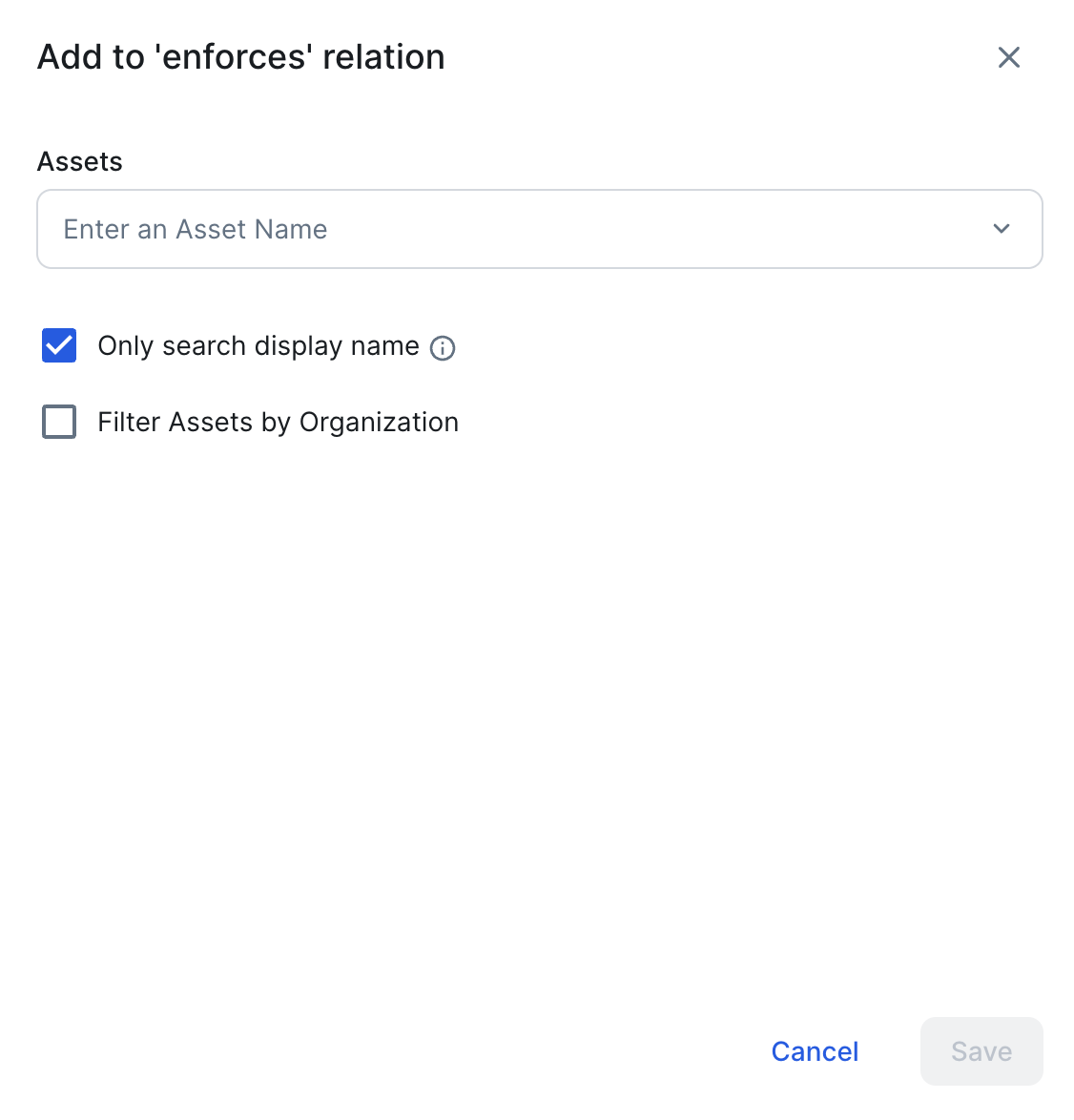
- Start typing and select Policy asset BCBS239.
- Click Save.
The Policy is linked to your Managed Control asset.
3. Specify the target asset type
According to the scenario, you want to identify all data elements feeding into the report production process that fail to meet a certain data quality score. In other words, you want to target Report assets.
Scroll down to the Control configuration section, and in the Find drop-down list, start typing and select Report. 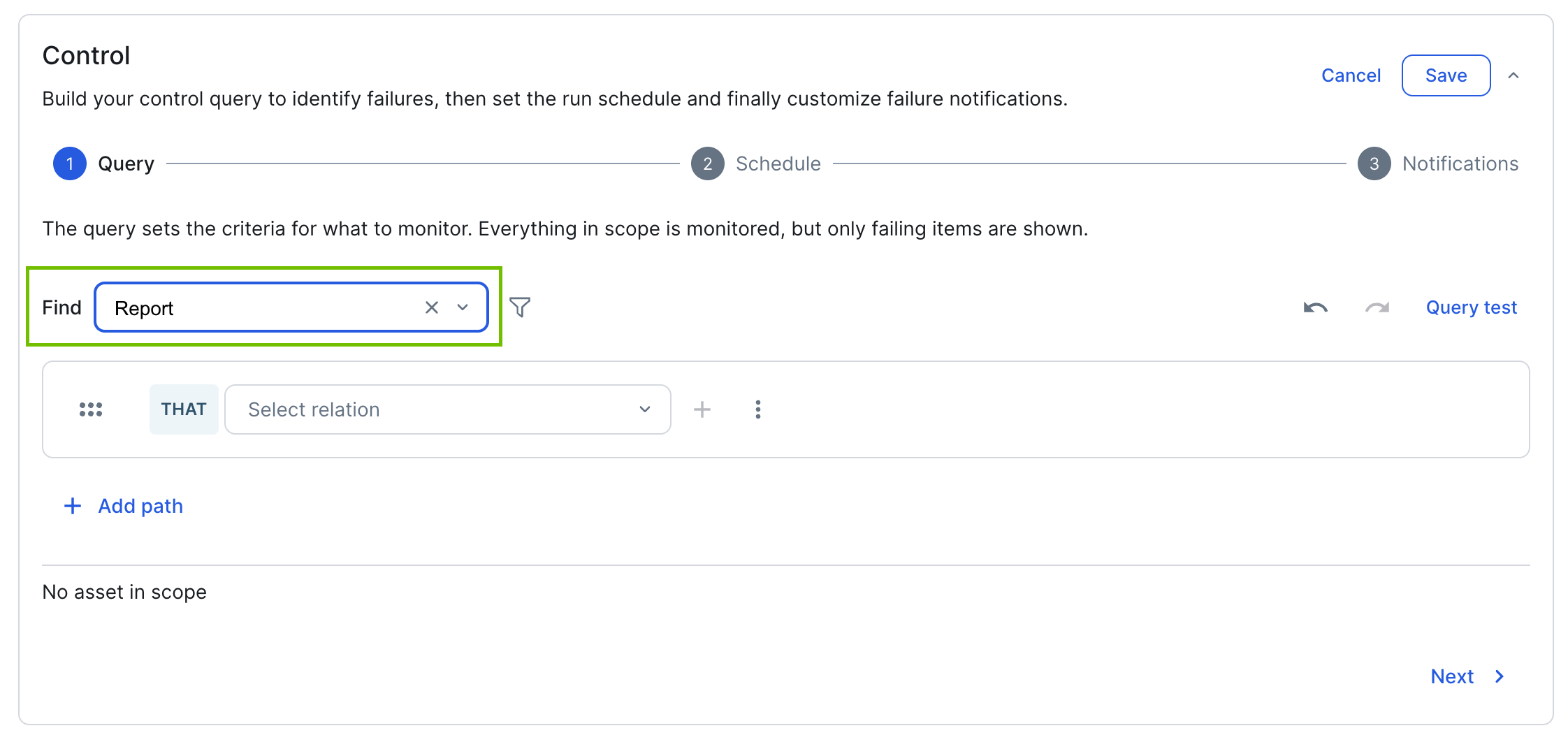
4. Refine the scope of target assets
Let's add some filters to narrow down the scope of reports you want to monitor. Let's say that you want to monitor only reports with the status Implemented and that comply with BCBS 239 policy.
- Click
 .
.
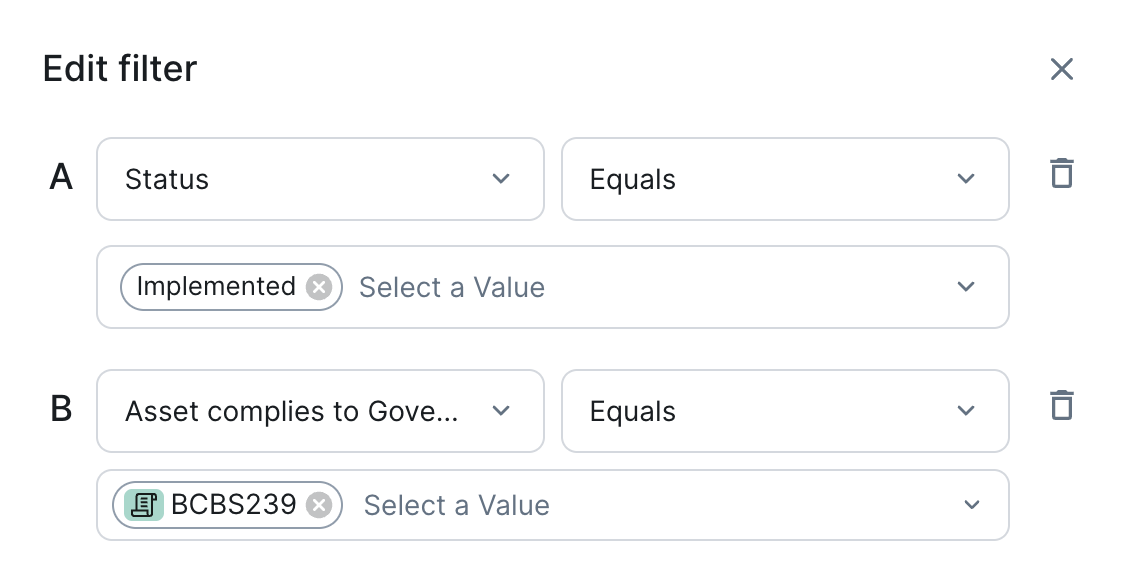
The Edit filter dialog box appears.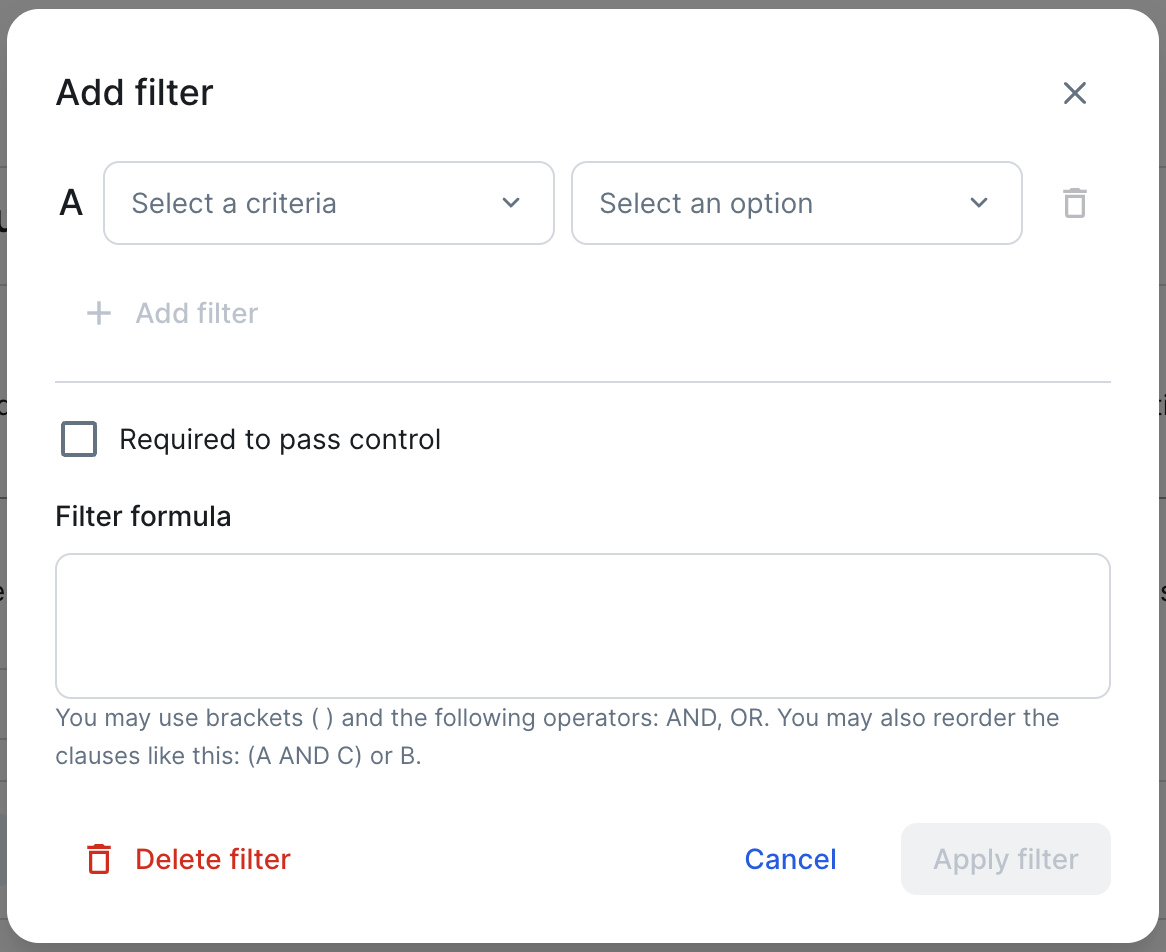
- In the first filter, specify that you want to consider implemented reports.
- For the filter criteria, select Status.
- For the operator, select Equals.
- For the value, select Implemented.
- Add a second filter, to specify that you want to consider reports that meet your BCBS 239 policy requirements.
- Click + Add filter.
- For the filter criteria, start typing and select "Asset complies to Governance Asset".
- For the operator, select Equals.
- For the value, start typing and select policy "BCBS239".
Leave the other fields as they are. Don't select the Flag as failed if condition is met option, because the objective is not to be alerted for Report assets that have other status, or for those that are not linked to the BCBS239 Policy asset. You'll select that for a different criteria, in step 6 of this example.
Also leave the filter formula as is. By default, it is constructed to match both filters, "A AND B". That works for this example because you want to consider reports that are both implemented and linked to the BCBS239 Policy asset
- Click Apply filter.
The filter is added.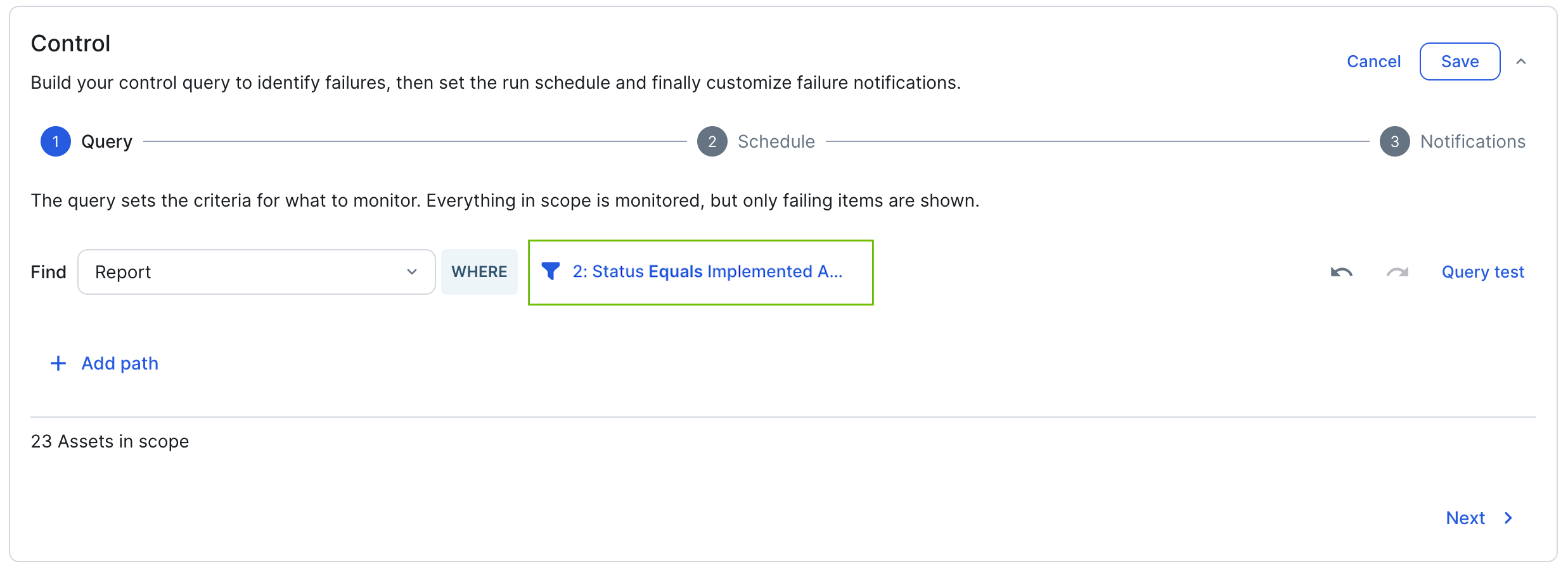
5. Add the relationship path to the monitoring asset type
In this step, you create a path, using a series of relation types, to link the target assets (Report asset type) and the asset type that represents the monitoring criteria. In this example, the monitoring criteria asset type is Data Quality Rule.
To define the path, you need to be familiar with your operating model and the relation types that link the asset types.
Note A query can have a maximum of 50 relations in total, across all paths. The query builder prevents you from exceeding this limit.
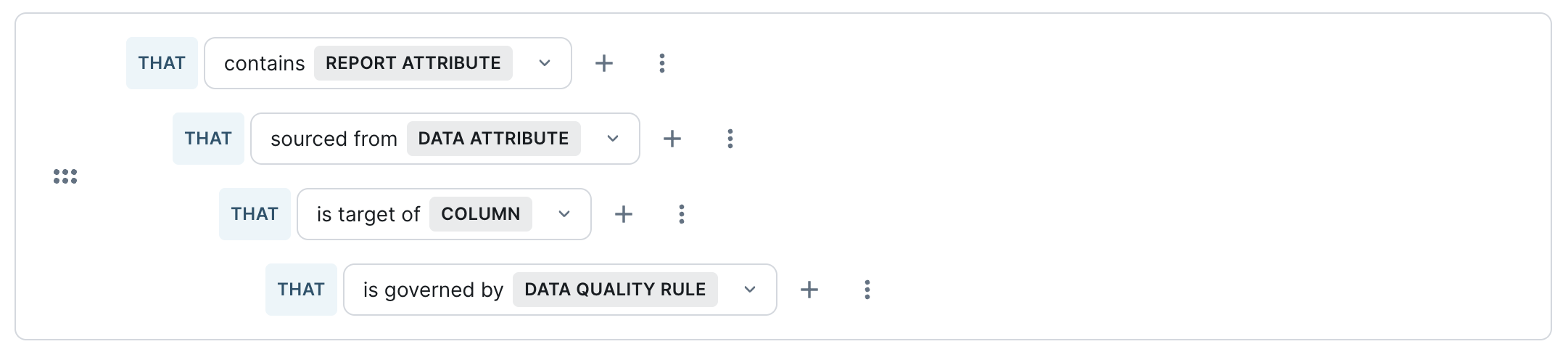
- In the Select relation drop-down list, start typing and select the relation type "Report contains Report Attribute".

- Click , to add another path.
Another relation type path is added. - In the Select relation drop-down list, start typing and select the next relevant relation type: "Report Attribute sourced from Data Attribute".
- Continue this progression and the following relation types:
- "Data Attribute is target of Column"
- "Column is governed by Data Quality Rule"
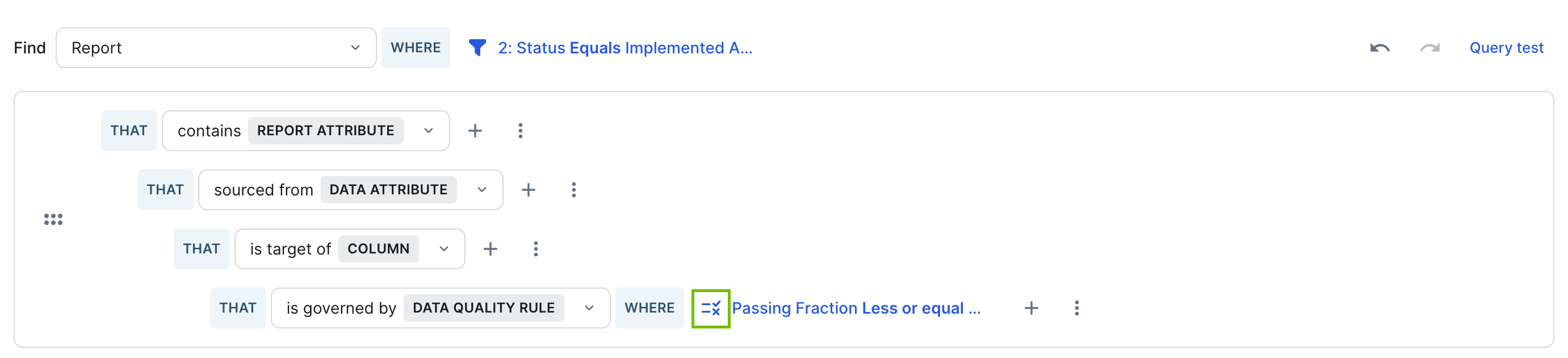
The path progression should now look as follows:
6. Specify the failing criteria and run a query test
In this step, you select the Flag as failed if condition is met option to mark the filter as the criterion that determines whether a target asset passes or fails the control. A Report fails the control if any of its associated Data Quality Rules has a passing fraction below 90, meaning the data quality requirement is not met.
-
Next to the final relation type in the path ("Column is governed by Data Quality Rule") click
 , and then select Add filter.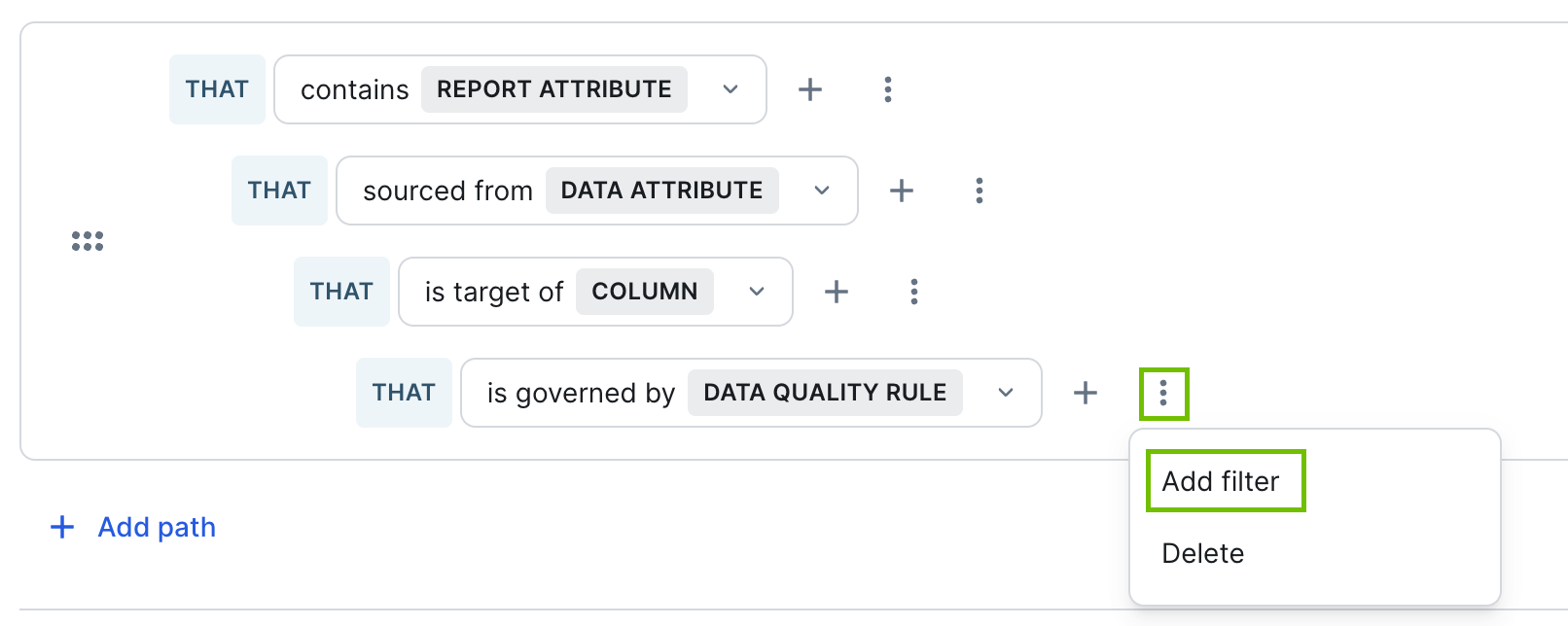
The Edit filter dialog box appears. - Enter the required information:
- Select a criteria: Passing Fraction
- Select an option: Less
- Enter a number: 90
Important Keep in mind that the objective of a control is to identify failing assets, not passing assets. Therefore, you need to select "Less", not "Greater than" or "Greater or equal". -
Select Flag as failed if condition is met.
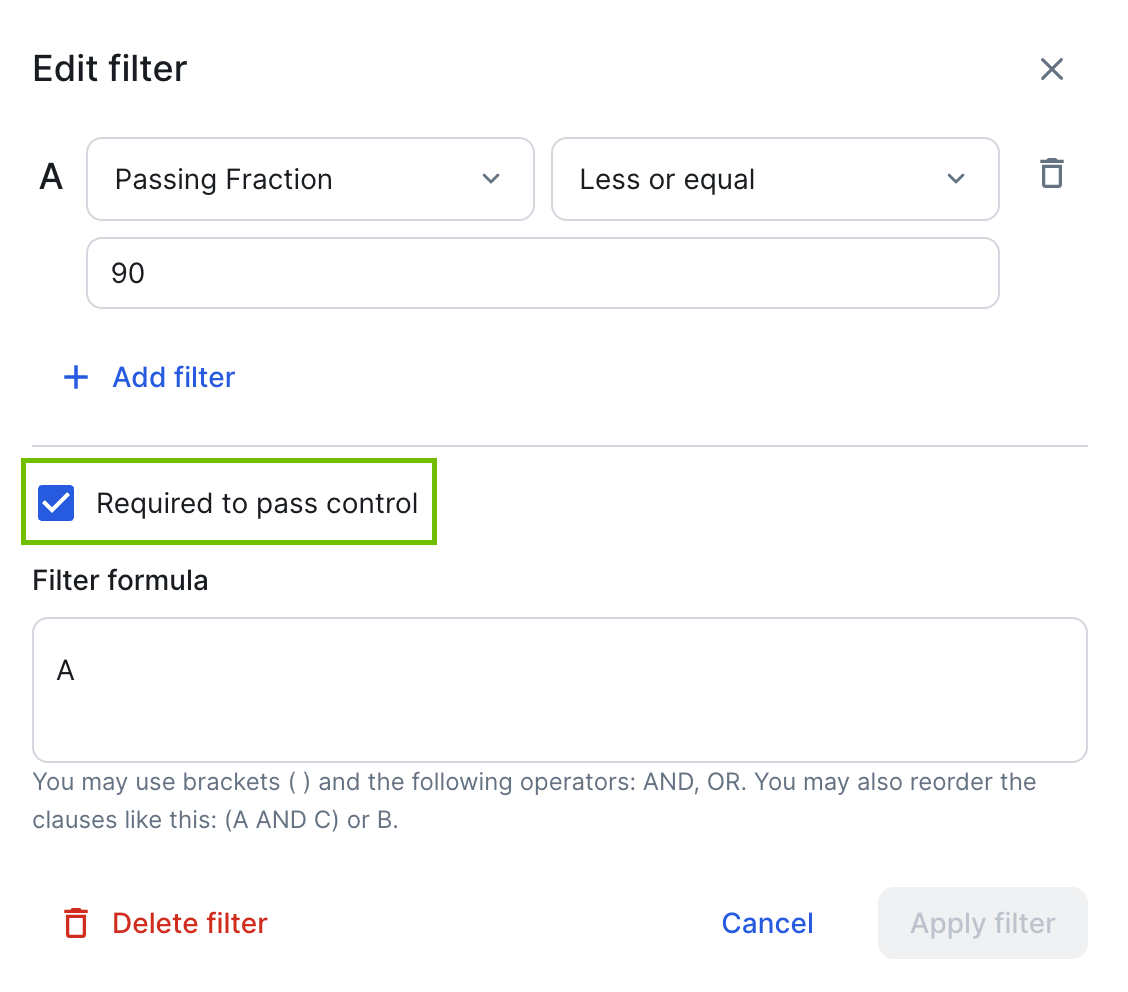
- Click Apply filter.The filter is applied. The icon highlighted in the following image identifies that the Flag as failed if condition is met checkbox is selected.
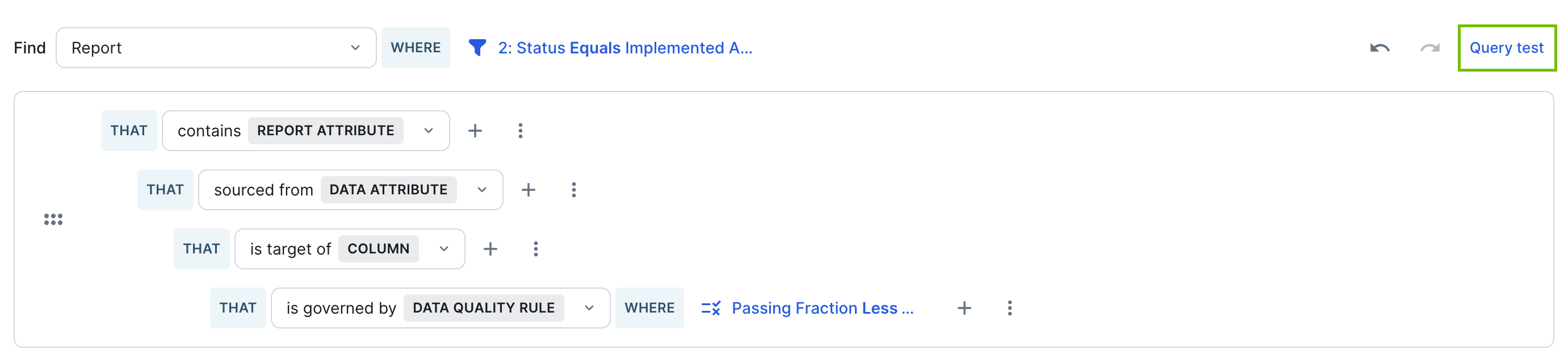
- Run a query test to identify which assets would fail the control query as it is currently configured.
- Click Query test.
The side panel opens. - Click Run test.
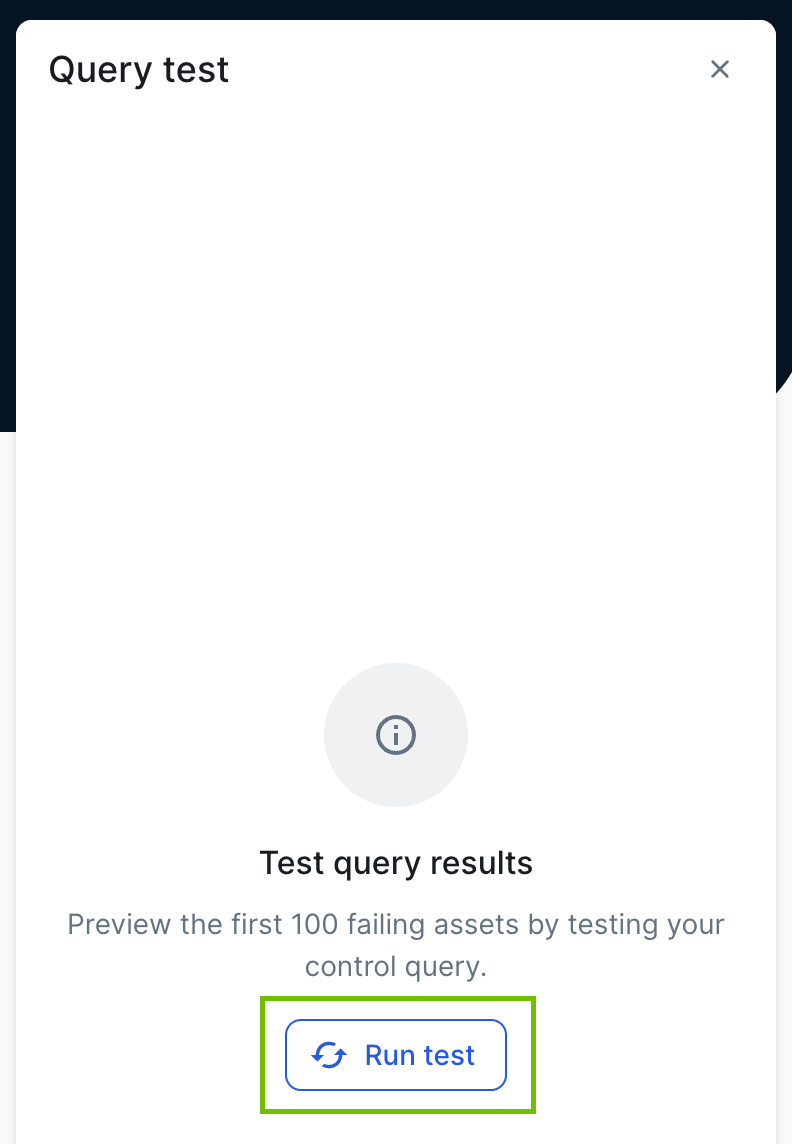
Up to 100 failing assets are shown in the side panel.
- Click Query test.
- Click Next.
7. Set the control run schedule
Set how frequently the control will be run and when each run should start.
- In the Repeat drop-down list, set the frequency. Select Hourly, Daily, or Weekly.
If you select Weekly, then select the day or days of the week on which you want the control to run. - In the Run start time drop-down list, select the hour that you want the query run.
If you selected Hourly frequency, the Run start time field does not apply. The control is run at the top of every hour, for example 11:00.
In the following example image, the control is set to run every Saturday, at 12 AM (midnight) GMT.Note All times are GMT, regardless of your geographic location.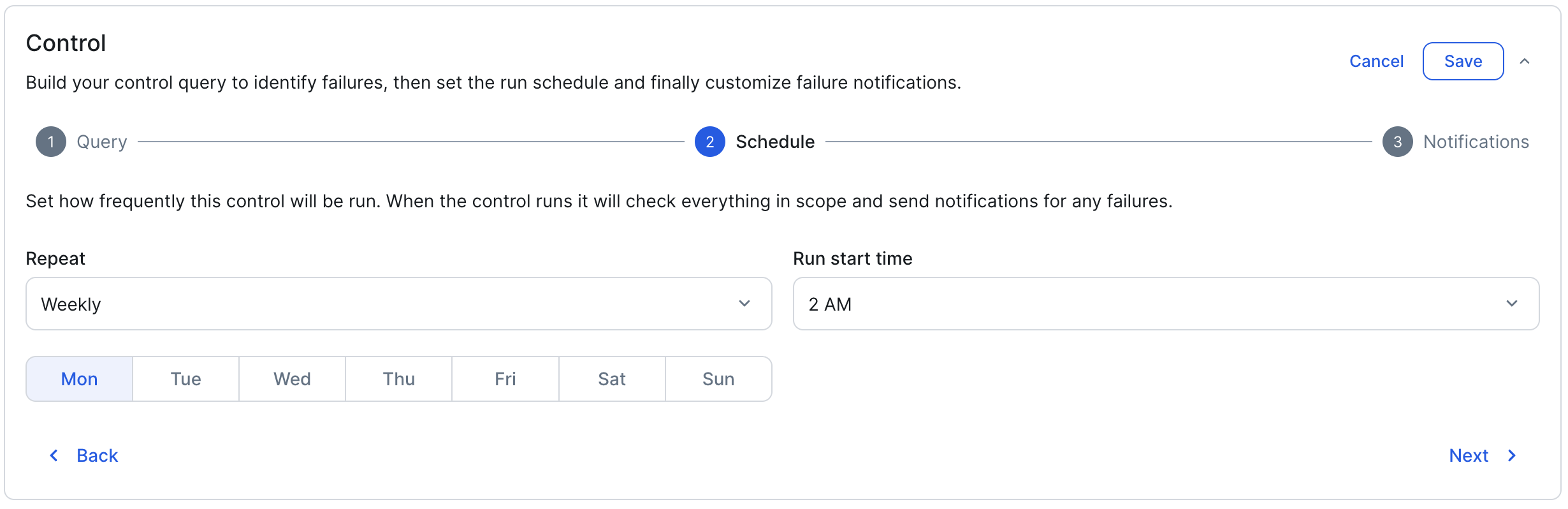
- Click Next.
8. Add a custom alert notification
When an asset fails a control, users receive actionable alerts via email, Slack, or Microsoft Teams, based on their notification preferences. The default alert message contains all of the key details. Add a custom message to accompany the default message.
- In the Custom message field, enter the information you want included in the notification. For example, describe any remediation steps that should be taken to address the failed assets.
- In the Who to notify field, edit the list of resource roles that will receive notifications.
By default, notifications are sent to Owners of failed assets. For this example, add Business Steward.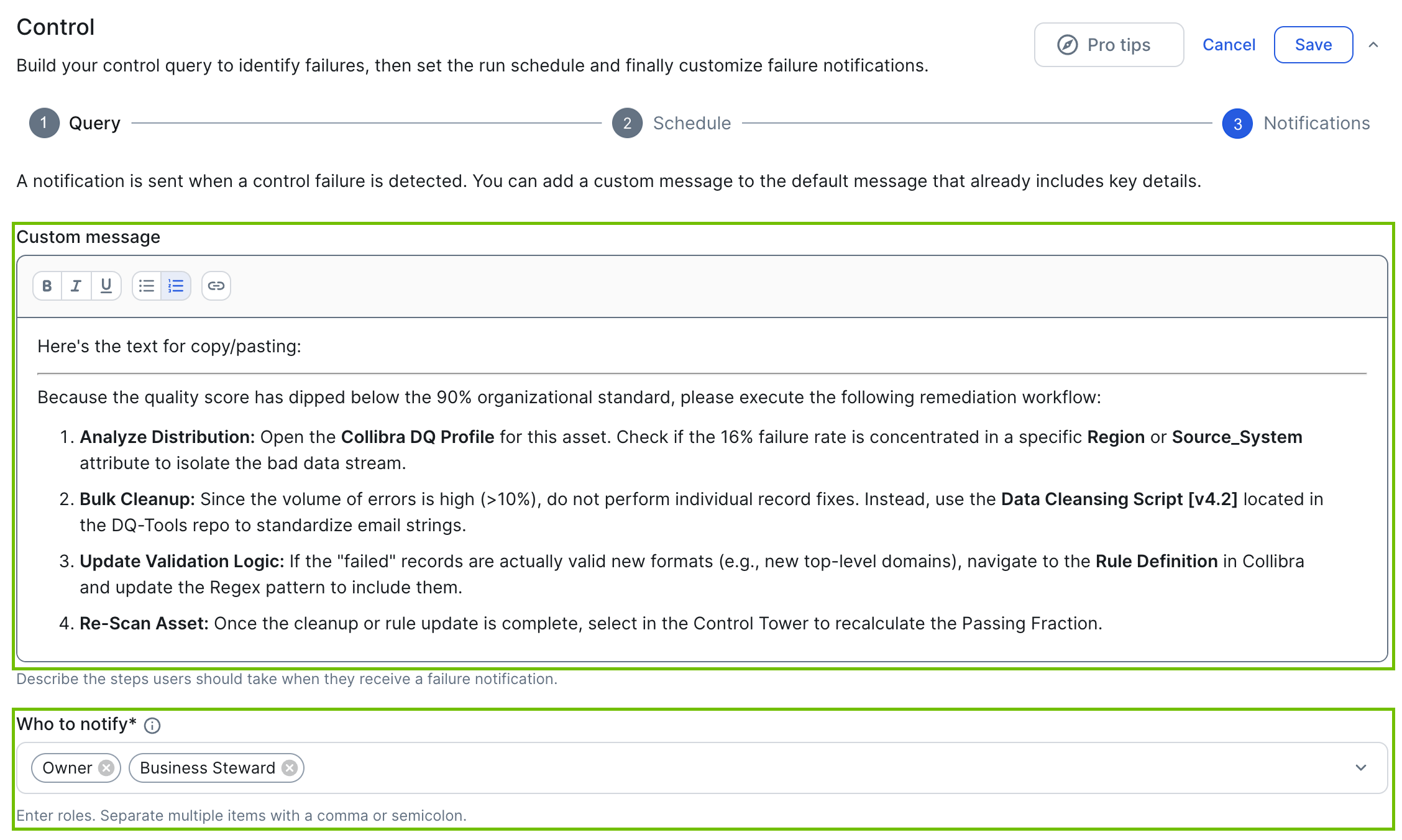
- Click Save.
The Save and enable control dialog box appears. - Click:
- Save only.
If you click this button, you eventually need to enable the control query before it can run. - Save and enable.
If you click the button, the control query is saved and enabled and will run in accordance with the specified run schedule.
- Save only.
When the query is run, for every failed Report asset:
- The Report assets are listed on the Failed assets tab of the Managed Control asset.
- The Managed Control asset is shown on the respective asset page of each failed Report asset.
- The alert notification is sent to all Owners and Business Stewards of each failed asset.
If you want to edit the control query, click  next to the Enable switch.
"Flag as failed if condition is met" option: Specifying failing criteria when refining target assets
In the primary example in this topic, you specified the failing criteria in the relationship path to the monitoring asset type. In this example, we show how to set the "Flag as failed if condition is met" option when refining target assets. In this case, there is no need to add a relation path to a monitoring asset type.
- Objective
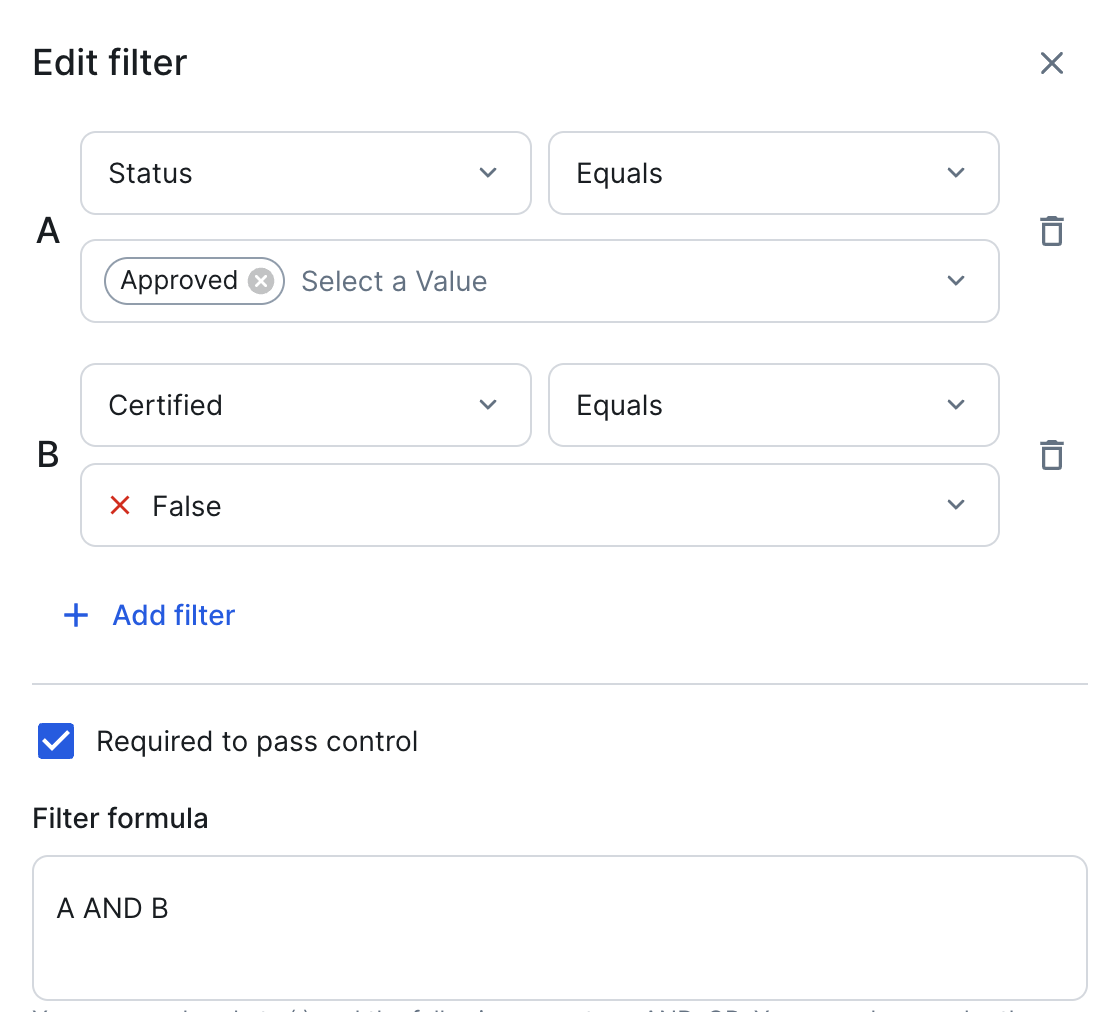
- Identify all approved reports that are not certified.
Steps
- In the Find drop-down list, start typing and select Report.
- Click .
The Add filter dialog box appears. - Enter the required information:
- Select a criteria: Status
- Select an option: Equals
- Select a value: Approved
- Click + Add filter.
- Enter the required information:
- Select a criteria: Certified
- Select an option: Equals
- Select a value: False
-
Select Flag as failed if condition is met.
- Click Apply filter.