Your organization's AI is already running in production, and your priority is bringing governance up to speed: surfacing what you have, understanding the risks it carries, and establishing the control and confidence to match your technical maturity. This topic describes how to ingest your existing AI automatically with integrations and the CLI, and then govern what you discover.
Automated intake is the next step after Manual asset intake, which describes registering and governing AI manually. You can use both: register use cases manually, and let integrations bring in the models and agents they use.
- Connect your existing AI platforms, or register models with the CLI.
- Review the inventory in the registry.
- Assess what you discovered.
- Monitor on the dashboards.
Process flow
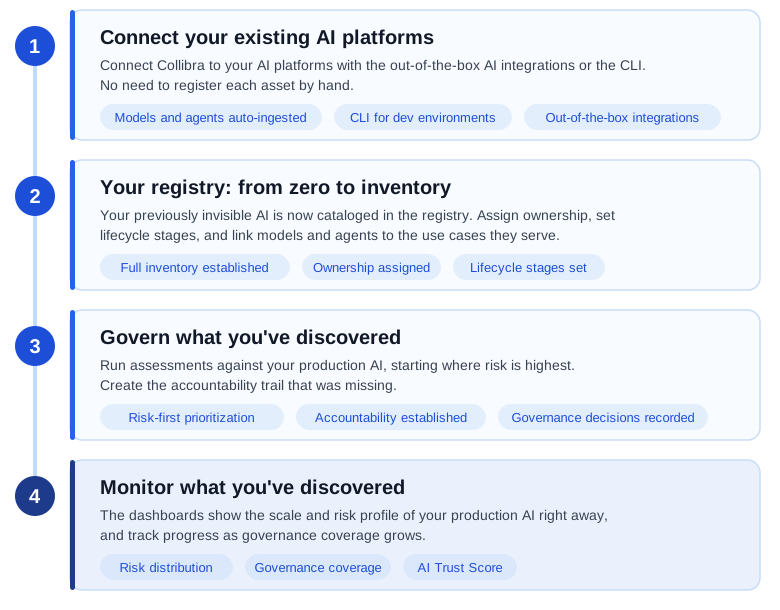
Connect your existing AI platforms
For most mature AI teams, the inventory problem is not that nothing exists, it's that what exists is invisible to governance stakeholders. The first step is connecting Collibra to the platforms your engineers are already using.
Collibra's out-of-the-box Edge integrations automatically ingest AI model metadata as assets, without requiring engineers to manually register anything.
Collibra offers out-of-the-box integrations that ingest machine learning (ML) model and AI agent metadata from the following AI platforms:
- Anthropic AI
- AWS Bedrock AI
- AWS SageMaker AI
- Azure AI Foundry
- Azure ML
- Databricks AI
- Dataiku
- Gemini Enterprise Agent Platform
- MLflow AI
- OpenAI
- SAP AI Core
- Snowflake Cortex AI
Once connected, AI model versions and AI base models from your production environments are automatically created as assets in your AI Command Center registry. What was invisible becomes cataloged. For complete information, go to the integration documentation for your platform.
The CLI
For developers who want to register AI models directly from their development environment, the CLI provides an immediate path into AI Command Center without waiting for a platform-level integration to be configured. This is particularly valuable for models built on frameworks that may not be covered by an out-of-the-box Edge integration, or for teams that want to bring governance into their existing CI/CD workflows from day one.
The CLI is a unified command-line tool that allows you to manage AI model versions directly from your terminal or automation workflows. This method is ideal for developers who want to:
- Automatically detect frameworks and libraries: The CLI scans local projects for AI frameworks (for example TensorFlow, PyTorch, and scikit-learn) and libraries (for example pandas and numpy).
- Manage manifests: It creates a "collibra.yaml" manifest file to track registered models and prevent redundant entries.
- Streamline registration: Use a single command to scan code and link model versions to use cases and base models.
For complete information, including setup instructions and guidance through the interactive registration, go to:
Your registry: from zero to inventory
With your integrations connected, your AI Command Center registry becomes a consolidated inventory of your production AI, so stakeholders can answer "what AI do we have running?" with confidence. From the registry, you can assign ownership and other responsibilities to assets that have so far been ungoverned, and link your models and agents to the use cases they serve.
Understand your data lineage
With production AI, understanding what data your models were trained on and what data they consume at inference time is essential for regulatory compliance, risk assessment, and debugging. Collibra's Data Lineage capabilities let you trace the end-to-end flow of data into and through your AI models.
This provides your governance and legal teams with the data provenance information they need to evaluate risk, assess compliance with regulations like the EU AI Act, and respond to audit requests, without depending on the engineering team to reconstruct the picture from memory.
Govern what you've discovered
With a populated inventory, you don't have to wait for manual registration to finish before you assess. Start with the assessments that match your current risk exposure: Risks and Safeguards for your risk profile, Legal and Ethics for potential legal exposure, or EU AI Act Assessment for regulatory applicability to systems already in production.
Submitting and approving assessments works the same as on the manual path. For more information, go to Assess and approve your AI assets and out-of-the-box assessments.
Monitor what you've discovered
The Business dashboard shows the scale and risk profile of your production AI right away, and tracks your progress as governance coverage grows. Concentrations of high-risk, low-safeguard assets, shown in the Use case risk distribution matrix, are the first to address.
For agents already in production, the Agents dashboard shows quality and token signals. For agents on Databricks, AWS Bedrock, Gemini Enterprise Agent Platform, or Azure AI Foundry, switch on operational trust for AI agents to see them.