You can update your personal information and preferences in Collibra. This topic covers how to edit your account settings, contact information, and notification preferences for both emails and product updates.
Edit the user account settings
As a regular user, you can edit the settings of your own user account on your profile page. As an administrator, you can also edit the settings of other users.
Prerequisites
If you want to edit the user account settings of another user, you have a global role with the User Administration or the System Administration global permission, for example Sysadmin.
Steps
- Click your avatar, then Profile.
Your profile page appears. - Click Edit Profile.
The Edit Profile dialog box appears. - Enter the required information.
Field Description Username Enter the username.
Collibra username requirements- General requirements:
- Uniqueness: Duplicate usernames are not allowed, regardless of their capitalizationExample
usernamecaseandUserNameCaseare considered duplicates. - No leading or trailing spaces
- No empty usernames
- Maximum of 255 characters
- Uniqueness: Duplicate usernames are not allowed, regardless of their capitalization
- Character limitations: Usernames may contain only the characters in the following Unicode categories:
- Letter
- Number
- Symbol
- Punctuation
- Non-spacing marks
Job title Enter the job title of the user. Department Enter the department of the user. Language and Locale
Choose the interface language, which affects the language as well as the format of dates, times and numbers.
As an administrator, you can set the default language and locale, and make all dates show in the ISO-8601 (YYYY-MM-DD) format, regardless of the selected language and locale.
This option can also be disabled when an administrator selects the default language and local.
Note Fully translated files are available starting from the production deployment of a release. The pre-production deployment does not include complete translations. See the Release Calendar for more information.
First Name
Enter the first name of the user.
Last Name
Enter the last name of the user.
Email Address
Enter the email address on which the user receives all communication from Collibra, such as the registration mail and notifications.
Note When you edit your own email address, you must confirm your Collibra password. Administrators can edit the email addresses of other users without a password confirmation.
To add a phone number, website, or instant messaging, go to Edit the contact information.
- General requirements:
- Click Save all.
Edit the contact information
As a regular user, you can edit or add new contact information for your own user account on your profile page. As an administrator, you can also edit the contact information of other users either from their profile page or the Users settings page.
Prerequisites
If you want to edit the contact information of another user, you have a global role with the User Administration or the System Administration global permission, for example Sysadmin.
Steps
- Click your avatar, then Profile.
Your profile page appears. - Click Edit Profile.
The Edit Profile dialog box appears. - In the Contact Details tab, do one of the following:
- Update any existing fields.
Note When you edit your own email address, you must confirm your Collibra password. Administrators can edit the email addresses of other users without a password confirmation.
- Select the type of contact information you want to add from the Add Phone button, and click the button.
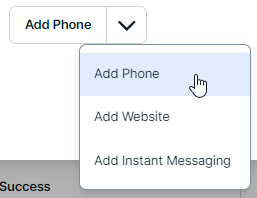
Note After editing an email address, a notification email is sent to the old email address.
- Update any existing fields.
- Edit the contact information.
- Click Save all.
Note Administrators cannot edit their own email address in the Users settings page.
-
On the main toolbar, click
 →
→
 Settings.
The Settings page opens. - Click Users and Subscriptions.
The Users tab page opens. -
Hover your cursor over a cell in the Email column and double-click
 .
.Note After editing an email address, a notification email is sent to the old email address.
- Edit the email address.
-
Press Enter, Tab, or click outside the filed to save the changes.
Edit the email notification settings
You can edit the email notification settings for your own user account. Administrators cannot modify the notification preferences of other users. The process for editing your notification settings depends on your Notification Center status:
- If Notification Center is enabled (default), then follow the steps for the default notification settings.
- If Notification Center is disabled, then follow the steps for the legacy notification settings.
Default notification settings
The Notification Center is enabled by default in Collibra Console, so you automatically see the expanded Notification Settings page.
Note The email notification settings section relates only to the subset of email notifications that are currently part of the Notification Service. Additional notifications will be added to the Notification Service in future releases. The list of available notifications can be found in About notifications.
Steps
- Click your avatar, then Profile.
Your profile page appears. - Click Notification Settings.
- In the Email Notifications section, click the toggle or checkbox to enable or disable different types of email notifications.
Note Only the 20 most recent changes for a given asset are shown in the notification email.
- In each of the sections:
- Select or clear the checkbox to receive or not receive each type of notification.
- For each type of notification you enabled, use the drop-down menu to set how often you are emailed.
- Instantly
- Every 5 minutes
- Hourly
- Daily (sent at midnight UTC every day)
- Weekly (sent at midnight UTC on Sundays)
- Monthly (only for Resource updates)
Legacy notification settings
If your Notification Center has been disabled, you will see the legacy notification settings page. If you enable notifications on the legacy Notification Settings page, you will be notified via email on the selected schedule when changes are made to your resources. Your resources are those that are assigned to your role in Console.
Note Only the 20 most recent changes for a given asset are shown in the notification email.
Steps
- Click your avatar, then Profile.
Your profile page appears. - Click Notification Settings.
- In the Content Notifications section, click the toggle and/or checkboxes to select how often you would like to receive email notifications.
Edit the in-app notification settings
You can edit the in-app notification settings on your profile page, where you can choose the types of notifications you'd like to receive, including:
- Scheduled maintenance
- Critical incidents
- Upcoming Collibra events
- Product sentiment surveys
- Product announcements (such as new offering and breaking changes)
- Research opportunities (to improve the product)
Note These settings only control in-app messages, banners, and pop-ups. They don't affect the Notification Center, emails, or external app notifications.
Prerequisites
- You have enabled application usage data in Collibra Console.
- Collect Application Usage Data is enabled. Contact Collibra Support if this is not the case.
- You have Notification Center enabled in Collibra Console.
Steps
- Click your avatar, then Profile.
Your profile page appears. - Click Notification Settings.
- In the In-app notifications section, select or clear the checkbox for each type of notification.
If your organization has set up messaging integrations, you can connect to Slack or Teams on your Collibra profile