As an administrator, you can configure how search results are displayed, including how matches appear and which fields are shown.
The Search results tab in Search settings includes the following sections:
Classic search match display
Use this setting to control how search matches are displayed in search results.
- Enabled: Displays the classic search layout, including snippets of text where the search terms were found.
- Disabled (Default): Uses the new layout, where matches are hidden to reduce visual noise, improve scannability, and ensure that configured search result fields remain the focus. With this setting enabled, you can remove the footer in the search results when configuring the result fields.
This setting is available only during the transition to the new search results layout and will be removed in a future release.
Result fields
Use this section to configure which fields appear in each search result and their order.
A field appears only if both of the following conditions are met:
- The field contains a value.
- The field is part of the asset type assignment.
A field might still appear if its value matches the search text, even if it is not configured as a search result field.
You can't reposition or remove the following fields:
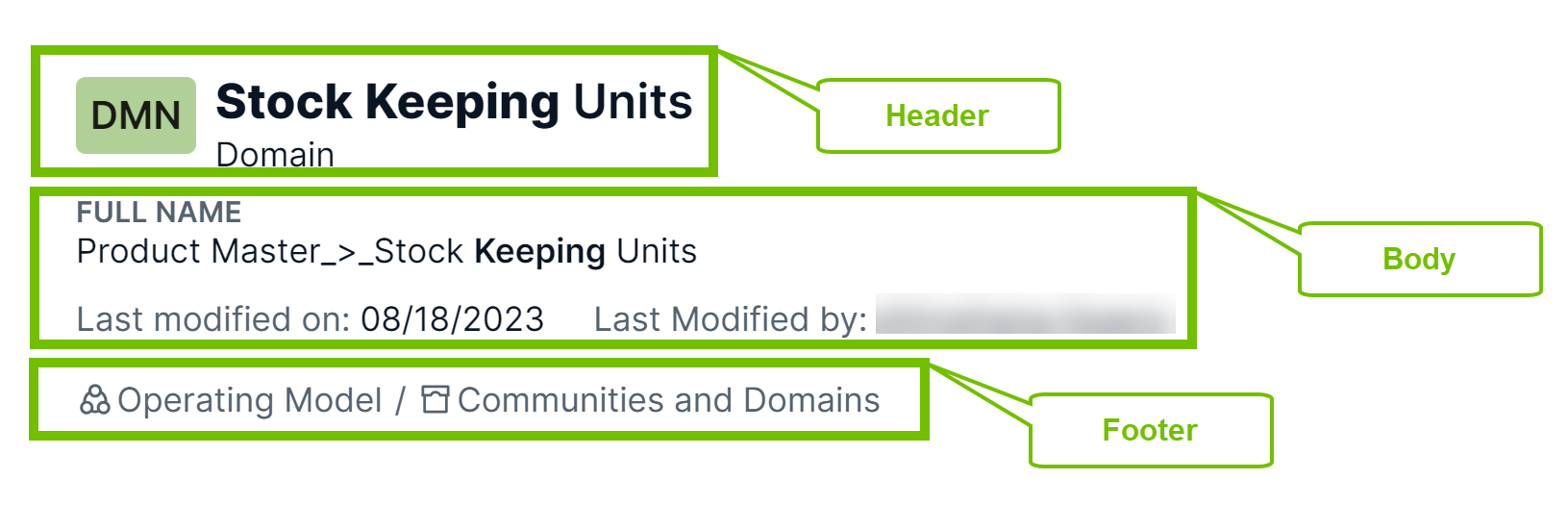
- The default fields in the Header section
- The Definition field in the Body section
In the Footer section, you can remove the Community and domain breadcrumb, but you cannot reposition it.
Note The configured search result fields apply only to the search page, not to standalone Data Marketplace.
Prerequisites
- You have a global role with the Product Rights > System administration global permission.
- Ensure that your environment uses the latest user interface.
Steps
-
On the main toolbar, click
 →
→
 Settings.
The Settings page opens. - Click the Search tab.
The General page opens. - Click the Search results tab.
The Search results page opens. - Enable or disable Classic search match display to control how matches are shown.
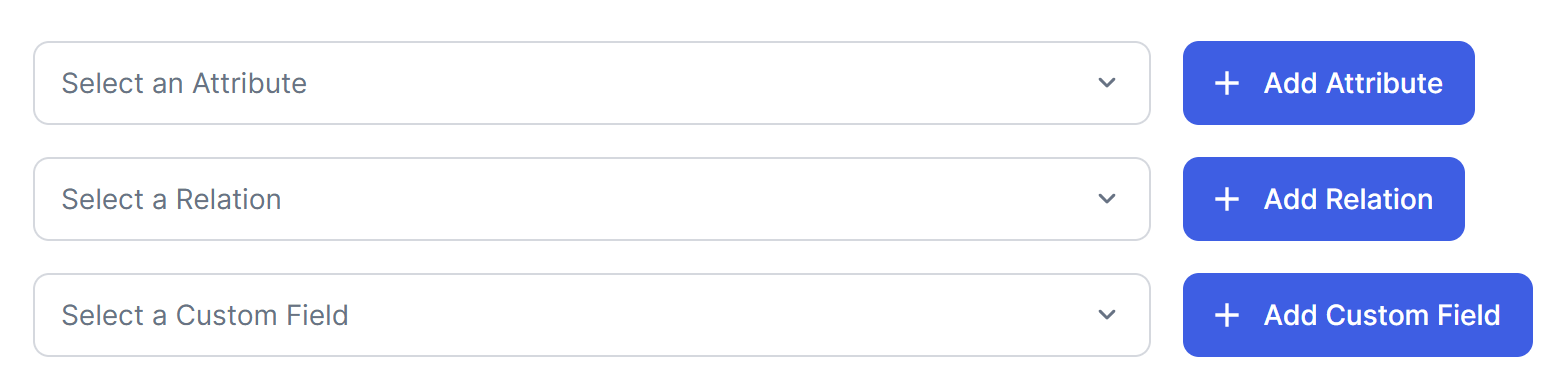
- In the Result fields section, to add a field, in the applicable drop-down list, select the field, click Add <type>, and then click Save.
The field you added appears in the Body section. If you added the custom field Status, it appears in the Header section instead. The custom field Community and domain appears in the Footer section.Tip You can add multiple fields. - To change the position of a field, drag
 to the required position, and then click Save. Tip
- You can reposition the fields you added only within the same section. For example, if you add a field named Assignee, it appears in the Body section. You can move this field around within the Body section, but you can't move it to the Header or Footer section.
- If both Description and Tags fields are configured to appear in search results, to make the results easier to scan, we recommend the following order: Definition, Description, and then Tags.
- To remove a field, click
 , and then click Save.
Display name versus full name in search results
In search results, the visibility of the full name of an asset depends on two factors: whether the full name matches the display name and whether the full name is configured to appear in search results. You can configure the full name to appear in search results by adding the Full Name custom field.
When the full name is hidden
If the full name is the same as the display name, the full name is hidden from search results. This behavior occurs even if the full name is configured to appear in search results. This prevents redundant information from cluttering the search page.
When the full name is shown
The full name appears along with the display name in search results if:
- The full name differs from the display name and the full name is configured to appear in search results.
- The full name differs from the display name and the user's search text matches the full name—even if the full name isn't configured to appear in search results.