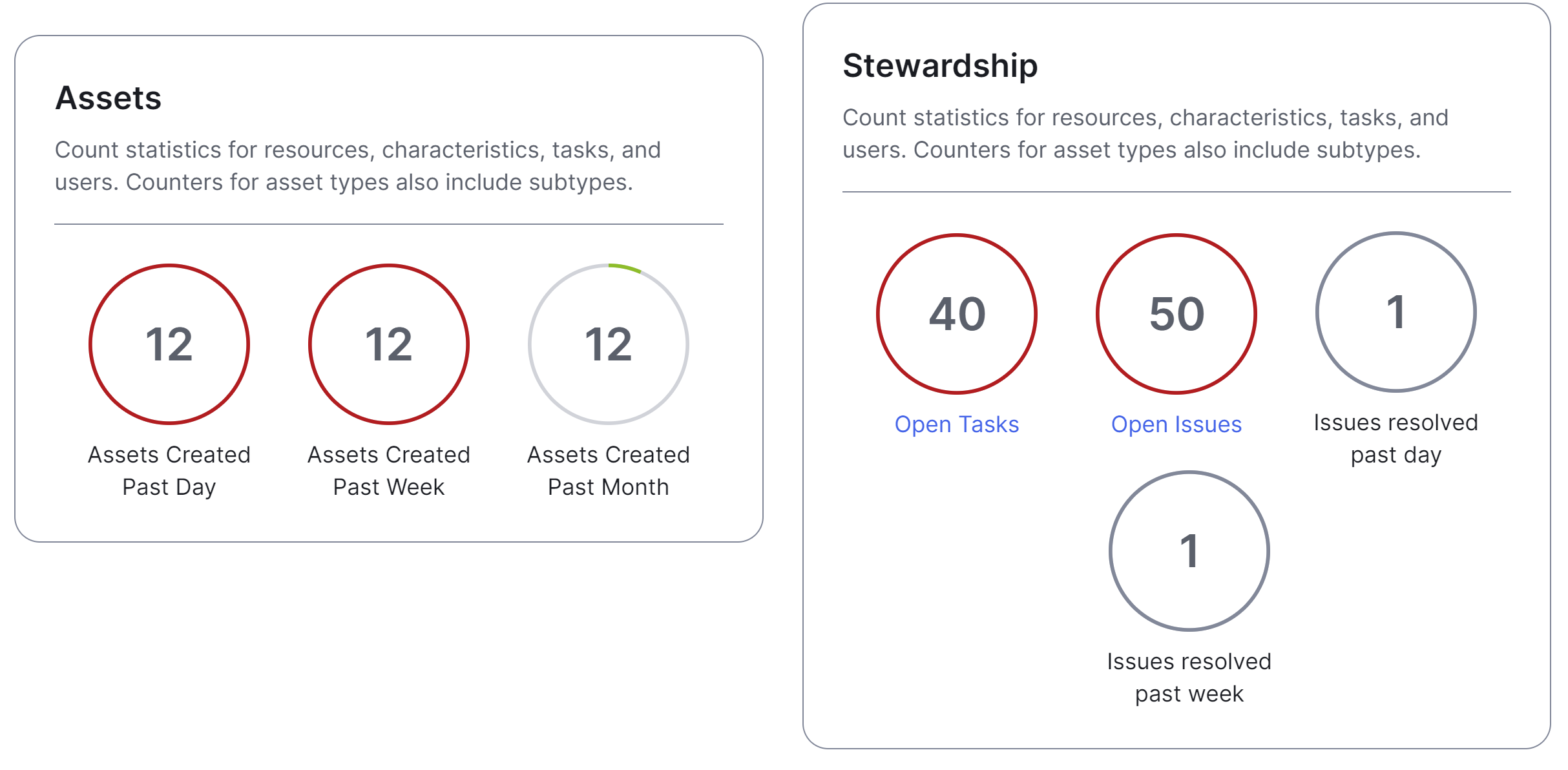
When configuring the Counters widget, it is important that you clearly define realistic goals or danger levels (thresholds).
Tip Similar to the Workflow widget, you can use multiple Counter widgets to group counters that belong together.
Prerequisites
- To manage your own dashboards: You have a global role that has the Manage your own Views, Dashboards, Search filters global permission.
- To manage another user's dashboards: You have a global role that has the Manage shared Views, Dashboard and Search Filter global permission.
Steps
- Open the widget for configuration.
Show more information
- Open the dashboard for which you want to configure the widget.
- Click
 → Edit Dashboard.
 - If needed, drag the widget from the Widgets section to the dashboard.
- On the widget, click → Configure.
- On the Counters tab, click Add Counter.
- Enter the required information.
Field
Description Template
Template of the count statistic to show.
Title Title to show on the counter. Optional: Warning Level and Danger Level
Values that represent warning and danger thresholds.
Note The threshold settings are designed for use with the following issue-related templates:- New Issues
- Open Issues
- Issues Resolved Past Day
- Issues Resolved Past Week
Optional: URL
Webpage address linked to the counter title. The address should lead to a page in your Collibra environment.
Tip You can use the URL field to make the widget interactive. For example, when users click the URL, they are directed to a page where they can explore the content associated with the number shown on the widget or take remedial actions.Tip- You can change the position of a counter by dragging
 to the required position.
 - You can remove the counter you don't want to show on the widget by clicking
 .
. - You can use multiple Counters widgets to group counters that belong together.
- On the Widget tab, enter the required information.
Tip You can use the Description field to communicate the goal to users, for example, what you want to achieve and by when.
- On the widget, click Save.
- In the upper-right corner of the page, click Save.