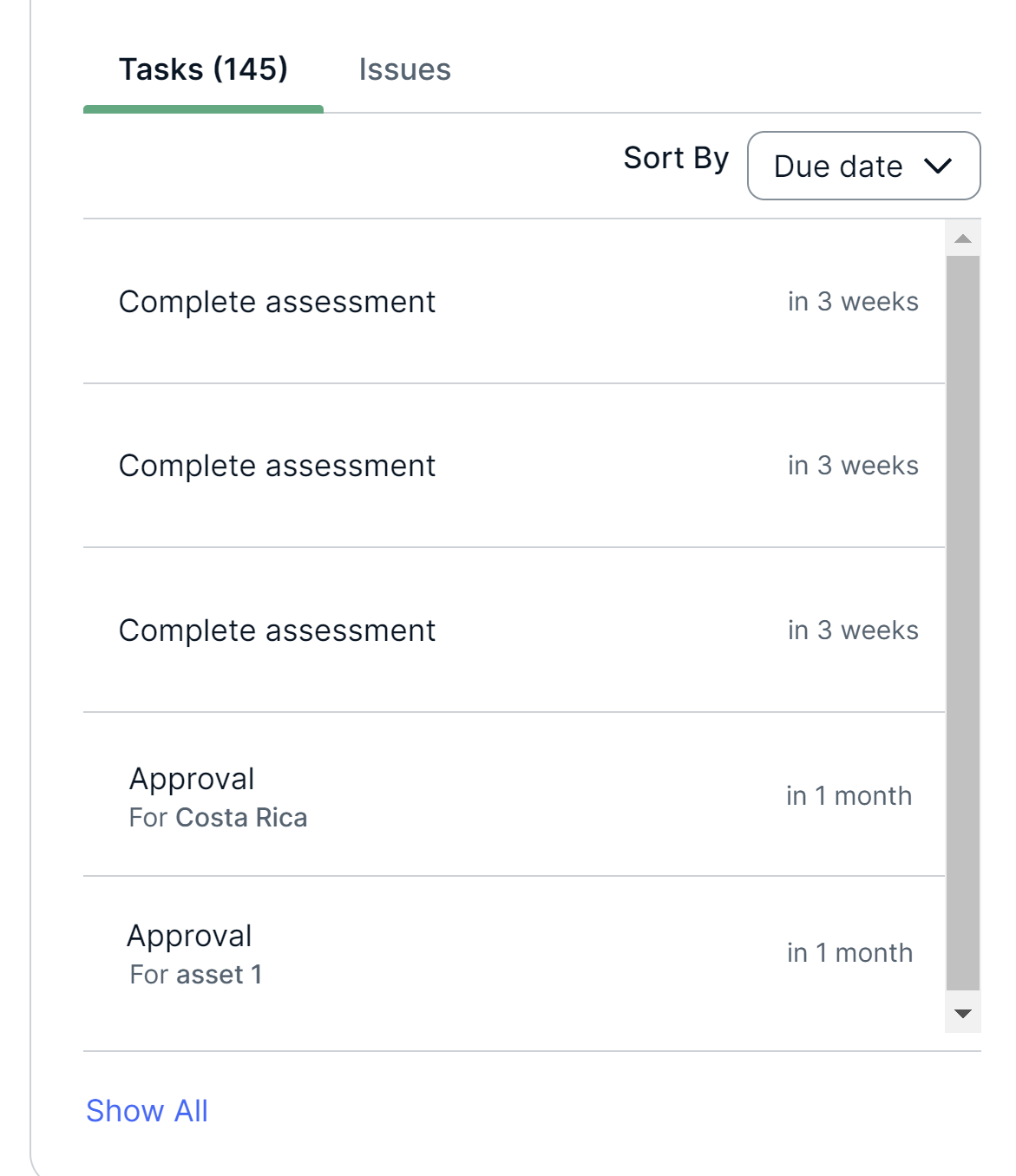
The Tasks and Issues widget shows an overview of open tasks and issues on a dashboard. On the widget, you can click the Tasks and Issues tabs to switch between tasks and issues.
On the Tasks tab:
- Click the Sort By list to sort the open tasks by their name, due date, and associated asset.
- Click Show All to see either all open tasks or the open tasks assigned to you, depending on the widget configuration.
On the Issues tab:
- Click the Sort By list to sort the open issues by their name and creator.
- Click Go to Data Helpdesk Page to see either all open issues or the open issues you created, depending on the widget configuration.
Note Open issues do not include issues in the following statuses:
You cannot edit this list.
- Resolved
- Invalid
- Obsolete
- Disabled
You cannot edit this list.
Prerequisites
- To manage your own dashboards: You have a global role that has the Manage your own Views, Dashboards, Search filters global permission.
- To manage another user's dashboards: You have a global role that has the Manage shared Views, Dashboard and Search Filter global permission.
Steps
- Open the widget for configuration.
Show more information
- Open the dashboard for which you want to configure the widget.
- Click
 → Edit Dashboard.
 - If needed, drag the widget from the Widgets section to the dashboard.
- On the widget, click → Configure.
- Enter the required information.
Tab Field
Explanation Tasks Show Tasks
- True: Shows open tasks on the widget. If you select this checkbox, select one of the following options:
- All Tasks: Shows all open tasks.
- My Tasks: Shows only the open tasks that are assigned to the signed-in user.
- False: Does not show any tasks on the widget.
Tip Remember your selection because you can use this information in the next step, when you edit the title and description on the Widget tab.
Tasks Maximum Number of Tasks Select the maximum number of tasks you want to show on the widget. Issues
Show Issues
- True: Shows open issues on the widget. If you select this checkbox, select one of the following options:
- All Issues: Shows all open issues.
- Issues Created by User: Shows only the open issues that the signed-in user created.
- False: Does not show any issues on the widget.
Tip Remember your selection because you can use this information in the next step, when you edit the title and description on the Widget tab.
Issues Maximum Number of Issues Select the maximum number of issues you want to show on the widget. - True: Shows open tasks on the widget. If you select this checkbox, select one of the following options:
- On the Widget tab, enter the required information.
- On the widget, click Save.
- In the upper-right corner of the page, click Save.