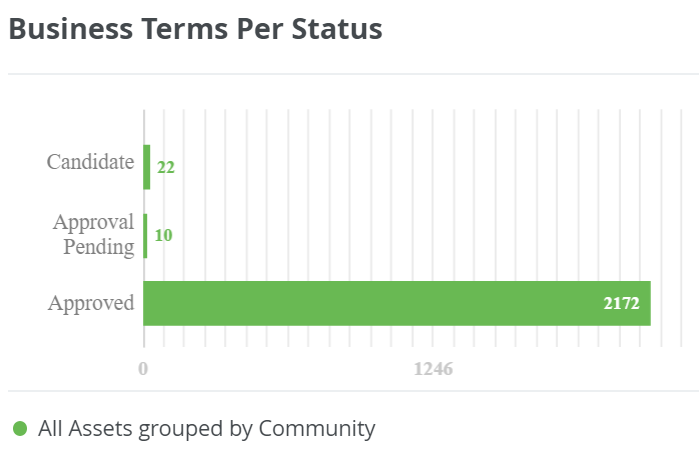
The Bar Chart widget shows advanced metrics as a bar chart on a dashboard.
Prerequisites
- To manage your own dashboards: You have a global role that has the Manage your own Views, Dashboards, Search filters global permission.
- To manage another user's dashboards: You have a global role that has the Manage shared Views, Dashboard and Search Filter global permission.
Steps
- Open the widget for configuration.
Show more information
- Open the dashboard for which you want to configure the widget.
- Click
 → Edit Dashboard.
 - If needed, drag the widget from the Widgets section to the dashboard.
- On the widget, click → Configure.
- On the Chart tab, click Create Template.
- In the Bar Chart Configuration wizard, click the type of data you want to use.
- Assets: Shows metric information about assets.
- Tasks: Shows metric information about tasks.
- In the By field, select how you want to group the data.
NoteThis setting defines how the bars in the bar chart, also known as groups, are constructed. Depending on what you select, additional fields are shown.
- If you group the data by Attribute Value, you can select only Boolean or Selection characteristic types.
- If you group the data by Community, the bar chart count includes assets from all domains in that community. However, sub-communities and their domains are not included.
- Optional, add a set of filtered data:
- Click Refine Data.
The Data Subset Editor opens.
- In the Data Subset Label field, enter a label name for the bar chart legend. For example, Business terms.
- In the Data Color field, set the color of the bar chart data by either:
- Entering the color HEX code.
- Using the color picker to manually select a specific color.
- Click the colored box on the right of the field.
- Use the circles on the bottom and right to adjust the color shade and tone.
- Click anywhere outside of the color picker to confirm the color.
- Optional, add filters to your bar chart:
- Click Apply Filter.Note
- If you add a filter, you can select only Boolean or Selection characteristic types.
- Each filter is identified by a letter. The first filter is A, if you add a second filter it is B, and so on. These letters are used in the filter formula to create the filter formula logic.
- To create filter A:
- In the first field, select the Property, Attribute, Relation, or Role type.
- In the second field, select the value (the Property, Attribute, Relation, or Role) of the first field.Example Asset Type equals Business Term
- Click Add a Filter to add more filters to the bar chart.
- Optional, adjust the Filter Formula logic as needed, using brackets ( ), AND, or OR logic. This field automatically populates based on the filters you added in the previous steps using AND logic. Example If filter A is Community equals Community 1 and filter B is Domain equals Domain 3, then the filter formula logic is A AND B. In this case, the Community in the bar chart is always Community 1, and the Domain is always Domain 3.
Operator Description AND
A result must fit all filter conditions.
Example A AND B AND C means that only a resource that fits all three filter conditions is added to the results.OR A result must fit one of the filter conditions.
Example A OR B OR C means that whenever a resource fits one of the three filter conditions, it is added to the results.( ) A result must be a combination of something inside of the parentheses and something outside of the parentheses.
Example A AND (B OR C) means that whenever a resource fits either B or C, and it also fits A, it is added to the results. Results can be a combination of either B and A or C and A resources.A filter uses the following operator precedence to filter the data:
- Operations inside parentheses
- AND operations
- OR operations
Important- Your formula may be rearranged to enhance the readability for the system. The logic you enter is maintained.
- There are limitations to the filter formula logic that can be added to the bar chart widget.
Show me the limitations…
- The AND operator can only be used on the top level of the filter formula, outside of any parenthesis. For example:
- Unsupported logic:
- A OR (B AND C)
- Supported logic:
- A AND B AND C
- Unsupported logic:
- The OR operator can only be used for filters that are looking at the same type of data. This means that the type selected in the first field must be the same for each filter surrounding the OR operator. For example:
- Unsupported logic:
- Filter A: Community equals Community 1
- Filter B: Domain equals Domain 2
- Formula: A OR B
- Supported logic:
- Filter A: Community equals Community 1
- Filter B: Community equals Community 2
- Formula: A OR B
- Unsupported logic:
- You can mention each filter only once in the filter formula.
- Unsupported logic:
- ((A AND B) OR (A AND C)) OR (A AND D)
- Supported logic:
- A AND (B OR C OR D)
- Unsupported logic:
- The AND operator can only be used on the top level of the filter formula, outside of any parenthesis. For example:
- Click Save.
- Click Apply Filter.
- Click Next.
- In the Template Name field, enter a name to identify the template.
- Select how you want the items in the bar chart to be sorted:
- Alphabetical: groups are sorted by their names.
- Numerical: groups are sorted by their value (the length of the bar).
- Click Save.
- On the Widget tab, enter the required information.
- On the widget, click Save.
- In the upper-right corner of the page, click Save.