This feature is available only in the latest UI.
If you want the user's answer to an assessment question to be copied to a specific characteristic of the assessed asset, you can use the Copy answer to assessed asset setting in the template. This setting appears in the sidebar on the Template designer tab only if there is a value in the general Asset type setting.
When is the answer copied
If the Review is required template setting is disabled, the answer is copied to the assessed asset when the assessment is completed. If it is enabled, the answer is copied when the Assessment Review asset is approved.
In both cases, however, the answer is not copied to the asset if the field becomes hidden. If you want the answer of a hidden field to be copied, select the Keep answer when hidden checkbox for the field.
Comments, such as those in a checkbox or a similar field, are never copied to an asset.
Asset characteristic
When you select the Copy answer to assessed asset checkbox in the sidebar for a field, the Asset characteristic drop-down list appears with characteristics that meet the following criteria:
- The characteristics are associated with the template's asset type, which is the value in the Asset type setting. That is, the characteristics are included in the global or scoped assignment of the asset type.
- The characteristics are compatible with the selected field. For example, if the selected field is Date Picker, only the characteristics that support a date value appear in the list. For more information, go to the next section.
If the selected field is Asset Picker, the drop-down list includes only explicit relation types that have at least one source or target asset type in common with the field's asset types (values in the field's Asset types setting).
A characteristic can be linked to only one field in a template. Once a characteristic is selected for a field, the characteristic does not appear as an option in the Asset characteristic drop-down list for other fields, even if it is compatible.
Template field and asset characteristic mapping
The following table contains the kinds of characteristics that are supported by each template field. You can find the kind of a characteristic next to the characteristic in the Asset characteristic drop-down list.
| Template field | Supported asset characteristic kind |
|---|---|
| Single-line text box | Text |
| Number | Numeric, Text |
| Checkbox |
Text, Multiple Selection Tip If the template is configured to show an additional option for the field and a user selects the additional option when conducting the assessment, the value is copied only if the kind of the selected characteristic is Text.
 |
| Radio button |
Text, Selection Tip If the template is configured to show an additional option for the field and a user selects the additional option when conducting the assessment, the value is copied only if the kind of the selected characteristic is Text.
|
| Multi-line text box | Text |
| Rich text box | Text |
| Asset picker | Explicit Relation |
|
Date picker |
Date |
|
Yes/no |
True/False |
|
Yes/no with reason |
Text |
| Decision | True/False |
| Expression | Text |
Replace answers
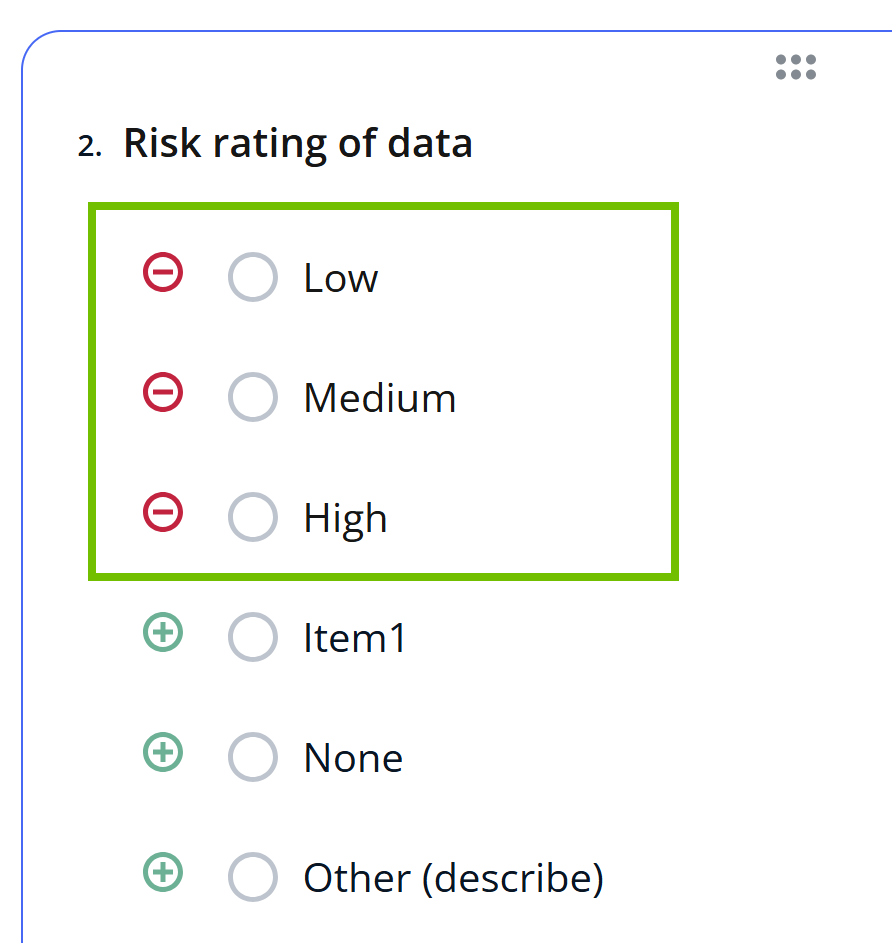
If the selected field is Checkbox or Radio Button and you select a characteristic of kind Selection or Multiple Selection in the Asset characteristic drop-down list, the Replace answers button appears in the sidebar. This button allows you to replace all the options in the Checkbox or Radio Button field with the values that are allowed for the selected characteristic.
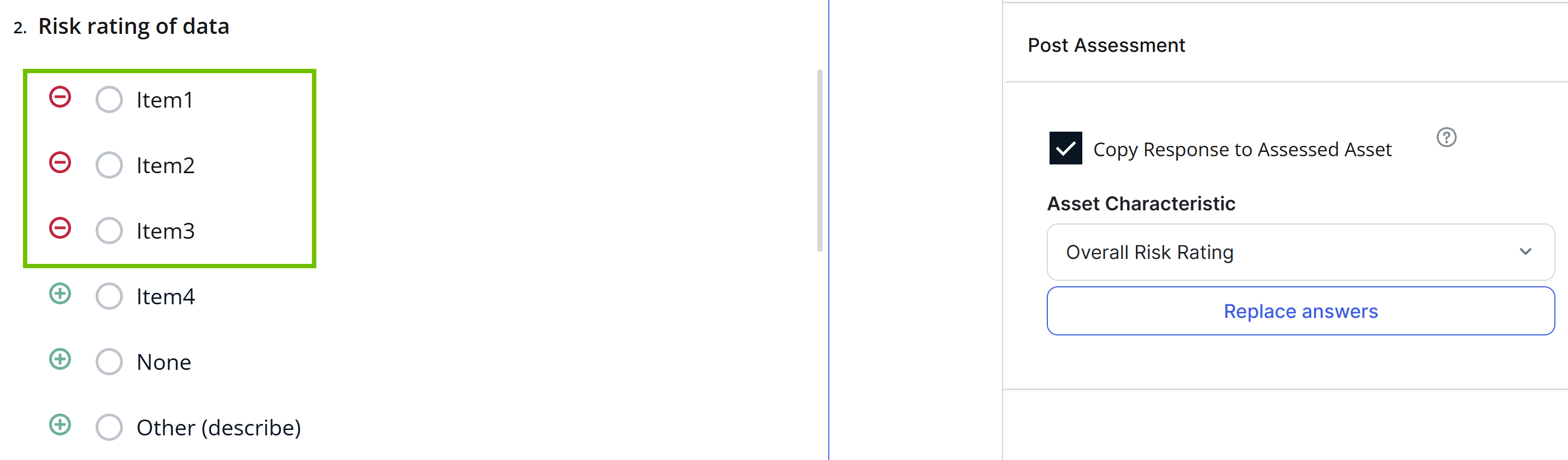
The allowed values for Overall Risk Rating are Low, Medium, and High. You want the Risk rating of data field to show these three allowed values as answer options for users. Instead of manually configuring each option for the field, you can click Replace answers. This ensures that the field's answer options match the characteristic's allowed values.
Fields that do not support copying answers
The Copy answer to assessed asset setting is not available for the following fields of a template toolbox:
- Panel
- Text
- User picker