The following table describes the template settings shown in the Logic section in the sidebar on the Template designer tab for a field.
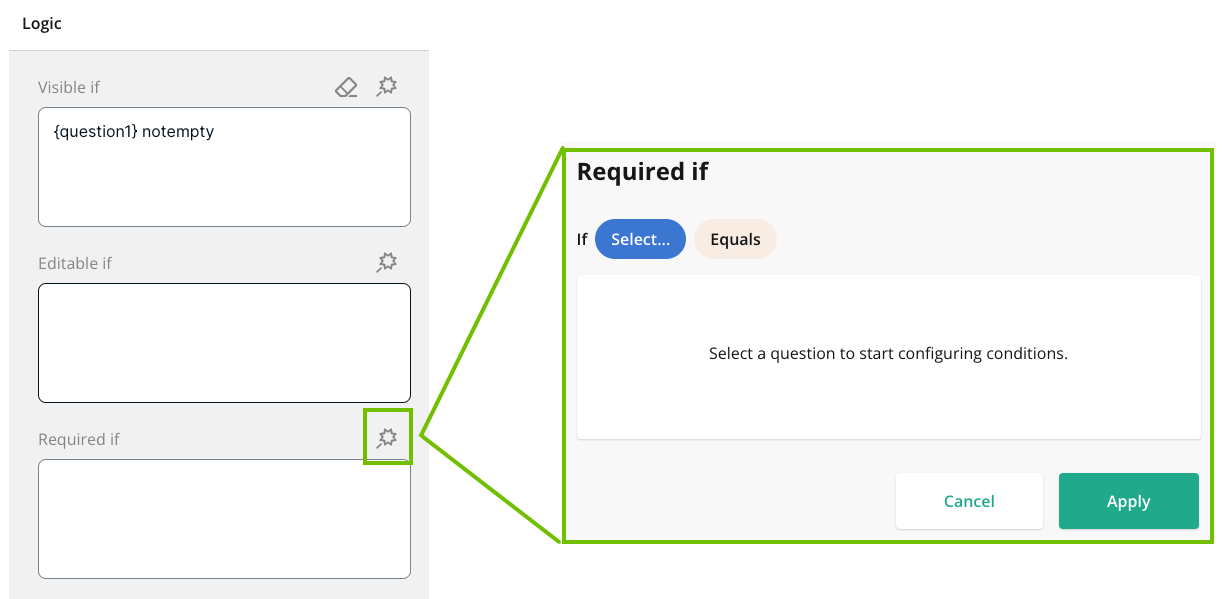
| Setting | Description |
|---|---|
| Keep answer when hidden |
By default, the answer of a hidden field is ignored by any logic conditions that reference the field within the template, and the answer isn't copied to the assessed asset. Select this checkbox to preserve the answer so it is still included in logic conditions and copied to the asset, even if the field is hidden. |
|
Visible if
|
Note The Visible if logic condition overrides the Visible template setting. |
| Editable if
|
|
| Required if
|
Note The Required if logic condition overrides the Required template setting. |
| Select | Field that determines whether or not the action (visible, editable, required) will happen. |
| Equals / All of |
Logical operator. All or some of the following, based on the type of the selected field:
|
| Value | Answer in the field that determines whether or not the action will happen. |