Data products are created and built based on specific asset types, relations, and attributes. Community workflows support the request, creation, and building of data products.
Data product asset types and operating model
Tip Using the specific data product operating model allows you to scale as Collibra data product features grow over time.
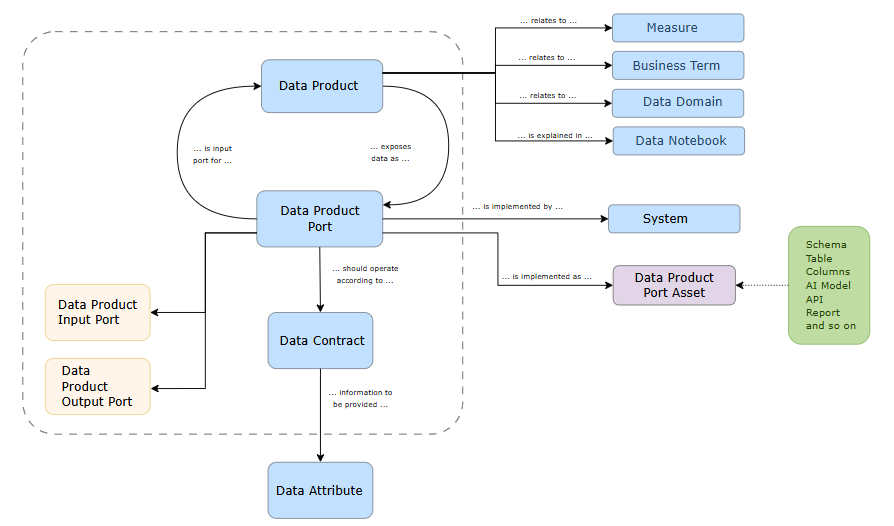
The operating model for data products includes:
- Domain type: Data Product Catalog
This domain type can host Data Products assets and their related assets, such as Data Product Ports and Data Contracts. - Asset types
- Data Product
A data product is a reusable package that provides data to answer a business question or solve a specific business problem.TipThe Data Product asset type includes default attributes and relations, and a specific asset type layout. The following asset layout widgets can be added to Data Products:
- Output Ports Viewer: Shows assets related to the data product via relation "exposes data as/is output port".
- Diagram: Shows a diagram view that shows the data product and its related assets.
- Data Categories: Shows the data categories that are exposed in the data product. Data Categories can be shown based on the data classification of the columns related to the data product. For information, go to Automatically associating assets with Data Categories via Data Classification.
- Data Product Port
A data product port defines the interface through which a data product interacts with the broader ecosystem. A link between a Data Product Port and a Data Product via the "exposes data as" relation can be considered an "output port" and a link with the "consumes data through" relation can be considered an "input port".
In advanced governance use cases, you can use the child asset types Data Product Output Port and Data Product Input Port, and their relations.
- Data Contract
A data contract defines the commitments a data product owner makes to data consumers. The data contract documents the structure, format, service level, quality, and terms of use.Example The contract can outline service-level objectives (SLOs) related to system uptime and latency for a data product. It can also include details about pipelines or data delivery mechanisms and provide information about the data, such as schema and expected quality metrics.
- Data Product
- Asset type groups
- Data Product Port Asset: Groups assets linked to data product ports.
Tip By default, only Tables are part of this group. We recommend only exposing tables, but Data Sets and Data Elements are fully supported in the community workflows if you include them in this asset type group.
- Data Product Input: The physical input for a data product.
Tip Use this asset type group only in advanced governance use cases that involve the Data Product Input Port asset type.
- Data Product Port Asset: Groups assets linked to data product ports.
- Relations
- Data Product exposes data as/is output port for Data Product Port
- Data Product Port is input port for/consumes data through Data Product
- Data Product Port is implemented as/implements Data Product Port Asset
Note When you create a diagram, you can add this relation type from the Data Product Port asset type to each asset type assigned to the Data Product Port Asset asset type group.
- Data Product Input implements/is implemented as Data Product Input Port
Tip Although this relation is still available, we recommend using Data Product Port is implemented as/implements Data Product Port Asset instead.
- Data Contract governs functioning of / should operate according to Data Product Port
- Data Contract information to be provided / is mentioned in the terms of Data Attribute
- System implements/is implemented in Data Product Port
- Data Product relates to/is related to Measure
- Data Product relates to/is related to Business Term
- Data Product relates to/is related to Data Domain
- Data Product is explained in/explains Data Notebook
-
Data attributes
Some of the specific attributes are:- Data product category: Defines whether a data product is targeting business users or more technical users. The out-of-the-box values are Derived (for business users) and Foundational (for more technical users).
This attribute is available for Data Product. - Target delivery date: Indicates the date when the requested resource should be made available.
This attribute is available for Data Product and Data Product Port. - Access method: Indicates the method that can be used to access the data.
This attribute is available for Data Product Port.Tip This attribute can be used in workflows to create data product port assets per access method. In that case, the values must reflect asset types in Collibra. For information, go to the workflows in Collibra Marketplace or follow training Set up data product workflows.
- Access instructions: Provides instructions on how to access the data.
This attribute is available for Data Product Port.

- Data product category: Defines whether a data product is targeting business users or more technical users. The out-of-the-box values are Derived (for business users) and Foundational (for more technical users).
Configure the Output ports viewer widget
You can edit the layout of the Data Product asset page, including the Output ports viewer widget.
Prerequisites
You have a global role with the Product Rights > System administration global permission.
Steps
- Open the layout page of the Data Product asset type.
-
On the main toolbar, click
 →
→
 Settings.
The Settings page opens. - Click the Operating model tab.
Operating Model settings are shown. - On the Asset types tab, in the table, select the Data Product asset type.
The asset type page opens. - In the left pane, click the relevant assignment, and then click Characteristics.
A table containing all the characteristic types assigned to the asset type is shown. - Click Edit layout.
The Edit layout page opens.
-
On the main toolbar, click
- In the layout editor, locate the Output ports viewer widget and drag it to the desired section on the asset page.Tip
- If needed, move the Output ports viewer widget to the required position using
 .
. - You can create a new section or modify an existing section's name to better fit the widget.
- If needed, move the Output ports viewer widget to the required position using
- In the Output ports viewer widget, click
 .
.
The Settings dialog box appears. - From the Available attributes pane, drag the attributes you want to see to the Selected attributes pane.
- Move the attributes to the required position using .
- Click Save.
- Click Publish.
Your changes are published and applied to all the asset pages of the asset type.
Sample data for Data Products
If the following prerequisites are in place, sample data can be shown for a table in a Data Product or Data Product Output asset:
- Sample data has been enabled and configured in your environment.
- The selected table for the Data Product Port related to the Data Product is registered in Data Catalog and sample data is available for the table.
- The user accessing the data product has the required permissions to view sample data.
Data Products in the data basket
You can allow consumers to add data products to their basket to request access to the data exposed through the data product. For information, go to Enable and configure the data basket.
Data product lifecycle
The detailed lifecycle of a data product can look like this:
- Data products can be created beforehand or requested by consumers. (Request)
- The data product is built and published.
- The requirements are defined. (Discover)
- The port details are refined. (Discover)
- The sources are prepared. (Build)
- The data product is published and made available as curated data. (Publish)
- The requestor or any data consumer can find and use the data product. (Access)
- The data product is monitored and updated when needed. (Monitor)

Available workflows
Workflows can help with the data product lifecycle: the request, creation, and access request. You can find the following data product-specific workflows in Collibra Marketplace.
Tip These workflows are published as community offerings and include dedicated documentation.
- Request Data Product: Allows users to request the creation of a new data product. The owner of the Data Product Catalog domain specified in the workflow definition receives the request.
- Data Product Request Management: Can automatically be activated when a user accepts data product ownership. It guides stakeholders through a structured, collaborative process to build and finalize the data product.
- Promote to Data Product: Allows users to create a Data Product from a Data Set asset. It links the data exposed in a Data Set to a Data Product through a new or existing Data Product Port.
- By default, this workflow is applicable only to Data Sets.
- Make sure you have a Data Product Catalog domain available in your environment before starting this workflow.
- Add port and output: Allows users to create a new Data Product Port or a new version of an existing Data Product Port from a Data Product.
- Request Assets Access: Allows users to add Data Product assets to their Data Basket for review and checkout.
This is an adapted version of the standard Request Assets Access workflow. The users who start the workflow must also have a global role with the Workflows > Participate in workflow global permission. This permission requires a Contributor license.
To activate and configure these workflows you need the following permissions:
- Product Rights > Workflow Administration
- Product Rights > System administration
Data product lifecycle example
The following life cycle example is based on the community workflows.

Related topics
About data products
Using data products