As an administrator, you can configure filter facets for Data Marketplace, and the Business Glossary and Catalog search tabs (in preview) on the search page. Filter facets let data consumers refine their search results.
The Filter facets page in Search settings has two tabs:
- Attribute facets: Add filter facets based on attribute types. Attribute facets don't apply to standalone Data Marketplace and the All results tab on the search page.
- All facets: Shows all available filter facets and lets you configure their visibility, name, order, and description.
Some out-of-the-box filter facets are available. As an administrator, you can:
- Show or hide filter facets for data consumers.
- Change the display name.
- Define the order.
- Add a description, which appears as a tooltip to data consumers.
- Create additional filter facets based on relations or attribute types for the search tabs on the search page.
Note Attribute-based filter facets don't apply to standalone Data Marketplace.
By configuring the filter facets, an administrator can ensure the following filter facets are shown, in a specific order:
- Organization: This means communities and domains
- Asset Type
- Certified
- Status
- Data Domain
Only filter facets that can apply to the search results are shown to data consumers.
Prerequisites
- The Settings landing page is enabled.
- You have a global role with the Product Rights > System administration global permission.
Steps
-
On the main toolbar, click
 →
→
 Settings.
The Settings page opens. - In the Search section, click Filter Facets.
The Filter facets configuration page opens.
- A filter facet has a Filter ID and a Filter name. The Filter name is shown to data consumers.
- Filter type refers to the source of the filter.
- System: The filter is available out of the box.
- Relation: The filter is a custom filter created via a relation index.
- Attribute: The filter is an attribute-based filter.
- The order of this list is applied in Data Marketplace and the Data Marketplace search tab on the search page. It is also used in the Catalog and Business Glossary search tabs on the search page if the Search tabs by audience setting is enabled.
- Complete the following steps to configure attribute facets:
- On the Attribute facets tab, click Add facet.
The Select an Attribute drop-down list is shown. - In the drop-down list, select the attribute you want to add as a facet.
Tip The drop-down list contains attributes of the following kinds:
- True/False
- Single selection
- Multiple selection
- Text (plain)
- Click Save.
The attribute facet is added.Tip You can add up to 10 attribute facets. - Make the filter facet available on the search page:
- Click the All facets tab.
- Optionally, in the Filter name column of the attribute facet, double-click the cell, enter the new name, and then click
 .Tip Filter name is shown in the facet pane on the search page for users. By default, the public ID of the attribute type is used as the filter name and filter ID.
 - In the Visibility column of the attribute facet, double-click the cell, and then select Yes.
- Click Save.
- On the Attribute facets tab, click Add facet.
- On the All facets tab, take any of the following actions to configure filter facets:
- If needed, change the Filter Name.
This is the name data consumers will see. - Where useful, add a description.
This description will be visible to data consumers as a tooltip (help text).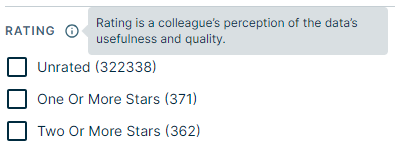
- To show a filter facet, set its Visibility value to Yes.
To hide a filter facet, set the value to No. - To always show all values for the filter facet, set the Collapsed value to Yes.
- To reorder the filter facets, use the
 icon to drag and drop a filter in the desired location.
 - To update a custom relation-based filter facet, click Open Configuration. The Open Configuration link indicates if a filter facet is based on relation indexes. The link opens the relation index configuration page.
Tip If you make the Organization filter facet visible, data consumers can refine the search results based on communities and domains defined in the Data Marketplace scope and that are relevant for the search results.
- If needed, change the Filter Name.
- Click Save.
- You can add custom filter facets based on relations. For more information, go to Managing relation indexes.
- When you define Data Marketplace categories, you can select assets based on the defined facets.
- When you define the filters for the homepage and categories, you can select from all defined facets, even the ones with Visibility equal to No.
- Data consumers have access to the filter facets when they search while in Data Marketplace. Only filter facets that can apply to the search results are shown to data consumers.