Data Marketplace provides a streamlined way for data consumers to access and discover assets relevant to their business domain. As a data consumer, you can explore assets through Data Marketplace categories, discover featured assets, search within specific scopes, and add categories as favorites to prioritize these while searching.
To open Data Marketplace from the Application menu, you must have a global role with the Product Rights > Data Marketplace global permission.
About the Data Marketplace landing page
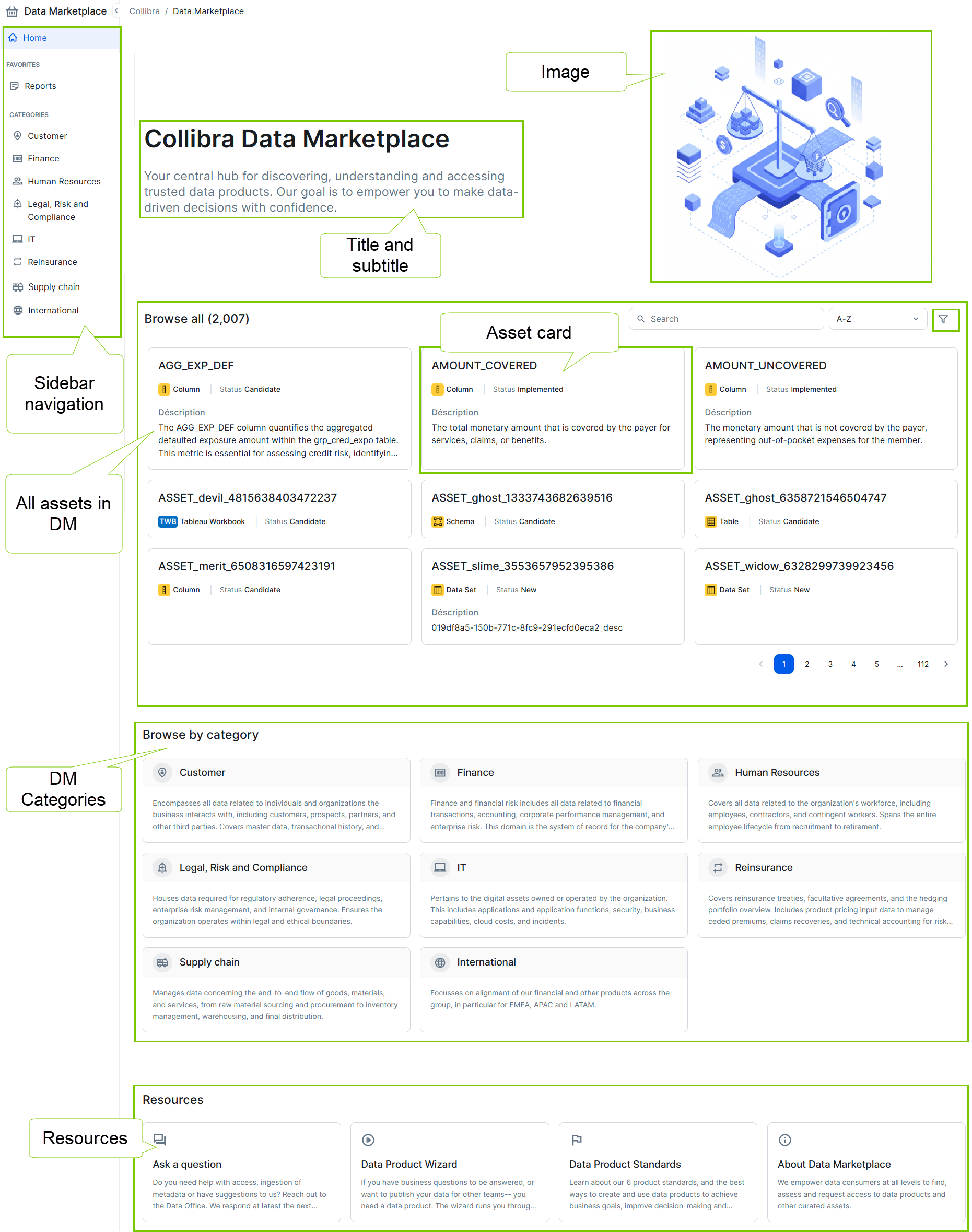
The Data Marketplace landing page, Home, is your gateway to access assets. It includes:
- Title and subtitle: Provides context for the marketplace.
- Image (optional): Configured based on your organization's branding.
- Browse all: Shows all assets in Data Marketplace to which you have access. Featured assets are ranked first when browsing and filtering and are highlighted in search results.
- Categories: Shows all available categories for structured navigation.
- Resources (optional): Provides links to helpful pages or workflows.
- Sidebar navigation: Allows quick access to your favorite and all other categories.
The Data Marketplace administrators define what you see.
Navigate Data Marketplace categories
About Data Marketplace categories
Data Marketplace categories are custom groups of assets defined by your Data Marketplace administrators to meet specific business needs. Categories offer a structured and intuitive way to organize and filter data. They help you find and access relevant data. For example, a Data Analyst can access the Financial Reporting category and find all Data Products related to that business area.
Your organization can customize the terminology used for categories in Data Marketplace. This documentation uses the default terms category and categories.
About a Data Marketplace category page
To open a category, click the category link from the landing page or click a category name in the sidebar.
On a Data Marketplace category page, you find all assets within the category, along with the category name and description.
For each asset, the admin can define which information is available on the asset card. By default, the following information is shown:
- Name of the asset.
- Definition of the asset or the Description if no definition is available.
Actions from the Data Marketplace category page
From a Data Marketplace category page, you can:
- Click an asset to open its details in the right side panel.
The page URL updates so you can bookmark the page or share the link. For more information, go to Previewing assets in Data Marketplace. - Filter the assets.
By default, maximum 5 filter options are shown. Click the Plus icon to add extra filter options.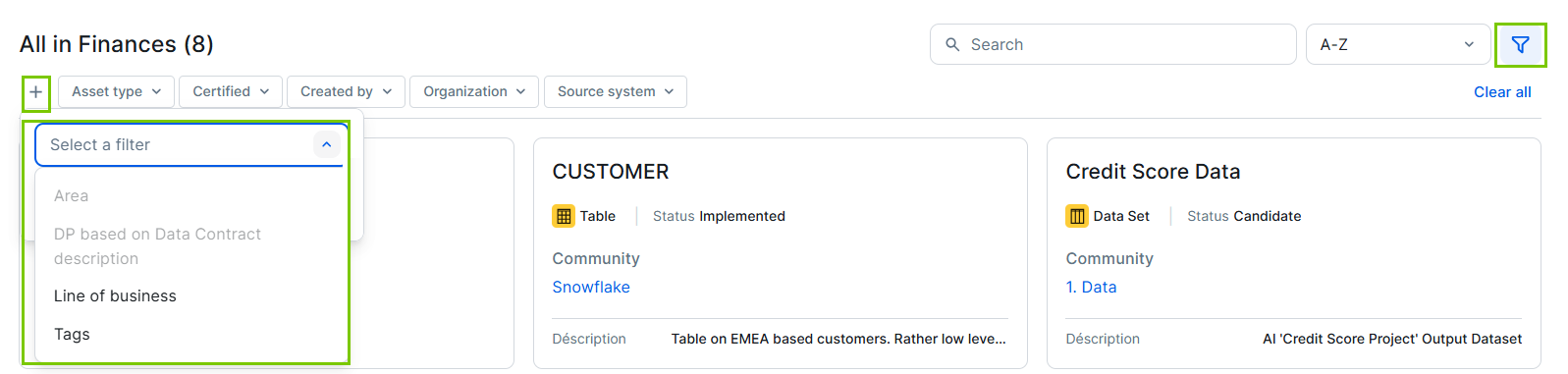
If you select multiple filters, all criteria must apply for an asset to appear in the filtered list.
If you have defined filter criteria, an icon with the number of applied criteria appears next to the Filter icon.
Click Clear all to remove the filters. - Change the sorting order of the assets through Sort. By default, assets are sorted alphabetically.
- Copy the link to a category by clicking the Copy link icon.
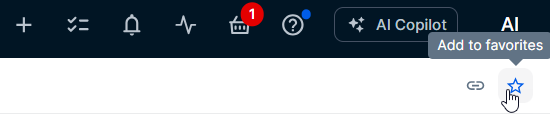
- Add a category to your favorites or remove it by clicking the Star icons Add to favorites or Remove from favorites.
Manage your favorite categories
You can define your own favorite categories. Favorite categories appear in the Favorites section of the sidebar, giving you quick access to the areas most relevant to you. When you search in Data Marketplace, assets included in your favorite categories are also prioritized, meaning they rank higher in the search results.
If your Data Marketplace administrator has enabled the personalized onboarding feature, Collibra asks you to select your favorite categories the first time you open Data Marketplace.
You can adjust your favorite categories by opening a category page and adding it to or removing it from your favorites.
Search in Data Marketplace
The Data Marketplace search function allows you to find assets efficiently within Data Marketplace.
- If you start a search from the landing page, searches are limited to the Data Marketplace scope.
Assets included in your favorite categories are ranked higher in your search results. - If you start a search from a category page, searches are limited to the assets within that specific category.
View your access requests
Click your avatar in the top navigation bar and select Access requests to track the status of any access requests you have submitted. For more information, go to Your access requests.
Related topics
- Using the data basket in Data Marketplace
- Access requests in Data Marketplace
- For Data Marketplace administrators: Setting up Data Marketplace