When you click an asset in Data Marketplace, or click Preview on a search result on the search page, the asset preview opens in a right side panel. The preview shows the asset name, type, status, and content defined by the asset page layout.
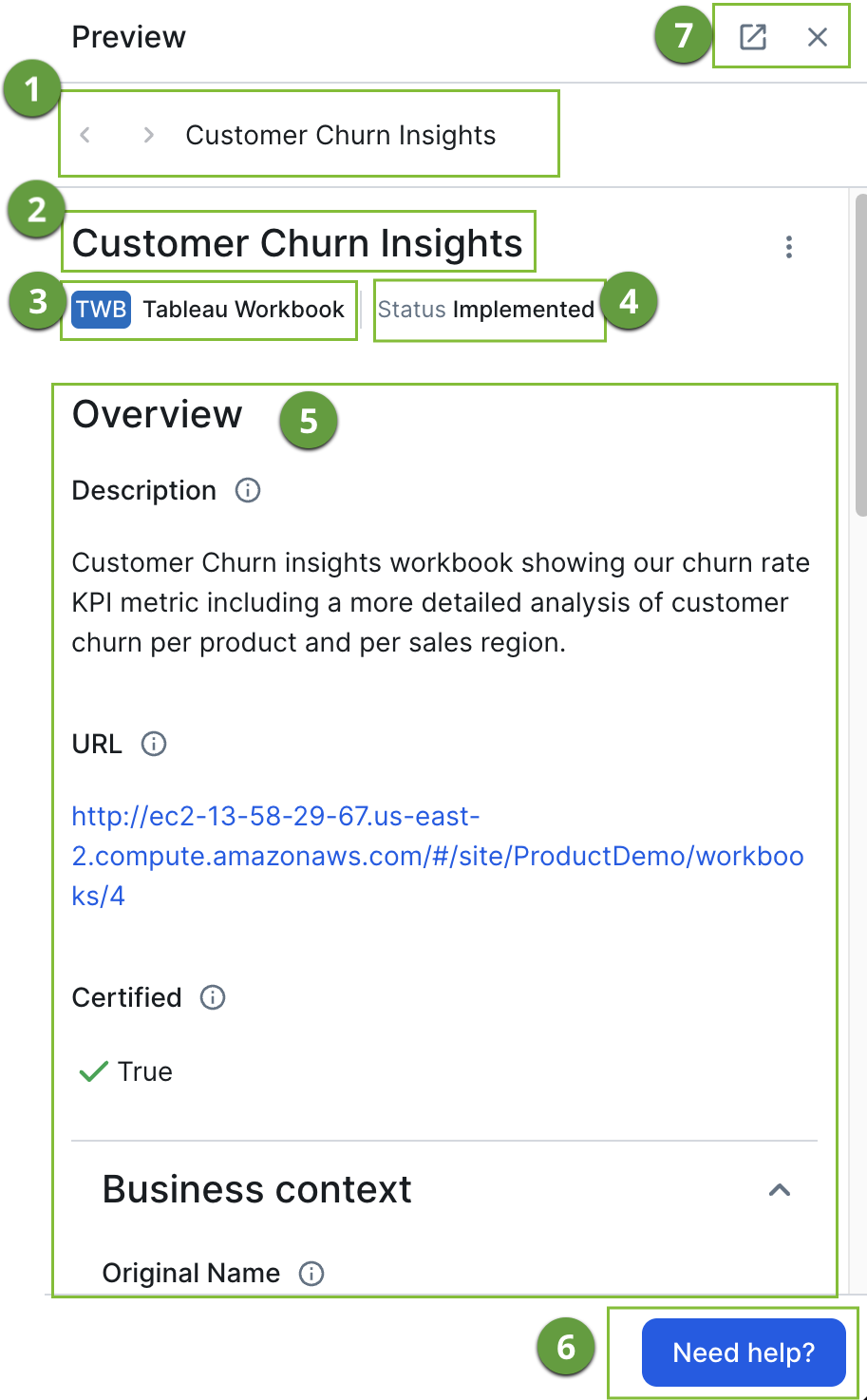
Asset preview sections
| Section | Description | |
|---|---|---|
|
|
Navigation | Click the arrows to navigate to the previous or next search result. The current asset name is shown as a breadcrumb. |
|
|
Asset title | The name of the asset. Click the More ( ) icon to access additional actions, such as bookmarking or sharing the asset URL. ) icon to access additional actions, such as bookmarking or sharing the asset URL. |
|
|
Asset type | The kind of asset you are previewing. |
|
|
Asset status | The governance status of the asset, such as Approved or Implemented. |
|
|
Content area | The content of the preview is defined by the asset page layout. The sections and fields shown depend on how the asset type is configured. Fields that have no value for the selected asset are not shown. |
|
|
Main actions | Actions are pinned to the bottom of the preview. Administrators can configure additional actions, such as Add to Basket or a workflow action on the asset page layout. The actions available to you depend on your permissions and user roles. |
|
|
Open and close | Click the external link icon to open the full asset page in Collibra. Click X to close the asset preview panel. |


Asset preview URL
The asset you're previewing is reflected in the page URL. You can bookmark the page or copy the URL from the address bar to share the asset in its Data Marketplace or category page context.
Asset views
Viewing an asset in the preview panel counts as an asset view, regardless of the asset type. These views are:
- Tracked in Usage Analytics as asset visits.
- Included in the Usage Analytics view events table with context to distinguish them from full-page views.
- Reflected in the Page visits count in the At a glance section of the asset page.