The AI Use Case asset page is a working record where you and your colleagues can collaborate as the use case evolves, to capture critical details as they become known. The asset page is intended to be a single source of truth, where stakeholders can quickly find the business value of the project and all associated risks.
Choose an image:
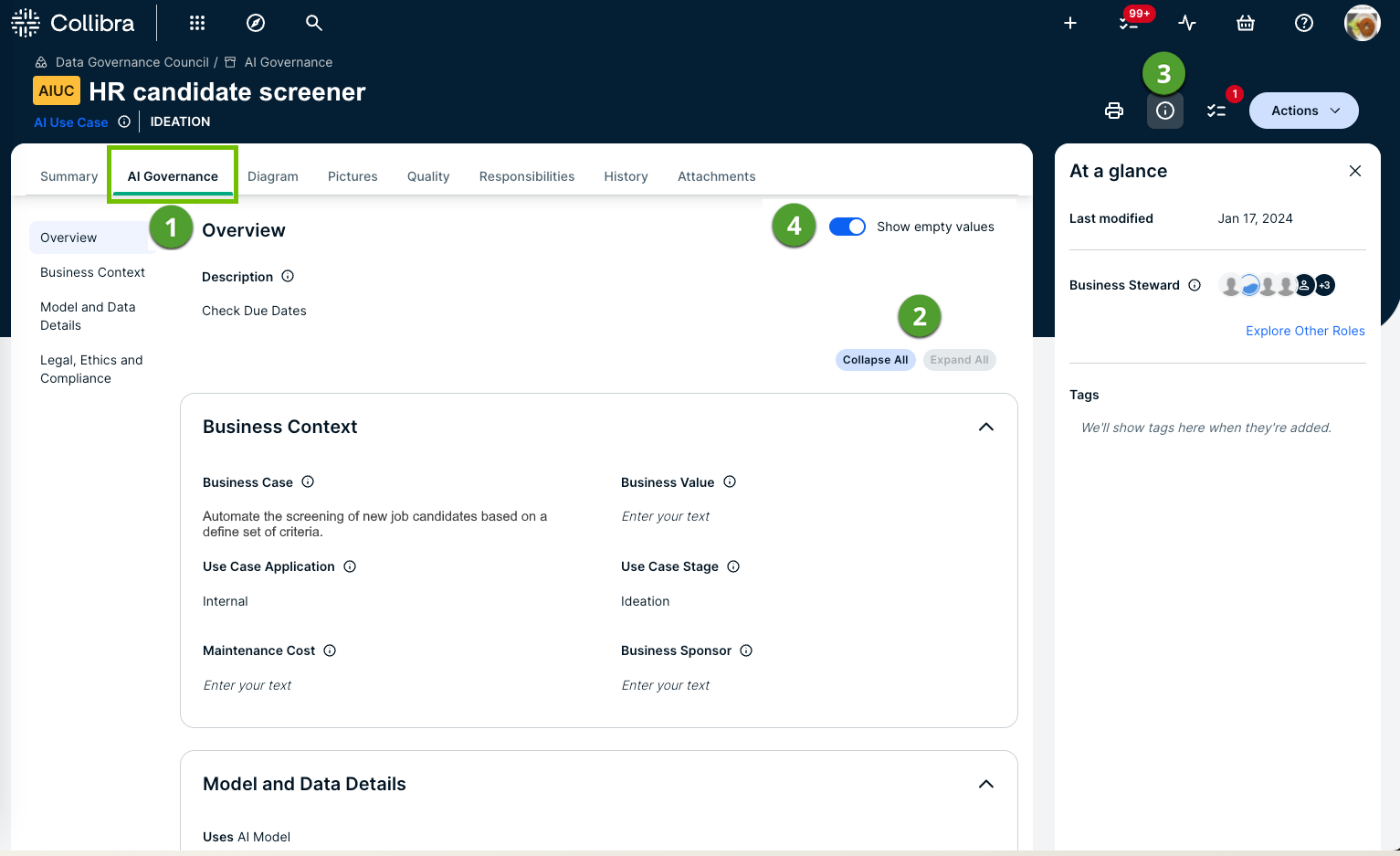
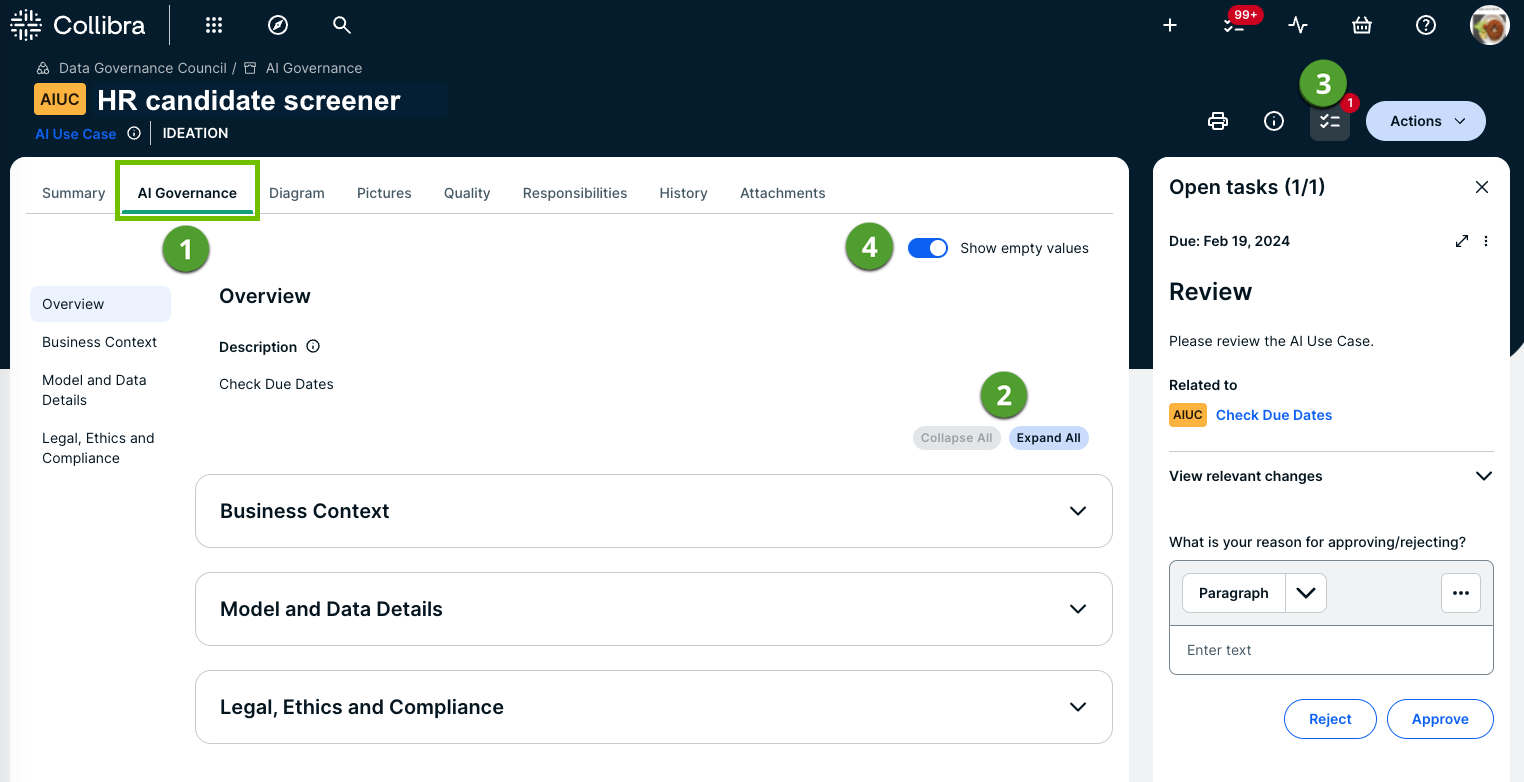
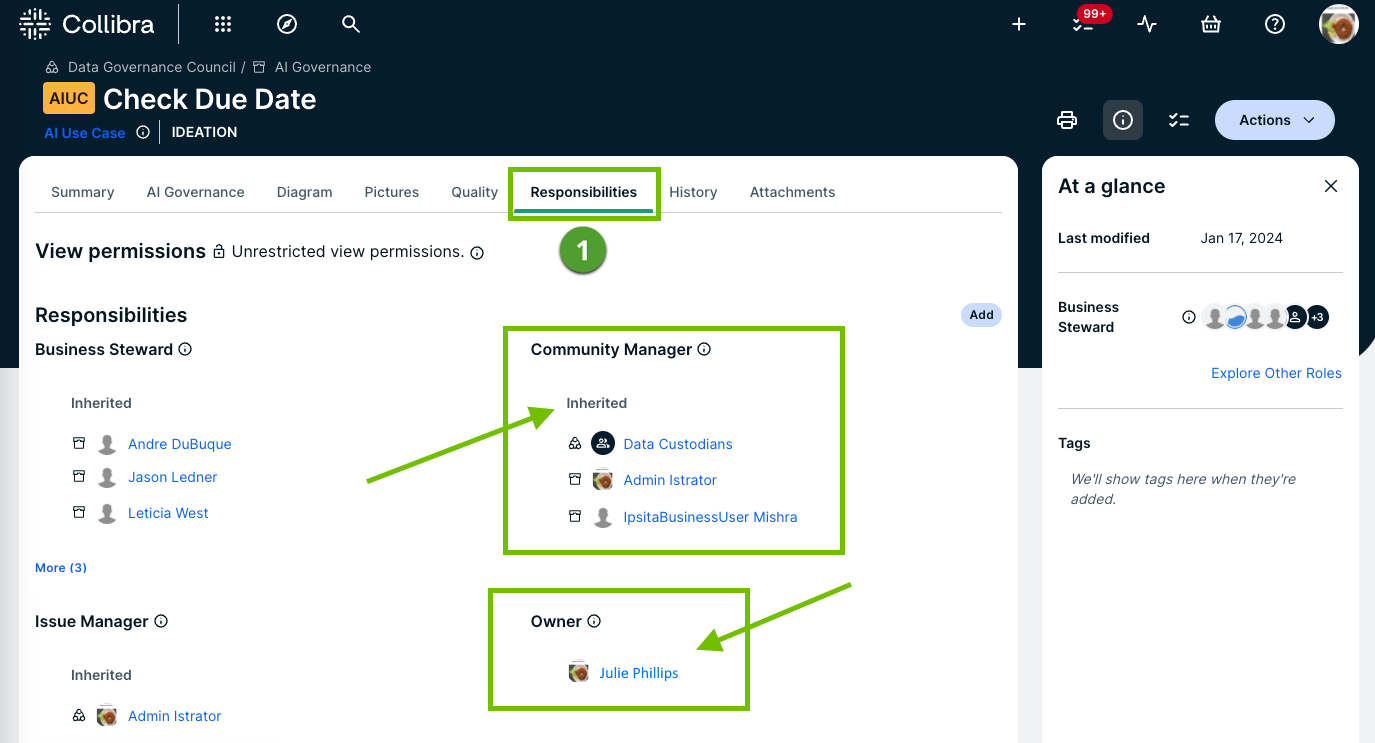
| No. | Element | Description |
|---|---|---|
|
|
AI Governance tab |
Shows all of the use case details, as provided during the assessment. The majority of the details in the body of the asset page are copied over from the associated assessment, by the Copy assessment answers to AI Use Case asset workflow, when the assessment is approved. You can edit, add and delete details. Important
Be mindful of the edits you make before the Register new AI Use Case assessment is completed and approved. When the assessment is approved, the Copy assessment answers to AI Use Case asset workflow is triggered. This workflow automatically copies many of the responses that were provided in the assessment to the AI Use Case asset page. If you edit the attributes of an AI Use Case asset before the assessment is approved, the values will be overwritten by the workflow, when the assessment is approved. For a complete list of questions for which responses are copied to the AI Use Case asset page, and how they map to the characteristics on the asset page, go to Copy assessment answers to AI Use Case asset workflow walk-through. Tip If you would like to manually fill out the details of the use case without conducting the Register new AI Use Case assessment, you can disable the Register new AI Use Case workflow in Settings. You can then add details to the asset page as you would an asset of any other type, knowing the values won't be overridden by an assessment. When you're on the asset page, remember to switch on the Show empty values option, to see all of the available fields. Note If you click on an AI use case from either of the AI Governance landing pages, the asset page opens to the AI Governance tab. If you open an AI Use Case asset via the asset page URL or via search results, the asset page opens the Summary tab. |
|
|
Collapse All / Expand All buttons |
The body of the asset page is organized into three sections:
You can expand or collapse these sections, to suit your needs. |
|
|
Responsibilities tab |
Shows the Owner that was selected when registering the use case and all inherited responsibilities. |
|
|
At a glance sidebar |
Shows information
|
|
|
Task sidebar |
Shows any tasks related to the use case that are assigned to you. |
|
|
Show empty values toggle
|
If the Show empty values option is switched off, all attribute types and relation types that don't have a value are hidden. If you want to add values in empty characteristics fields, ensure that the Show empty values option is switched on, and then click in an empty field to enter a value.
|


