Once you have created collections and used them, you may ask the following questions:
- How do I remove an asset from a collection?
- How do I change the name of a collection?
- How do I delete a collection?
You can do this via the Collections page.
For general information on collections, go to Collections.
Before you begin
Data Marketplace and Collections are enabled.
Steps
-
Click your avatar → Collections.
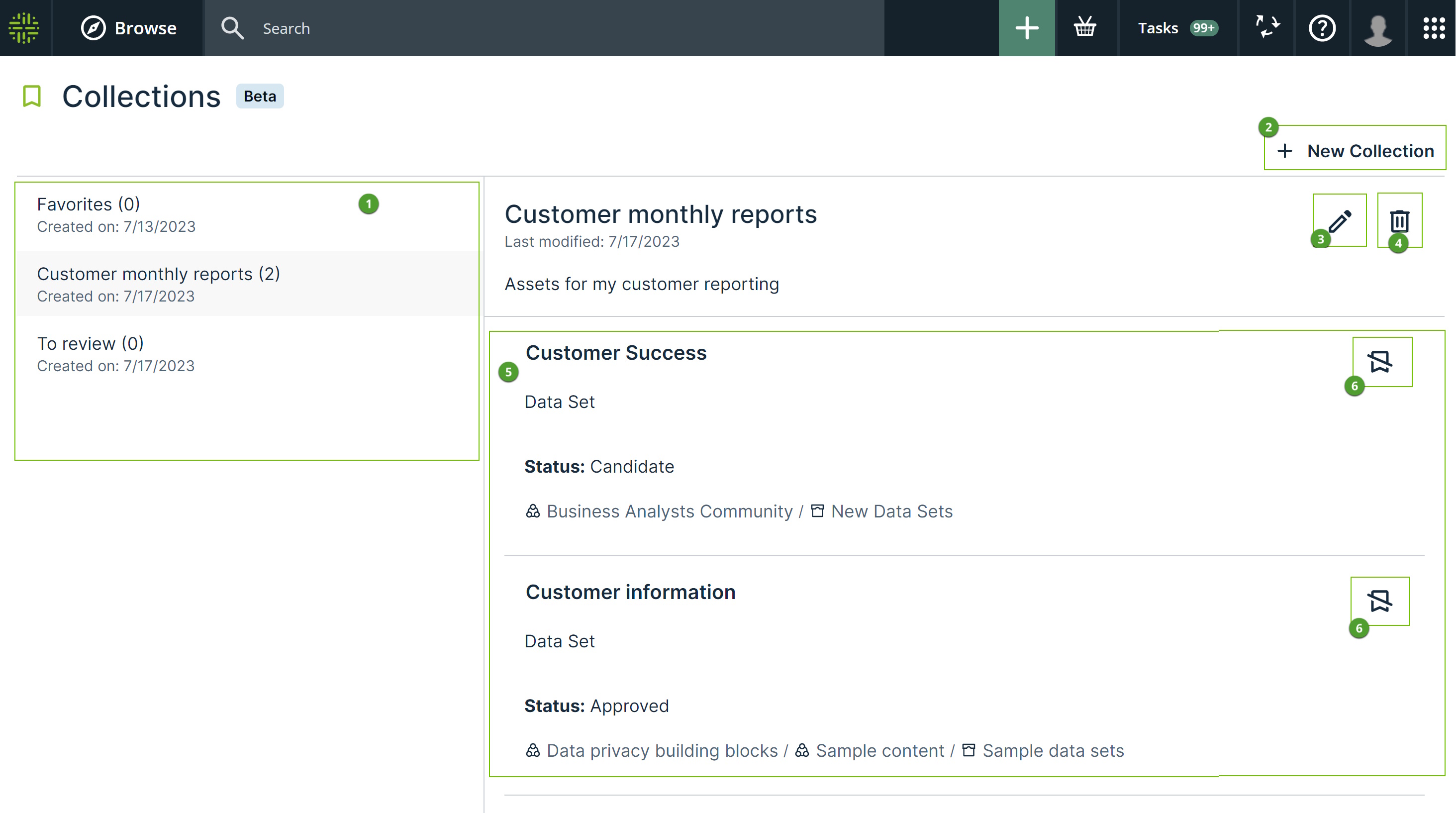
The Collections page opens. On the left-hand side, your collections are shown.
The assets in a collection are shown on the right-hand side when you click a collection name.
-
Perform one of the following actions.
- To create a new collection, click Create Collection.

Tip You can also create a collection from an asset preview. For information, go to Create a collection and add an asset from the Asset Preview (Beta)
- To change a collection name or description, click
 .
. 
- To delete a collection, click
 .
. 
Note You can't delete or rename the Favorites collection.
- To remove an asset from a collection, click
 .
. 
- To open an asset, click the asset name or right-click and select Open in New Tab.
For more information, go to Open an asset you collected (Beta).
- To create a new collection, click Create Collection.