Assets can be added to a collection or removed from a collection via the asset preview in Data Marketplace.
Before you begin
Data Marketplace and Collections are enabled.
Steps
- Open Data Marketplace.
- Search for the asset that you want to add to your collection and click the title of the asset.
The asset preview dialog opens. - Click
 .
.
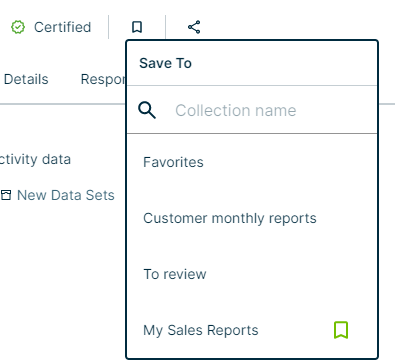
The Save To list appears.TipA colored bookmark icon in the Save To list indicates that the asset has been added to that collection already. You can remove the asset from a collection by clicking the colored bookmark icon.
- Perform one of the following actions:
- To add the asset to an existing collection, select the name of the collection.
The asset has been added. - To create a new collection and add the asset to it:
- Type the name of your new collection.
For example: My Sales Reports.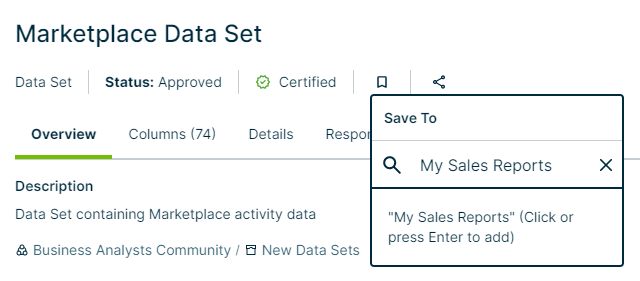
- Press Enter.
The new collection has been created and the asset has been added.
To access your collection, click your avatar → Collections. For more information, go to Manage collections (Beta).
- Type the name of your new collection.
- To add the asset to an existing collection, select the name of the collection.