Certify Report walk-through
Any signed in user can start the workflow.
Start the workflow
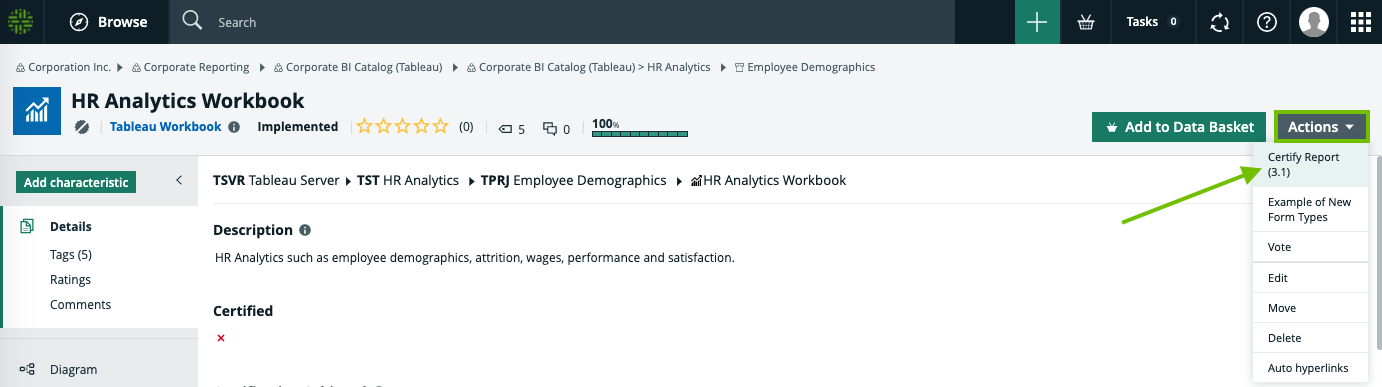
On the asset page of the report you want to certify, click Actions, and then click Certify Report.
What if the report is already certified?
It's possible that a report was certified, but no longer shows the green certified ribbon. This is the case if someone manually set the Certified attribute False. Perhaps, too, a report is shown as being certified, but you feel trust in the data could be improved by re-certifying it. In either case, you can click Certify, to re-certify the report. Otherwise, click Finish, to stop the workflow.
Want to complete the workflow another time?
Tip If, by chance, you inadvertently close the browser tab during any task the workflow, or if you want to complete the workflow at another time, you can always find any tasks assigned to you, in the My Tasks page.
Confirm ownership
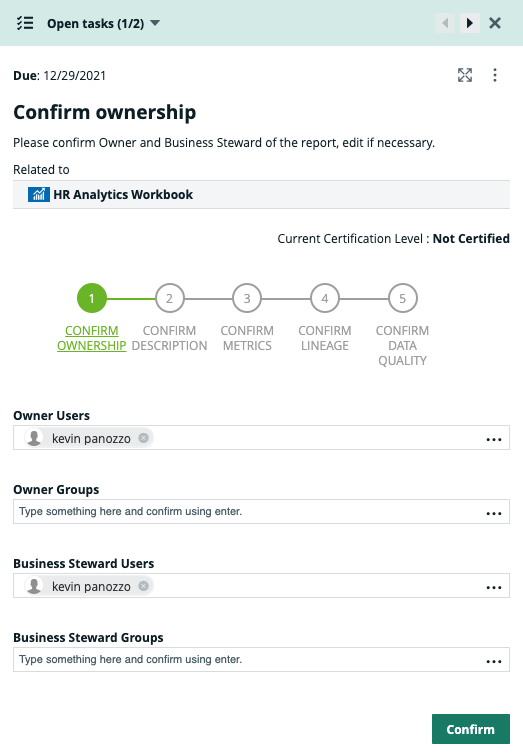
The Owner for the report is prompted to either:
- Confirm ownership as it is shown.
- Assign new ownership by typing and selecting a different user or user group.Note The newly assigned Owner or Business Steward cannot reject the assignment.
Confirm description
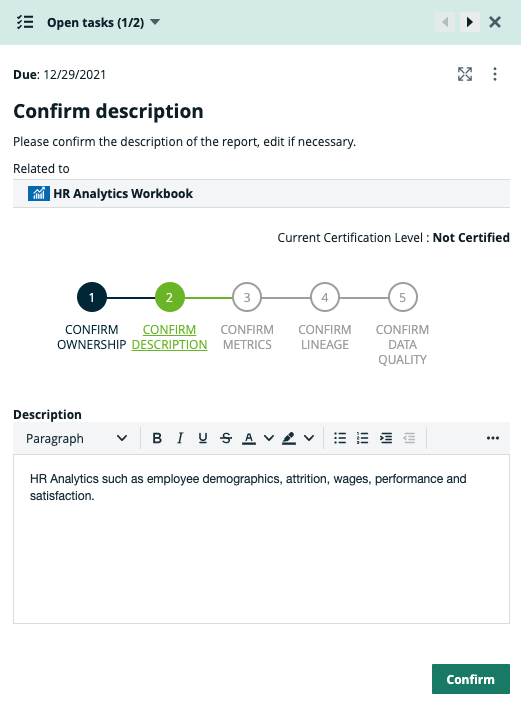
The Owner is prompted to either:
- Confirm the description as it is shown.
- Edit the description.
Confirm metrics
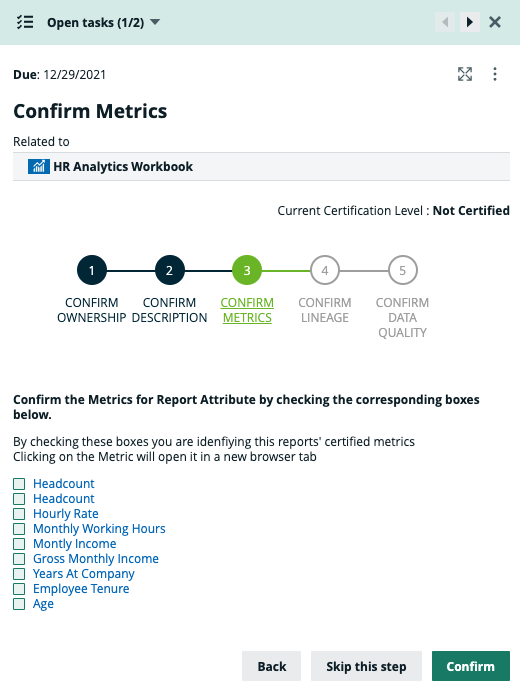
The Business Steward is prompted to confirm that all relevant metrics for related report attributes are certified.
Tip For complete information and a detailed example of how to do this, see Confirming metrics.
Confirm lineage
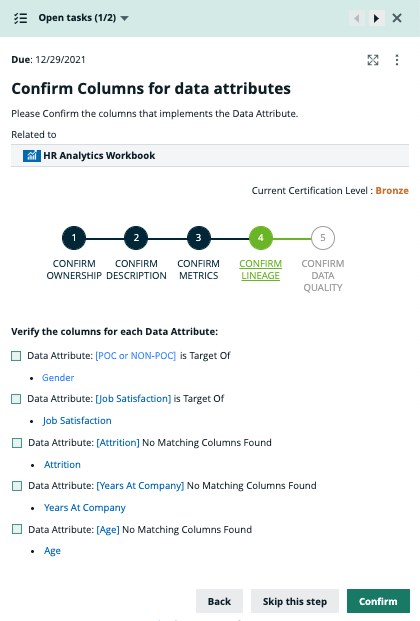
The Business Steward is prompted to confirm the lineage between the source columns and the related data attributes.
Tip For complete information and a detailed example of how to do this, see Confirming lineage.
Confirm data quality
The data quality confirmation checks if:
- The report contains data attributes.
- All columns are subject to data quality rules and metrics.
Note You do not need to click a button to run the data quality check. It is automatically run when you complete or skip the Confirm lineage task. When you arrive at the Confirm Data Quality step, as shown in the following example image, the data quality check has already been run and the results are shown.
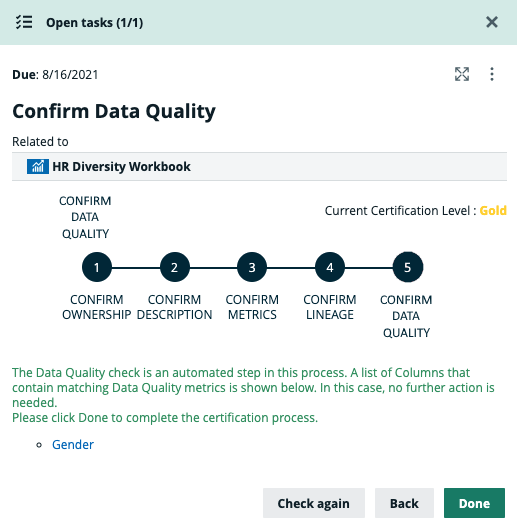
If validation is successful, click Done to end the workflow.
If validation is unsuccessful, the non-conforming elements are identified in the workflow task panel. You can make changes, as necessary, and then click Check Again.
Click Done, to end the workflow. You are not obliged to improve the data quality results before doing so; however, the report cannot attain the Gold certification level.
Results
Upon successful completion of the workflow, meaning at least the Bronze certification level was attained:
- The report is certified and the green certified ribbon is pinned to the report.
- The Certified attribute on the report asset page shows a green check mark.
- The Certification Achieved attribute on the asset page shows the certification level: Bronze, Silver or Gold.
- The Comments section on the report asset page lists the results that justify the attained certification level.
Note The status of the report does not change as you progress through the workflow.