Confirming metrics
To attain report certification, the metrics of all report attributes related to your report must be confirmed.
During the Certify Report workflow, the Business Steward for the report is prompted to confirm the certification of all KPI assets linked to a given report attribute via the following relation type:
|
Head |
Role |
Co-role |
Tail |
|---|---|---|---|
| KPI | implemented by | implements | Report Attribute |
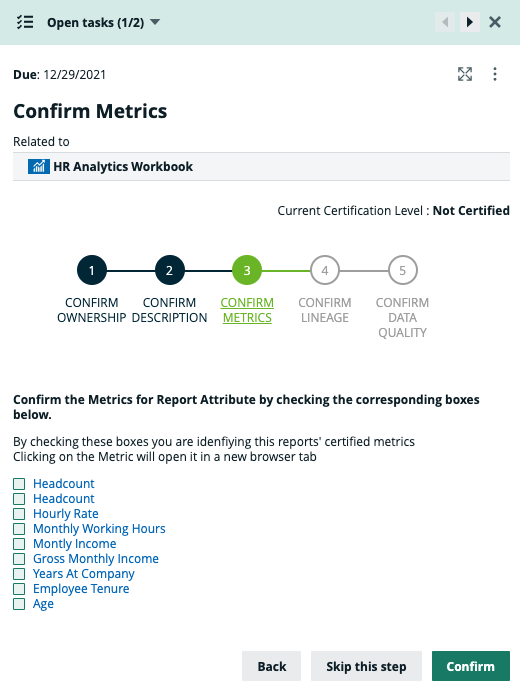
In the following example image, the Business Steward is prompted to confirm the KPIs for all report attributes.
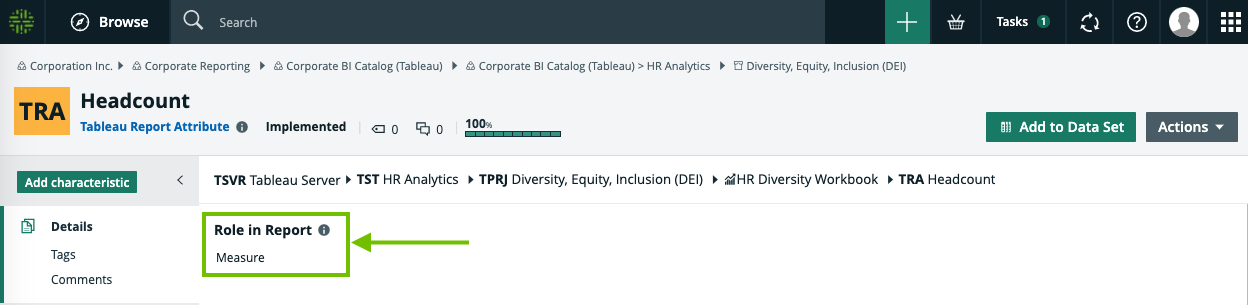
Click the report attribute name, Headcount, to open its asset page in a new browser tab.
Notice that the KPI named Headcount is certified, but Attrition Rate is not.
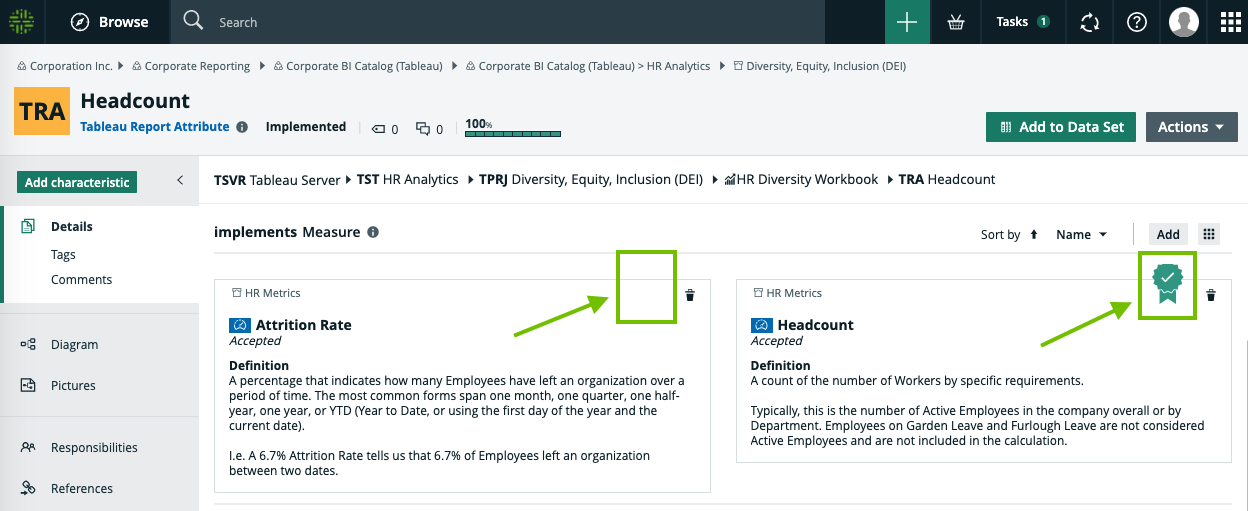
Click the name of the KPI named Attrition Rate, to open its asset page.
Click  to edit the Certified attribute, and then set the value to True.
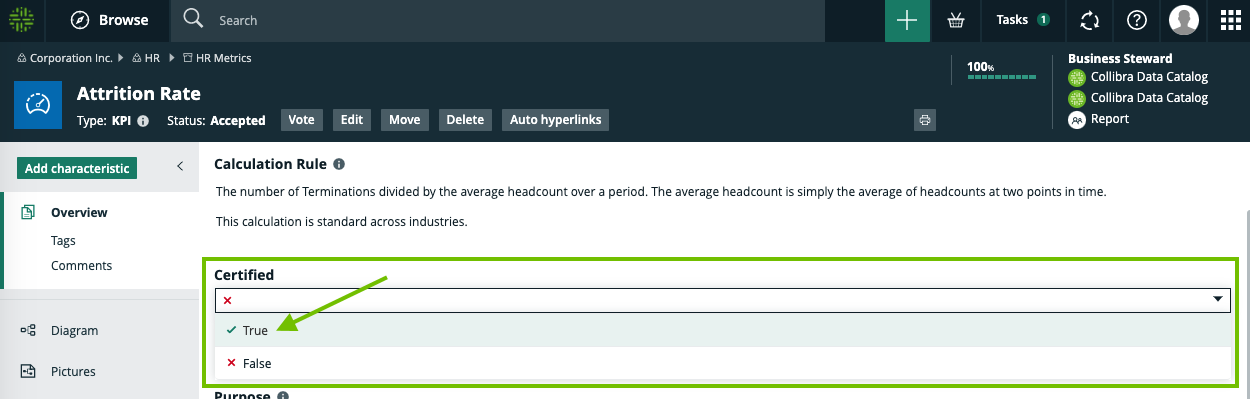
The green certified ribbon indicates that the KPI Attrition Rate is now certified.
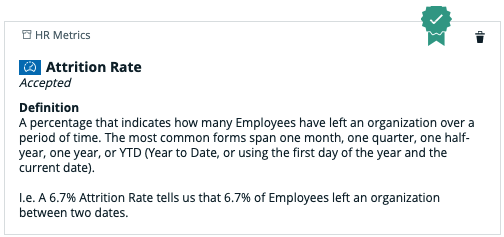
Now that both of the KPI assets linked to the Headcount report attribute are certified, return to the browser tab with the workflow task and click the checkbox next to Headcount.
Repeat this procedure for each report attribute, until all relevant metrics for all related report attributes are confirmed as certified. When you're done, click Confirm.
Note It's possible that not all metrics proposed in the workflow task are relevant. You are not obliged to select all shown metrics before clicking Confirm.
Skipping certification
In the workflow task, you can click Skip this step to bypass the confirmation of metrics and proceed to lineage confirmation. You can then use the Back button to return to this or any previous task.
Warning A report cannot be certified if one or more metrics has not been confirmed.