Confirming lineage
In the Confirm lineage task of the Certify Report workflow, the Business Steward for the report is prompted to confirm the end-to-end lineage between the database and the Tableau report. See View stitching results.
Source columns are linked to related data attributes via the following relation type:
|
Head |
Role |
Co-role |
Tail |
|---|---|---|---|
| Column | is source for | is target of | Data Attribute |
In the following example image, you are prompted to confirm that the column Gender is the correct source column for the data attribute [POC or NON-POC].
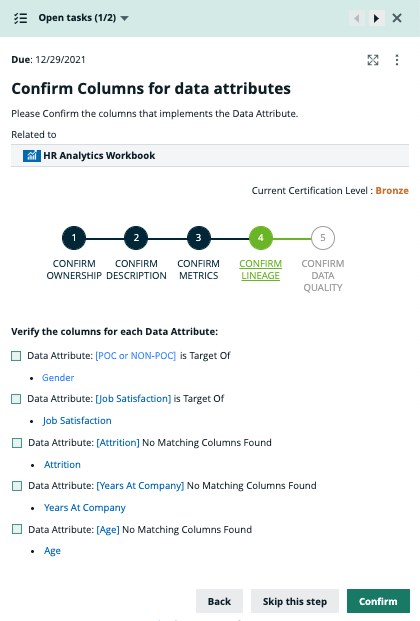
Click the column name Gender, to open its asset page in a new browser tab.
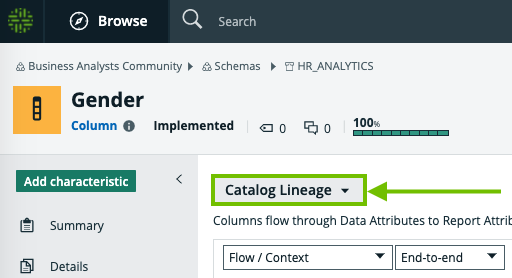
Click  Diagram. The diagram opens in the default diagram view.
In the view selector, ensure that the Catalog Lineage view is selected.
You can quickly confirm the lineage between the column Gender, the data attribute [POC or NON-POC] and the report you're certifying.
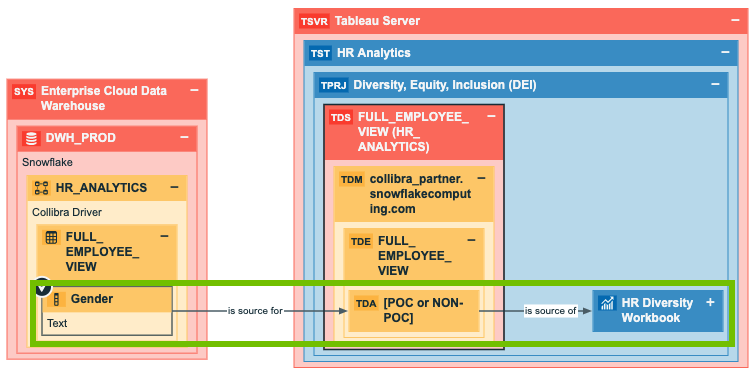
When you have confirmed the lineage, return to the browser tab with the workflow task and click the checkbox next to Gender.
If there were more columns to confirm, you would repeat this procedure for each one. When you have confirmed all columns, click Confirm.
Skipping certification
In the workflow task, you can click Skip this step to bypass lineage confirmation and proceed to the data quality check. You can then use the Back button to return to this or any previous task.
- If lineage is not confirmed, a report cannot attain better than the Silver certification level.
- If you skip the Confirm lineage task or click Confirm without having clicked the checkboxes for all applicable columns, and then pass the data quality check, the report will attain the Silver certification level.