In tile display mode, each tile in a set represents an asset. You can filter the set of tiles by using About asset filters. You can also switch to table display mode.
The following table describes the various elements shown in a Collibra tile.
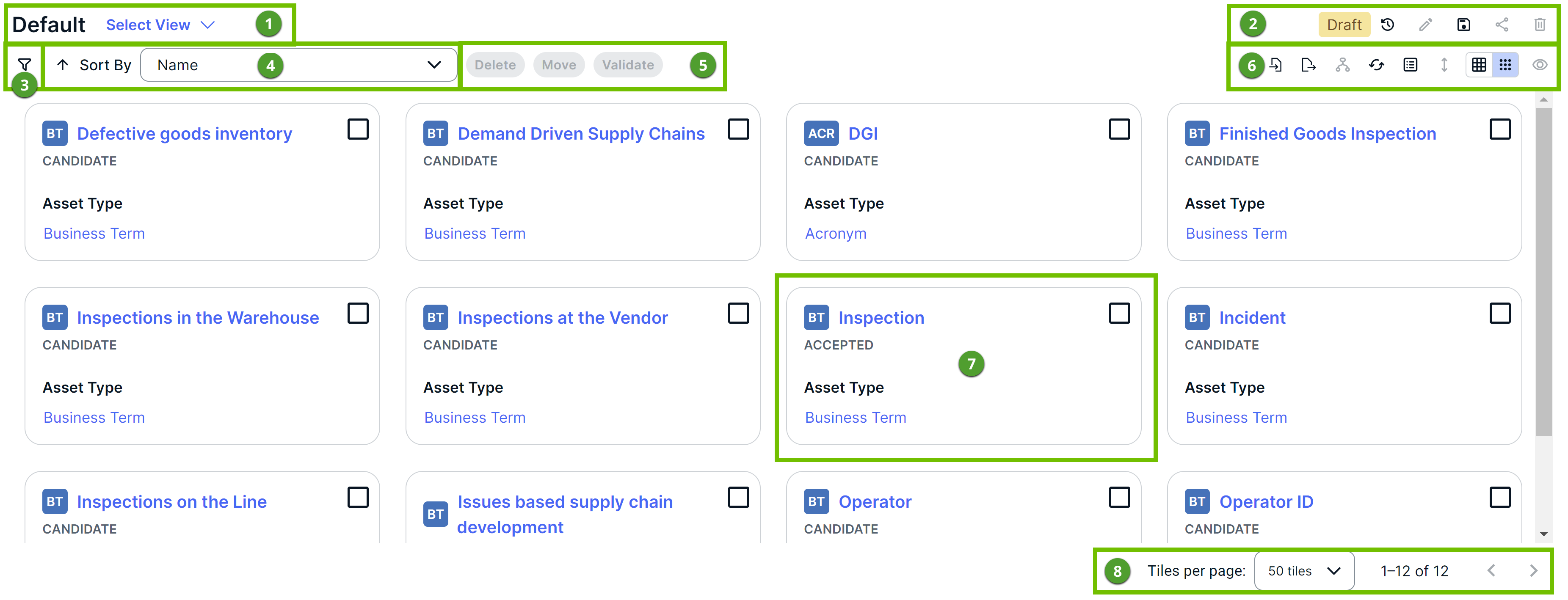
| No. | Description |
|---|---|
| 1 | Name and description (if available) of the current view, and an option to select another view. |
| 2 |
Tip The text Draft indicates that you have edited the view.
|
| 3 |
|
| 4 |
Sorts the tiles in ascending or descending order by field. |
| 5 |
The following buttons are enabled only when you select the checkboxes on the tiles:
Tip You may see additional buttons that start a workflow for the selected assets. Only the workflows that are applicable to the selected assets are available.
|
| 6 |
|
| 7 |
Asset fields and their values. |
| 8 |
|
 discards the draft and replaces it with the last published version of the view.
 edits the name and description of the view.
 shares the view.
 deletes the view.
 opens the

 refreshes the table.
- On the content toolbar, click
 → Display mode → Table.
 - Click
 .
.