Prerequisites
This section describes how to make Protect available on your Collibra environment.
- Contact Collibra Support or your representative to enable Protect on your Collibra environment.
- Ensure that the Protect global roles and global permissions are correctly set.

On the main toolbar, if you click  , Protect is shown.
Steps
AWS Lake Formation
This section describes how to establish a connection between AWS Lake Formation and Protect.
- Ingest data from AWS Lake Formation:
- Download the JDBC driver for Amazon Athena.
- Create a JDBC connection from your Edge site to Amazon Athena.Tip When creating the connection, select Generic JDBC connection. Additionally, in the Property section, set the IncludeTableTypes connection property to true. This property creates a distinction between tables and views in the ingested metadata, creating Table assets and View assets in Collibra. If the property is set to false, the metadata is ingested as Table assets.
- Add the Catalog JDBC ingestion capability to the Edge or Collibra Cloud site. Tip When adding the capability, select Catalog JDBC Ingestion. Additionally. in the JDBC Connection field, select the JDBC connection created in step 1b.
- Register and synchronize the data source.
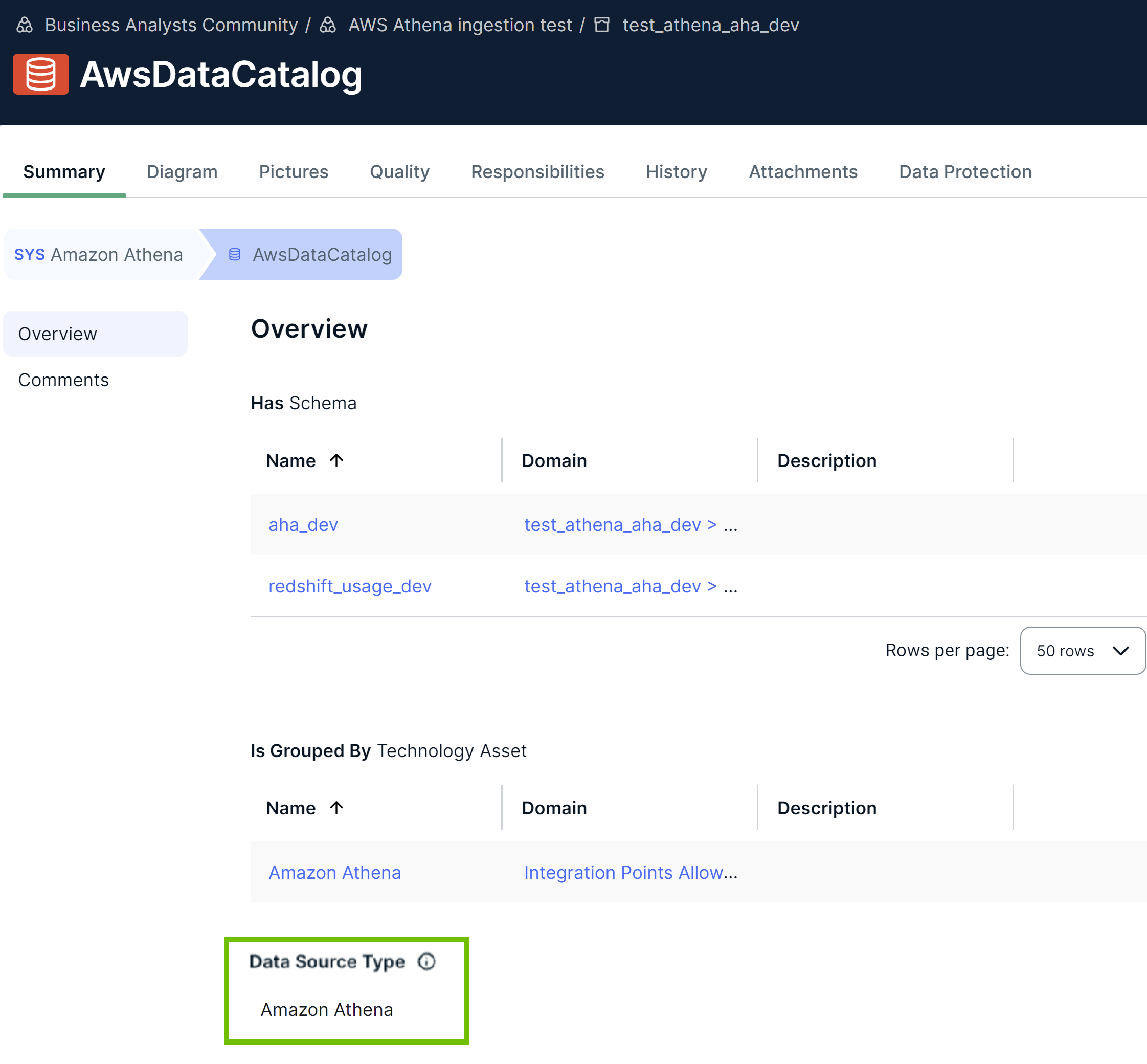
The following image shows an ingested AWS Lake Formation database. The Data Source Type attribute containing the value Amazon Athena is added to the database asset only after the Catalog JDBC ingestion process is complete.
- Create an AWS connection from the Edge or Collibra Cloud site to Amazon Athena.
Tip When creating the connection, select AWS connection. Additionally, ensure that the user associated with the Access Key ID used in the connection has the required permissions.
- Add the Protect for AWS Lake Formation capability to the Edge or Collibra Cloud site:
-
On the main toolbar, click
 →
Settings.
→
Settings.
The Settings page opens. -
In the tab pane, click Edge.
The Sites tab opens. - In the table, click the name of the site whose status is Healthy.
The site page opens. - On the Capabilities tab, click Add Capability.
The Add Capability dialog box appears. - Select Collibra Protect for AWS Lake Formation.
- Enter the required information.
Field Description Name Name to identify the capability. Description Description for the capability. AWS Lake Formation Connection AWS Lake Formation connection created in step 2 to connect to AWS Lake Formation. - Click Create.
Tip- When adding the capability, in the AWS Lake Formation Connection field, select the AWS connection created in step 2.
- Don't add more than one Collibra Protect for AWS Lake Formation capability to the Edge or Collibra Cloud site.
-
On the main toolbar, click
BigQuery
This section describes how to establish a connection between BigQuery and Protect.
- Ingest data from BigQuery:
- Download the JDBC driver for Google BigQuery.
- Create a JDBC connection from your Edge or Collibra Cloud site to Google BigQuery.Tip When creating the connection, select Generic JDBC connection. Additionally, in the Property section, set the value of the Other connection property to SupportNativeDataType=True.
- Add the Catalog JDBC ingestion capability to the Edge or Collibra Cloud site. Tip When adding the capability, select Catalog JDBC Ingestion. Additionally. in the JDBC Connection field, select the JDBC connection created in step 1b.
- Register and synchronize the data source.
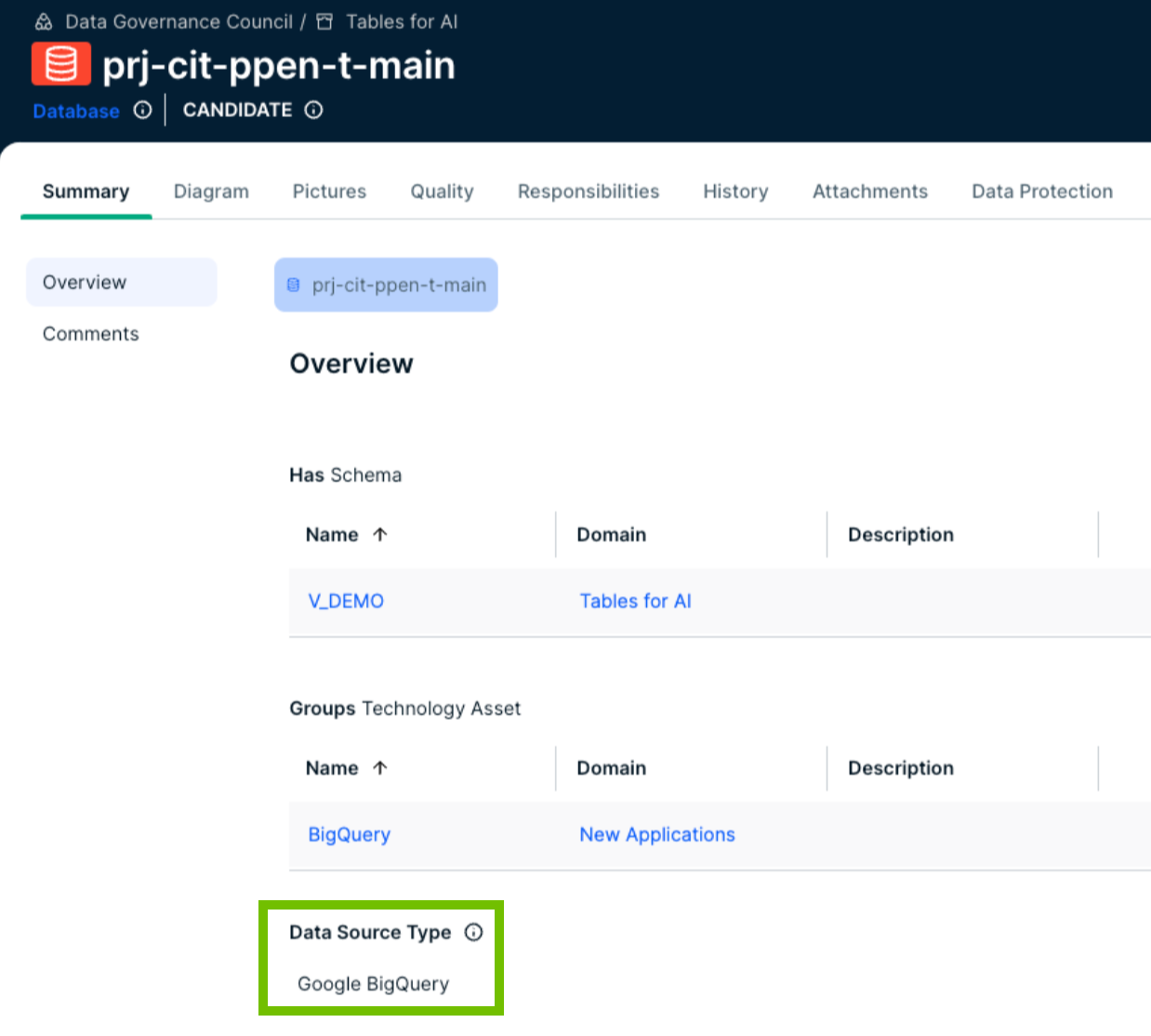
The following image shows an ingested BigQuery database. The Data Source Type attribute containing the value Google BigQuery is added to the database asset only after the Catalog JDBC ingestion process is complete.
- Create a GCP connection from the Edge or Collibra Cloud site to Google BigQuery.
Tip
- Apart from the JDBC connection created for the Catalog ingestion, Protect for BigQuery requires an extra connection, which is the GCP connection. The GCP connection is necessary because Protect requires access to certain GCP APIs that cannot be reached through the JDBC connection alone. The GCP connection ensures that data protection is enforced.
- When creating the connection, select GCP connection. Additionally, ensure that the user associated with the GCP Service Account used in the connection has the required permissions.
- Add the Protect for BigQuery capability to the Edge or Collibra Cloud site:
-
On the main toolbar, click
→
Settings.
The Settings page opens. -
In the tab pane, click Edge.
The Sites tab opens. - In the table, click the name of the site whose status is Healthy.
The site page opens. - On the Capabilities tab, click Add Capability.
The Add Capability dialog box appears. - Select Collibra Protect for Google BigQuery.
- Enter the required information.
Field Description Name Name to identify the capability. Description Description for the capability. GCP Connection GCP connection created in step 2 to connect to Google Cloud Platform. Exclude partitioned columns By default, partitioned columns aren't masked. If you want partitioned columns to be masked, clear this checkbox.
Tip Partitioned columns are those that are used to organize the data in a table by dividing the table into smaller, more manageable sections called partitions.Grant access to tables Note This feature is relevant only if the Grant Access to Data Linked to Selected Assets checkbox is selected in a data access rule that contains only row filters.By default, the Grant access to tables checkbox is cleared. This means that Protect creates policy tags with the Fine-Grained Reader role and assigns them to the BigQuery columns governed by the rule. If you select the Grant access to tables checkbox, Protect instead assigns policy tags with the BigQuery Data Viewer role to the BigQuery tables governed by the rule.
Ignore non-existing GCP principals By default, the Ignore non-existing GCP principals checkbox is selected. This means that data protection standards or data access rules don't fail due to missing or deleted groups in BigQuery. Protect ignores such groups when granting access to tables or columns. If you clear the Ignore non-existing GCP principals checkbox, standards or rules fail when they include missing groups. - Click Create.
Tip- When adding the capability, in the GCP Connection field, select the GCP connection created in step 2.
- Don't add more than one Collibra Protect for Google BigQuery capability to the Edge or Collibra Cloud site.
- If the version of the capability is 1.97.1, ensure that the JSON content in the GCP Service Account field in the GCP connection you created is Base64 encoded. You can find the version of the capability in the Version column on the Capabilities tab.
-
On the main toolbar, click
Databricks
This section describes how to establish a connection between Databricks and Protect.
- Ingest data from Databricks:
- Download the JDBC driver for Databricks.
- Create a JDBC connection from your Edge or Collibra Cloud site to Databricks.Tip When creating the connection, select Username/Password JDBC connection.
- Add the Catalog JDBC ingestion capability to the Edge or Collibra Cloud site.Tip When adding the capability, select Catalog JDBC Ingestion. Additionally, in the JDBC Connection field, select the JDBC connection created in step 1b.
- Register and synchronize the data source.
The following image shows an ingested Databricks database. The Data Source Type attribute containing the value Databricks Unity Catalog or SparkSQL is added to the database asset after the Catalog JDBC ingestion process is complete.


- Create a Username/Password JDBC connection from the Edge site to Databricks. Tip When creating the connection, select Username/Password JDBC connection. Additionally, ensure that the user associated with the Databricks role used in the connection has the required privileges.
- Add the Protect for Databricks capability to the Edge or Collibra Cloud site:
-
On the main toolbar, click
→
Settings.
The Settings page opens. -
In the tab pane, click Edge.
The Sites tab opens. - In the table, click the name of the site whose status is Healthy.
The site page opens. - On the Capabilities tab, click Add Capability.
The Add Capability dialog box appears. - Select Collibra Protect for Databricks.
- Enter the required information.
Field Description Name Name to identify the capability. Description Description for the capability. JDBC Connection Username/Password JDBC connection created in step 2 to connect to Databricks.
- Click Create.
Tip- When adding the capability, in the JDBC Connection field, select the Username/Password JDBC connection created in step 2.
- Don't add more than one Collibra Protect for Databricks capability to the Edge or Collibra Cloud site.
-
On the main toolbar, click
Snowflake
This section describes how to establish a connection between Snowflake and Protect.
- Ingest data from Snowflake:
- Download the JDBC driver for Snowflake.
- Create a JDBC connection from your Edge site to Snowflake.Tip When creating the connection, select Username/Password JDBC connection.
- Add the Catalog JDBC ingestion capability to the Edge or Collibra Cloud site. Tip When adding the capability, select Catalog JDBC Ingestion. Additionally, in the JDBC Connection field, select the JDBC connection created in step 1b.
- Register and synchronize the data source.
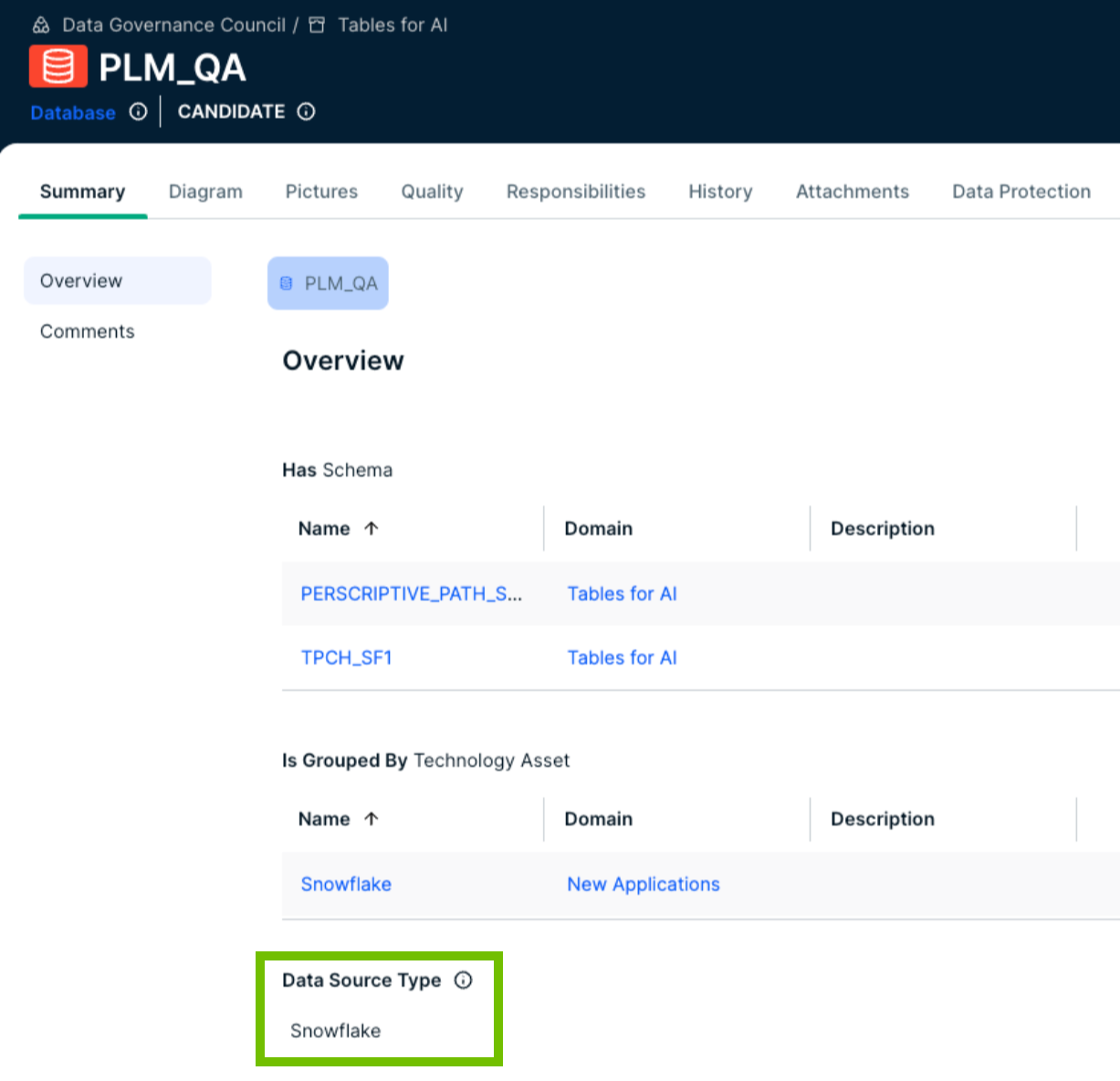
The following image shows an ingested Snowflake database. The Data Source Type attribute containing the value Snowflake is added to the database asset only after the Catalog JDBC ingestion process is complete.
- Create a Username/Password JDBC connection from the Edge or Collibra Cloud site to Snowflake.
Tip When creating the connection, select Username/Password JDBC connection. Additionally, ensure that the user associated with the Snowflake role used in the connection has the required privileges.
- Add the Protect for Snowflake capability to the Edge or Collibra Cloud site:
-
On the main toolbar, click
→
Settings.
The Settings page opens. -
In the tab pane, click Edge.
The Sites tab opens. - In the table, click the name of the site whose status is Healthy.
The site page opens. - On the Capabilities tab, click Add Capability.
The Add Capability dialog box appears. - Select Collibra Protect for Snowflake.
- Enter the required information.
Field Description Name Name to identify the capability. Description Description for the capability. JDBC Connection Username/Password JDBC connection created in step 2 to connect to Snowflake.
Snowflake role testing Determines how Snowflake checks roles (that is, Protect groups) for applying data protection standards and data access rules. This is to accommodate Snowflake users who have multiple roles.
This field contains the following options:
- CURRENT_ROLE (default): Checks only the primary role assigned to the Snowflake user.
- IS_ROLE_IN_SESSION: Checks all the roles assigned to the Snowflake user, including secondary roles, within the active session.
Default masking for everyone Determines which masking level is applied to Snowflake roles that aren't part of any standards and rules in Protect. You can use this field to protect data by default and reduce the risk of unauthorized access. For more information, go to Default masking for everyone else in Snowflake.
- Click Create.
Tip- When adding the capability, in the JDBC Connection field, select the Username/Password JDBC connection created in step 2.
- Don't add more than one Collibra Protect for Snowflake capability to the Edge or Collibra Cloud site.
-
On the main toolbar, click