Configure the standalone Data Marketplace landing page
Important This documentation describes standalone Data Marketplace. If you are using the new Data Marketplace experience, go to About Data Marketplace and the related configuration topics. The new Data Marketplace experience provides an upgraded, consumer-centric experience for discovering and accessing data assets.
As an administrator, you can optimize the landing page. You can configure the quick links that appear in the upper right corner, the links to preconfigured filters, whether discovery data must be available, and the actions.
Prerequisites
- If you want to use standalone Data Marketplace, Data Marketplace is enabled.
- The Settings landing page is enabled.
- You are an administrator in Data Marketplace.
Steps
-
On the main toolbar, click
 →
→
 Settings.
The Settings page opens. - In the Search section, click Landing Page.
Note In the latest UI, the text in the Description field is not visible anywhere.
- In the Content tab, in Quick Links, add a Label and URL for the link you want to add.
You can add a maximum of three links.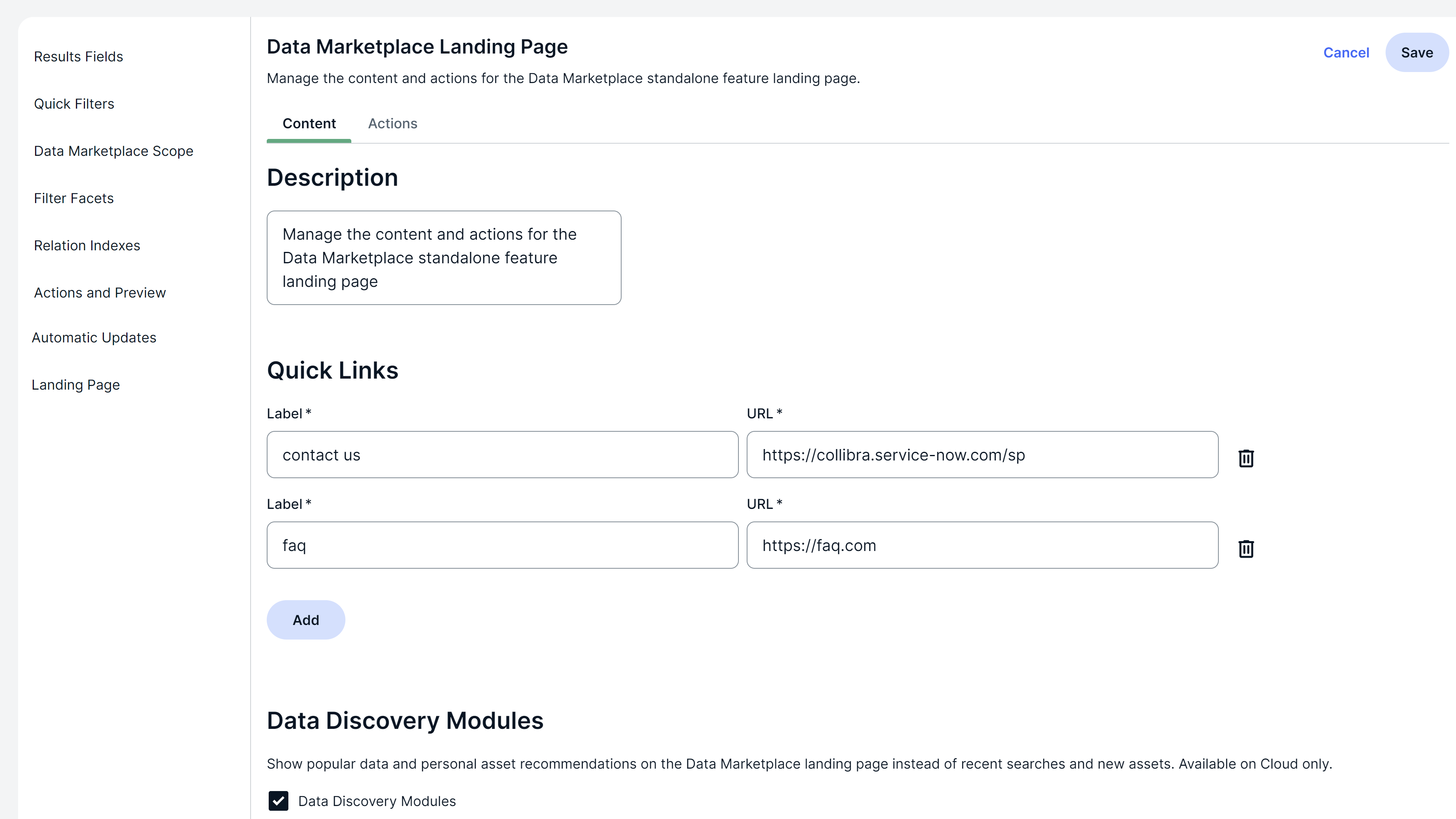
- To show Popular Data, Recent Data Visits, and Recommended Data instead of Recent searches, Recent data visits, and What's New on the landing page, select the Data Discovery Modules checkbox.Note Popular and recommended data becomes available if the Collect Application Usage Data setting in Collibra Console is enabled, which is the default state of the setting. To change this setting, you need to create a support ticket.
- To add actions, click the Actions tab.
- Select the actions.Important
You can select only global workflows for which the option Show in global create has been selected.
- Click Save.
- To add preconfigured filters, go to Configure filter tabs.