Administrators can add and remove actions. Actions in Data Marketplace start workflows. They can be made available in the following locations:
- In the search results page.
- In Data Marketplace in Search, actions are available in the Need help? section if no search results are found.
- In standalone Data Marketplace, actions are available in the Actions section.
- In the primary action area, at the bottom of an asset preview.
- In the Actions tab page in an asset preview.
Important considerations
- Even though you can still configure the actions for the landing page via Settings > Search > Landing Page > Actions, the actions are no longer visible on the Data Marketplace landing page.
- Data Marketplace shows the Start Label of the workflow as the action's button.
- The out-of-the-box Request Access workflow assumes the request starts from the data basket. To use it as a primary action or asset action in Data Marketplace, make sure to apply customizations.
- Only the initial workflow opens in Data Marketplace. If a workflow starts another workflow, the follow-up workflow doesn't open in Data Marketplace.
- Actions are based on workflows and their configuration. Workflows can be configured to be available only for certain asset types or users, and they can be paused. If data consumers don't see a specific action, the workflow configuration may give an indication on the reason.
Prerequisites
- If you want to use standalone Data Marketplace, Data Marketplace is enabled.
- The Settings landing page is enabled.
- You are an administrator in Data Marketplace.
Steps to add actions in the search results page
-
On the main toolbar, click
 →
→
 Settings.
The Settings page opens. - In the Search section, click Actions and Preview.
- Click the No Results tab.
- Select the actions.Important
You can select only global workflows for which the option Show in global create has been selected.
- Click Save.
In Data Marketplace in Search, the selected workflows are available only if no results are found.
In standalone Data Marketplace, the selected workflows are always available in the search results page.
Tip Popular action here is 'Propose New Asset'.
Steps to add the main actions in the asset preview
-
On the main toolbar, click
→
Settings.
The Settings page opens. - In the Search section, click Actions and Preview.
- Click the Main Actions tab.
- In Default Primary Action, select the default workflow to show as primary action in the asset preview.
Select None if you don't want to show a primary action. - In Primary Action per Asset Type, click Add to define a specific workflow for a specific asset type.
You can, for example, add a different workflow for asset type Data Set and asset type Report. - If you want to add a link to an external system from the asset preview, enter the Action Label and the System URL in the Link section.
- Click Save.
- You can select only resource workflows, workflows that apply to assets.
- If a data consumer doesn't have access to the workflow or the workflow doesn't apply to the asset's asset type, the action will not appear in the asset preview.
In this example, Request Access is the primary action and Log IT ticket is the link in the asset preview.
You cannot customize the Go to Asset Details action.
Steps to add actions in the Actions tab page in the asset preview
-
On the main toolbar, click
→
Settings.
The Settings page opens. - In the Search section, click Actions and Preview.
- Click the Actions tab tab.
- Select the actions. Important
- You can select only resource workflows, workflows that apply to assets.
- If a data consumer doesn't have access to the workflow or the workflow doesn't apply to the asset's asset type, the action will not appear in the asset preview.
Tip Popular actions here are 'Request access', 'Request documentation', and 'Subscribe to asset'.
- Click Save.
In this example, the Create Issue workflow is available in the Actions tab page of an asset preview.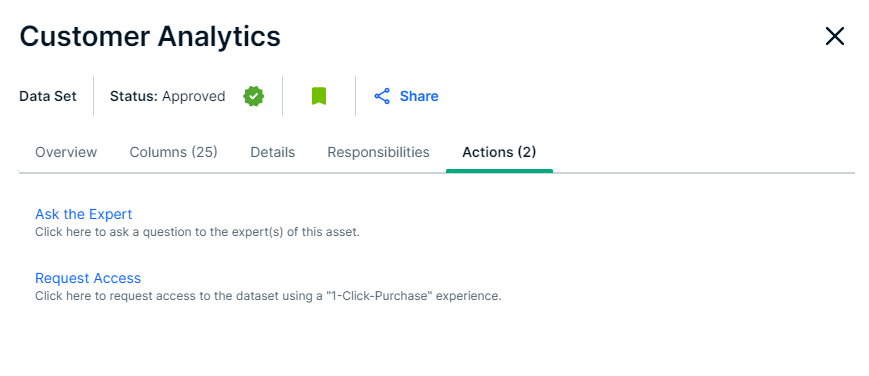
Continue the Data Marketplace configuration
Via the Actions tab, you can also define which asset types users can add to the data basket.