Important This documentation describes standalone Data Marketplace. If you are using the new Data Marketplace experience, go to About Data Marketplace and the related configuration topics. The new Data Marketplace experience provides an upgraded, consumer-centric experience for discovering and accessing data assets.
Depending on your setup, the defined filter facets and their order appear in different locations, such as:
- Standalone Data Marketplace
- Data Marketplace search tab on the search page
- Catalog search tab in on the search page, if the Search tabs by audience setting is enabled
- Business Glossary search tab on the search page, if the Search tabs by audience setting is enabled
Some out-of-the-box filter facets are available. As an administrator, you can:
- Show or hide filter facets for data consumers.
- Change the display name.
- Define the order.
- Add a description, which appears as a tooltip to data consumers.
- Create additional filter facets based on relations.
- Create additional filter facets based on attribute types for the search tabs on the search page.
Note Attribute-based filter facets don't apply to standalone Data Marketplace.
Example
By configuring the filter facets, an administrator can ensure the following filter facets are shown, in a specific order:
- Organization: This means communities and domains
- Asset Type
- Certified
- Status
- Data Domain
Tip
Only filter facets that can apply to the search results are shown to data consumers.
Prerequisites
- The Settings landing page is enabled.
- You have a global role with the Product Rights > System administration global permission.
- For standalone Data Marketplace:
Steps
-
On the main toolbar, click
 →
→
 Settings.
The Settings page opens. - In the Search section, click Filter Facets.
The Filter facets configuration page opens.
Note The page shows the following tabs:- Attribute facets: You can add filter facets based on attribute types. For more information, go to Attribute filter facets. Attribute facets don't affect standalone Data Marketplace.
- All facets: Shows the list of all available filter facets.
- A filter facet has a Filter ID and a Filter name. The Filter name is shown to data consumers.
- Filter type refers to the source of the filter.
- System: The filter is available out of the box.
- Relation: The filter is a custom filter created via a relation index.
- Attribute: The filter is an attribute-based filter, which doesn't appear in standalone Data Marketplace.
- The order of this list is applied in standalone Data Marketplace and the Data Marketplace search tab on the search page. It is also used in the Catalog and Business Glossary search tabs on the search page if the Search tabs by audience setting is enabled.
- Perform one of the following actions:
- If needed, change the Filter Name.
This is the name data consumers will see. - Where useful, add a description.
This description will be visible to data consumers as a tooltip (help text).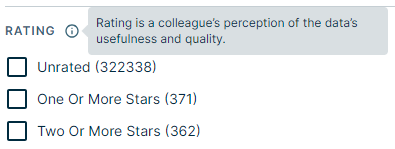
- To show a filter facet, set its Visibility value to Yes.
To hide a filter facet, set the value to No. - To always show all values for the filter facet, set the Collapsed value to Yes.
- To reorder the filter facets, use the
 icon to drag and drop a filter in the desired location.
 - To update a custom relation-based filter facet, click Open Configuration. The Open Configuration link indicates if a filter facet is based on relation indexes. The link opens the relation index configuration page.
- If needed, change the Filter Name.
- Click Save.
Tip If you make the Organization filter facet visible, data consumers can refine the search results based on communities and domains defined in the Data Marketplace scope and that are relevant for the search results.
Note Search API doesn't support custom filter facets, such as those based on relations and attribute types. If a saved filter that includes custom facets is used in Collibra Browser Extension, they are excluded from the filter.
- You can add custom filter facets based on relations. For more information, go to Managing relation indexes.
- If you are configuring standalone Data Marketplace, continue the Data Marketplace configuration.