Collibra shows asset information on the Data Marketplace landing and category pages in the form of asset cards.
Data consumers can click an asset card to open the asset preview in a right side panel, where they can review asset details and take actions such as adding the asset to their basket or requesting access, without leaving the Data Marketplace.
By default, an asset card includes the asset Name and the Description. As an administrator, you can define which asset information is shown in an asset card through Settings > Data Marketplace > Asset cards.

You can configure the information in the header, body, or footer.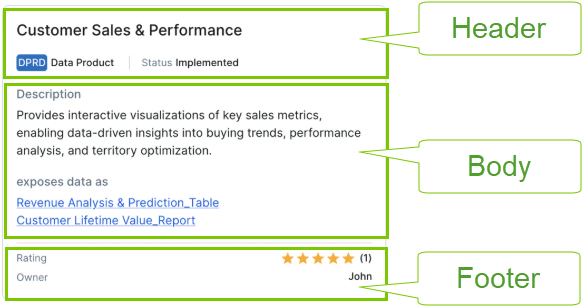
Prerequisites
- You have the SysAdmin global role.
- You have a global role with the Product Rights > System administration global permission.
Steps
-
On the main toolbar, click
 →
→
 Settings.
The Settings page opens. - Go to Data Marketplace > Asset cards.
The Asset cards page opens. Here you can define the content in the header, body, and footer of the card.
The Pro tips button provides useful information while defining the asset cards.Note It can take up to 15 minutes for an update of an attribute name, relation name, or relation source/target asset type name to be reflected in the asset card fields configuration options.
- Update the card as needed.
- In Header, switch on the information that you want to show and switch off the information that you don't want to show.
You can't remove the asset display name from the asset card. - In Body, switch the description field off if you don't want to show the description.
- If needed, add up to 3 additional fields from attributes, relations, or responsibilities to the card.
To add a field, click Add field at the bottom of the page.
To remove an attribute or relation field, click Delete. To remove a responsibilities field, click the More ( ) icon and select Delete.
 - To configure whether inherited responsibilities appear on the card, click the More () icon next to a responsibilities field and select Edit. In the Edit '[Rolename]' role dialog, switch the Display inherited responsibilities toggle on.
This setting is off by default. When it's off, the asset card shows only direct responsibilities for the role.
When this setting is on:- An Inherited chip appears in the responsibility field when inherited responsibilities are configured to appear on the asset card.
- The asset card shows both direct and inherited responsibilities for the role, with direct responsibilities listed first.
- If the same person has the role both directly on the asset and through inheritance from a parent domain or community, the person appears only once on the asset card.
- You can place the description and the 5 additional fields in the body or footer of the card by dragging and dropping them to the desired location. Tip
- Relations are shown as clickable links in the body, and as plain text in the footer.
- Use the body for longer content such as descriptions or relation lists and the footer for more compact metadata such as owner and rating.
- In Header, switch on the information that you want to show and switch off the information that you don't want to show.
-
Click Save.
The asset card content selection is applied to asset cards shown in Data Marketplace and in the Data Basket. Note that any additional fields aren't currently reflected in the Data Basket.
Images on asset cards
You can display images on Data Marketplace asset cards by using the out-of-the-box Report Image attribute. When you add the Report Image field to the card, an image area appears in the header area. If an asset has an image in its Report Image attribute, the image is displayed. If it doesn't, the image area remains empty.
Managing Data Marketplace categories