Core concepts
Before using Data Access, it is helpful to understand its building blocks. The following concepts form the foundation of how Data Access connects to your external systems and governs who gets access to what.
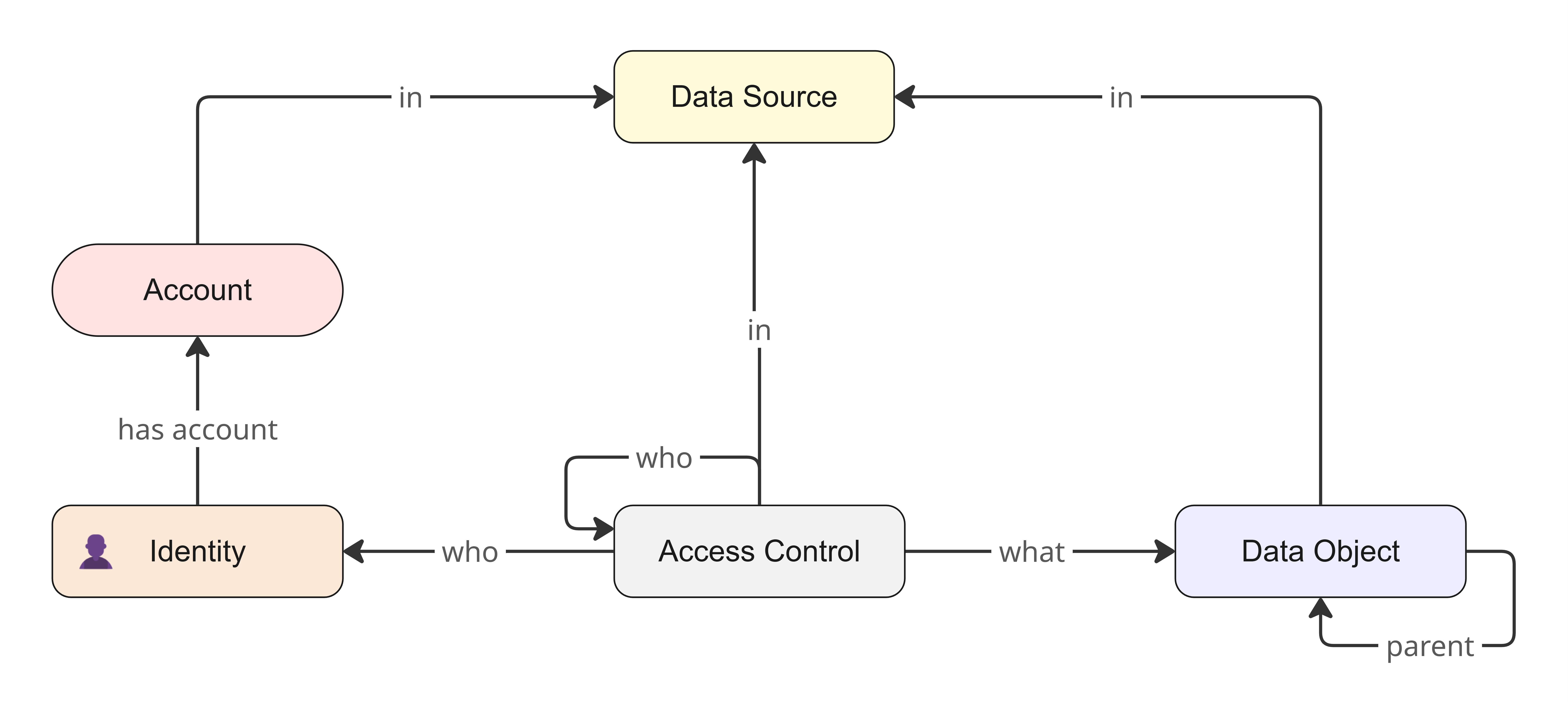
Data sources and data objects
A data source is an instance of your external system within Data Access, for example, a BigQuery project, a Snowflake account, or an identity store such as Microsoft Entra ID. An external system is also called the underlying or target data source.
A data object is any individual element within a data source, such as a database, schema, table, view, column, folder, or file. Every data object belongs to a single data source. Data objects are organized in a hierarchy under their data source. For example, in Snowflake, the hierarchy looks as follows:
- Data source: The top-level connection, for example, Snowflake.
- Database: The specific database within the data source.
- Schema: The logical grouping of tables within the database.
- Table (or view): The specific set of rows and columns within the schema.
- Column: The most granular level of data, for example, the Credit Card Number cell.
Connector
A connector is the code that Collibra deploys within an Edge capability to establish and manage the connection between Data Access and your external system. Connectors declare the configuration parameters that they need to function. Data Access uses these parameter definitions to dynamically render the appropriate user interface controls when you add a data source to Data Access. A single connector supports multiple data sources of the same type. For example, you can have five Snowflake data sources that use the same Snowflake connector.
Accounts, identities, and groups
Data Access automatically maps a user's multiple accounts from different data sources to a single, unified profile called an identity, based on email address. You can use identities as beneficiaries in access controls to define who gets access to data. This lets you grant identities access across multiple data sources simultaneously.
A group is a collection of identities that is imported directly from your data sources. As with individual identities, you can use groups as beneficiaries in access controls to efficiently manage data access.
Access controls
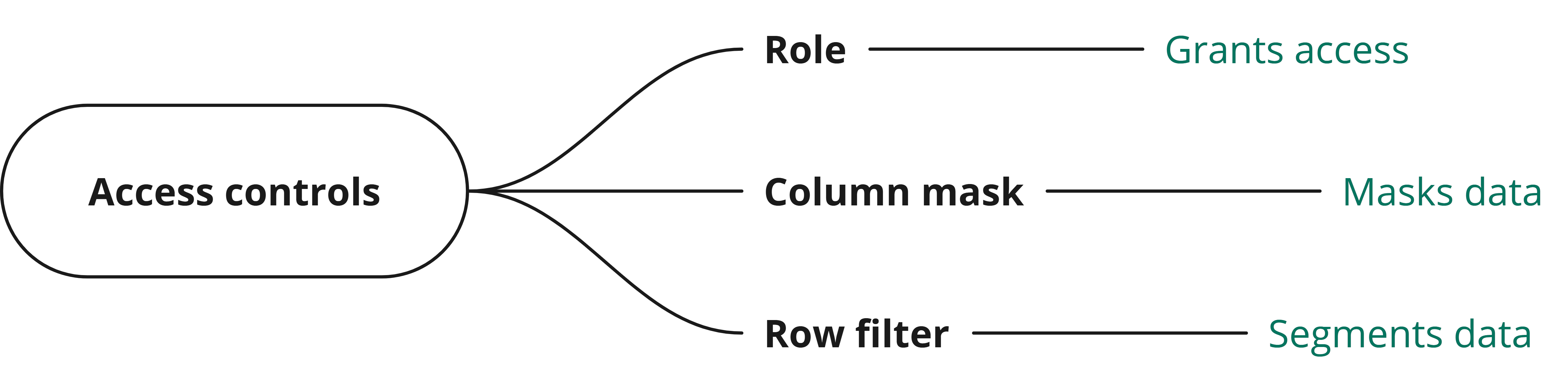
An access control is an abstract representation of who gets access to what. Data Access has the following types of access controls:
- Role: Grants the beneficiaries permissions, such as Read or Write, to interact with specific data objects. Roles in Data Access are not the same as global or resource roles.
- Column mask: Masks the data in specific columns for everyone except the beneficiaries, who see unmasked data in the columns.
- Row filter: Hides all the rows in specific tables or views from everyone except the beneficiaries, who see only the rows that meet specific filter criteria.
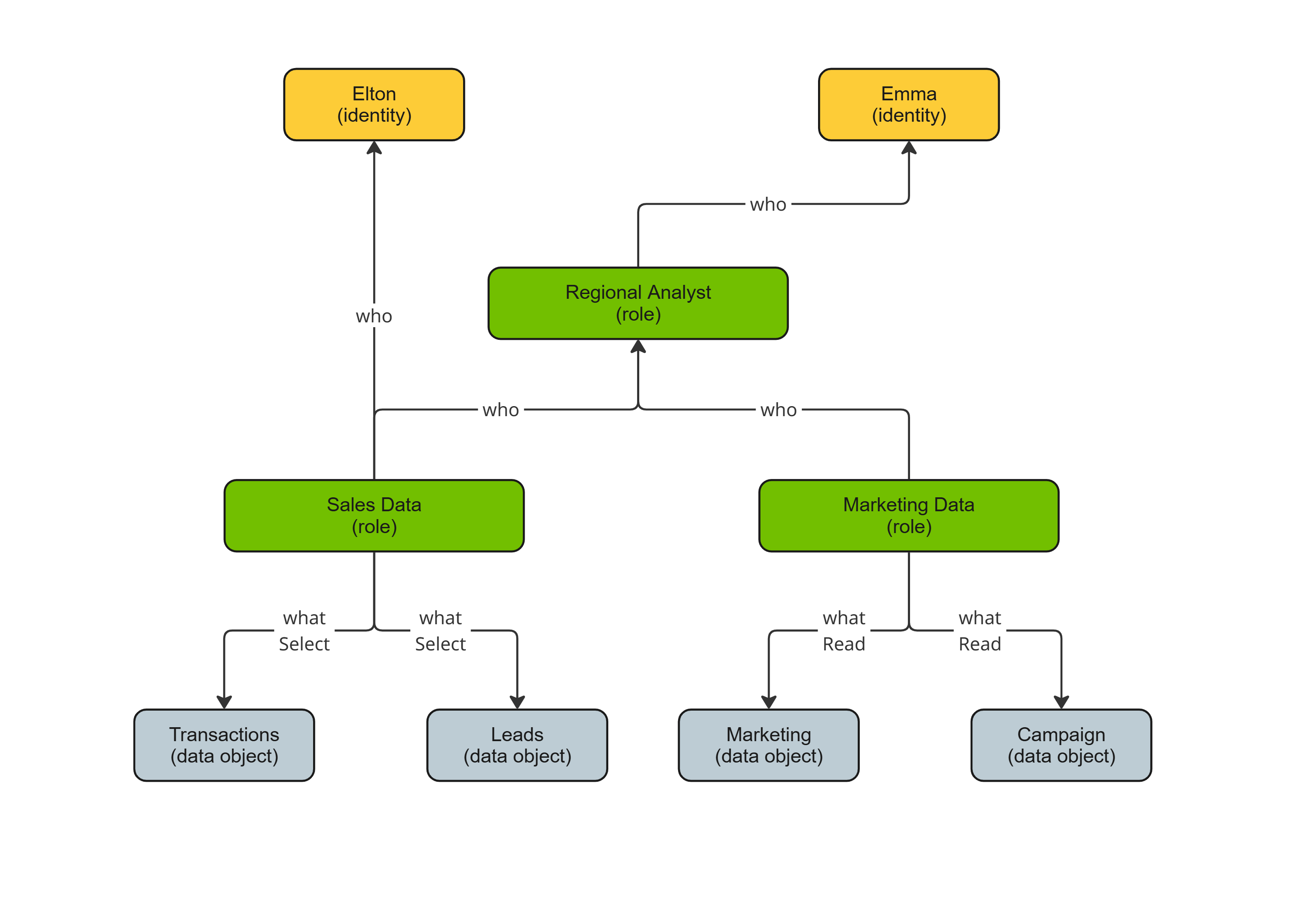
Inheritance
You can also link access controls together in an inheritance structure to provide more powerful, layered access management. Inheritance lets you reuse permissions or beneficiaries across multiple access controls. For example, you can create a high-level functional role that inherits access from several lower-level roles, or you can link a column mask to a role so that the beneficiaries of that role see unmasked data.
Sync
Synchronization connects Data Access to your target data source. It runs in two directions:
- Inbound: Pulls data objects, accounts, groups, and access controls from your data source into Data Access.
- Outbound: Pushes access controls that you create or update in Data Access to your data source.
You activate synchronization by adding your data source to Data Access.
Tags
A tag is a key-value pair that provides context to an entity, for example, Department:Finance, where Department is the key and Finance is the value. Tags are imported from your data sources during synchronization, and they are read-only in Data Access. They are available for data objects, groups, and identities. You can use tags to filter entities when you search in Data Access, and to define dynamic rules in access controls.
Ownership and access requests
Ownership establishes who has authority and control over data sources, data objects, and access controls. Ownership also grants specific administrative privileges, such as the ability to view an access control's beneficiaries, or to manage the synchronization schedule for a data source.
Whenever you add a data object or an access control that you do not own to your access control, an access request is automatically generated for the owner's approval to ensure proper authorization.